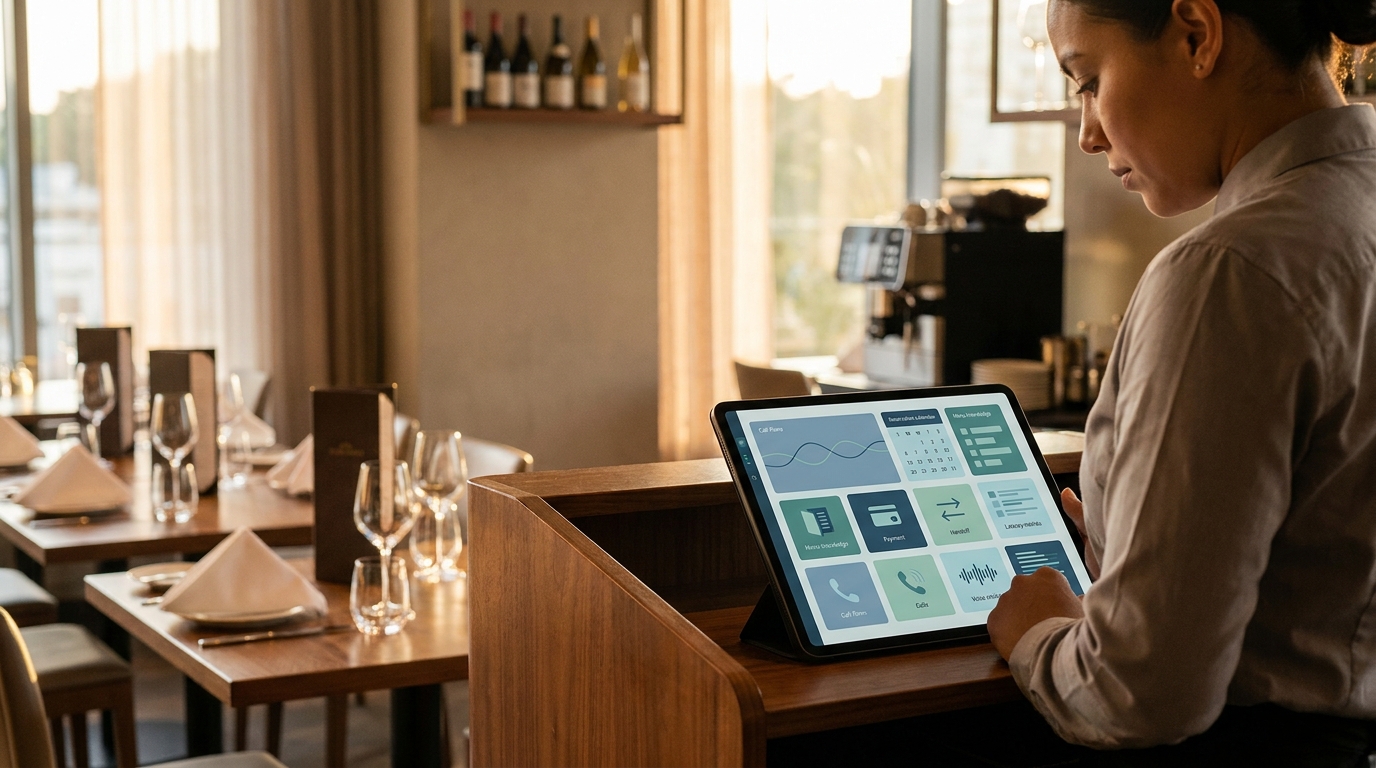
Google Calendar job scheduling home services works best when it is not just a calendar link. A homeowner calls because something needs repair, replacement, maintenance, or follow-up. The caller may not know the exact job type, the crew may be on site, and the office may be closed. If the call ends in voicemail, the business still has to call back, repeat the intake, check the calendar, and log the details later.
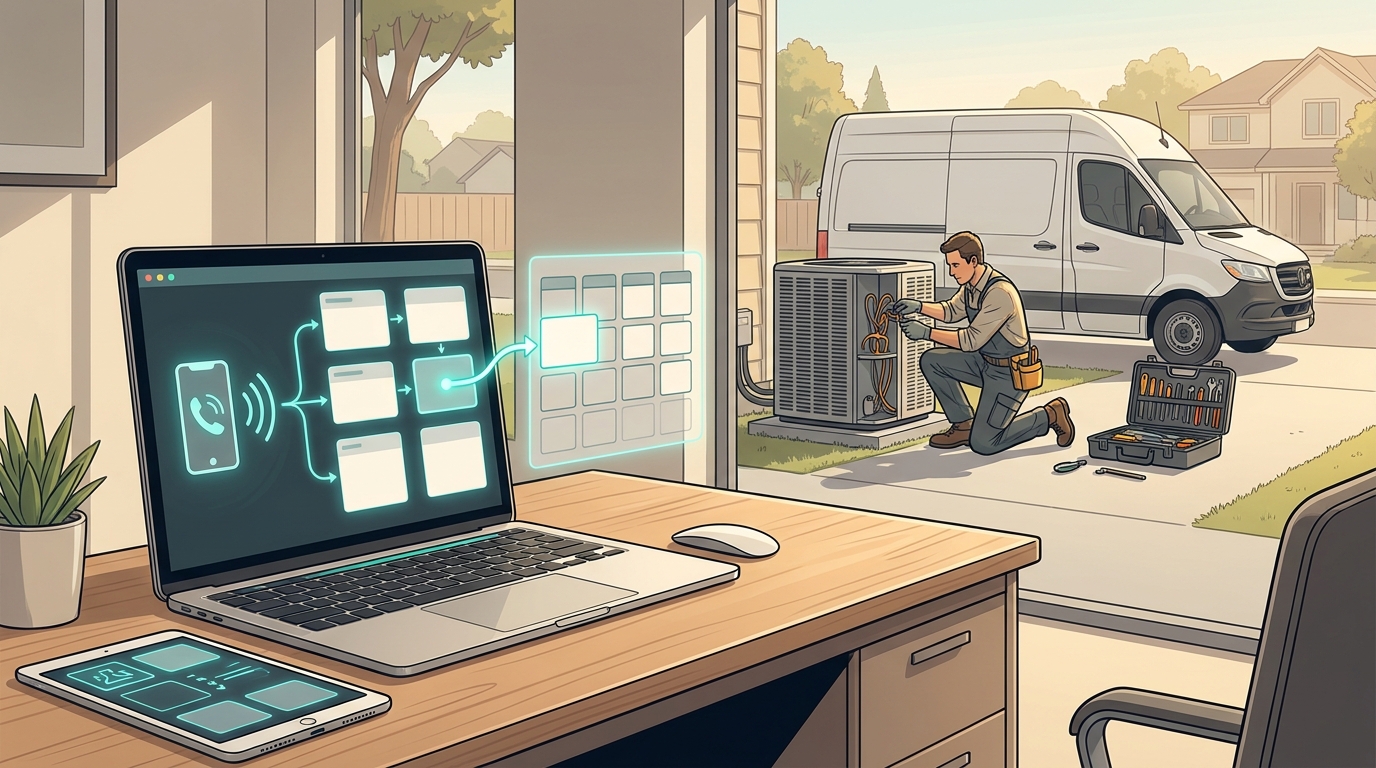
The better workflow is to turn the call into a structured job record while the caller is still on the phone. The AI receptionist or dispatcher captures the service request, checks availability, books the right Google Calendar event, sends the confirmation, and logs the transcript or summary in Google Sheets for dispatch review.
This guide shows how to build that workflow for home-service teams that want lightweight scheduling without moving everything into a full field-service platform on day one.
Quick Answer: How Google Calendar job scheduling home services Works
Google Calendar job scheduling home services should follow one clear path: answer the call, qualify the request, check the schedule, create the job event, confirm the appointment, and log the call.
| Call stage | What should happen | System of record |
|---|---|---|
| Caller asks for help | Capture name, phone, address, service type, urgency, and preferred time | Call transcript and Google Sheets |
| Request is qualified | Match the request to an approved job type, service area, and handoff rule | Intake rules |
| Time is requested | Check available calendar slots before promising a time | Google Calendar |
| Job is booked | Create a calendar event with job details and owner notes | Google Calendar |
| Confirmation is sent | Send the appointment time and any preparation notes | SMS, email, or call summary |
| Team needs context | Log the call summary, transcript, status, and next owner | Google Sheets |
| Exception appears | Route emergency, complex quote, warranty, or complaint calls to a person | Human handoff |
That is the difference between "someone put a job on the calendar" and a dispatch-ready scheduling workflow.
If you want a product starting point, Solvea's home-services AI receptionist page describes 24/7 call answering, appointment booking, customer FAQ handling, Google Calendar and Sheets workflow sync, SMS confirmations and reminders, and human handoff for complex quotes or emergency calls.
Why Calendar-Only Booking Breaks for Service Calls
Generic appointment scheduling assumes the caller already knows what they need and can choose a clean time slot. Home-service calls are different.
A plumbing caller may say "there is water under the sink" without knowing whether it is urgent. An HVAC caller may ask for "first available" but also mention no cooling in extreme heat. An electrician may need office review before a quote. A repeat customer may need to reschedule an existing job, not create a new one.
That is why Google Calendar job scheduling home services needs intake rules before it needs automation. The calendar should not be the first decision point. It should be the place where approved work lands after the call has been qualified.
Use the call workflow to answer these questions before creating the event:
- Is this a new lead, existing customer, or active job?
- Is the address inside the service area?
- What trade, job type, or service category does this match?
- Is this routine, same-day, or emergency-sensitive?
- Can this job type be booked automatically?
- Which calendar should receive the event?
- What fields does the technician or dispatcher need before arrival?
- Does this call need human review before a time is promised?
When those rules are clear, Google Calendar becomes a simple, visible schedule instead of a messy intake database.
The Caller Details to Capture Before Booking
The call script should gather the fields your team needs to act without replaying the full call. Keep it short, but make every question useful.
| Field | Why it matters | Example prompt |
|---|---|---|
| Caller name | Identifies the lead or customer | "What name should we put on the appointment?" |
| Phone number | Enables callback and confirmation | "Is this the best number for updates?" |
| Service address | Confirms location and route context | "What is the service address and ZIP code?" |
| Service type | Maps the call to a job duration and owner | "Is this repair, maintenance, installation, estimate, or follow-up?" |
| Problem summary | Gives the technician useful context | "What is happening right now?" |
| Urgency | Separates routine work from escalation | "Is anything actively leaking, not working, unsafe, or time-sensitive?" |
| Preferred window | Helps book without back-and-forth | "Do you prefer morning, afternoon, or first available?" |
| Access notes | Reduces arrival friction | "Any gate code, parking note, pets, or access instructions?" |
| Existing job status | Prevents duplicate bookings | "Is this about a job already scheduled or completed?" |
| Handoff reason | Tells staff why a person is needed | "I will send this to the office for quote review." |
For Google Calendar job scheduling home services, do not bury these details in a loose transcript only. Put the most important fields in the calendar event description and the full record in a sheet or CRM-style log.
What to Put in the Google Calendar Event
A good event title helps the team scan the day quickly. A good event description helps the technician arrive prepared.
| Calendar field | Recommended format |
|---|---|
| Event title | [Job type] - [Customer last name or address area] |
| Calendar | Technician calendar, team calendar, or dispatch calendar based on your operating model |
| Start and end time | Use approved job durations and travel buffers |
| Location | Full service address with unit, gate, or parking notes when available |
| Guests | Customer email only if your process uses calendar invites; otherwise use SMS/email confirmation outside the event |
| Description | Caller name, phone, service type, issue summary, urgency, access notes, source call, and handoff notes |
| Status tag | Scheduled, needs review, urgent review, rescheduled, cancelled, completed |
| Owner | Dispatcher, technician, owner, or office manager |
Do not put sensitive payment details, private credentials, or internal-only notes in a calendar invite that a customer might see. Keep customer-facing confirmation copy separate from internal dispatch notes when needed.
Solvea's Google Tool documentation says its Google Calendar tool can create events, update events, delete events, and check availability. That supports the core scheduling loop: check the slot before confirming, create the event after the request qualifies, and update or cancel when the caller changes plans.
What to Log in Google Sheets
Google Sheets is useful because it gives owners and dispatchers a daily review queue without requiring a full CRM migration. The sheet should not duplicate every calendar field forever. It should record the call outcome and next action.
| Column | Purpose |
|---|---|
| Call timestamp | Shows when the request arrived |
| Caller name | Customer identification |
| Phone | Callback or SMS confirmation |
| Address / ZIP | Service-area and routing context |
| Service type | Repair, estimate, maintenance, install, warranty, emergency review |
| Urgency | Routine, same-day, emergency review, existing job issue |
| Calendar event link or ID | Connects the sheet row to the booking |
| Appointment time | Makes sheet review possible without opening Calendar |
| Status | New, scheduled, confirmed, needs review, rescheduled, cancelled, completed |
| Owner | Dispatcher, office, technician, on-call contact |
| Transcript or summary | Shows what the caller said |
| Next action | Confirm, call back, quote review, collect photos, route to technician |
The same Google Tool documentation says Solvea's Google Sheets tool can read and write spreadsheet data, store booking records, and update customer or appointment lists. That makes Sheets the right place for call logs, QA review, and follow-up status when a team is not ready for a heavier field-service system.
Workflow Rules Before You Automate
Set these Google Calendar job scheduling home services rules before any AI receptionist, answering service, or dispatcher starts creating events.
| Rule | Why it matters |
|---|---|
| Define bookable job types | Routine maintenance may be bookable; complex quotes may require human review |
| Define event durations | Prevents every call from becoming a vague one-hour slot |
| Keep travel buffers visible | Crews need time between jobs, not just free calendar boxes |
| Separate urgent language from routine booking | Emergency-sensitive calls need escalation, not blind calendar placement |
| Check availability before confirming | Avoids double-booking and awkward customer callbacks |
| Use one source for service-area rules | Prevents booking jobs outside the operating radius |
| Log every exception | Helps improve scripts and knowledge base coverage |
| Use clear cancellation and reschedule statuses | Prevents old events and sheet rows from disagreeing |
The hardest part is not the API connection. The hard part is deciding what the system is allowed to book. Once that is written, automation becomes much safer.
Call Scripts for Common Home-Service Scenarios
Use these as templates for the first version of your AI receptionist or dispatcher script.
New Routine Service Request
- "I can help get the right details for the team."
- "What service do you need help with today?"
- "What is the service address and ZIP code?"
- "Is this urgent, or are you looking for the next available appointment?"
- "What is the best phone number for confirmation?"
- "Do you prefer morning, afternoon, or first available?"
- "Any access notes, pets, parking, gate codes, or photos the technician should know about?"
- "I am going to check the schedule and confirm the next step."
Existing Customer Reschedule
- "I can help route that."
- "What name and address is the appointment under?"
- "Do you know the current appointment date or technician?"
- "What new time window works better?"
- "I will update or flag the appointment based on the team's reschedule rule."
Emergency-Sensitive Call
- "I am going to mark this for urgent review."
- "What is the exact service address?"
- "What is the safest callback number?"
- "Can you describe what is happening in one or two sentences?"
- "Is anyone at the property right now?"
- "I will send this to the on-call contact with your details."
The script should not improvise technical safety advice. It should collect safe context and follow the escalation rule.
Quote or Complex Project Request
- "I can collect the details for quote review."
- "What type of project are you considering?"
- "What is the service address?"
- "Is this repair, replacement, installation, or inspection?"
- "Do you have photos, measurements, or a preferred visit window?"
- "I will log this for the office to review before confirming next steps."
How Solvea Fits the Workflow
Solvea is relevant when the phone workflow needs to connect caller intake with scheduling and records. The home-services page positions Solvea around answering every call, securing bookings, resolving customer FAQs, integrating with scheduling software, connecting to Google Calendar and Sheets, sending confirmations and reminders, and handing off complex quotes or emergency calls.
For a practical Google Calendar job scheduling home services setup, use Solvea to support:
- A missed-call flow or dedicated AI phone number.
- Custom service knowledge for job types, service areas, FAQs, pricing boundaries, and escalation rules.
- Appointment booking rules that check availability before confirming.
- Calendar event creation for approved jobs.
- Google Sheets rows for call details, transcript summaries, status, and follow-up owner.
- SMS confirmations and reminders when configured.
- Human handoff for urgent, complex, sensitive, or unclear calls.
If you need phone setup before routing real traffic, the phone-number documentation describes Solvea phone-number setup options. For broader AI receptionist context, start with AI Receptionist 101. For reminder strategy after the event is booked, see the appointment reconfirmation guide.
A One-Week Test Plan
Do not launch every call path at once. A one-week Google Calendar job scheduling home services pilot is enough to find the weak spots.
- Choose one call source: after-hours calls, missed calls, or overflow from the main line.
- List approved job types, non-bookable requests, service areas, durations, buffers, and handoff owners.
- Connect Google Calendar and Google Sheets with only the calendars and sheets the workflow needs.
- Run staff test calls for routine booking, reschedule, emergency-sensitive wording, and quote review.
- Confirm that routine calls create the right event and sheet row.
- Confirm that exception calls do not create unapproved calendar promises.
- Review every transcript and row for the first live week.
- Update scripts, job durations, service-area rules, and FAQ answers before expanding coverage.
The goal is not to prove automation can answer everything. The goal is to prove the workflow books safe requests and routes the rest with enough context.
What to Measure
Use operational metrics that show whether scheduling is getting cleaner.
| Metric | What it reveals |
|---|---|
| Qualified calls captured | Whether callers are getting through before voicemail |
| Booked routine jobs | Whether approved requests turn into calendar events |
| Needs-review calls | Whether complex jobs are routed instead of overbooked |
| Calendar accuracy | Whether events include the right address, time, and job notes |
| Sheet completeness | Whether rows include caller, service type, urgency, status, owner, and next action |
| Reschedule/cancel accuracy | Whether Calendar and Sheets stay aligned |
| Technician feedback | Whether job notes help crews prepare |
| Script fixes | Which caller questions need clearer rules |
For current product and plan details, link readers to Solvea pricing instead of repeating plan specifics in evergreen workflow content.
Final Recommendation
Google Calendar is a strong lightweight scheduler for home-service teams, but it needs a call workflow around it. Capture the caller, qualify the request, check availability, create the right event, send confirmation, and log the job details in a sheet the team actually reviews.
Google Calendar job scheduling home services is most useful when the AI receptionist is allowed to book routine work and required to hand off urgent, complex, or uncertain calls. That gives customers a fast answer while keeping owners, dispatchers, and technicians in control of the exceptions.
To test the workflow, start with Solvea for home services and connect scheduling in minutes. Use one call path first, verify the calendar and sheet records, then expand once the team trusts the notes.
Your AI Receptionist, Live in Minutes.
Scale your front desk with an AI that never sleeps. Solvea handles unlimited multi-channel inquiries, books appointments into your calendar automatically, and ensures zero missed opportunities around the clock.
FAQ
What is Google Calendar job scheduling home services?
Google Calendar job scheduling home services is a workflow that turns inbound service calls into qualified calendar events, confirmation messages, and job logs for home-service teams.
Can an AI receptionist create Google Calendar events for service calls?
Yes, when the business defines which job types are bookable, which calendar to use, what availability to check, and which calls require human review. Solvea's Google Calendar tool supports event creation, updates, deletion, and availability checks.
What should go in the calendar event description?
Include caller name, phone, service address, job type, issue summary, urgency, access notes, owner, and next action. Keep sensitive internal-only details out of customer-visible invites.
Why use Google Sheets with Google Calendar?
Google Calendar shows the schedule. Google Sheets can hold the call log, transcript summary, status, owner, and follow-up fields that dispatchers need to review and improve the workflow.
Which home-service calls should not be auto-booked?
Do not auto-book emergency-sensitive calls, complex quotes, warranty disputes, complaints, out-of-area requests, or jobs where the service type and duration are unclear. Route them to a person with the call summary.
How should teams start testing this workflow?
Start with missed calls, after-hours calls, or overflow calls. Run a one-week pilot, review every calendar event and sheet row, then adjust service rules before sending all calls through the workflow.