> ## Documentation Index
> Fetch the complete documentation index at: https://solvea.cx/docs/llms.txt
> Use this file to discover all available pages before exploring further.
# Add Phone Numbers
Solvea supports multiple ways to add phone numbers. \
You can **purchase** a phone number directly from Solvea, or **import** an existing Twilio number.
We also provide every new registered user with a **7-day free Twilio phone number**, allowing you to fully experience Solvea’s calling features and test the phone capabilities before making a purchase.
At this time, Solvea does **not** support connecting phone numbers from telecom carriers such as AT\&T, Verizon, or T-Mobile.
Support for traditional telecom carriers is under development — please stay tuned for updates.
Phone numbers can be added from two entry points: **Agent** module; **Deploy** module
## Option 1: Buy a Phone Number
Solvea offers pre-configured phone numbers for **\$3/month**, billed automatically after a payment method is added.
Purchased numbers are ready to use out of the box and support:
* Receiving inbound calls
* Sending and receiving SMS(coming soon)
**Steps:**
Go to **Deploy → Phone & SMS**
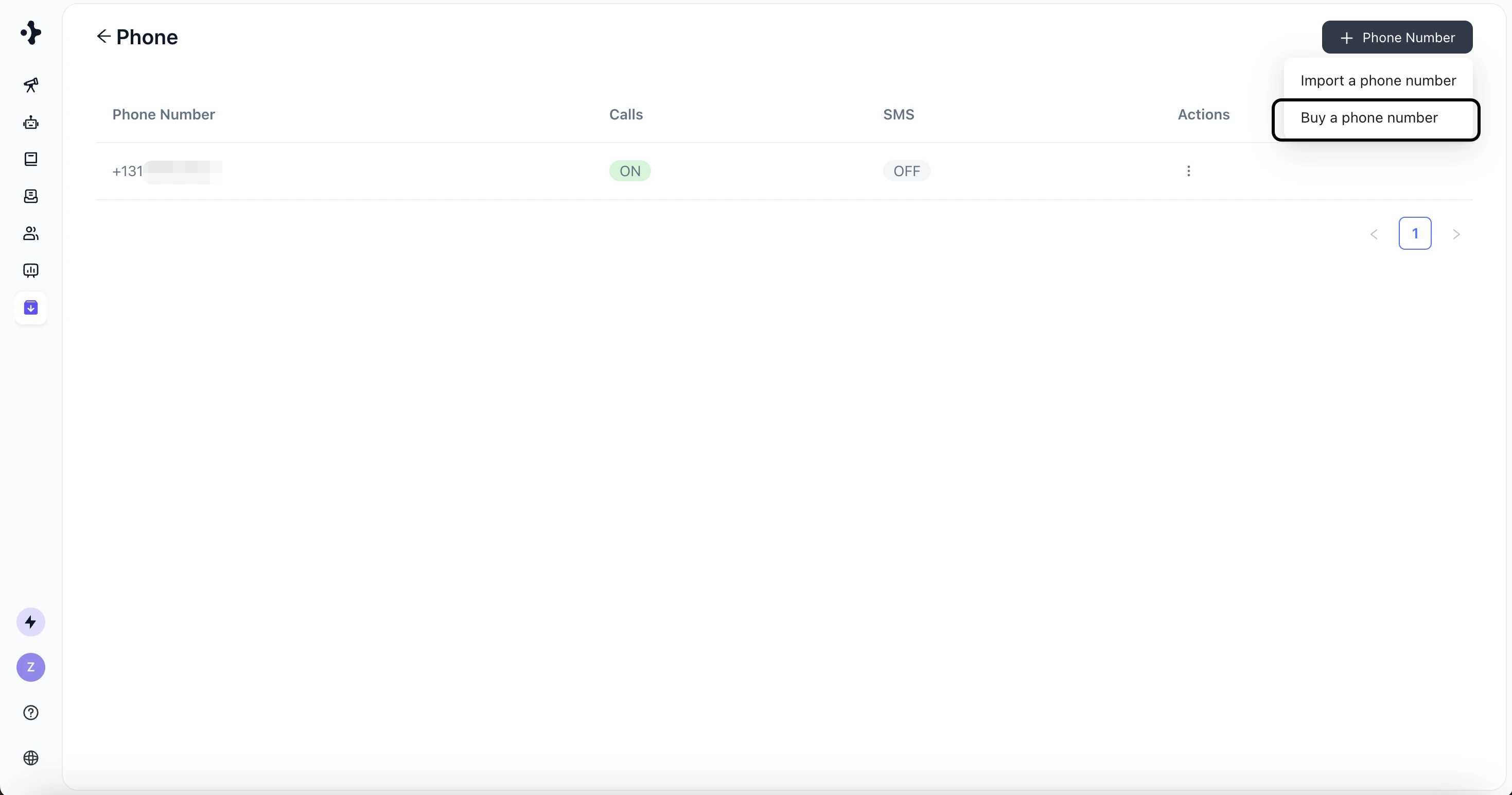
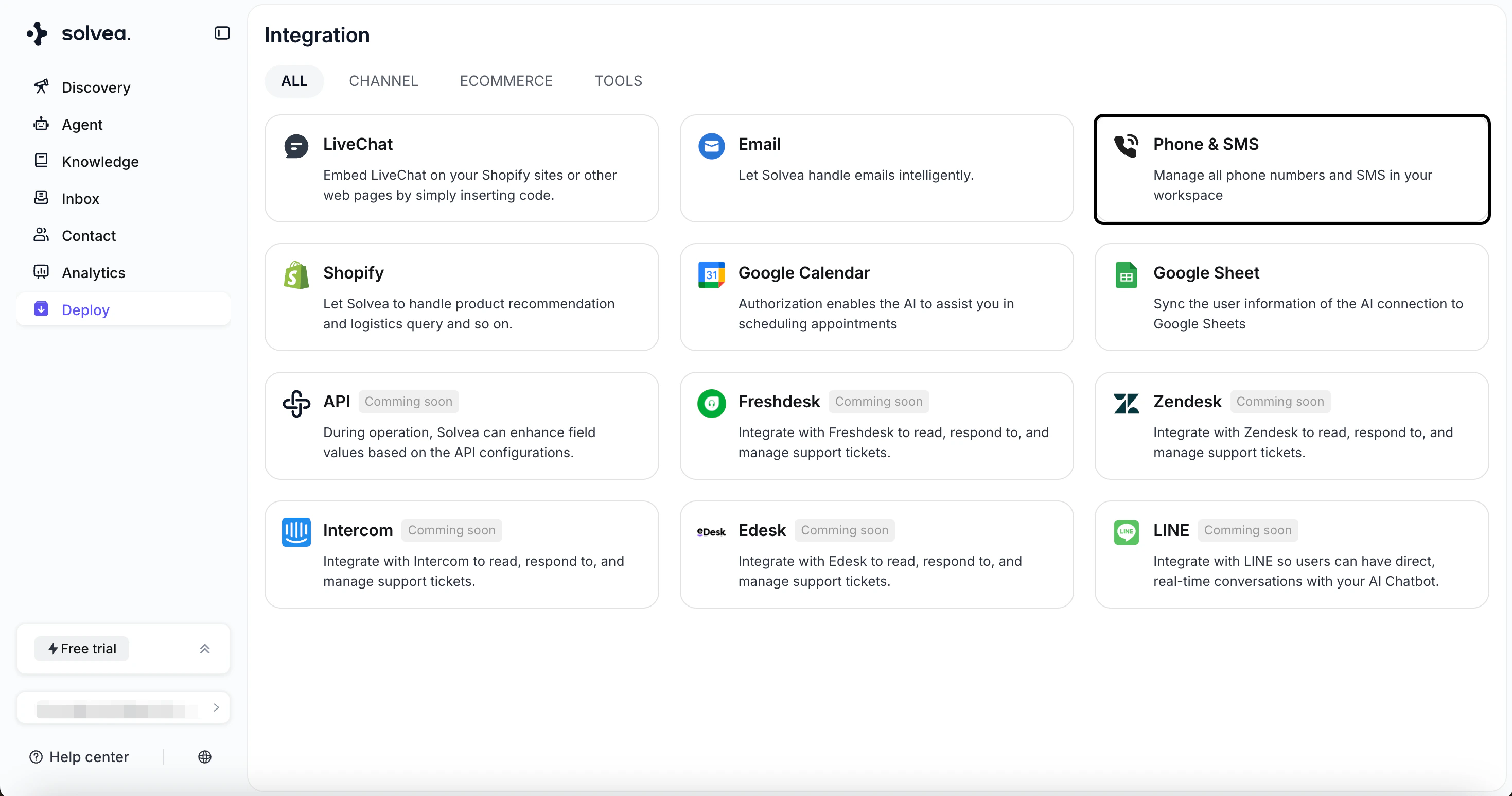 Click **+Phone Number → Buy a Phone Number** .
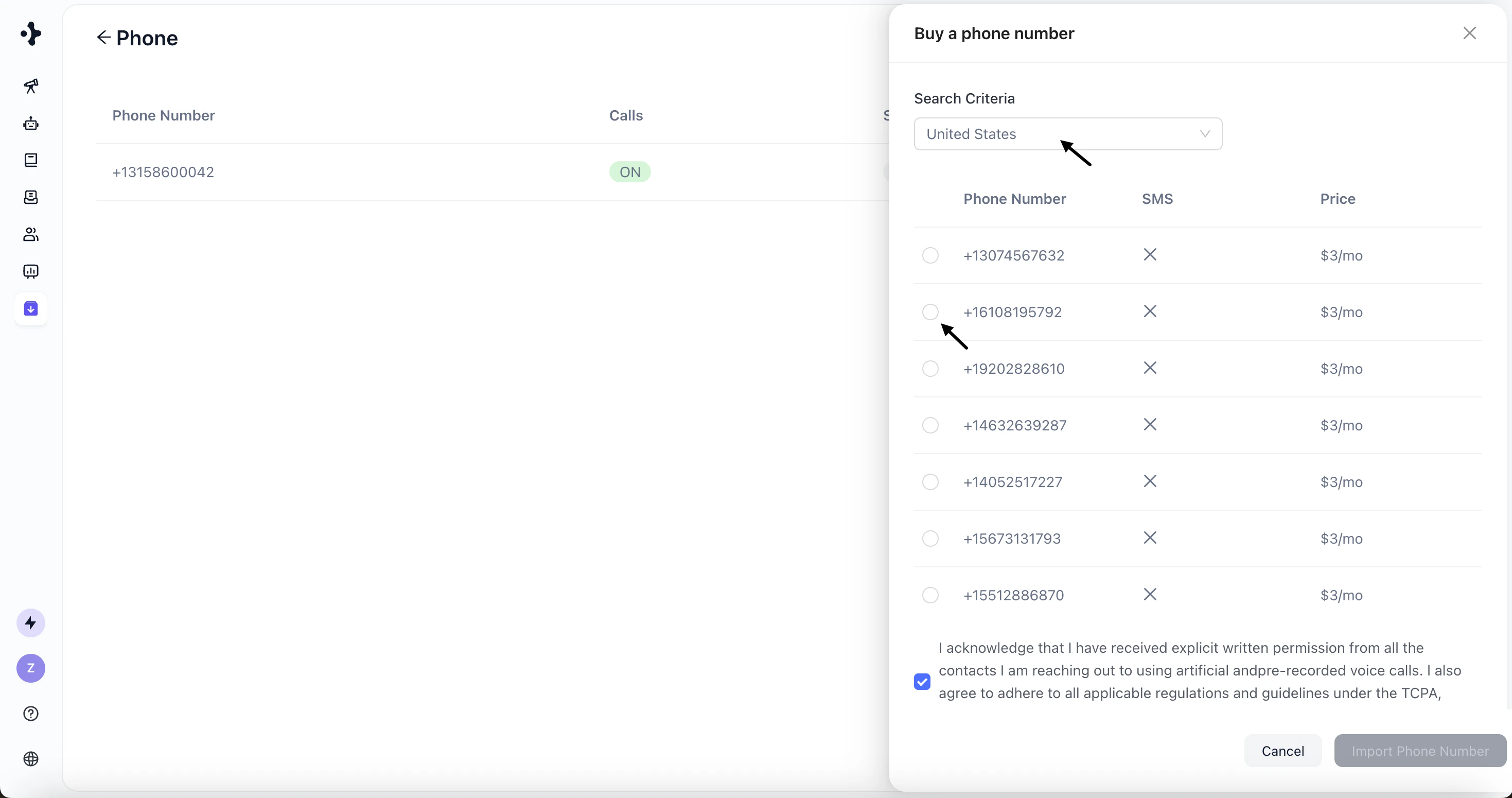
 Select the country and choose a phone number.
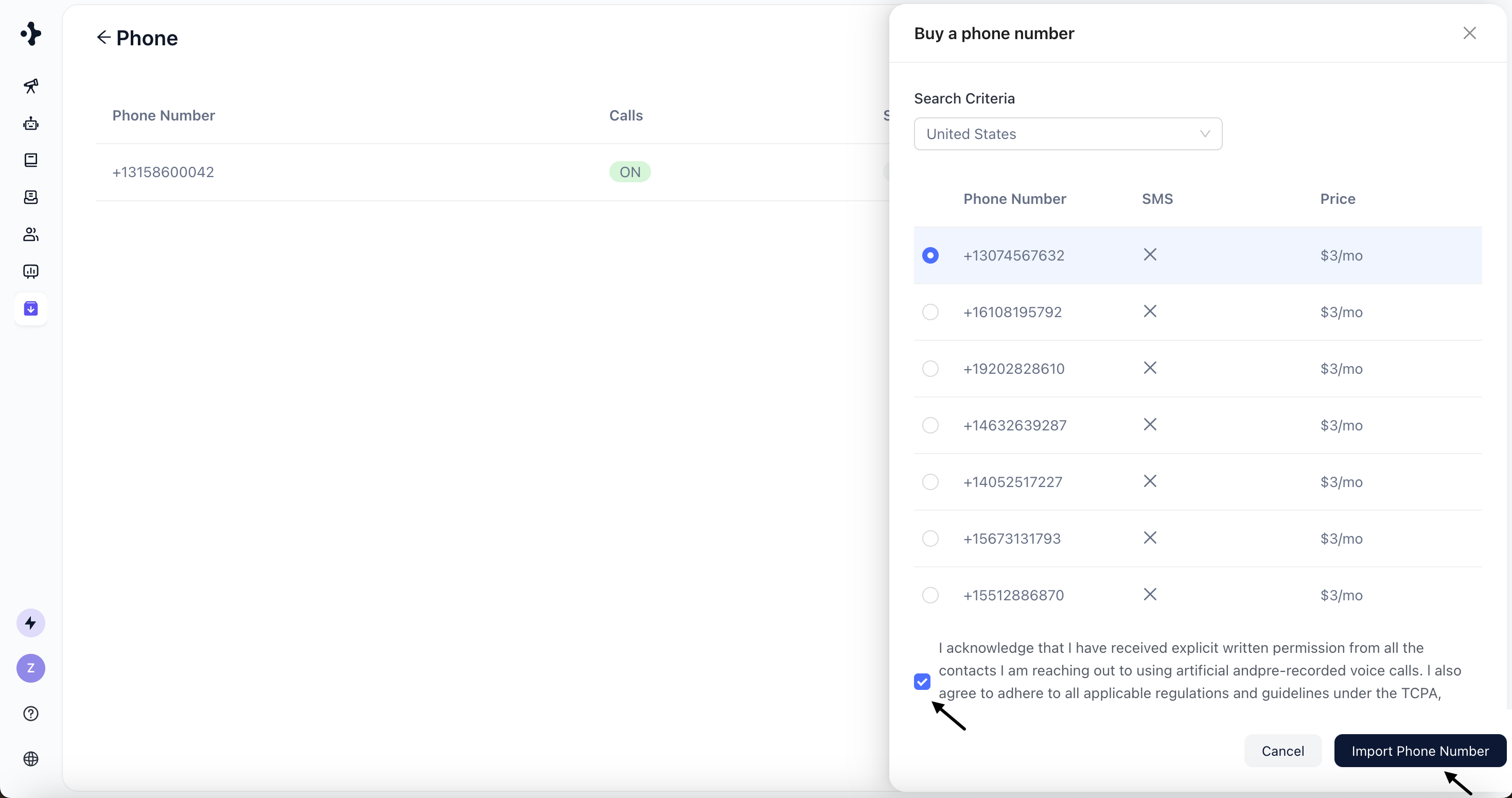
 Review the purchase terms and confirm.
Click **Import Phone Number**.
Review the purchase terms and confirm.
Click **Import Phone Number**.
 Add a credit card to complete payment.
## Option 2: Import a Twilio Phone Number
If you already have a Twilio phone number, you can import it into Solvea.
Capabilities such as SMS must be configured in your Twilio account separately.
**Steps:**
Click **+ Phone Number → Import a phone number**.
Add a credit card to complete payment.
## Option 2: Import a Twilio Phone Number
If you already have a Twilio phone number, you can import it into Solvea.
Capabilities such as SMS must be configured in your Twilio account separately.
**Steps:**
Click **+ Phone Number → Import a phone number**.
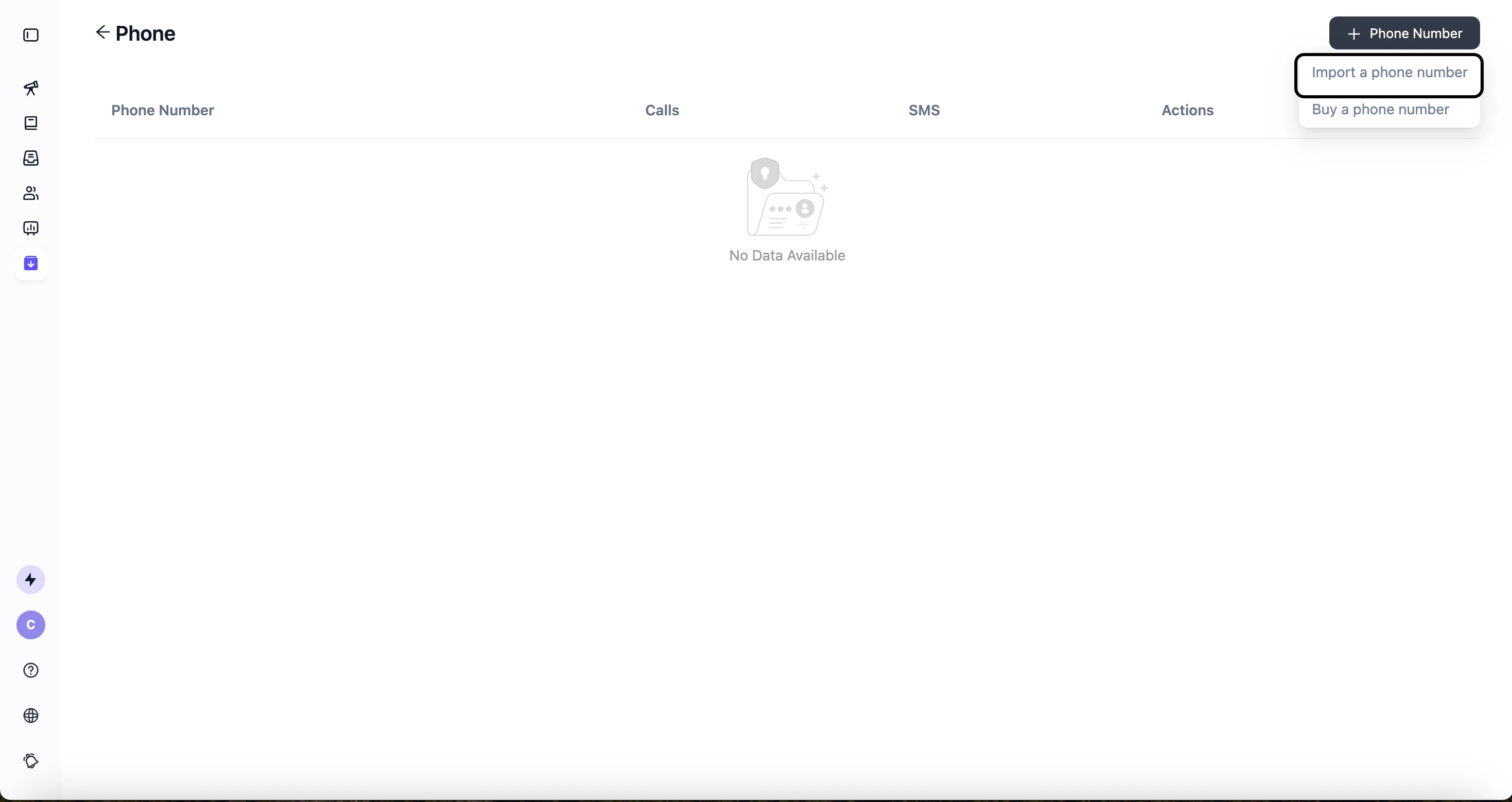 Select the country code and enter the phone number.
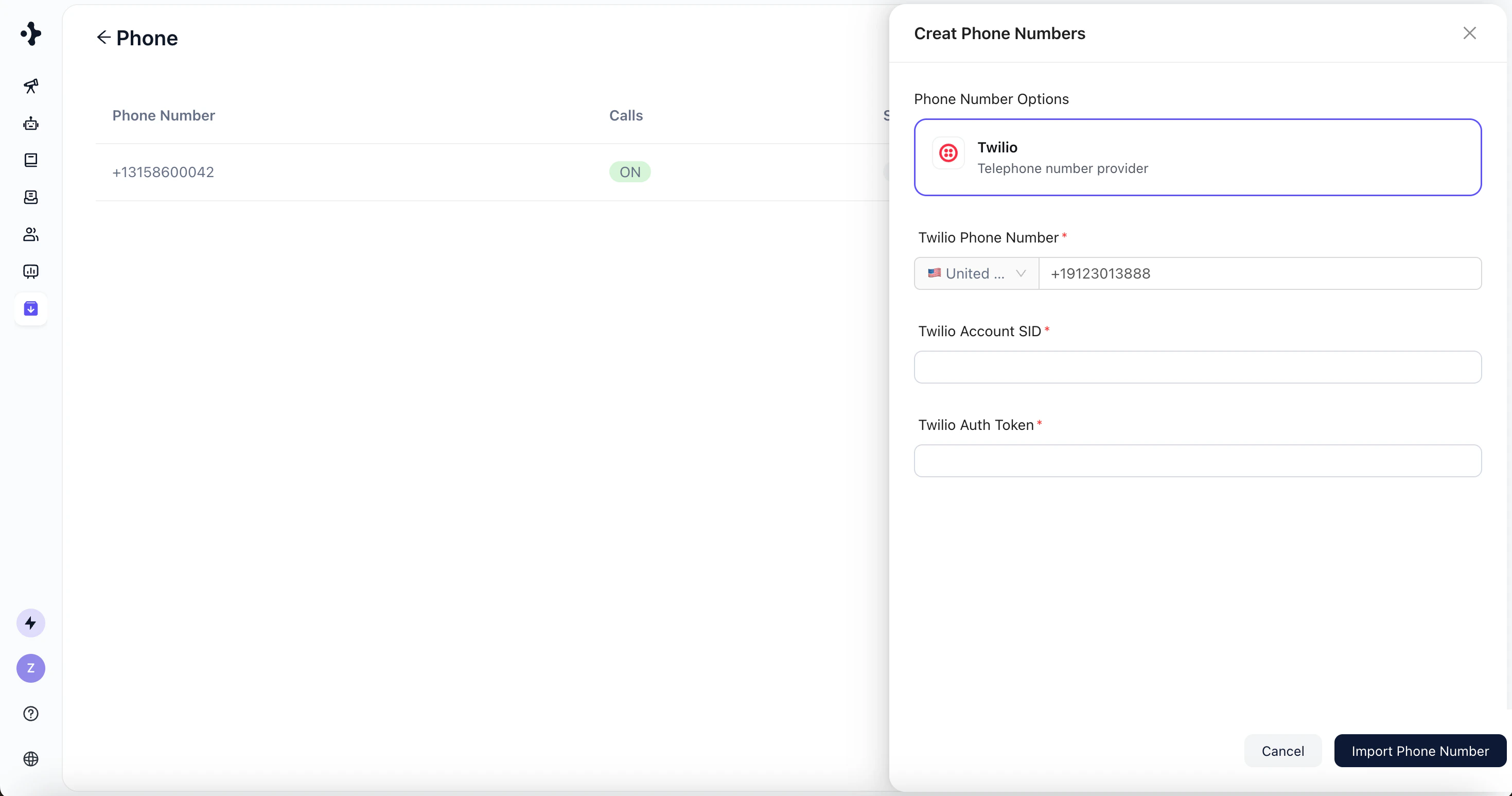 Provide the required Twilio credentials:
* **Twilio Account SID** – your Twilio account identifier.
* **Twilio Auth Token** – your authentication token.
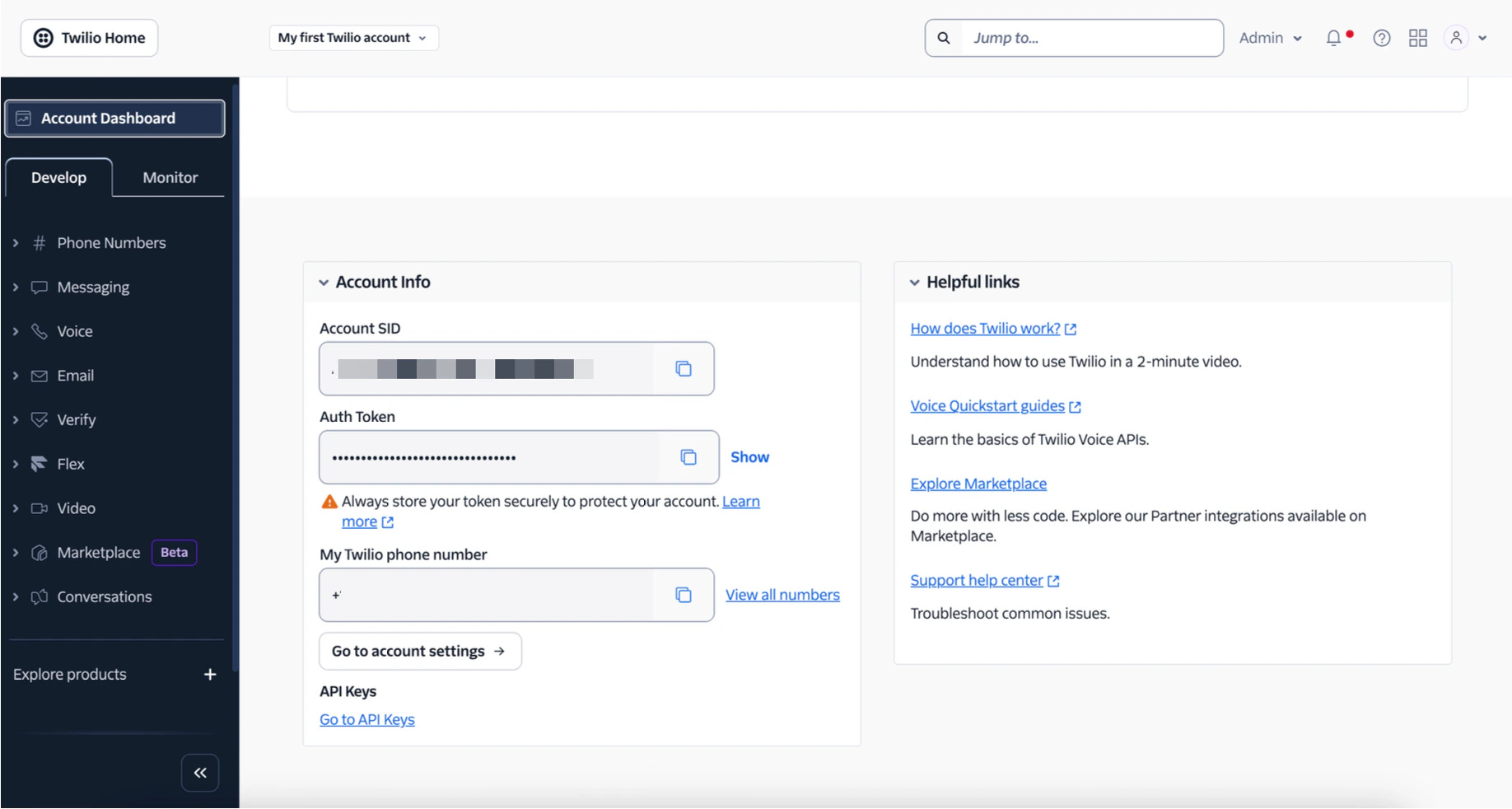
You can find the **SID** and **Auth Token** in your Twilio account dashboard.
Provide the required Twilio credentials:
* **Twilio Account SID** – your Twilio account identifier.
* **Twilio Auth Token** – your authentication token.
You can find the **SID** and **Auth Token** in your Twilio account dashboard.
 Confirm to complete the import.