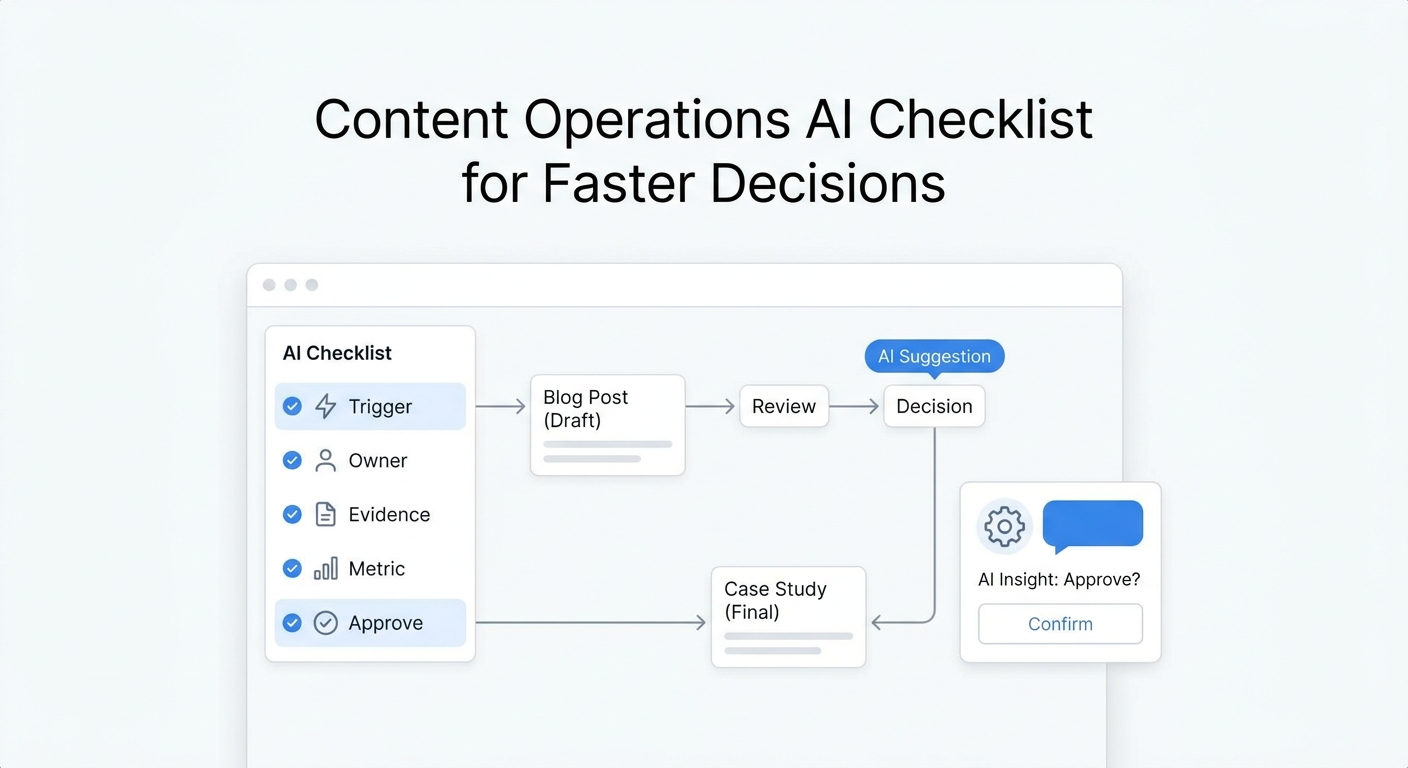
A Google Calendar AI booking assistant works best when it does more than find an open slot. For an appointment business, the real job is to turn a caller's messy request into a confirmed appointment the team can trust.
That means the assistant needs to answer the call, understand the service request, check availability, create the Google Calendar event, confirm the appointment, and leave a clean record for follow-up. If the caller needs to reschedule, cancel, ask about an exception, or speak to a person, the workflow needs rules for that too.
This guide shows a practical Google Calendar AI booking assistant workflow for service businesses that use Google Calendar as the source of truth but still need intake fields, confirmation messaging, Google Sheets logs, and human handoff.
Quick Answer: What a Google Calendar AI Booking Assistant Should Do
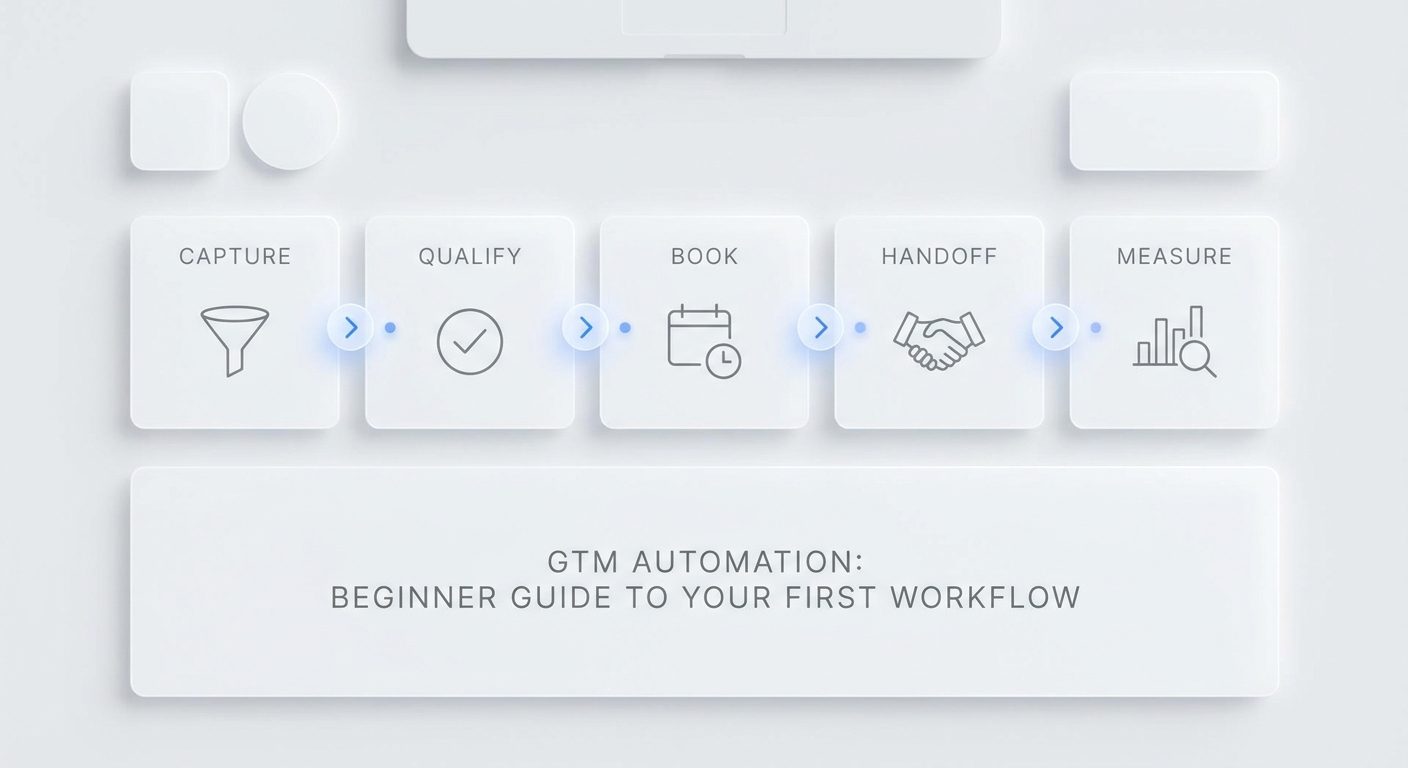
A Google Calendar AI booking assistant should follow one controlled path: capture the request, qualify it, check availability, book the right slot, confirm the details, log the record, and route exceptions to a person.
| Call stage | What the assistant should do | Where the data should land |
|---|---|---|
| Caller asks to book | Capture service, contact details, preferred time, and location or channel | Call transcript and booking record |
| Assistant qualifies request | Match the request to allowed appointment types, durations, calendars, and handoff rules | Booking logic |
| Caller asks for a time | Check availability before offering slots | Google Calendar |
| Caller chooses a slot | Create the event only after required fields are present | Google Calendar |
| Caller changes plans | Update or delete the existing event based on the business rule | Google Calendar |
| Appointment is confirmed | Send a clear confirmation message with time, service, location, and next step | SMS, email, call summary, or invite |
| Team needs context | Store caller details, appointment status, event link, and next owner | Google Sheets or inbox ticket |
| Request is unclear | Pause booking and hand off with a short summary | Inbox or human owner |
Solvea's Google Tool documentation supports this core loop: Google Calendar can create, update, delete, and check availability for events, while Google Sheets can read and write spreadsheet data, store booking records, and update customer or appointment lists.
Why Calendar Links Are Not Enough
Booking links are useful when the customer already knows what they want. Phone calls are different. A caller may say, "I need an appointment tomorrow," but the business still needs to know which service, who should handle it, how long it takes, whether there is travel time, whether the caller is new or returning, and whether the request is allowed to book automatically.
That is why a Google Calendar AI booking assistant should not behave like a public booking page with a voice layer. It needs an intake script and a calendar action policy.
Before the assistant creates an event, it should know:
- Which appointment types are bookable without staff review.
- Which calendar receives each type of appointment.
- How long each appointment type should be.
- Whether buffers are required before or after the event.
- Which details belong in the calendar event description.
- Which details belong only in the internal record.
- Which requests should trigger a human handoff.
- What confirmation wording the customer should receive.
The calendar should stay the source of truth for time. It should not become the only source of truth for the whole customer conversation.
The Call-to-Calendar Workflow
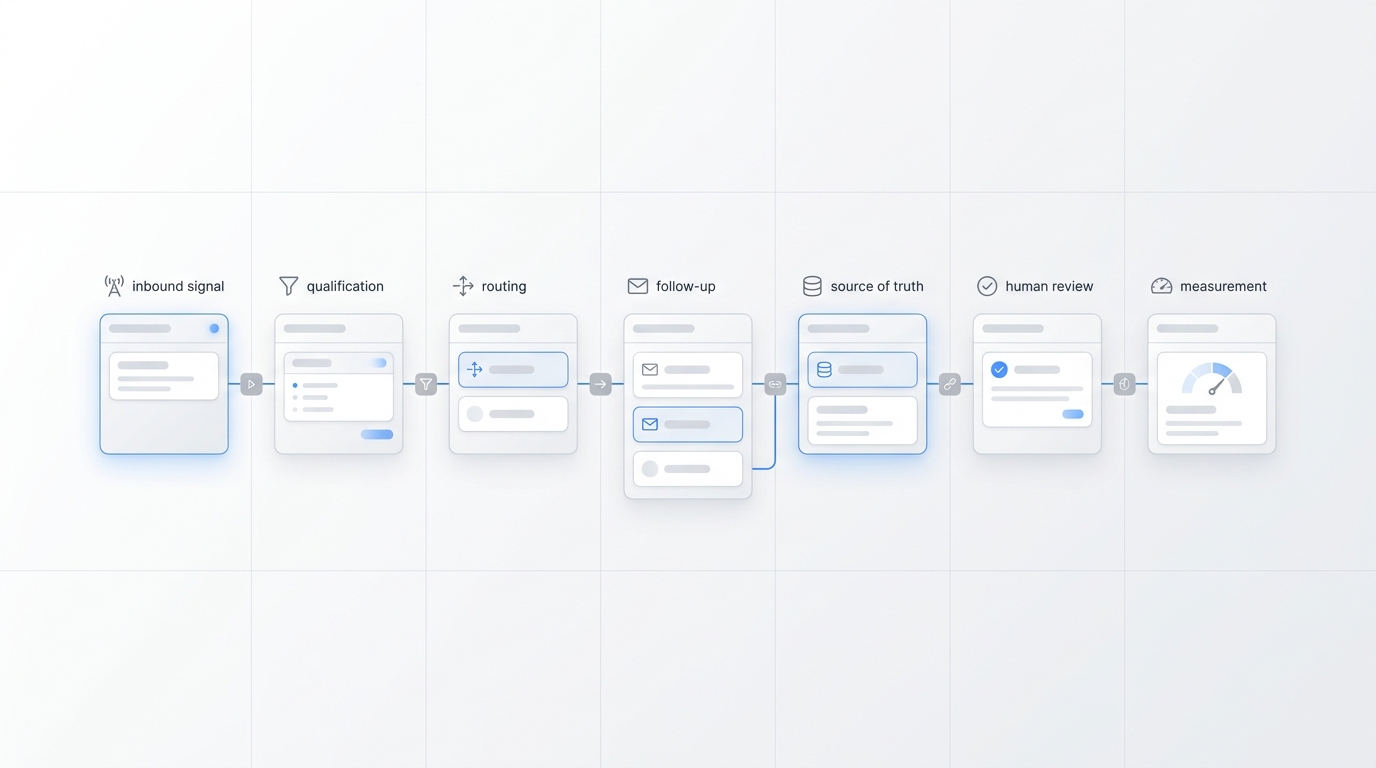
Use this map as the first version of your Google Calendar AI booking assistant workflow.
| Step | Assistant action | Business rule to define |
|---|---|---|
| Identify intent | Decide whether the caller wants to book, reschedule, cancel, confirm, ask a question, or reach staff | Approved intent list |
| Collect required fields | Ask for name, contact, service type, preferred date, preferred window, and any location or access details | Minimum field checklist |
| Check eligibility | Confirm that the service, location, staff, duration, and policy fit the automated booking path | Bookable vs. handoff rules |
| Check availability | Look for available time before promising anything | Calendar, working hours, buffers |
| Offer slots | Offer a small set of choices instead of reading a long list | Slot presentation rule |
| Create event | Add the confirmed appointment to the correct calendar | Event title, description, guests, location |
| Confirm appointment | Repeat the confirmed details in plain language | Customer-facing template |
| Log record | Save the call outcome, status, event link, and next owner | Google Sheets or inbox |
| Monitor exceptions | Route unclear, sensitive, high-value, or policy-heavy requests to a person | Handoff owner and SLA |
This is the difference between "AI booked something" and "the team can work from the calendar tomorrow."
Intake Fields to Capture Before Booking
The assistant should not ask a long interrogation. It should collect only the fields needed to book safely and prevent follow-up confusion.
| Field | Why it matters | Example prompt |
|---|---|---|
| Caller name | Identifies the appointment owner | "What name should I put on the appointment?" |
| Phone number | Enables confirmation and follow-up | "Is this the best number for updates?" |
| Email, if needed | Enables calendar invite or email confirmation | "Would you like an email confirmation too?" |
| Service type | Maps the request to duration and calendar | "What service do you need to schedule?" |
| New or returning customer | Changes the intake path | "Have you booked with us before?" |
| Preferred date | Narrows availability | "Do you have a day in mind?" |
| Preferred time window | Avoids reading too many slots | "Do you prefer morning, afternoon, or first available?" |
| Location or appointment type | Supports in-person, phone, video, or route-based scheduling | "Will this be in person, by phone, or at your location?" |
| Staff preference | Routes to a team member calendar when allowed | "Do you need a specific staff member?" |
| Notes for the visit | Gives staff context | "Anything the team should know before the appointment?" |
| Handoff reason | Explains why booking paused | "I will send this to the team for review before confirming." |
For a Google Calendar AI booking assistant, these fields should not live only in a call transcript. Put the operational fields in the calendar event or booking record so staff do not have to replay the call.
What to Put in the Calendar Event
The event should be easy to scan and safe to share. If customers receive calendar invites, keep internal-only notes out of customer-visible fields.
| Calendar field | Recommended format |
|---|---|
| Event title | [Service type] - [Customer name or location cue] |
| Calendar | Team calendar, staff calendar, location calendar, or intake calendar |
| Start and end time | Use approved duration and buffer rules |
| Location | Address, phone, video link, or "to be confirmed" when staff must review |
| Guests | Customer email only when invite-based confirmation is part of the workflow |
| Description | Contact, service, confirmed time, customer-facing notes, and event status |
| Internal note | Keep sensitive or staff-only notes in Sheets, inbox, or CRM rather than a customer-visible invite |
| Status | Scheduled, confirmed, needs review, rescheduled, cancelled, or no-show follow-up |
Solvea's deploy overview describes tools as a way for an agent to access external systems during a conversation, including Google Sheets for structured workflows and Google Calendar for availability checks, event creation, updates, and cancellations.
Create, Update, Delete, and Availability Rules
Calendar automation needs guardrails. The assistant should know which action is allowed in each situation.
| Calendar action | Use it when | Guardrail |
|---|---|---|
| Check availability | The caller wants a new appointment or a new time | Never promise a time before the check succeeds |
| Create event | The caller chooses a valid slot and required fields are complete | Use the right calendar, duration, location, and status |
| Update event | The caller reschedules, adds notes, or changes appointment details | Confirm the old appointment before changing it |
| Delete event | The caller cancels and the cancellation rule permits removal | Keep a log row or ticket so the cancellation is still auditable |
| Hand off instead | The service type, staff preference, policy issue, or caller request is unclear | Send a summary to the owner instead of guessing |
For most service businesses, the safest starting rule is simple: automate routine booking and rescheduling, but hand off policy exceptions, unclear service duration, complaints, high-value appointments, and requests that affect staff judgment.
Confirmation Message Templates
Confirmation copy should be short, specific, and consistent. It should never sound like the assistant is guessing.
New Appointment Confirmation
You're confirmed for [service] on [date] at [time]. The appointment is under [name]. If anything changes, reply here or call us so we can update the calendar.Staff Review Confirmation
I have sent your request to the team for review. They will confirm the appointment before it is added to the final schedule. Your preferred time is [preferred window].Reschedule Confirmation
Your appointment has been moved from [old time] to [new time]. The updated details are now on the calendar.Cancellation Confirmation
Your appointment for [date/time] has been cancelled. If you would like to book a new time, I can help check availability.Missing Information Follow-Up
I can help book that. I still need [missing field] before I check the calendar.These templates are deliberately plain. The goal is to reduce ambiguity, not make the confirmation sound impressive.
What to Log in Google Sheets
Google Calendar tells the team when the appointment happens. A Google Sheets log can show how the appointment got there and what still needs attention.
| Sheet column | Purpose |
|---|---|
| Call timestamp | Shows when the request arrived |
| Caller name | Identifies the customer |
| Phone / email | Supports confirmation and follow-up |
| Service type | Shows what was requested |
| Appointment time | Mirrors the confirmed calendar slot |
| Calendar event link or ID | Connects the row to the event |
| Status | Scheduled, confirmed, needs review, rescheduled, cancelled |
| Source channel | Phone, SMS, email, live chat, or web |
| Summary | Gives staff the useful context without replaying the call |
| Handoff owner | Shows who is responsible next |
| Exception reason | Helps improve scripts and routing rules |
| Follow-up due | Prevents reviewed requests from stalling |
This is especially useful when the appointment is not the only outcome. Some calls need a quote, a manager callback, a policy answer, or a customer-service review. Solvea's inbox overview describes phone calls as tickets and supports human takeover context, which is useful when a booking request needs staff attention.
Human Handoff Rules
A Google Calendar AI booking assistant should not try to complete every call. It should be clear about when to stop and route.
| Trigger | Assistant response | Human follow-up |
|---|---|---|
| The service type is unclear | Ask one clarifying question, then hand off if still unclear | Staff chooses the right service and duration |
| The caller asks for a policy exception | Capture the request and pause booking | Manager reviews deposit, cancellation, refund, or late-arrival issue |
| A preferred staff member is unavailable | Offer approved alternatives or hand off | Staff handles VIP, waitlist, or relationship-sensitive follow-up |
| The appointment may need a custom duration | Do not force it into a default slot | Staff confirms duration before booking |
| The caller is upset | Acknowledge and route | Staff reviews the issue with full context |
| Calendar or tool action fails | Do not claim the appointment is confirmed | Staff receives a failure note and caller context |
The handoff note should be concise:
Booking handoff: [caller name] wants [service] around [preferred time]. Required review because [reason]. Contact: [phone/email]. Notes: [short summary]. Next owner: [person/team].Where Solvea Fits
Solvea is relevant when the appointment workflow starts in a real customer conversation instead of a static booking form. The public site positions Solvea as an AI receptionist across phone, SMS, email, WhatsApp, and live chat, with no-code setup and integrations with calendars, CRMs, help desks, and ecommerce tools.
For this workflow, use Solvea to support:
- Phone or SMS intake before a booking is created.
- Google Calendar availability checks before confirming a slot.
- Google Calendar event creation for routine appointments.
- Google Calendar updates or cancellations when the caller changes plans.
- Google Sheets rows for booking records, call summaries, and handoff queues.
- Inbox tickets when a booking request needs staff review.
- Knowledge base rules for service types, appointment lengths, locations, and handoff triggers.
If the appointment flow touches ecommerce support, the Shopify integration documentation is a useful internal link for how Solvea connects business systems beyond calendar booking. For current packaging and plan details, link readers to Solvea pricing instead of repeating plan specifics in evergreen content.
One-Week Pilot Plan
Do not start by routing every call through automation. Test one controlled path first.
- Choose one appointment type that is safe to book automatically.
- Define the required intake fields.
- Choose the exact Google Calendar that receives the event.
- Set the appointment duration, buffer, working hours, and blackout rules.
- Write the confirmation templates.
- Create the Google Sheets log columns.
- Define handoff triggers and owners.
- Run test calls for new booking, reschedule, cancellation, unavailable time, missing information, and staff review.
- Review every calendar event and sheet row for a week.
- Fix the script before expanding to more appointment types.
The best pilot result is not "the assistant booked everything." The best result is that routine bookings are confirmed cleanly and exceptions reach the right person with enough context.
What to Measure
Measure operational quality, not just call volume.
| Metric | What it tells you |
|---|---|
| Calls with booking intent | How much appointment demand reaches the assistant |
| Confirmed appointments | How often eligible calls become calendar events |
| Handoff rate | Whether too many or too few calls need staff review |
| Missing-field rate | Which intake questions need improvement |
| Reschedule accuracy | Whether old and new event details stay aligned |
| Cancellation accuracy | Whether cancelled appointments are logged clearly |
| Calendar conflict rate | Whether availability and buffer rules are working |
| Staff correction rate | How often staff must fix event details after the call |
| Follow-up completion | Whether reviewed requests get a clear next action |
These metrics also help improve the knowledge base. If callers keep asking the same question before booking, add the approved answer to the assistant's setup instead of letting staff answer it repeatedly.
Final Recommendation
A Google Calendar AI booking assistant is most useful when it treats booking as a workflow, not a shortcut. The calendar action is only one step. The assistant also needs intake rules, confirmation copy, a record of what happened, and handoff paths for the calls that should not be booked automatically.
Start with one appointment type, connect Google Calendar in Solvea, log the booking details in Google Sheets, and review the first week of calls closely. Once the team trusts the event details and handoff summaries, expand the workflow to more services and channels.
To test the workflow, start with the Google Calendar and Google Sheets setup in Solvea and connect the appointment path your team already uses.
Your AI Receptionist, Live in Minutes.
Scale your front desk with an AI that never sleeps. Solvea handles unlimited multi-channel inquiries, books appointments into your calendar automatically, and ensures zero missed opportunities around the clock.
FAQ
What is a Google Calendar AI booking assistant?
A Google Calendar AI booking assistant is an AI receptionist or scheduling workflow that captures appointment requests, checks Google Calendar availability, creates or updates events, confirms details with the customer, and logs the booking record for the team.
Can an AI booking assistant create Google Calendar events during a call?
Yes, when the business has connected the calendar and defined the allowed booking rules. Solvea's Google Calendar tool supports event creation, updates, deletion, and availability checks based on the permissions granted by the user.
What information should the assistant collect before booking?
At minimum, collect name, contact information, service type, preferred date, preferred time window, appointment location or channel, and any notes staff need before the visit. Add staff preference, customer status, or policy fields only when they affect booking.
Should the assistant send a calendar invite or a separate confirmation?
Use the method your business can support consistently. Some teams send calendar invites. Others send SMS or email confirmations and keep customer-facing details separate from internal notes. The important part is that the confirmed time, service, and next step match the calendar event.
What should happen when the caller wants to reschedule?
The assistant should identify the existing appointment, check new availability, update the event only after the caller confirms the new slot, and send a reschedule confirmation. If the existing appointment is unclear, route to staff.
When should a Google Calendar AI booking assistant hand off to a person?
Hand off when the service type is unclear, the duration is custom, the caller asks for a policy exception, a preferred staff member is unavailable, the caller is upset, or a tool action fails. The handoff should include a short summary, preferred time, contact details, and reason for review.
Why use Google Sheets with Google Calendar?
Google Calendar is the schedule. Google Sheets can hold the booking record, call summary, status, owner, exception reason, and follow-up due date. That makes the workflow easier to review and improve.
How should a service business start?
Start with one appointment type, one calendar, one confirmation template, and one handoff owner. Run a one-week pilot before expanding the Google Calendar AI booking assistant to more services, staff, or channels.