> ## Documentation Index
> Fetch the complete documentation index at: https://solvea.cx/docs/llms.txt
> Use this file to discover all available pages before exploring further.
# Shopify
> By authorizing Shopify, you can embed Livechat into your store, automatically sync product knowledge to your knowledge base, and retrieve order information for customer support.
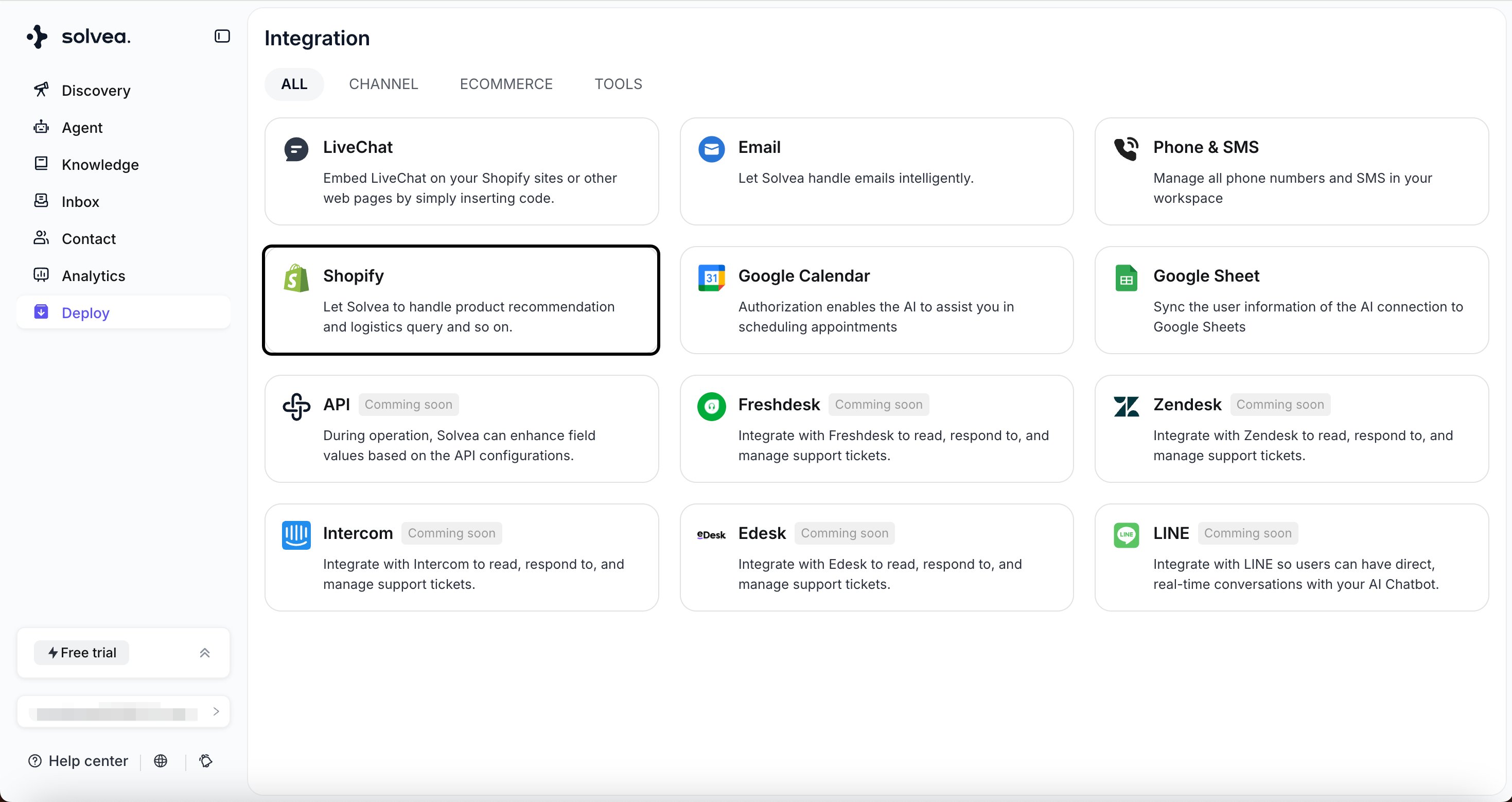 ## Authorization
### Connection
Go to **Shopify Connection** -> click **Connect**
## Authorization
### Connection
Go to **Shopify Connection** -> click **Connect**
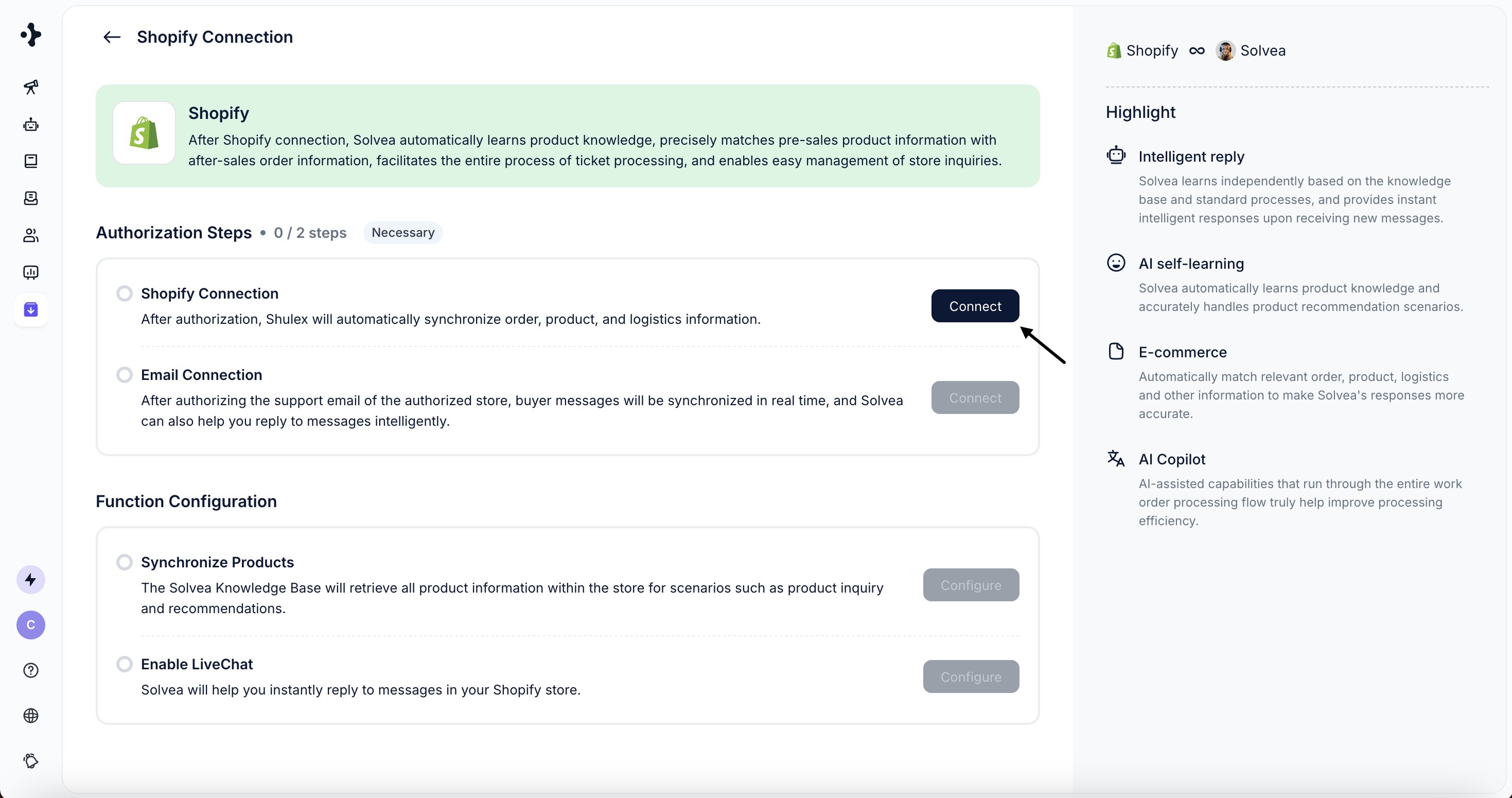 Enter the brand of the store.\
Click the **Continue with shopify** button to be redirected to Shopify.
Enter the brand of the store.\
Click the **Continue with shopify** button to be redirected to Shopify.
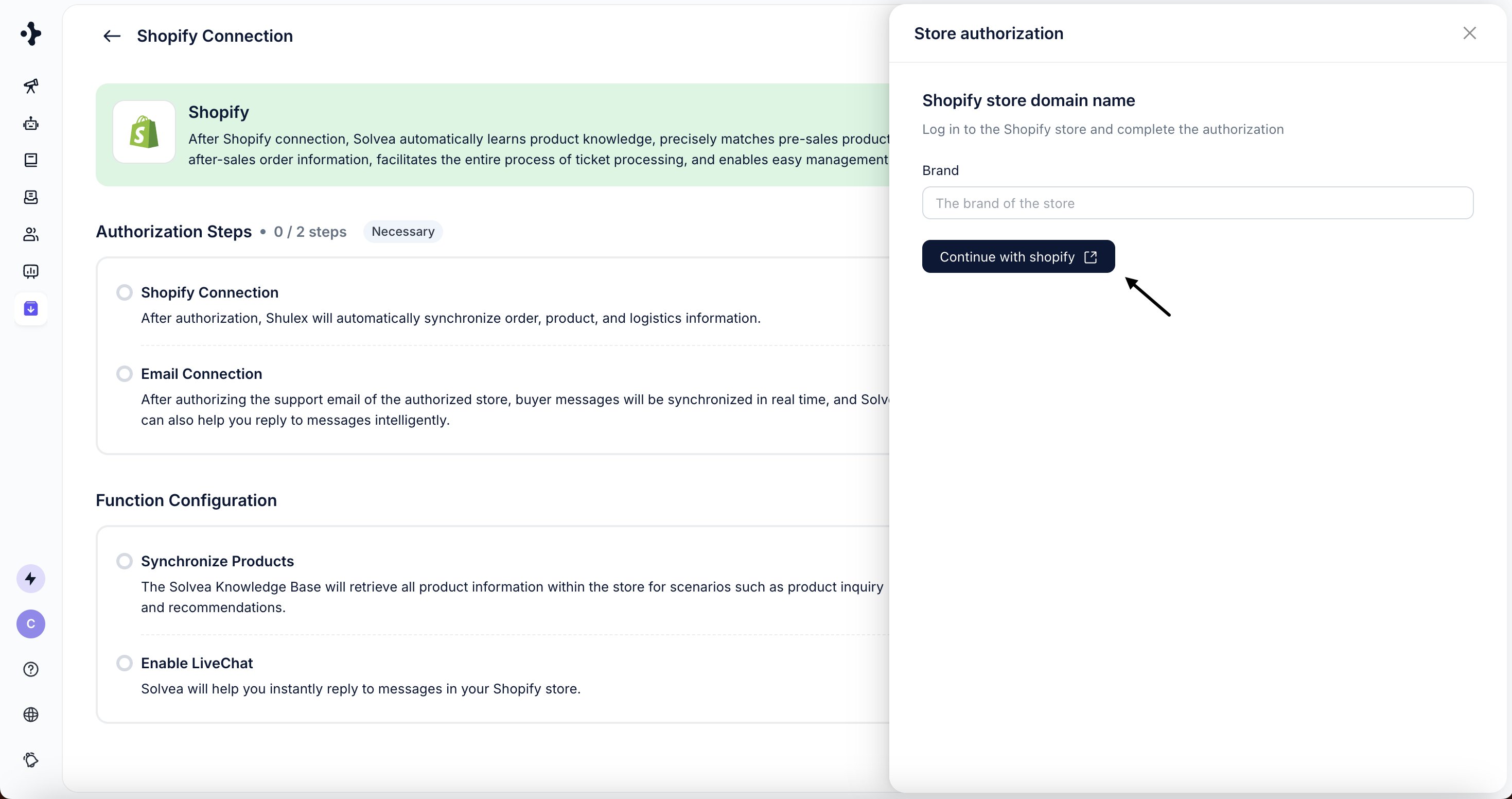 Login to Shopify
 In Shopify, confirm the authorization and install the app to complete setup.
## Function configuration
### Enable Livechat
Enable Livechat on Shopify for 24/7 AI agent support to resolve all customer inquiries.
Go to Livechat → Configuration.
Select the Livechat instance to use on your Shopify store.
Open your Shopify Admin and navigate to **Online Store → Themes**.
Click **Customize**, then open **App Embeds**.
Verify that the Livechat widget appears on your store pages.
Click **Save**.
### Sync Product Knowledge
Auto-sync Shopify product data to the knowledge base for accurate AI product recommendations and Q\&A.
Go to **Knowledge Sync → Sync**.
After the product data is synced, click **Configure**.
Select the folder where product knowledge will be stored.
(Optional) Enable **Automatic Knowledge Sync**.
Shopify product data is automatically updated once **per day**.
### Query Order Information
Retrieve Shopify order info by order number to streamline AI agent workflow execution.
This tool capability requires no additional configuration and is ready to use once Shopify is integrated.
By using the Shopify tool with an **order number**, the Agent can retrieve detailed order information, including:
* Tracking numbers
* Product details (name, SKU, quantity, price, status)
* Purchase time
* Shipping destination country
In the prompt, you can use the Shopify Order Query Tool like this:
```
Use the Order Number to call Shopify, to get the tracking numbers.
```
In Shopify, confirm the authorization and install the app to complete setup.
## Function configuration
### Enable Livechat
Enable Livechat on Shopify for 24/7 AI agent support to resolve all customer inquiries.
Go to Livechat → Configuration.
Select the Livechat instance to use on your Shopify store.
Open your Shopify Admin and navigate to **Online Store → Themes**.
Click **Customize**, then open **App Embeds**.
Verify that the Livechat widget appears on your store pages.
Click **Save**.
### Sync Product Knowledge
Auto-sync Shopify product data to the knowledge base for accurate AI product recommendations and Q\&A.
Go to **Knowledge Sync → Sync**.
After the product data is synced, click **Configure**.
Select the folder where product knowledge will be stored.
(Optional) Enable **Automatic Knowledge Sync**.
Shopify product data is automatically updated once **per day**.
### Query Order Information
Retrieve Shopify order info by order number to streamline AI agent workflow execution.
This tool capability requires no additional configuration and is ready to use once Shopify is integrated.
By using the Shopify tool with an **order number**, the Agent can retrieve detailed order information, including:
* Tracking numbers
* Product details (name, SKU, quantity, price, status)
* Purchase time
* Shipping destination country
In the prompt, you can use the Shopify Order Query Tool like this:
```
Use the Order Number to call Shopify, to get the tracking numbers.
```