Google Sheets lead logging AI works best when it gives your team a clean follow-up row, not just a transcript. A service business might get a call, website chat, email, or SMS where the customer says what they need in plain language. The useful output is a row that tells the team who contacted you, what they want, how urgent it is, when they want an appointment, what was promised, and who owns the next step.
That is the difference between "the AI answered" and "the team can follow up without replaying the whole conversation."
This guide gives small teams a practical field map for turning AI receptionist conversations into Google Sheets rows. Use it to define the columns, status rules, summaries, transcript links, and handoff fields your team needs before you connect automation.
Quick Answer: What Should a Google Sheets Lead Log Capture?
A Google Sheets lead logging AI workflow should capture the fields your team needs to qualify, route, schedule, and follow up with a lead.
| Sheet column | What it should contain | Why it matters |
|---|---|---|
| Lead timestamp | Date and time the conversation started | Sorts new leads and response times |
| Lead source | Phone, SMS, email, live chat, WhatsApp, form, ad, or referral | Shows where demand came from |
| Customer name | Name as given by the customer | Identifies the lead |
| Contact details | Phone, email, or preferred channel | Enables follow-up |
| Request intent | Booking, quote, question, support, reschedule, cancellation, or other | Routes the lead correctly |
| Service requested | The job, product, or service category | Helps assign the right owner |
| Urgency | Emergency, today, this week, flexible, or unknown | Prioritizes follow-up |
| Appointment time | Confirmed or requested date and time | Keeps scheduling visible |
| Conversation summary | Short plain-language recap | Saves the team from reading the full transcript first |
| Transcript or ticket link | Link to the complete conversation record | Preserves detail for review |
| Status | New, qualified, scheduled, needs review, won, lost, or closed | Turns the sheet into a lightweight pipeline |
| Owner | Person or team responsible for the next step | Prevents orphaned leads |
| Next action | Call back, send quote, confirm appointment, ask missing question, or hand off | Makes follow-up explicit |
Solvea's Google Tool documentation supports the core integration pattern: the agent can use Google Sheets to read from and write to spreadsheets, store booking records, update customer or appointment lists, and read structured business data during conversations.
Why a Transcript Is Not Enough
Transcripts are useful for audit and detail, but they are a poor operating view. A busy owner or dispatcher does not want to open ten conversations to find out which leads need attention. They want a sheet where the newest rows show the lead, the request, the status, and the owner.
That is why the first design decision is not "how do we send everything to Google Sheets?" It is "what should each row help a person do next?"
Before you connect a Google Sheets lead logging AI workflow, decide whether the sheet is mainly for:
- Lead capture and follow-up.
- Appointment booking review.
- Quote requests.
- Missed-call recovery.
- Support-to-sales handoff.
- Reporting by source or service type.
- A temporary CRM before moving to a dedicated system.
The answer changes the columns. A missed-call sheet needs callback status and owner. A booking sheet needs appointment time, calendar event ID, and reschedule status. A quote sheet needs service category, location, urgency, and estimate owner.
Start With One Row Per Conversation
For most small teams, the safest first version is one row per customer conversation. Do not start with one row per message, because that creates noise. The row should represent the lead or request, while the transcript link preserves the full detail.
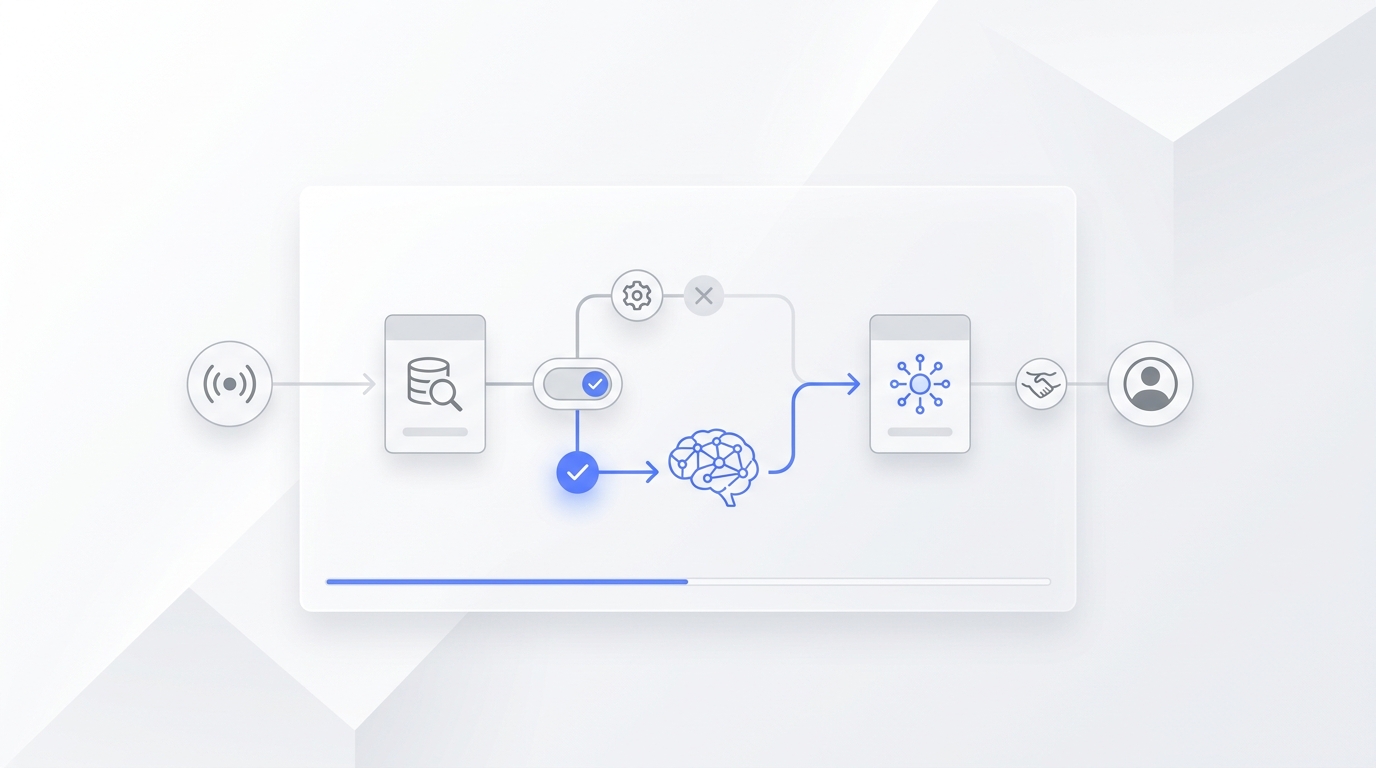
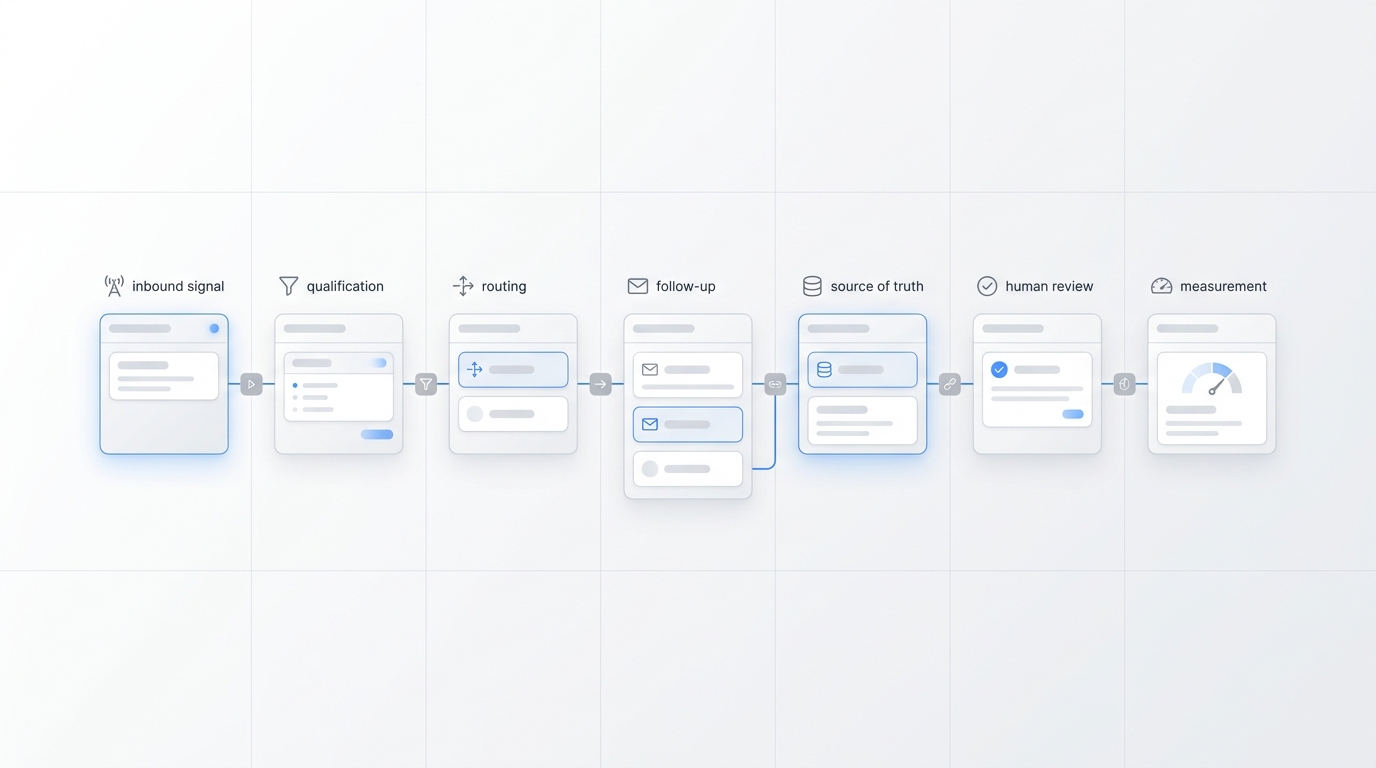
Use this basic workflow:
| Step | What happens | Output |
|---|---|---|
| Customer contacts the business | The AI receptionist answers by phone, SMS, email, live chat, or another channel | Conversation starts |
| AI identifies intent | It decides whether the person wants to book, ask a question, get a quote, change an appointment, or reach staff | Intent field |
| AI collects required fields | It asks only for missing details needed for the workflow | Contact, service, urgency, time |
| AI summarizes | It turns the conversation into a short operational summary | Summary field |
| AI writes the row | It sends the mapped fields into Google Sheets | New lead row |
| AI routes exceptions | It creates a handoff when the lead needs staff review | Owner and next action |
| Team works the sheet | Staff sort by status, urgency, owner, and next action | Follow-up queue |
The Solvea deploy overview describes tools as the way an agent accesses external systems during a conversation. For this use case, Google Sheets is the system of record for the operational row, while the inbox or transcript keeps the full conversation context.
The Lead Field Map
Use this field map as the starting point for your first Google Sheets lead logging AI setup.
| Field group | Recommended columns | Notes |
|---|---|---|
| Identity | Lead ID, customer name, phone, email | Use a unique lead ID if you expect duplicate names or repeat callers |
| Source | Channel, page URL, campaign, referral source | Keep source names consistent so reporting works later |
| Request | Intent, service requested, description, location | Separate intent from service; "book" and "HVAC repair" are different fields |
| Urgency | Urgency level, requested appointment window, preferred contact method | Let the team filter the sheet by what must happen first |
| Qualification | New or returning customer, budget range, property type, decision maker, missing fields | Keep only the fields your team actually uses |
| Scheduling | Requested time, confirmed appointment time, calendar event link, reschedule flag | Use when calls can become appointments |
| Conversation record | Summary, transcript link, ticket link, recording link if available | Put detail behind a link so the row stays readable |
| Ownership | Owner, team, handoff reason, next action, follow-up due | This is what prevents leads from stalling |
| Outcome | Status, outcome reason, closed date, revenue or job ID if available | Add outcome fields after the team can keep up with new rows |
Do not make the sheet perfect on day one. Start with the columns needed to prevent missed follow-up, then add reporting fields once the workflow is stable.
How to Map Conversation Data Into Sheet Columns
The easiest way to make a lead sheet messy is to let the AI write long free-form text into every column. Give each column a clear rule.
| Column | Mapping rule | Good example |
|---|---|---|
| Intent | Choose from a controlled list | Booking request |
| Urgency | Choose from a controlled list | Today |
| Service requested | Short category plus detail if needed | Drain cleaning - kitchen sink |
| Summary | One or two sentences | Caller needs kitchen sink drain service, prefers today after 3 PM, and asked for price range before booking. |
| Missing fields | List only the required fields still unknown | Address, email |
| Owner | Team or person based on routing rules | Dispatch |
| Status | Controlled pipeline stage | Needs review |
| Next action | Verb plus owner action | Dispatch to call back with price range |
Controlled values make the sheet filterable. Free-form text belongs in the summary, transcript, or notes column.
Suggested Statuses for a Lightweight Lead Pipeline
Google Sheets can work as a simple pipeline if the statuses are clear. Avoid creating too many statuses, because the team will not use them consistently.
| Status | Meaning | Owner action |
|---|---|---|
| New | Lead row was created but not reviewed | Review and assign |
| Qualified | Required fields are present and the request fits the business | Contact, quote, or schedule |
| Scheduled | Appointment is confirmed or ready for calendar follow-up | Prepare for appointment |
| Needs review | The AI could not safely complete the workflow | Human owner decides next step |
| Missing info | Required details are absent | Ask for the missing field |
| Duplicate | Same lead already exists | Merge or ignore |
| Won | Lead became a customer or job | Record outcome |
| Lost | Lead declined, was unreachable, or was not a fit | Record reason |
| Closed | No more action needed | Keep for reporting |
For a Google Sheets lead logging AI workflow, "needs review" is important. It tells the AI not to guess when the call has a policy exception, incomplete address, unclear service type, upset customer, or custom quote request.
What to Put in the Summary
The summary should be useful without being bloated. It should answer four questions:
- Who contacted us?
- What do they need?
- How urgent is it?
- What should happen next?
Use a template like this:
[Name] contacted us by [channel] about [service/request]. Urgency: [urgency]. Preferred time: [time window]. Next action: [owner/action]. Notes: [one short useful detail].
Example:
Maya called about a leaking kitchen sink. Urgency: today. Preferred time: after 3 PM. Next action: dispatch to call back with availability and price range. Notes: caller is a returning customer.
The transcript can hold everything else. The summary is for triage.
Transcript, Recording, and Ticket Links
If your sheet holds a complete transcript in one cell, it becomes hard to scan. A better pattern is:
- Store the short summary in the row.
- Store the transcript, recording, or ticket link in a separate column.
- Use the link when a person needs full detail.
Solvea's inbox overview describes tickets as structured records of customer issues with conversation history, handling process, and outcome. It also notes that each phone call creates one ticket. That makes the inbox or ticket record a useful place for full context while Google Sheets stays focused on the follow-up queue.
Owner and Handoff Rules
A lead row is only useful if someone owns it. Define owner rules before the sheet goes live.
| Trigger | Suggested owner | Status | Next action |
|---|---|---|---|
| Booking intent with complete fields | Scheduling or front desk | Qualified | Confirm or create appointment |
| Quote request | Estimator or sales owner | Needs review | Review details and respond |
| Emergency wording | On-call owner | Needs review | Call back immediately |
| Missing contact detail | Front desk | Missing info | Ask for contact field |
| Customer asks for a manager | Manager | Needs review | Review transcript and call back |
| Tool action fails | Operations owner | Needs review | Verify row and contact customer |
| Existing customer issue | Support owner | Needs review | Continue in ticket |
The handoff note should be short and consistent:
Lead handoff: [name] needs [service/request]. Reason: [handoff trigger]. Contact: [phone/email]. Summary: [one sentence]. Owner: [team/person]. Due: [time].
If the workflow includes scheduling, use the Google Calendar fields separately. Solvea's Google Tool docs support Google Calendar availability checks plus create, update, and delete event actions, so appointment workflows can connect the lead row to the calendar when the business has defined safe booking rules.
How to Handle Appointment Times
Do not put every time reference in one notes field. Separate requested time from confirmed time.
| Column | Use it for |
|---|---|
| Requested appointment window | What the customer asked for |
| Confirmed appointment time | What the business or calendar confirmed |
| Calendar event link or ID | Connection to the scheduling record |
| Appointment status | Requested, confirmed, rescheduled, cancelled, needs review |
| Reschedule reason | Why the time changed |
This protects the team from confusing "customer asked for Friday" with "Friday is confirmed."
Data Quality Rules for the First Week
Run the first week as a controlled pilot. Every day, review the newest rows and ask:
- Are names and contact details landing in the right columns?
- Are source values consistent?
- Are intent and urgency values filterable?
- Are summaries short enough to scan?
- Are transcript or ticket links present?
- Are appointment fields separated from notes?
- Are owners assigned correctly?
- Are any leads stuck without next action?
- Did the AI write anything into the wrong column?
If a column is often blank, decide whether the AI should ask for that field or whether the field is not really required. If a column gets long paragraphs, split it into summary, notes, and transcript link.
A Simple Sheet Layout
For a first Google Sheets lead logging AI pilot, create one tab named Leads with these columns:
| Column name | Type | Required? |
|---|---|---|
| lead_id | Text | Yes |
| created_at | Timestamp | Yes |
| source_channel | Controlled value | Yes |
| customer_name | Text | Yes when available |
| phone | Text | When available |
| Text | When available | |
| preferred_contact_method | Controlled value | Optional |
| intent | Controlled value | Yes |
| service_requested | Text | Yes |
| urgency | Controlled value | Yes |
| requested_appointment_window | Text | If scheduling matters |
| confirmed_appointment_time | Timestamp or text | If booked |
| conversation_summary | Short text | Yes |
| transcript_or_ticket_link | URL | Yes when available |
| status | Controlled value | Yes |
| owner | Person or team | Yes |
| next_action | Text | Yes |
| follow_up_due | Date/time | When action is needed |
| outcome | Controlled value | Later |
| outcome_reason | Text | Later |
Keep one hidden or protected tab for allowed values if your team uses dropdowns. That helps keep status, urgency, source, and owner fields consistent.
Where Solvea Fits
Solvea is useful when the lead starts as a real customer conversation rather than a form field. The public site positions Solvea as a business phone with an AI receptionist, shared customer inbox, summaries, transcripts, recordings, and next steps across mobile and PC. The docs show that Solvea can connect an agent to channels such as phone and SMS, live chat, and email, and can use tools such as Google Sheets during conversations.
For this workflow, use Solvea to:
- Answer inbound calls or messages.
- Identify lead intent during the conversation.
- Collect required fields before writing the row.
- Summarize the conversation into a short follow-up note.
- Write or update the Google Sheets row.
- Link the row back to the full ticket or transcript.
- Route unclear or urgent requests to a human owner.
If the same workflow touches ecommerce data, the Shopify integration documentation is a supporting example of how Solvea connects business systems beyond Sheets. For current packaging and billing details, send readers to Solvea pricing rather than copying pricing numbers into an evergreen workflow article.
One-Week Pilot Plan
Use this rollout plan before relying on the sheet for every lead.
- Pick one lead source, such as phone calls or live chat.
- Create the
Leadstab with the core columns. - Define allowed values for intent, urgency, source, status, and owner.
- Write the minimum questions the AI should ask before creating a row.
- Decide which requests should become
needs review. - Connect the Google Sheets tool and test row creation.
- Run test conversations for booking, quote request, missing info, urgent request, duplicate lead, and human handoff.
- Review rows daily for one week.
- Fix the field map before adding more channels.
- Add outcome fields only after new lead capture is stable.
The goal is not to capture every possible detail. The goal is to make follow-up obvious.
What to Measure
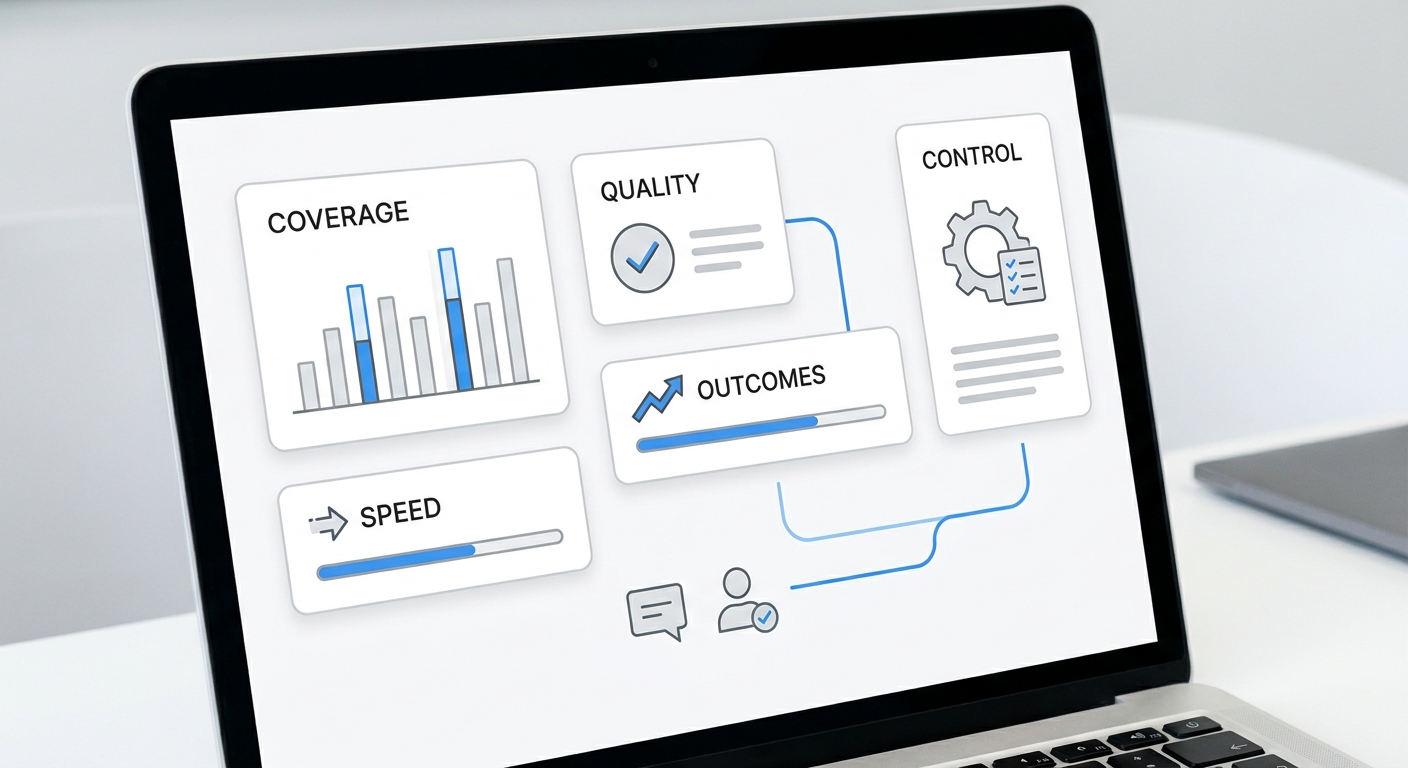
Measure whether the sheet helps the team act faster and cleaner.
| Metric | What it reveals |
|---|---|
| New rows per source | Which channels create lead volume |
| Missing-field rate | Which intake questions need improvement |
| Needs-review rate | Whether routing rules are too broad or too narrow |
| Owner assignment rate | Whether every lead has a responsible person |
| Follow-up overdue count | Whether the sheet is becoming a backlog |
| Scheduled appointments | How many leads become appointments |
| Duplicate row rate | Whether matching rules need improvement |
| Status aging | How long leads stay in each stage |
| Outcome by source | Which channels produce better leads |
These are operational metrics. Avoid treating the first week as a conversion test. First make the row reliable; then use the sheet for reporting.
Common Mistakes to Avoid
Avoid these mistakes when setting up Google Sheets lead logging AI:
- Writing the full transcript into the main sheet view.
- Mixing requested time and confirmed time in one field.
- Letting the AI invent owner names or statuses.
- Using too many pipeline stages.
- Treating every request as safe to automate.
- Forgetting a
needs reviewpath. - Storing sensitive internal notes in a customer-visible calendar invite.
- Adding outcome reporting before the intake row is reliable.
- Leaving rows without owner or next action.
The sheet should be boring in the best way: consistent, filterable, and easy to act on.
Final Recommendation
A Google Sheets lead logging AI workflow should be designed around the row your team needs tomorrow morning. Start with one conversation source, one lead sheet, controlled statuses, a short summary, a transcript or ticket link, and a clear owner field.
Once your team trusts the row, expand the workflow to more channels, calendar actions, source reporting, and outcome tracking.
To test the setup, connect the Google Sheets tool in Solvea, map the first lead source, and log calls to Sheets with Solvea before adding extra automation.
Your AI Receptionist, Live in Minutes.
Scale your front desk with an AI that never sleeps. Solvea handles unlimited multi-channel inquiries, books appointments into your calendar automatically, and ensures zero missed opportunities around the clock.
FAQ
What is Google Sheets lead logging AI?
Google Sheets lead logging AI is a workflow where an AI receptionist or automation captures conversation details, maps them into structured fields, and writes a lead row into Google Sheets for team follow-up.
What should an AI lead log include?
At minimum, include timestamp, source, name, contact details, intent, service requested, urgency, appointment time if relevant, summary, transcript or ticket link, status, owner, next action, and follow-up due date.
Should I store the full transcript in Google Sheets?
Usually no. Store a short summary and a link to the full transcript, ticket, or recording. That keeps the sheet readable while preserving the full conversation for review.
Can Google Sheets replace a CRM for a small team?
Google Sheets can work as a lightweight lead queue when the team has simple stages, low complexity, and clear ownership. Move to a CRM when permissions, reporting, automation, or multi-team workflows become hard to manage in a spreadsheet.
How should AI assign lead urgency?
Use controlled values such as emergency, today, this week, flexible, or unknown. Define examples for each value so the AI does not guess differently on every conversation.
What happens when required fields are missing?
The AI should ask for the missing field if the conversation is still active. If the field remains missing, the row should show missing info, list the absent fields, and assign an owner for follow-up.
How do I prevent duplicate lead rows?
Use a lead ID and compare obvious identifiers such as phone number, email, recent timestamp, and open status. Do not delete duplicates automatically unless the business has a clear merge rule.
Can the same workflow connect to appointment booking?
Yes. Keep requested time, confirmed time, appointment status, and calendar event link in separate columns. Use Google Calendar actions only after your booking rules are defined.
What is the safest first pilot?
Start with one channel, such as inbound phone calls, and one sheet tab. Test normal bookings, quote requests, missing information, urgent requests, duplicate leads, and handoffs before expanding.