Set Names
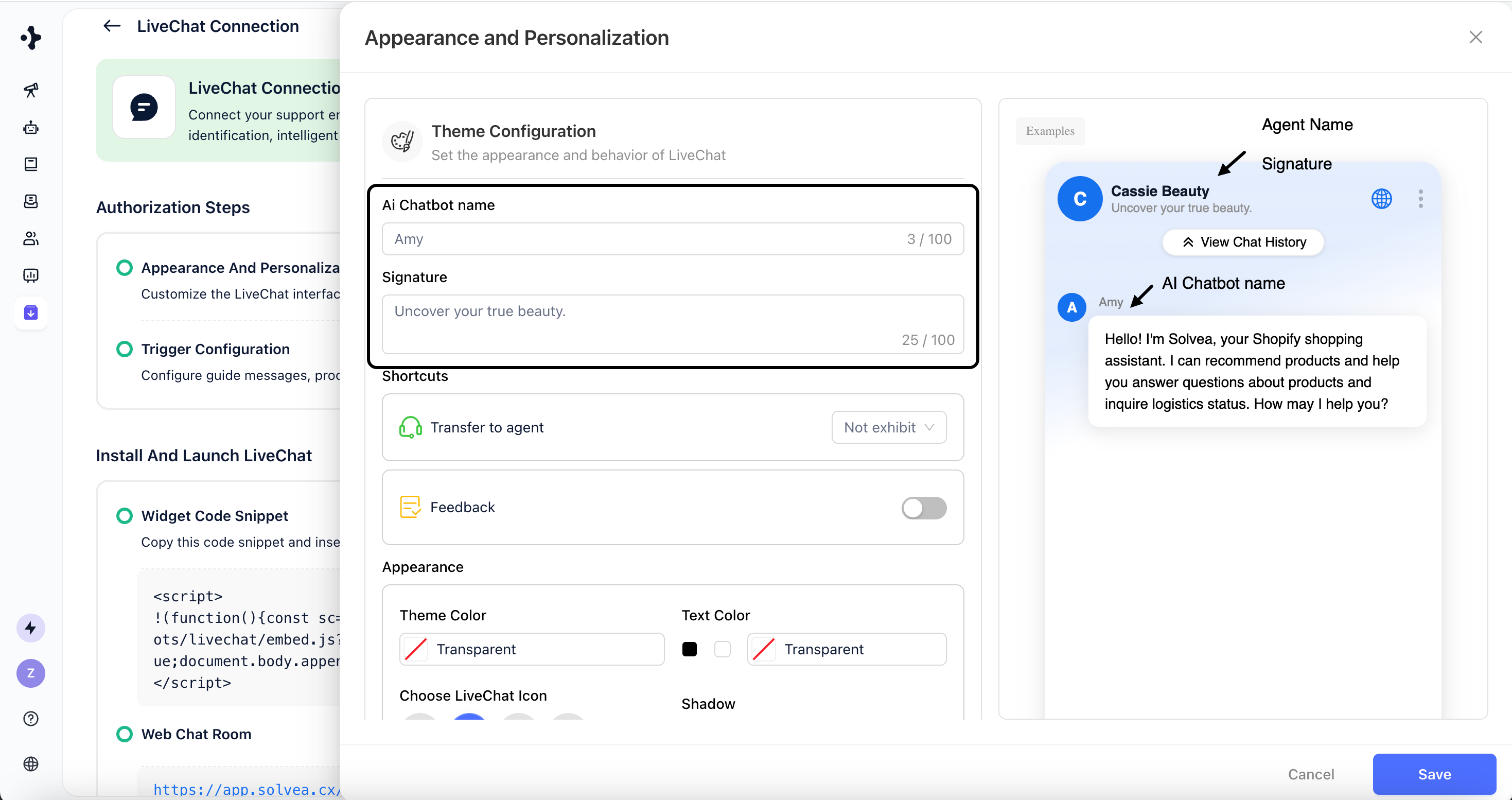
Configure how your Livechat agent is presented to users.- AI Chatbot Name
The name of the AI agent shown in Livechat conversations. - Signature
A short greeting or slogan displayed under the Name. - Agent Name
The agent name configured in the Agent module, typically your brand name.
Add Shortcuts
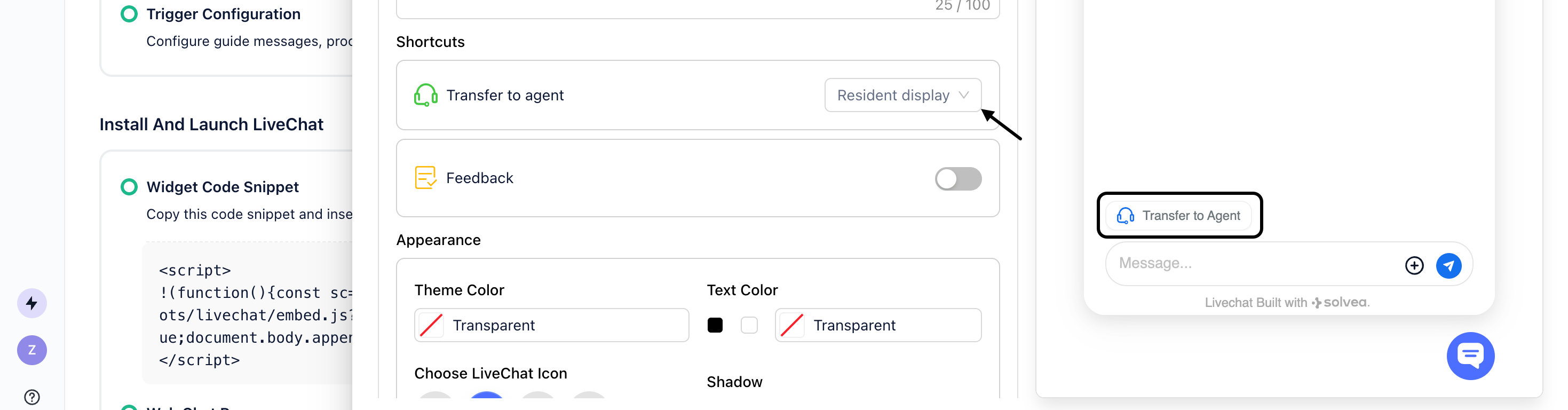
Shortcuts are quick action buttons displayed above the input field, with two options available:-
Transfer to agent
Clicking this button allows the user to directly trigger a handoff to a human agent for support.
Configure whether to display this button.
-
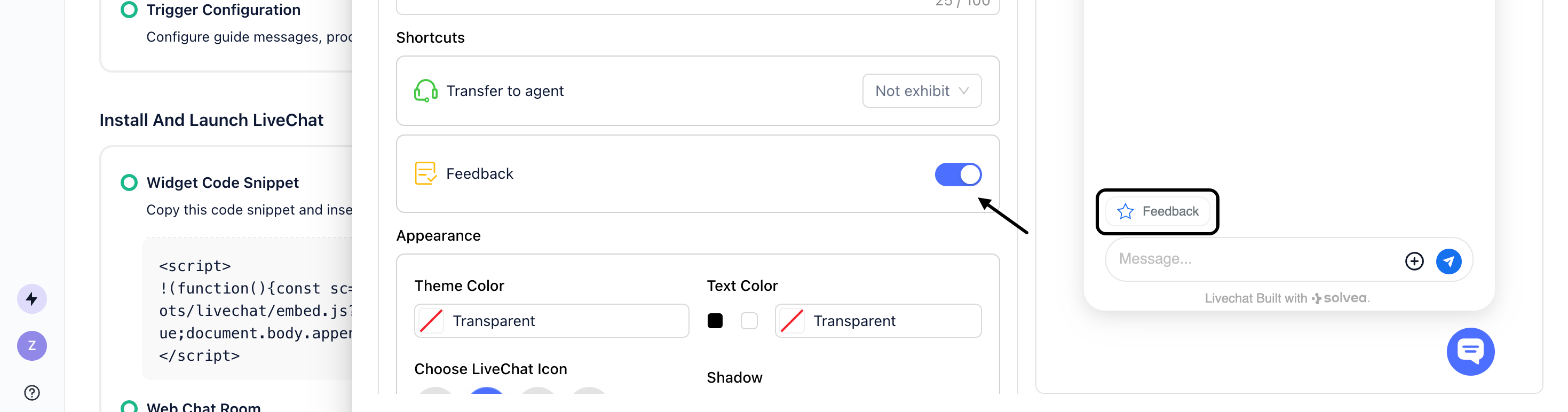
Feedback
Clicking this button enables the user to rate the conversation and leave comments.
Configure whether to display this button.
Customize Appearance
Control the visual style and layout of the Livechat widget.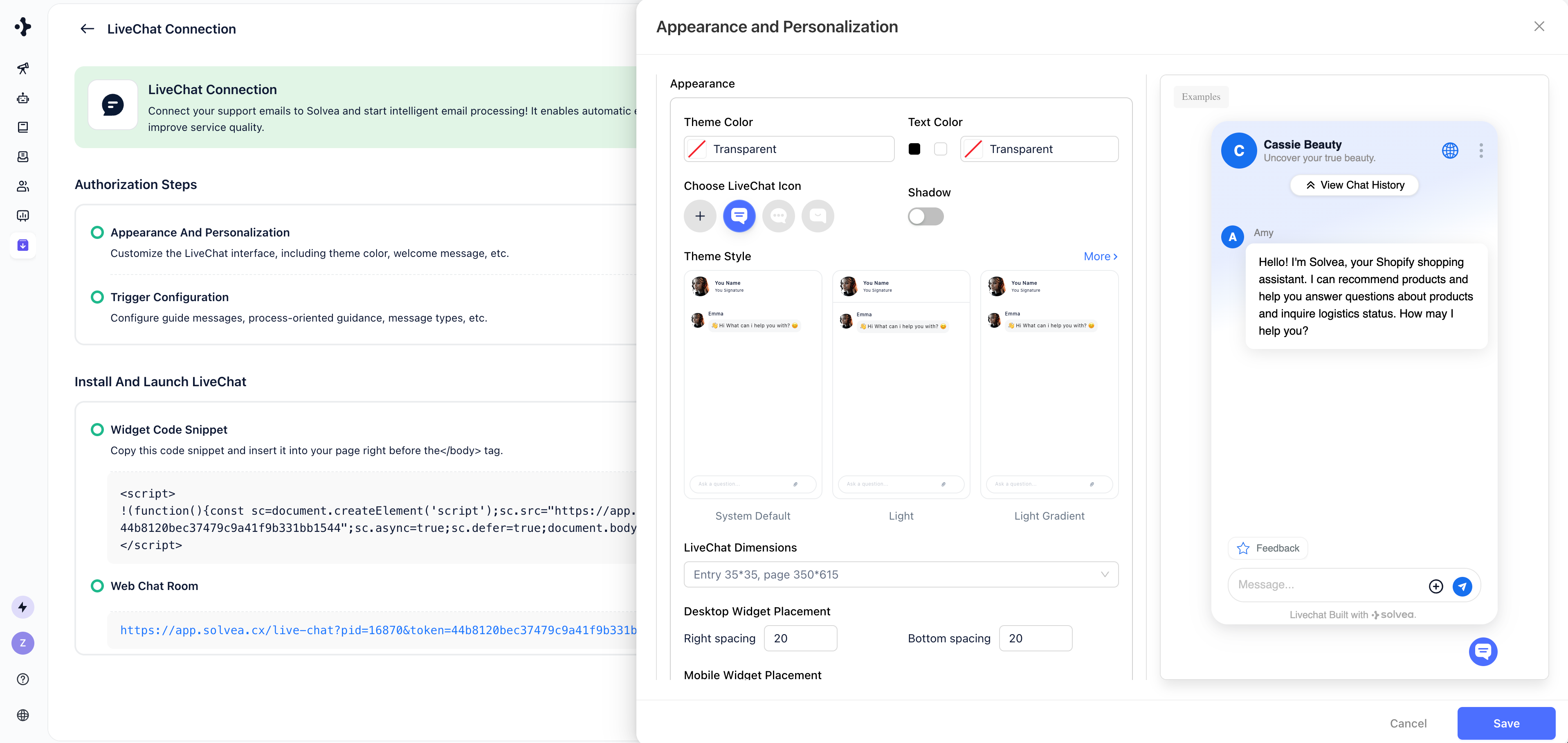
-
Colors
Primary Color
Affects the top gradient background, chat bubbles, send button, selected states, and button icons.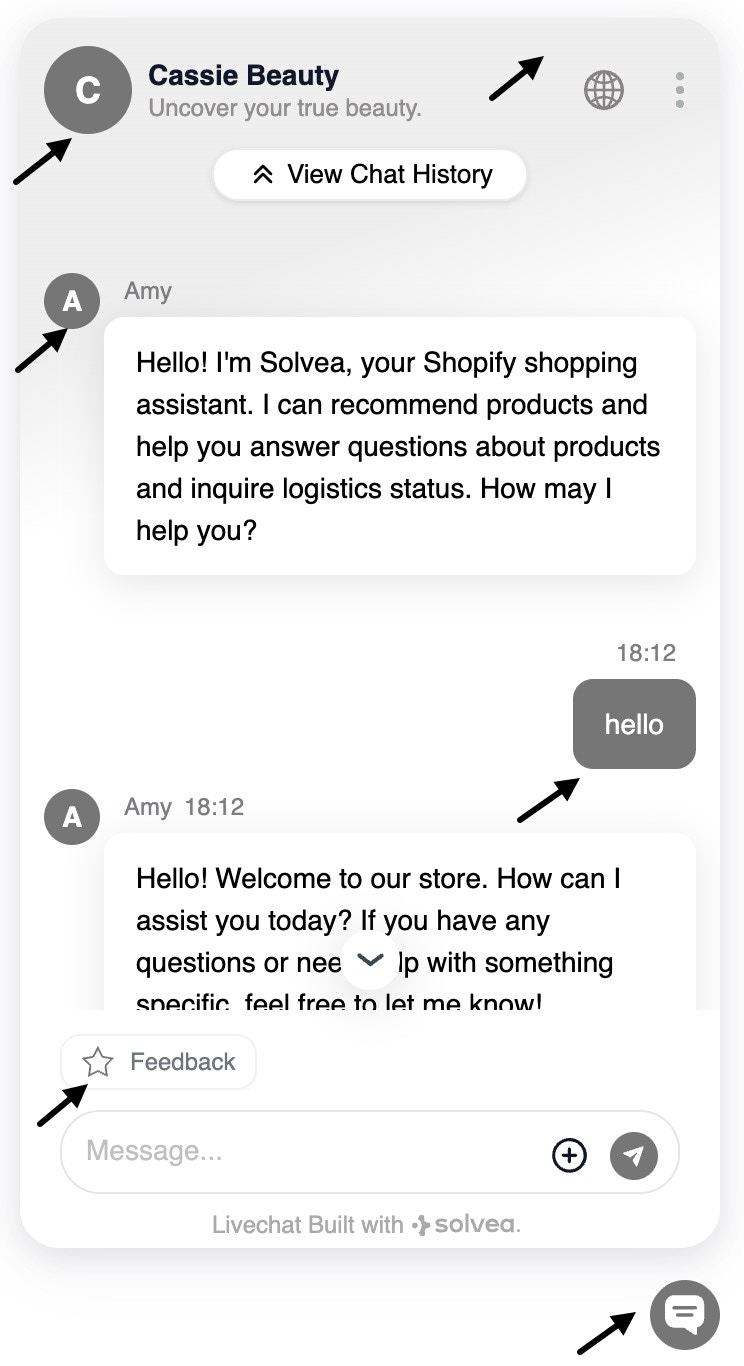
Text Color
Affects the brand name, agent nickname, user messages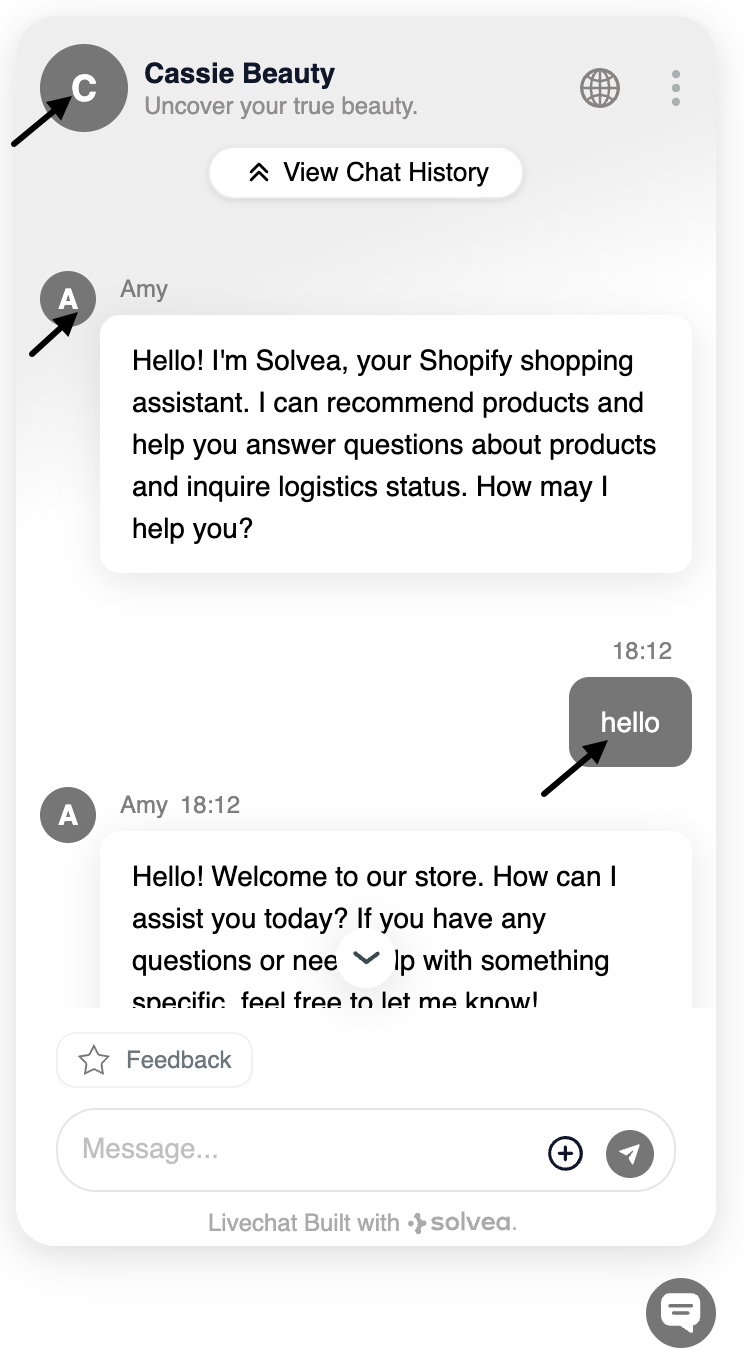
-
Livechat Icon
The icon displayed at the bottom-right corner of the page when Livechat is minimized.- Choose from present icons
- Or upload a custom image
-
Theme Style
Solvea provides 10 pre-built themes. Click “More” to view all available styles.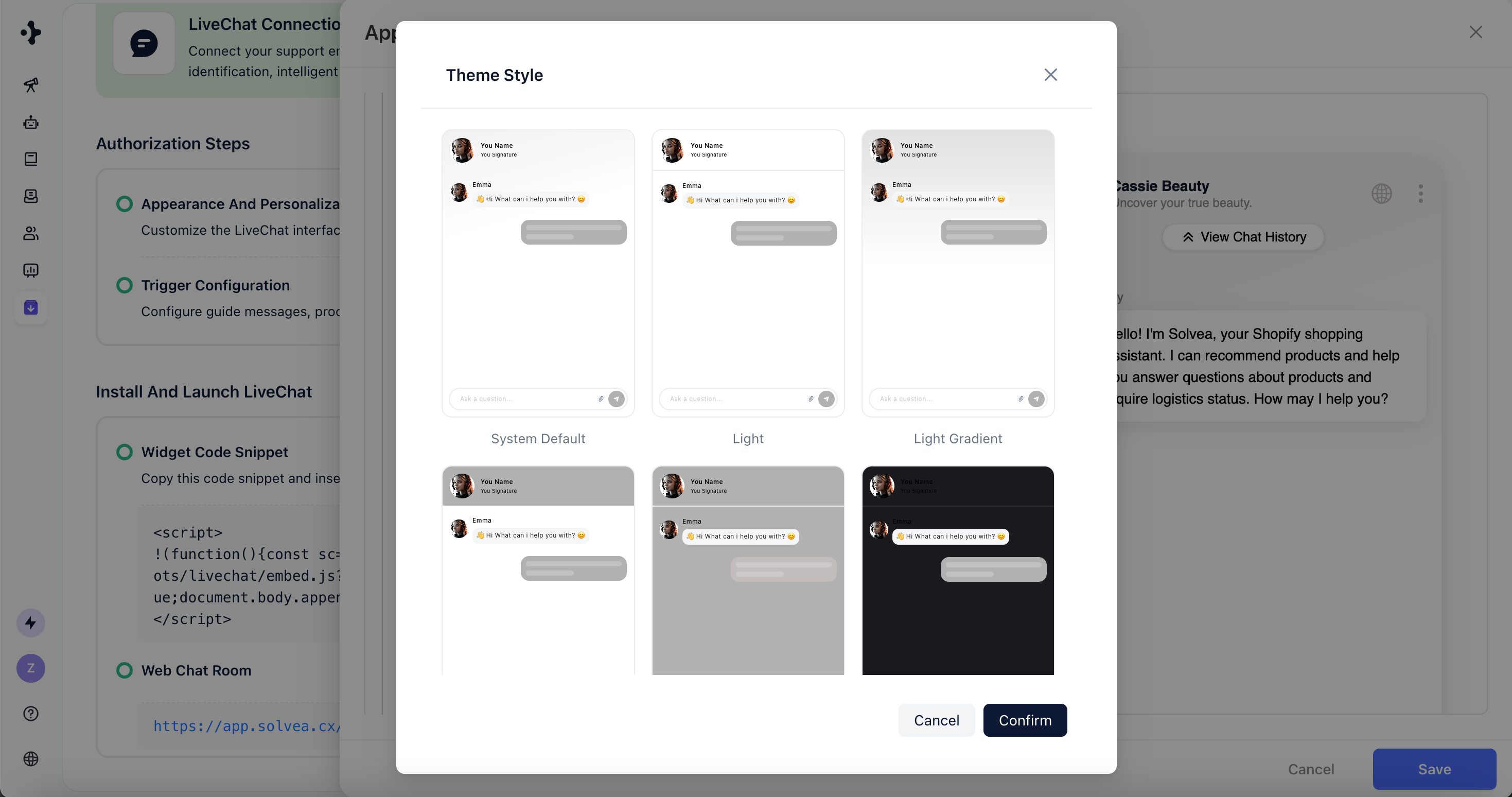
-
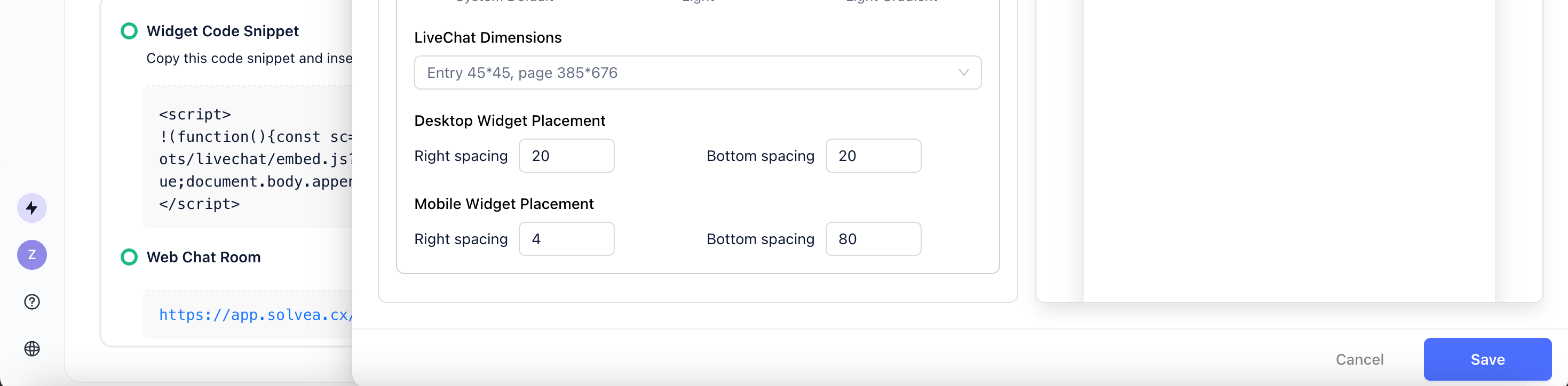
LiveChat Dimensions
Choose from four display sizes for the chat window.
Default: Medium. -
Desktop Widget Placement
Set the distance from the right and bottom edges of the screen.
Default spacing: 20 px.