

An API key carries the same access as your workspace. Treat it like a password — never commit it to a public repository, paste it into a chat, or ship it in client-side code.
Generate an API key
- Open the Solvea dashboard at app.solvea.cx.
-
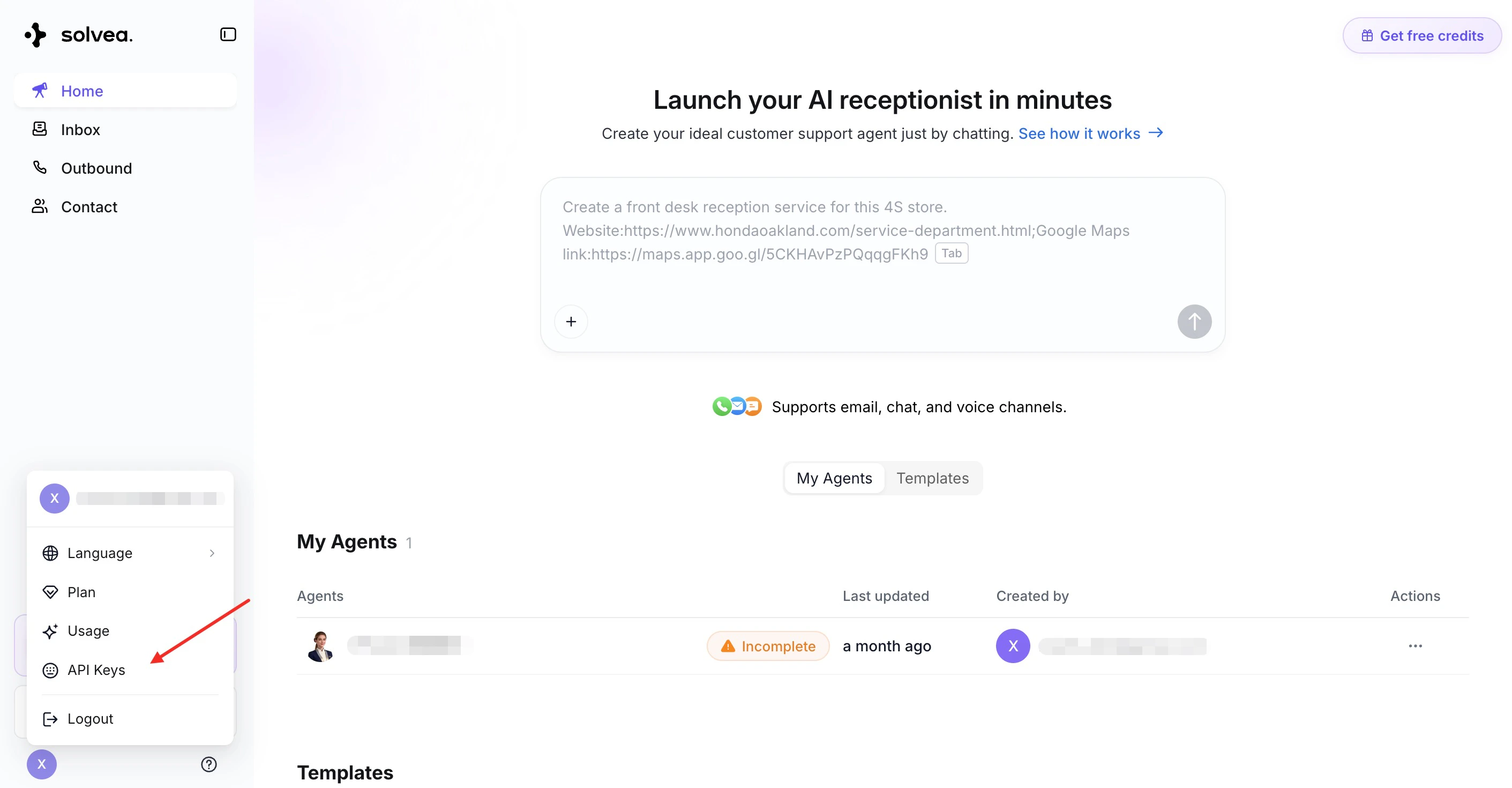
In the sidebar, go to API Keys.
-
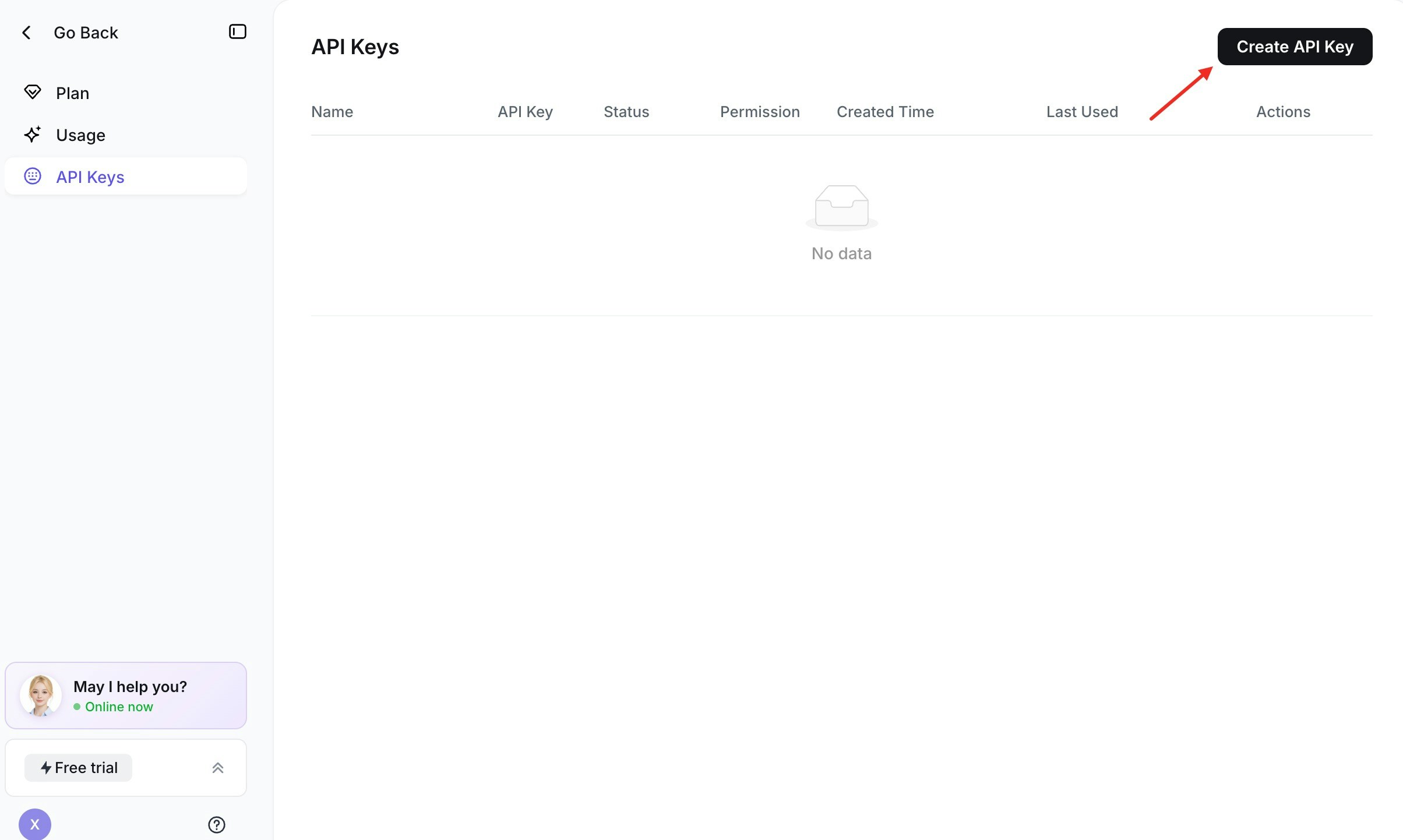
Click Generate API Key.
-
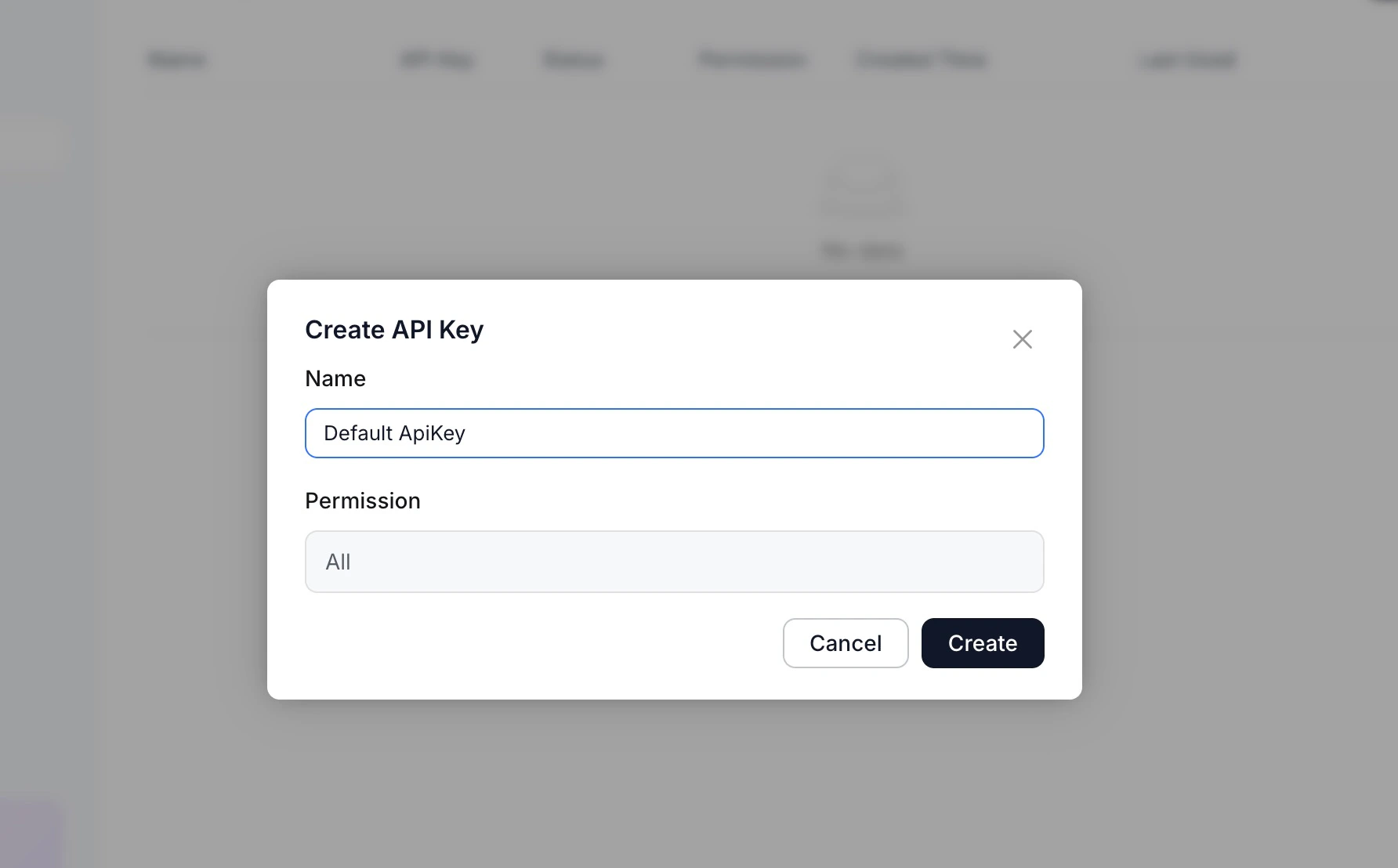
Confirm in the dialog that appears.
-
Click the copy button on the right of the key to copy it to your clipboard, then use it in your application.
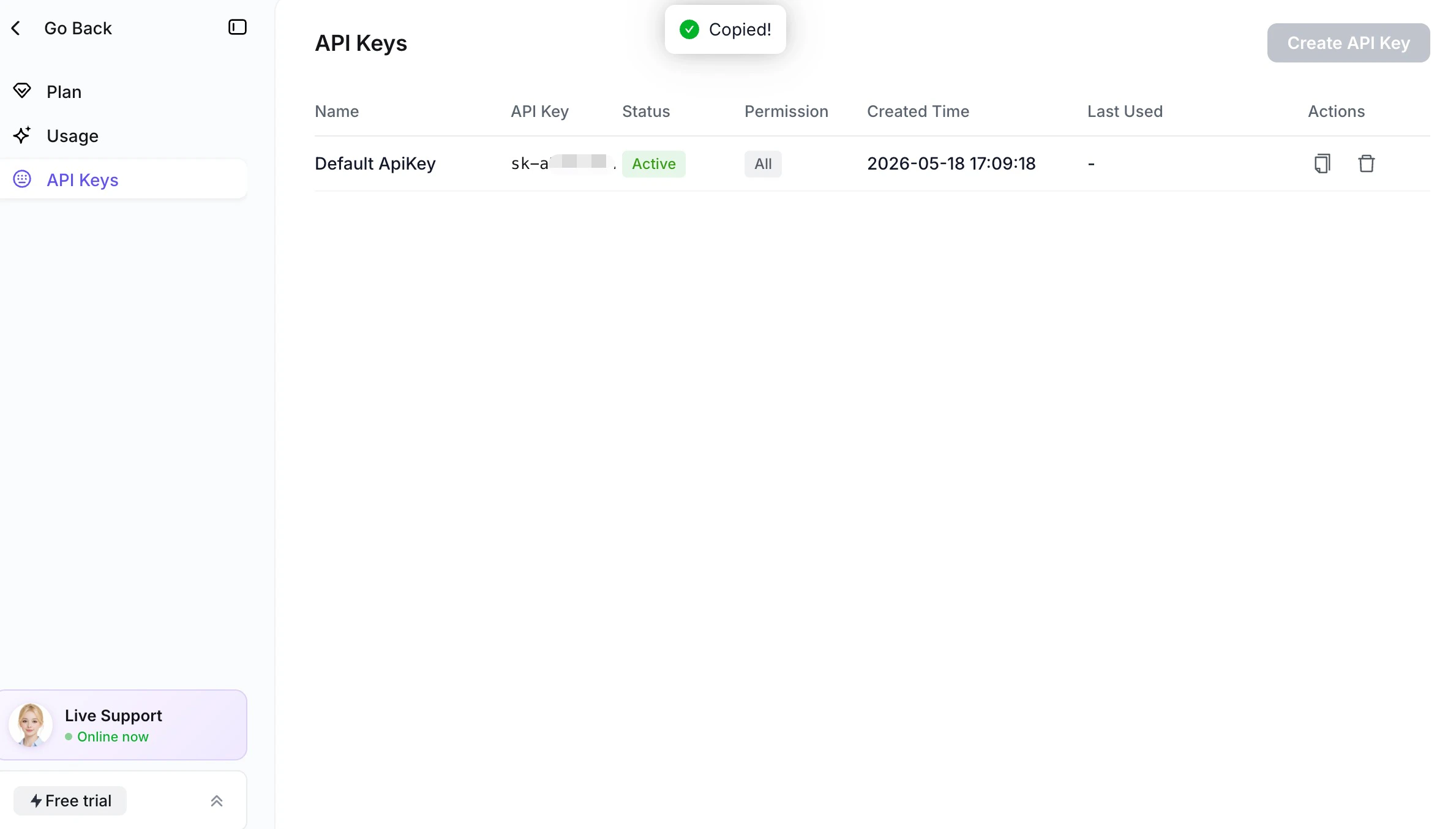
Each workspace can have only one API key at a time. To issue a new key, delete the existing one first (see Rotate or delete a key).
Key format
A Solvea API key starts with thesk- prefix followed by a random hex string. The sk- prefix makes the key easy to spot in logs and lets secret-scanning tools (GitHub, gitleaks, etc.) catch accidental commits.
Use the API key
Every OpenAPI request needs a single header:Base URL
The Solvea OpenAPI is served fromhttps://app.solvea.cx. All endpoints live under the /api_v2/... path prefix.
Example request
A quick way to verify your key works is to list the phone numbers available to your workspace:Node.js
Python
200 response with a JSON body confirms the key is wired up correctly.
Rotate or delete a key
To rotate a key (for example, after a suspected leak or when an employee leaves):- Go to API Keys in the dashboard.
- Click the delete (trash) icon next to your existing key and confirm.
- Click Generate API Key to create a new one, and update the secret in every system that uses it.
Error reference
Common responses you may see from the OpenAPI:Security checklist
- Store keys in a secret manager, never in source control.
- Use a separate key per integration or environment.
- Rotate keys on a regular cadence and immediately if a leak is suspected.
- Restrict access to the API Keys page to people who need it.
- Watch your logs for the
sk-prefix to catch accidental exposure.