
Are you feeling overwhelmed by an endless stream of tasks and notifications? Do you ever wonder why, despite all the technology we have, we still feel like there aren't enough hours in the day?
The truth is that our brains weren't built for the digital workload. We need more than just simple tools; we need intelligent systems that can think and act like real assistants. These productivity apps are no longer just optional; they are the foundation of professional success.
Why do we need productivity apps?
- To automate repetitive chores so you can focus your energy on creative and high-value work.
- To centralize fragmented information and stop wasting time switching between dozens of different browser tabs.
- To reduce mental fatigue by letting a "second brain" handle your deadlines, data, and reminders.
- To scale your business operations without the immediate need to hire a large human team.
I have spent weeks testing numerous platforms, diving deep into real user feedback from communities, and analyzing what actually delivers results in a professional setting. From AI-driven receptionists like Solvea to elite coding editors like Cursor, here are the 10 best productivity apps I've selected to transform how you work.
TL;DR: What are the best work apps in 2026
Choosing the right productivity application depends entirely on your specific bottleneck. Whether you are a solo content creator or a manager at a large corporation, the table below compares the top 10 work apps to help you decide at a glance.
Work App | Best for | Free Trial | Starting Price | Key Use Case |
All-in-one Workflow Automation | 1000 credits | $30/month | AI Receptionists & Digital Staff | |
Research & Fact-finding | 12 months for personal use | $17/month for personal use | Real-time AI Search | |
Team Collaboration | 6 months for personal use | $10/month for small teams | Wiki & Shared Docs | |
Personal Task Management | 7 days | $5/month | Daily Checklists | |
Intelligent Email | 14 days | $24/month | AI Inbox Management | |
Scheduling | Always Free | Free | Time Blocking | |
AI-assisted Coding | 14 days | $20/month | Building Scripts/Apps | |
Complex Projects | 14 days | $10/month for small teams | Task Dependencies | |
App Integration | 14 days | $19.99/month | No-code Automation | |
Maintaining Focus | 14 days | $8/month | Keyboard Shortcuts |
1. Solvea: Best for All-in-one Workflow Automation
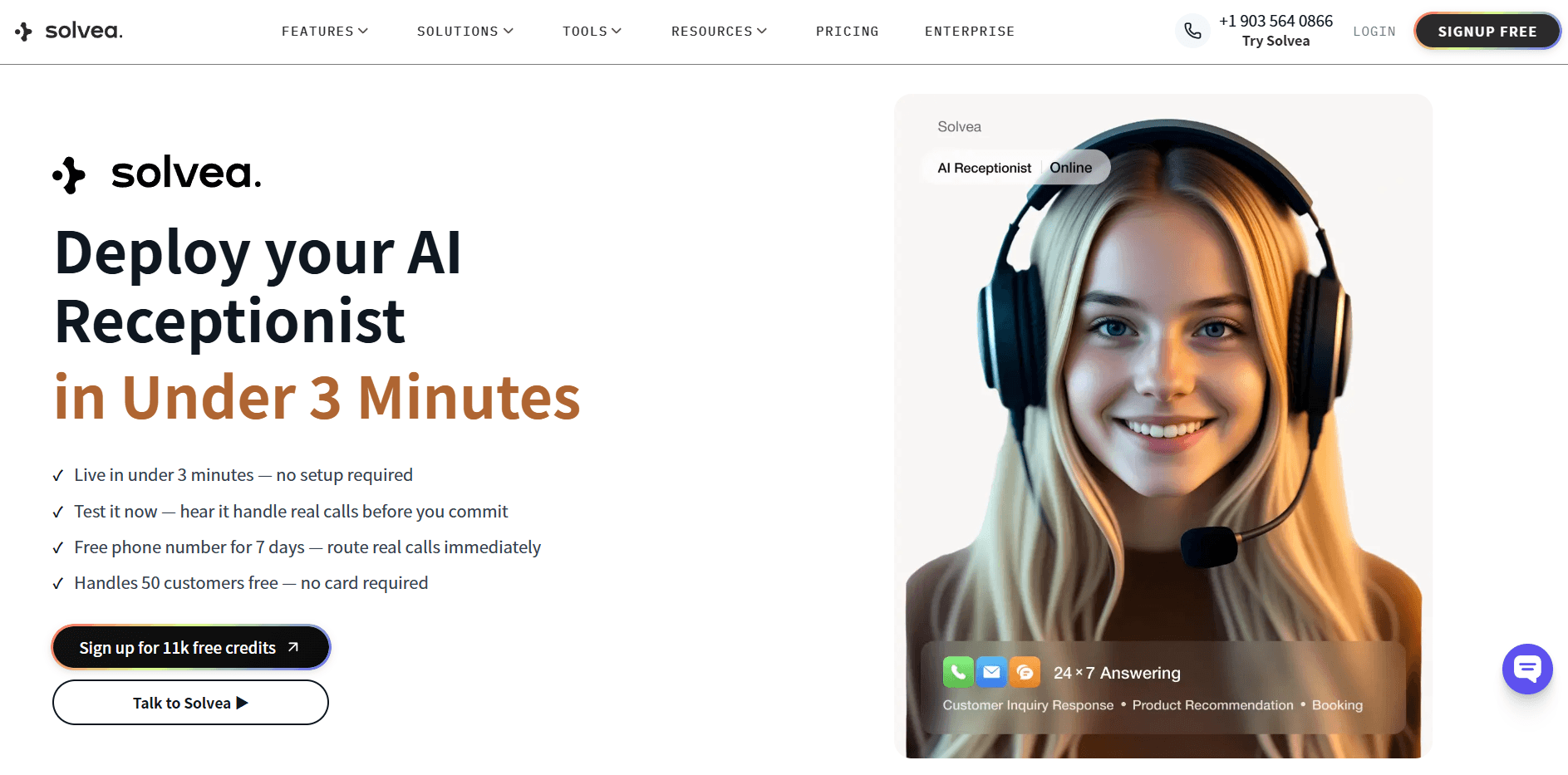
Best for: Small to medium business owners, service providers, and agencies who need an "AI Digital Employee" to manage customer interactions and internal business flows 24/7.
Why I Pick It?
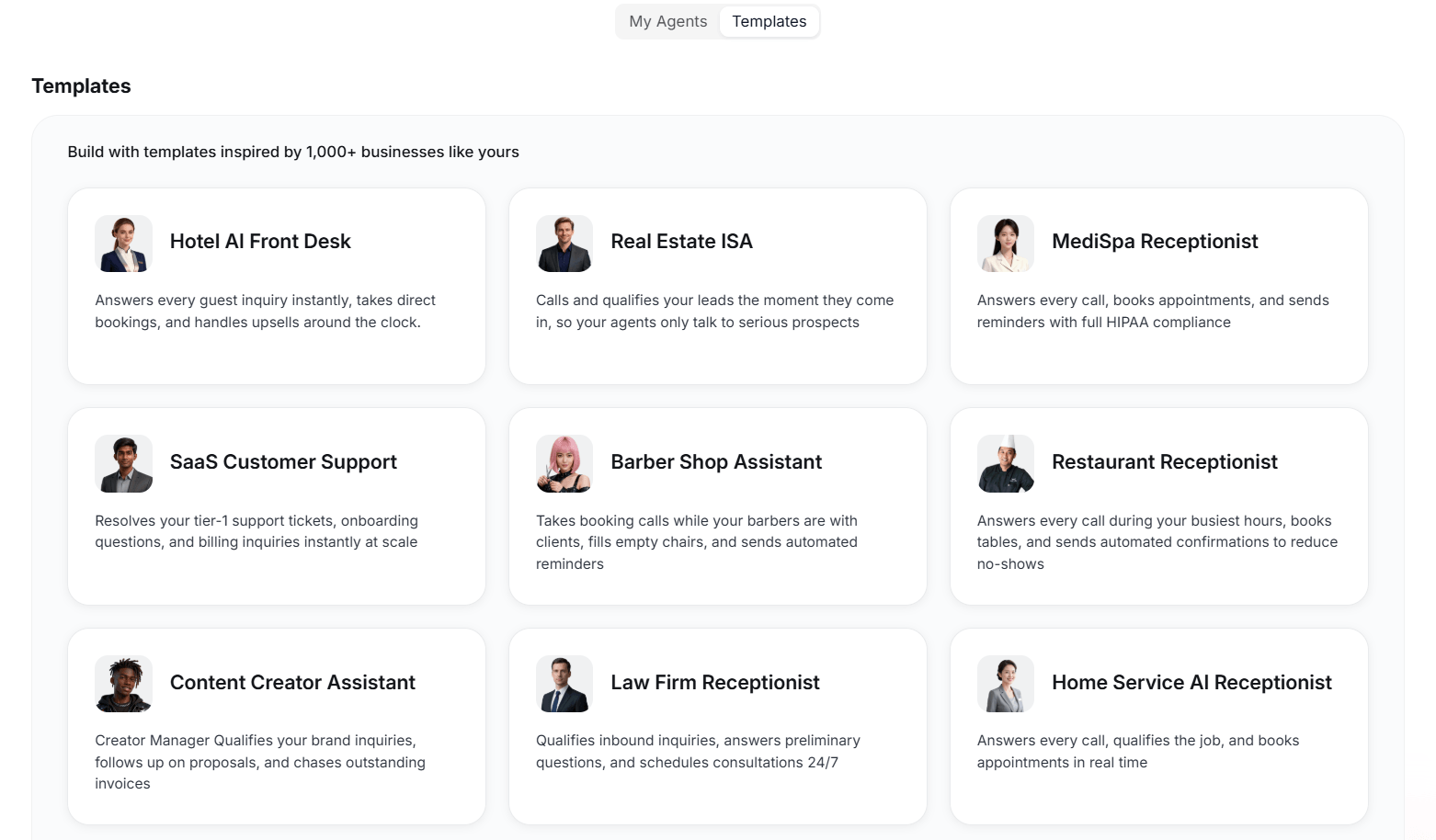
Solvea is a game-changer because it functions as your digital front desk. Unlike simple chatbots, it provides industry-specific templates like "Home Service AI Receptionist", "Real Estate ISA", or "Law Firm Assistant." I found that it doesn't just talk; it executes day-to-day work and office tasks.
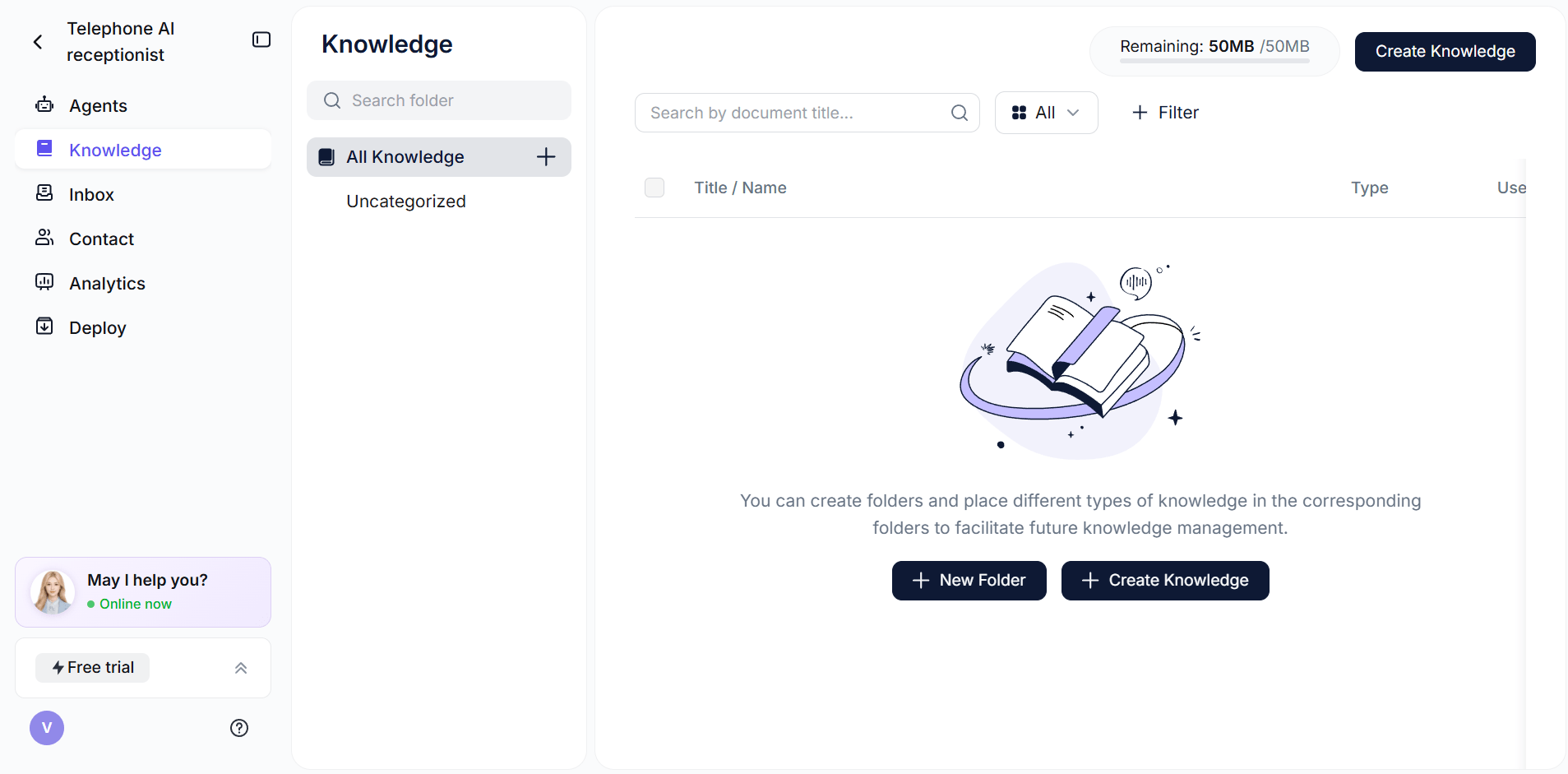
In my experience, the Knowledge Base feature is its strongest asset. I watched it handle a customer inquiry and book a meeting without me touching the keyboard.
You can upload your own documents, and the AI becomes an expert on your specific business rules. This means the AI doesn't just provide generic answers; it speaks with your brand’s voice and follows your specific business logic. As your business evolves, you can update this knowledge base in real-time, and the AI immediately adapts its responses and workflows to match your new requirements.
It also tracks your Resolution Rate and total conversations, giving you a clear view of how much work your "AI staff" is actually doing. It's perfect for those who want to capture every lead while they are busy working on the core business.
Pros of using Solvea for productivity:
- Specific templates for niches like MedSpa, Real Estate, and SaaS.
- Built-in AI Receptionist that handles scheduling and appointment bookings.
- Detailed analytics on resolution rates and customer satisfaction.
- Easy no-code setup for complex automated communication workflows.
Cons of using Solvea for productivity:
- More advanced features require an Enterprise plan.
- Initial knowledge base setup takes some time to perfect your brand voice.
2. Perplexity: Best for AI-powered Research & Fact-finding
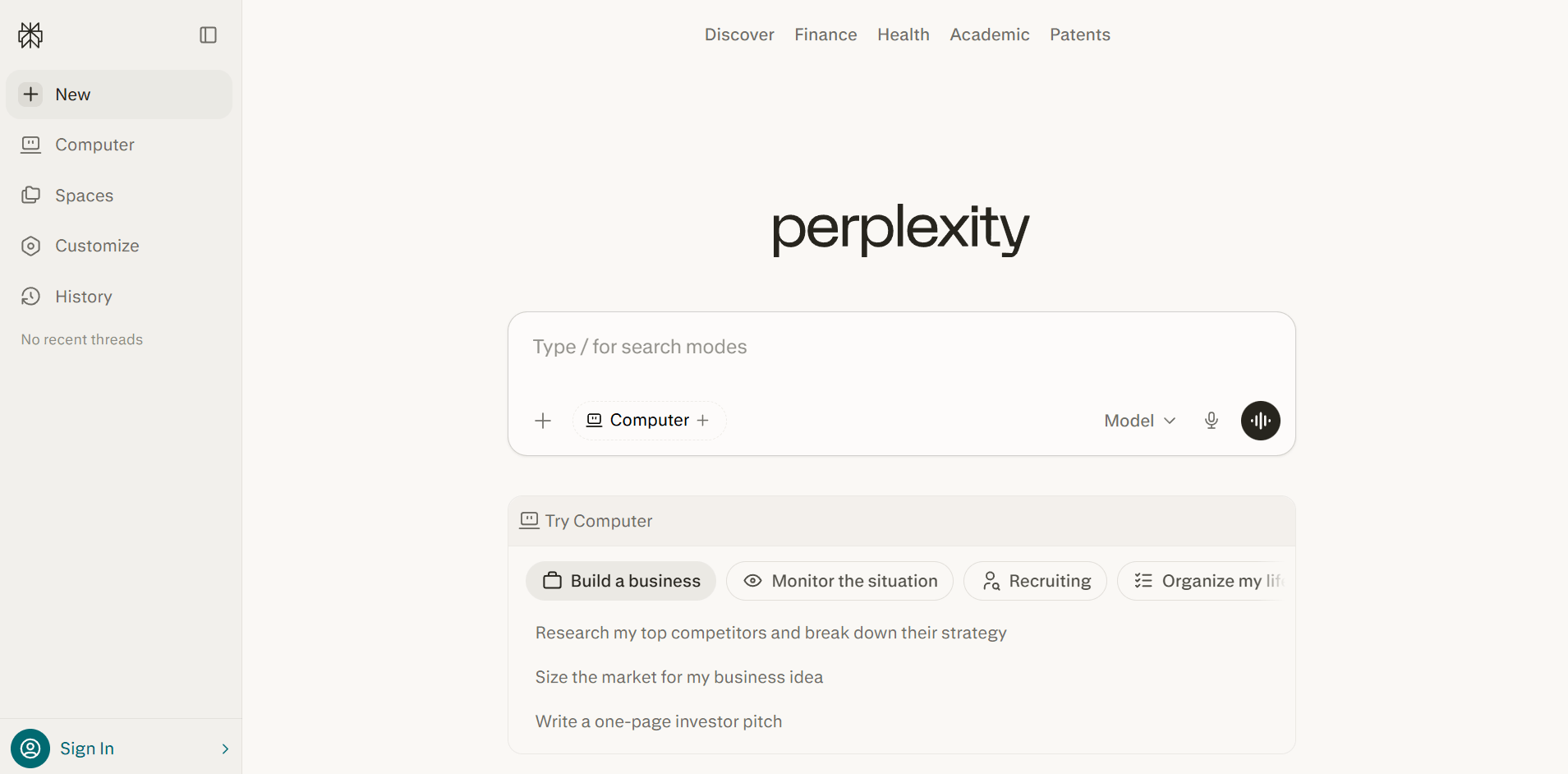
Best for: Content creators, researchers, and marketing professionals who need accurate, cited information from the live internet without the clutter of traditional search.
Why I Pick It?
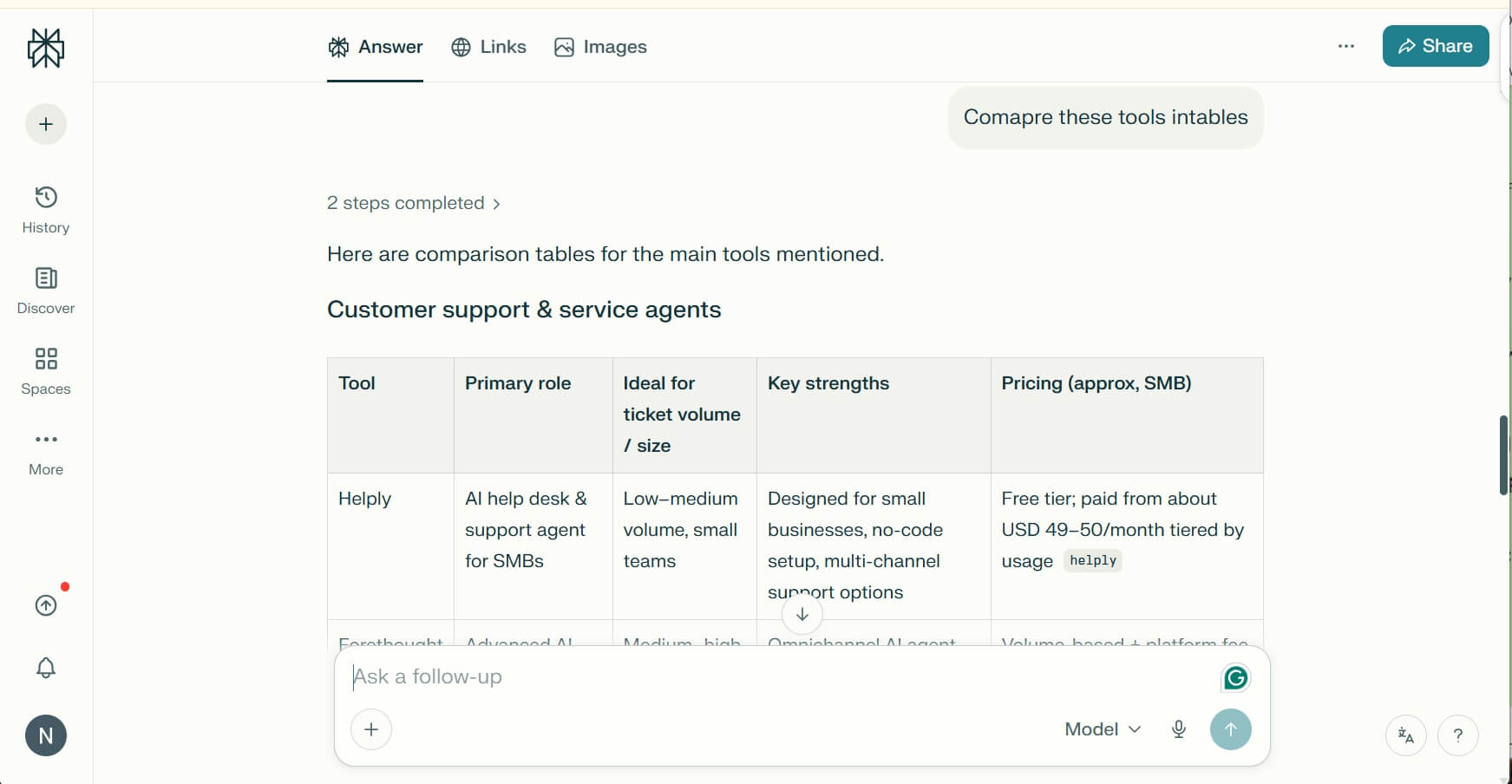
Traditional search engines in 2026 are often cluttered with ads. Perplexity is my go-to because it answers questions with clear citations. When I was researching a market trend last week, it gave me a three-paragraph summary and tables with footnotes linking directly to the original sources.
The real "pro" is using its Pro Discovery mode. It asks you to clarify questions to make sure it understands exactly what you are looking for. It feels like having a research assistant who has read the entire internet in seconds. It is fast, honest, and saves me at least an hour of manual link-clicking every single day.
Pros of using Perplexity for productivity:
- Provides direct answers with verifiable, clickable source links.
- Includes a "Pages" feature to turn research into organized reports.
- Access to multiple top-tier AI models (like Claude 3.5 and GPT-4o).
- Excellent mobile app for quick fact-checking during meetings.
Cons of using Perplexity for productivity:
- Can occasionally struggle with very niche, hyper-local real-time news.
- The Pro version is a significant monthly investment for casual users.
3. Notion: Best for Team Collaboration
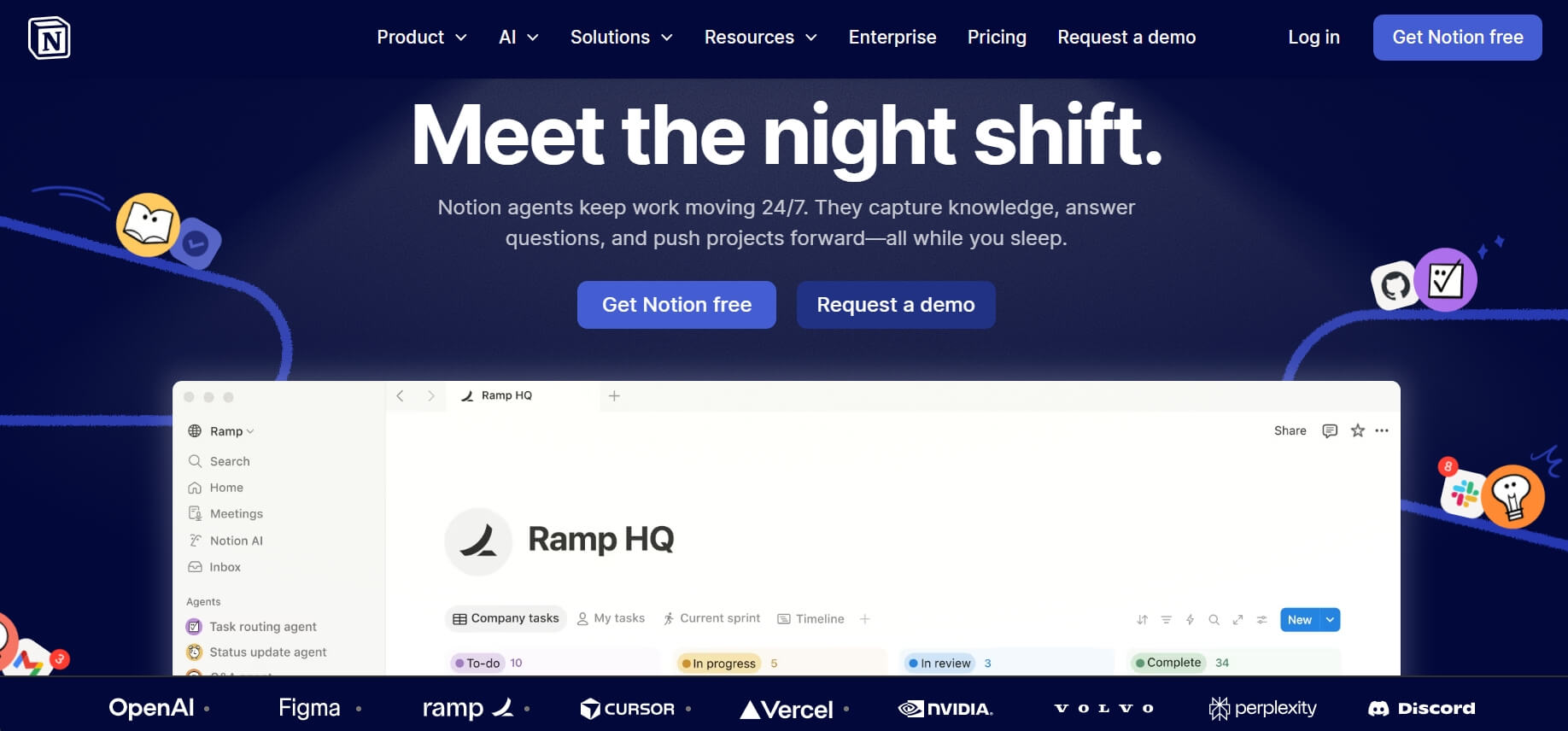
Best for: Remote teams and startups that need a centralized "Source of Truth" to store documents, project plans, and internal wikis.
Why I Pick It?
Notion is essentially the operating system for office works. I've used it to build everything from a simple personal diary to a complex content calendar for a 15-person team. The beauty of Notion is its flexibility; you can turn a blank page into a database, a gallery, or a roadmap in seconds.
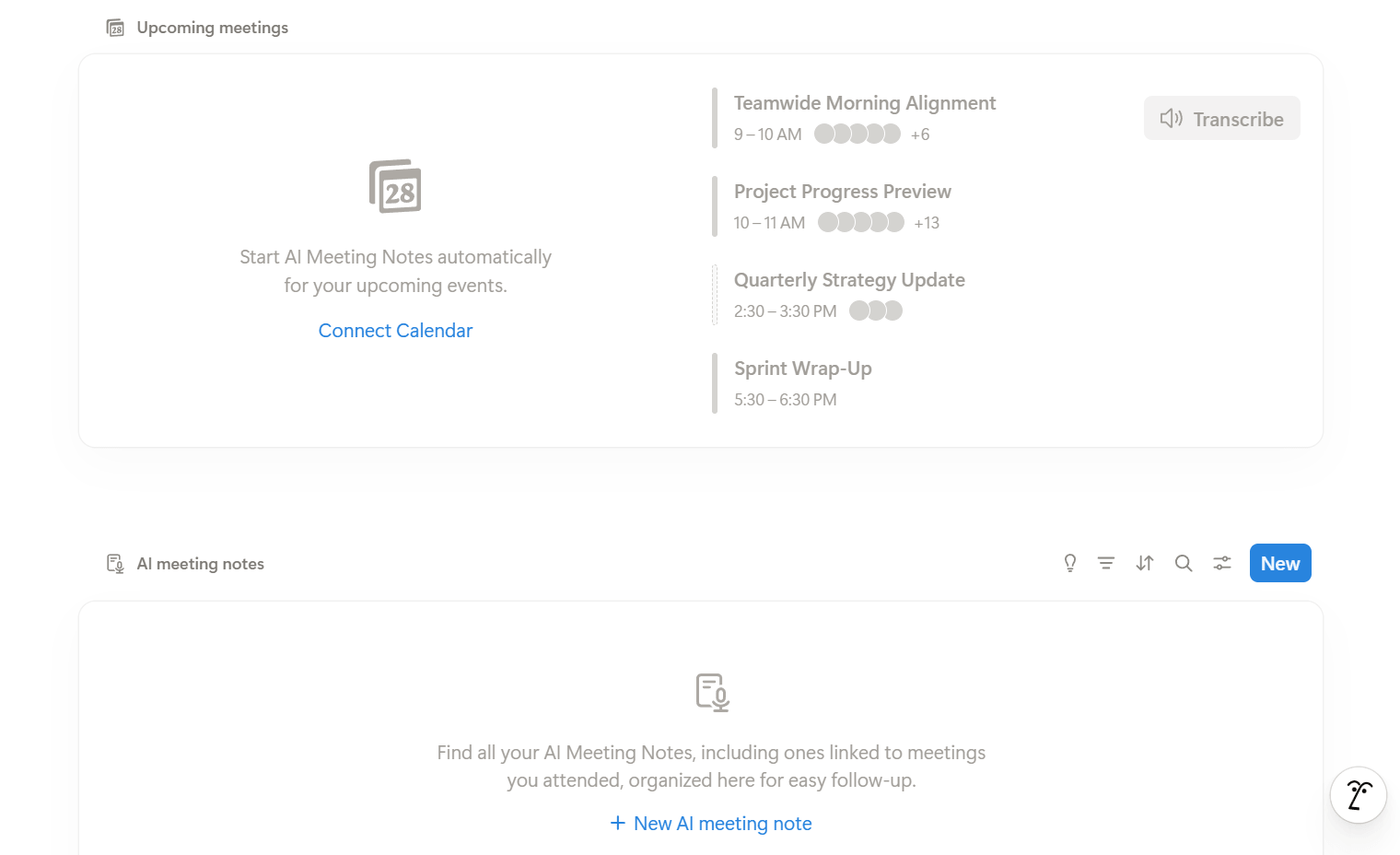
Recently, the Notion AI integration has become indispensable. I used it to summarize a 30-minute meeting transcript into clear bullet points, and the result was nearly perfect. It is where my team "lives." When a new hire joins, I just send them one Notion link, and they have every SOP and goal they need. It eliminates the "Where is that file?" confusion once and for all.
Pros of using Notion for productivity:
- Incredible flexibility to build exactly what your team requires.
- Deep integration of AI for writing, editing, and summarizing.
- Clean, intuitive interface that makes documentation less of a chore.
- Massive library of community templates to get started instantly.
Cons of using Notion for productivity:
- The "blank page" starting point can be overwhelming for beginners.
- The mobile app interface can feel slower than dedicated task managers
4. Todoist: Best for Personal Task Management
Best for: Professionals who need a fast, reliable way to track daily tasks and personal goals across all digital platforms.
Why I Pick It?
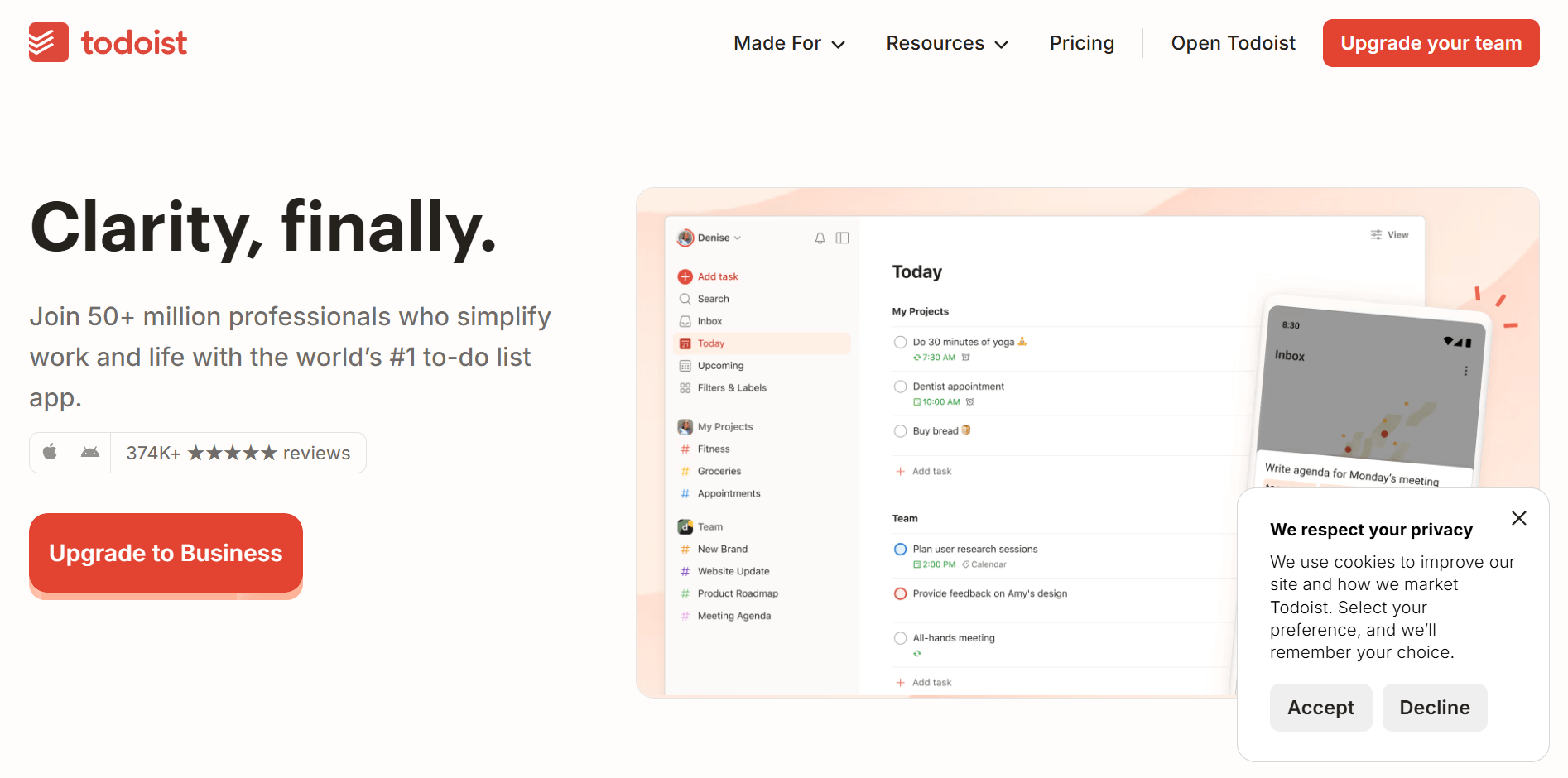
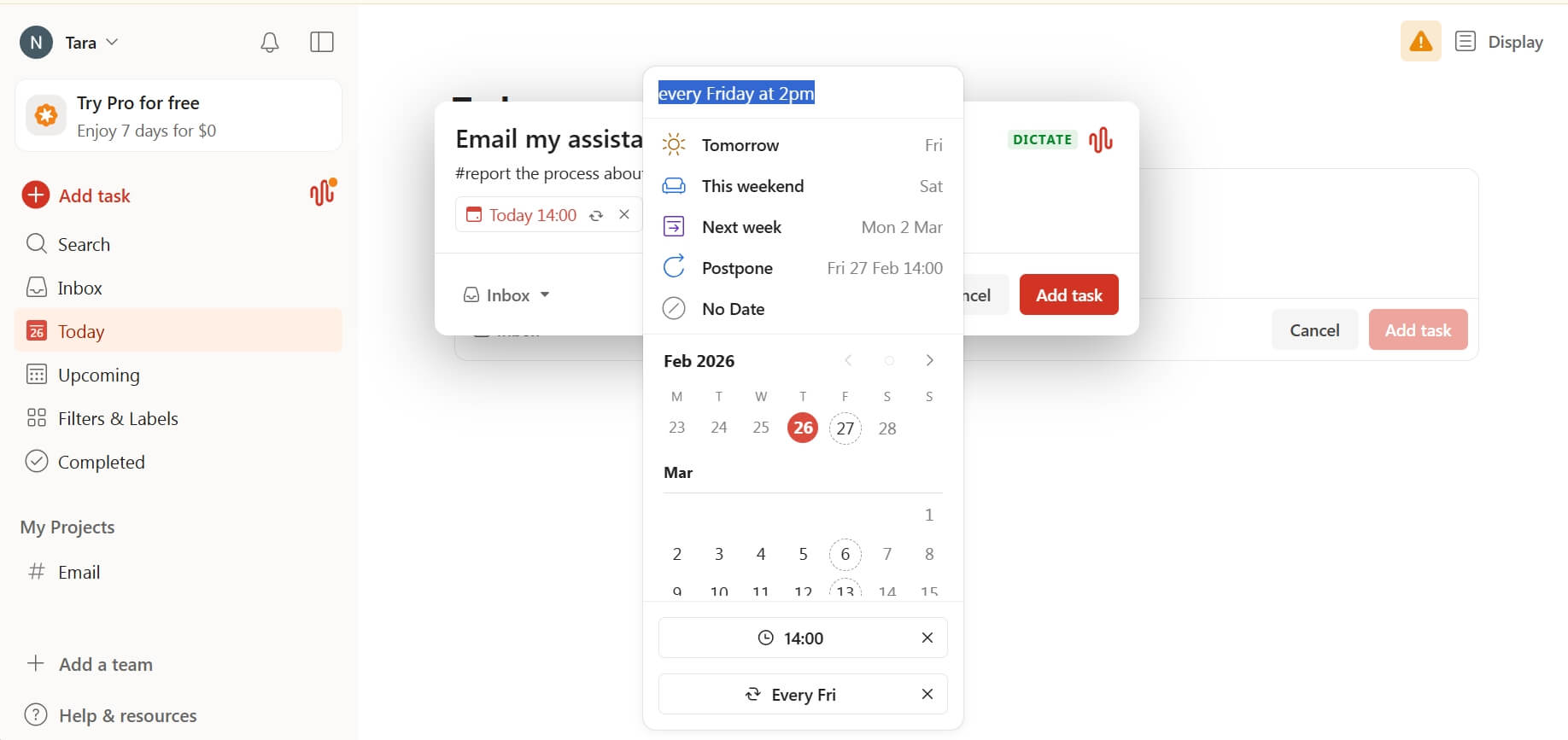
If a task isn't in Todoist, it doesn't exist for me. What makes it special is the Natural Language Input. For example, you can type "Email my assistant every Friday at 2pm #Work," and it automatically sets the recurring reminder and files it in the right project. It's frictionless.
I love the Karma system, which gamifies the work productivity. Seeing my "streak" grow keeps me motivated on days when I feel lazy. Unlike complex project tools, Todoist stays out of your way. I use it for the "small wins"—the quick calls, the grocery items, and daily habits. It's the first thing I check when I wake up and the last thing I clear before I finish work.
Pros of using Todoist for productivity:
- Easiest and fastest task entry in the industry.
- Clean, minimalist design that focuses on execution.
- Great labels, filters, and priority levels for organization.
- Syncs perfectly across every device imaginable.
Cons of using Todoist for productivity:
- Free version is quite limited in terms of active projects.
- Not suitable for complex projects with many dependencies.
5. Shortwave: Best for Intelligent Email Management
Best for: High-level executives and "inbox zero" enthusiasts who are drowning in hundreds of emails every day.
Why I Pick It?
Shortwave is what Gmail should have been. It treats email like instant messaging. It groups conversations by person and topic, so your inbox looks like a clean list of chats rather than a wall of text. The "AI Assistant" in Shortwave is honestly scary—it can draft replies in my exact voice.
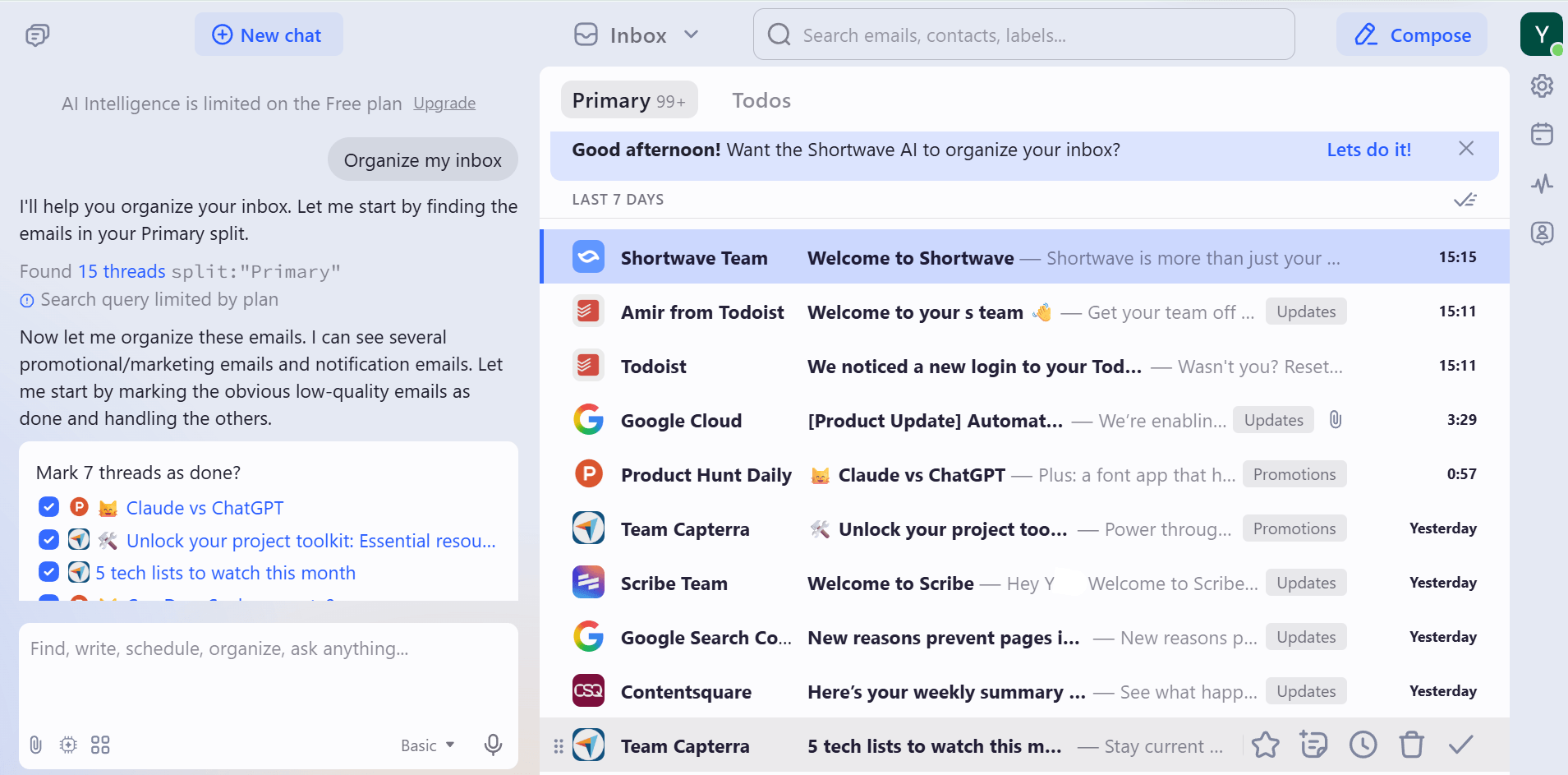
You may spend hours a day on email, but now Shortwave helps you handle them in several minutes. Shortwave transforms email from a chore into a streamlined chat-like experience. Its AI Assistant can draft entire replies based on the context of your previous conversations and summarize long, rambling threads into a few key bullet points. This allows executives to digest hours of communication in minutes and respond with professional accuracy at lightning speed.
You can hit "Done" on a whole stack of newsletters with one click. If an email is important but you are busy, you can "Snooze" it, and it disappears until the exact moment you need it. It turns the source of stress into a manageable, organized stream.
Pros of using Shortwave for productivity:
- AI-generated summaries of long email threads are a lifesaver.
- Beautiful, "Slack-like" interface for fast communication.
- Built-in "Undo Send" and powerful search capabilities.
- Focuses on "Inbox Zero" with quick swipe actions.
Cons of using Shortwave for productivity:
- Currently, it works best with Gmail accounts only.
- Requires a subscription to unlock the full AI power.
6. Google Calendar: Best for Time Blocking & Scheduling
Best for: Professionals who need to manage their most precious resource—time—without a steep learning curve.
Why I Pick It?
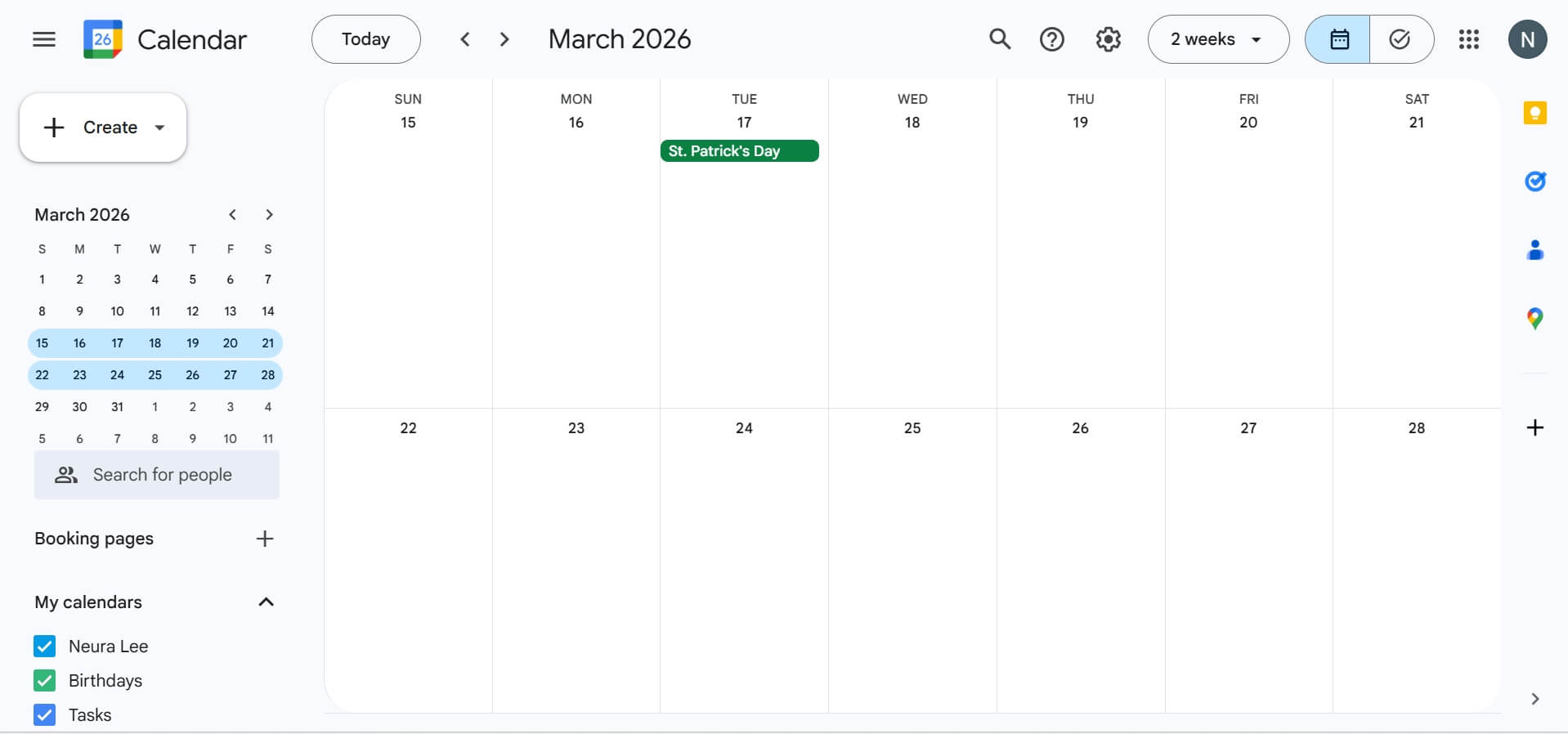
Even in 2026, Google Calendar remains the gold standard because almost everyone has it. I use it for "Time Blocking." If a task doesn't have a specific spot on my calendar, it won't get done. I create different calendars for "Deep Work," "Client Meetings," and "Personal Life" to see a colorful map of my week.
The integration with Google Meet and other work apps is seamless. I especially appreciate the "Working Hours" feature, which tells people I am not available for meetings after 7 PM. It is my boundary setter. It is simple and free, and it is the only tool that gives me a realistic view of how much I can actually achieve in 24 hours.
Pros of using Google Calendar for productivity:
- Universal compatibility with almost every other major work app.
- Sharing calendars with teammates is incredibly easy and fast.
- Completely free and reliable with virtually zero downtime.
- Simple interface that does not require any special training.
Cons of using Google Calendar for productivity:
- Lacks some advanced AI features found in newer "smart" calendars.
- The visual design hasn't changed much and can feel a bit dated.
7. Cursor: Best for AI-assisted Coding & Scripting
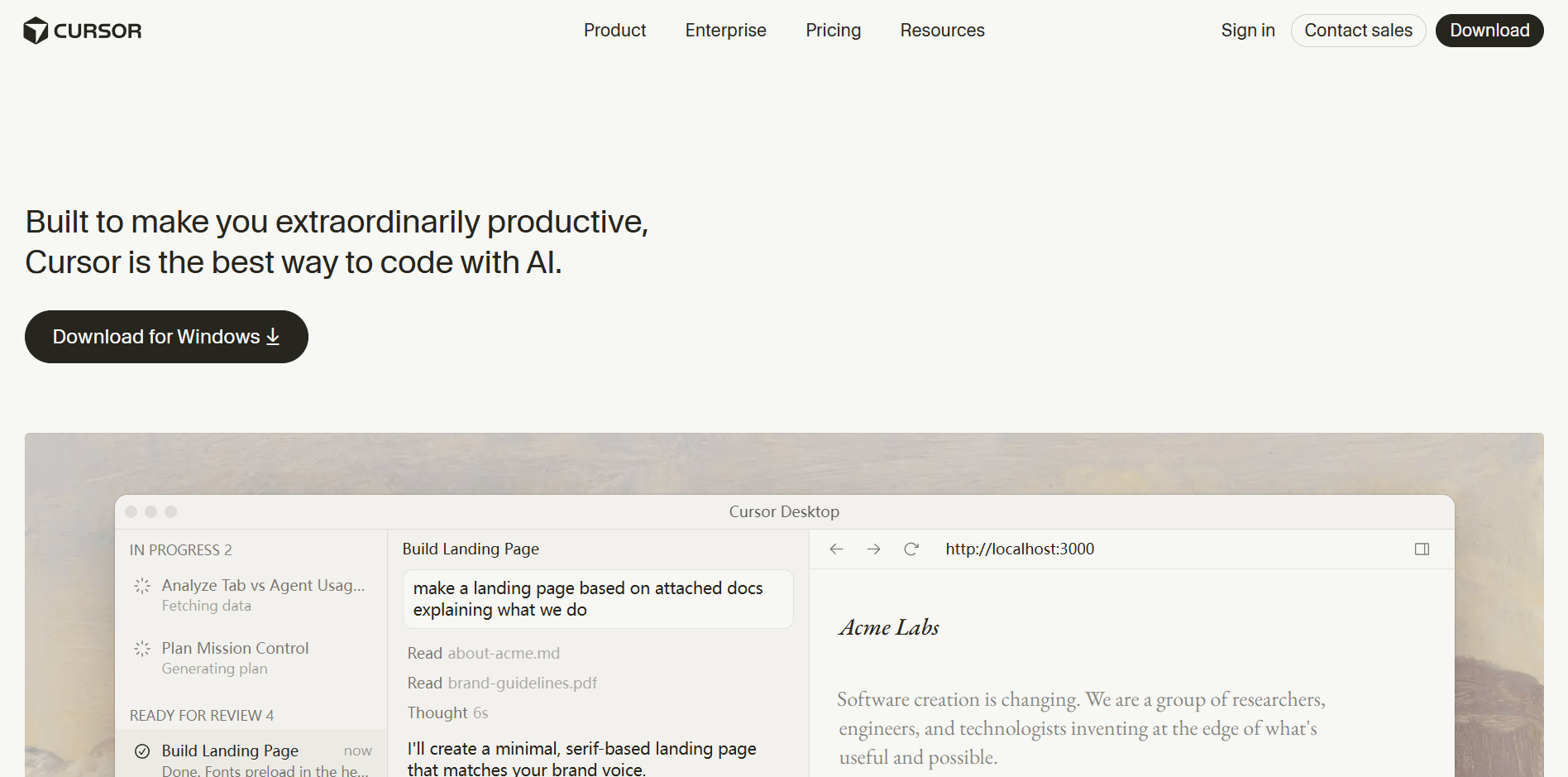
Best for: Developers and "tech-curious" non-coders who want to build apps or automate complex tasks with a world-class AI.
Why I Pick It?
Cursor has fundamentally changed how I think about code. It’s a fork of VS Code, but with AI built into its core. I am not a professional developer, but I recently built a small web tool to track my team's metrics using Cursor. I just hit Cmd+K and typed, "Add a button that exports this table to CSV," and it wrote the code for me instantly.
Beyond just writing code, Cursor features a built-in chat interface where you can ask questions about your project. If you encounter a bug, you can highlight the error and ask the AI to explain the cause and suggest a fix. This "pair programming" experience significantly reduces the time spent on troubleshooting and helps developers learn new frameworks faster.
It understands your entire folder of files. For example, you can ask it, "Where is the bug in my login logic?" and it will pinpoint the specific line in the specific file. It makes coding feel like editing a document rather than solving a complex puzzle. For me, it is the difference between "I wish I could build this" and "I just built this."
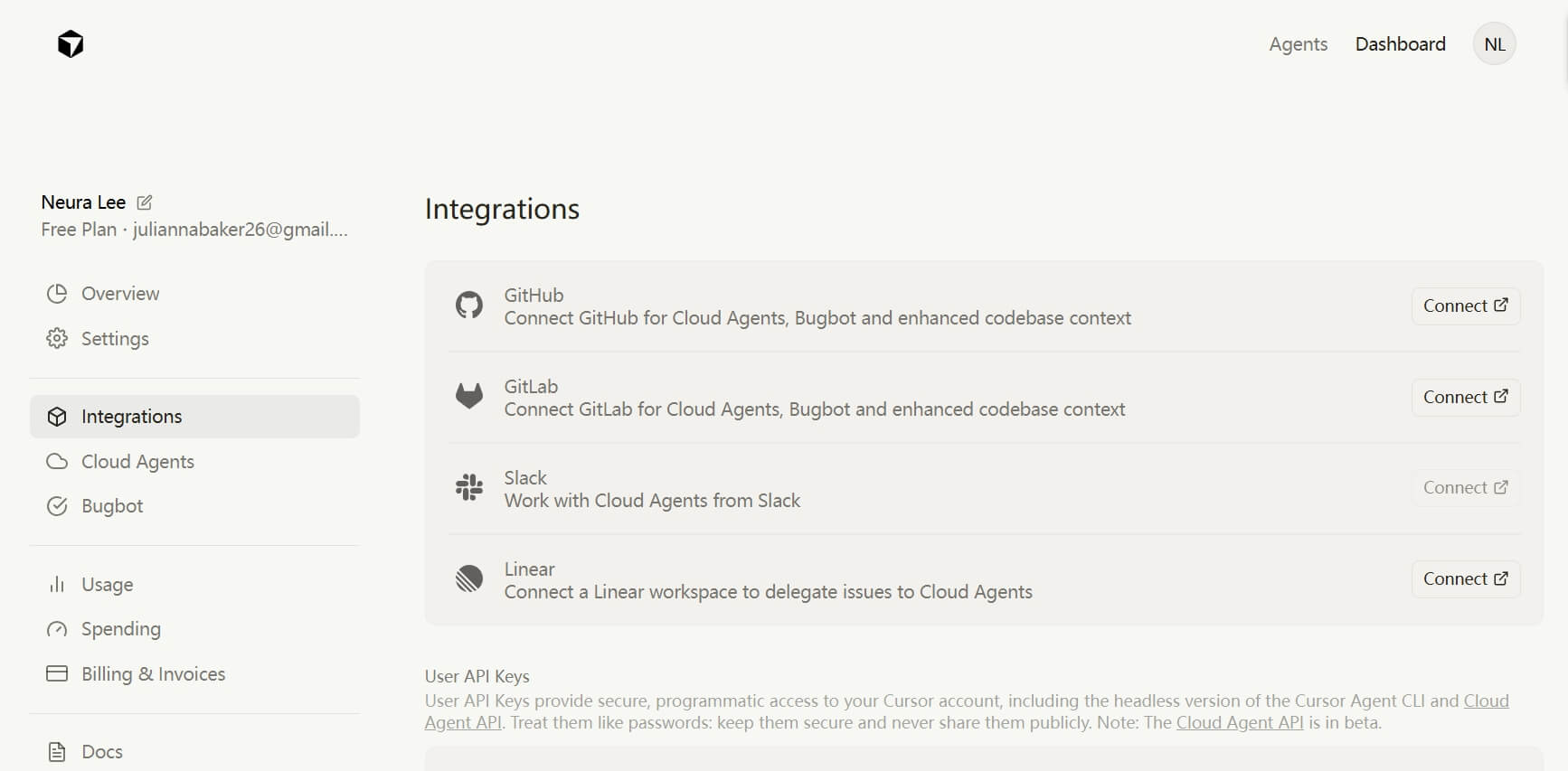
Pros of using Cursor for productivity:
- Deep understanding of your entire codebase, not just individual files.
- Instant "Chat with your Code" feature saves hours of debugging time.
- Compatible with all your favorite VS Code extensions and themes.
- Incredibly fast AI response times using the latest LLM models.
Cons of using Cursor for productivity:
- A Pro subscription is necessary for heavy, daily AI usage.
- Can be quite overwhelming for people who never touch code.
8. ClickUp: Best for Complex Project Tracking
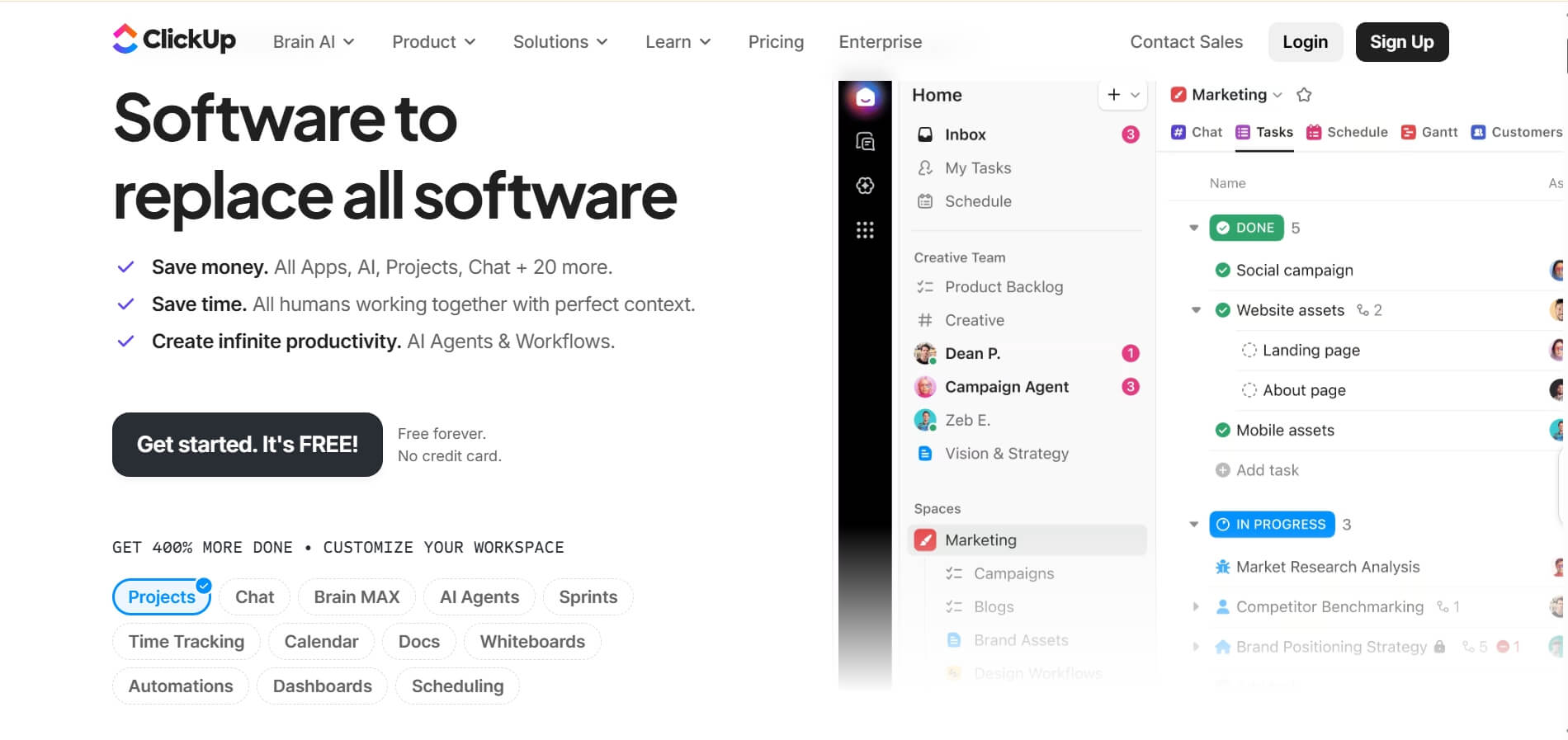
Best for: Project managers and creative agencies handling multiple clients, strict deadlines, and intricate team workflows.
Why I Pick It?
When Notion feels too "loose," and Todoist feels too "small," I turn to ClickUp. It is truly the "Everything App" for work. I love the "Hierarchy" system—you have Spaces, Folders, and Lists. This allows me to keep my different business branches completely separate but accessible from one side bar.
The Dashboard feature is what attracts me. I built a custom view that shows me exactly how many tasks are "Overdue" across my whole company and which team member is currently overloaded. It is powerful, customizable, and honestly, a bit addictive for data lovers. If you need to see progress bars and detailed Gantt charts, ClickUp is your best playground.
Pros of using ClickUp for productivity:
- Extremely customizable—you can modify almost every view and field.
- Excellent for tracking time and managing overall team capacity.
- Replaces multiple separate apps like Docs, Tasks, and Whiteboards.
- Very generous free tier for small teams and individuals.
Cons of using ClickUp for productivity:
- The learning curve is very steep for new or non-technical users.
- The web application can sometimes feel "heavy" and slow to load.
9. Zapier: Best for Automating Tasks Between Apps
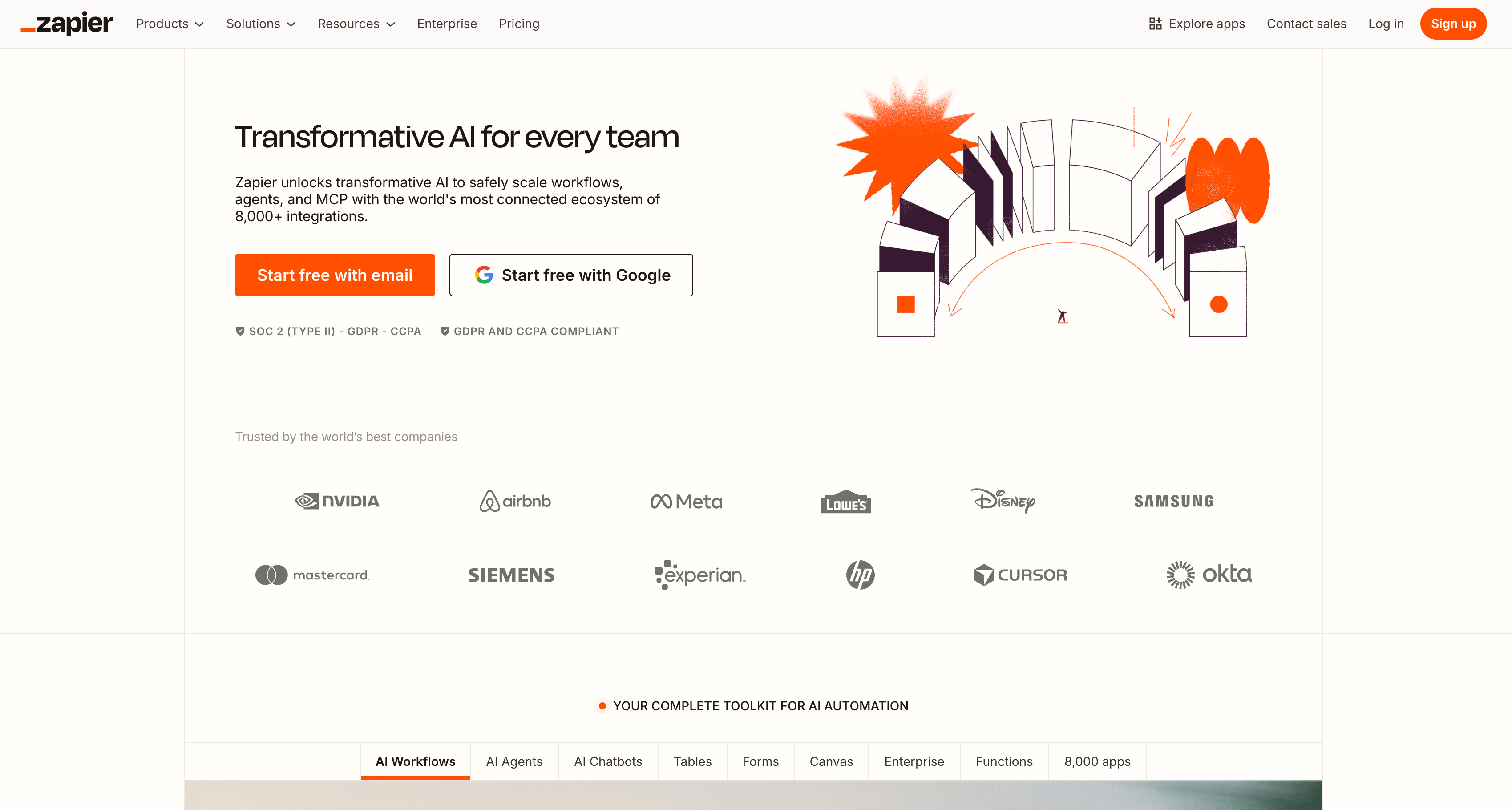
Best for: No-code enthusiasts who want their different apps to "talk" to each other and handle repetitive data entry automatically.
Why I Pick It?
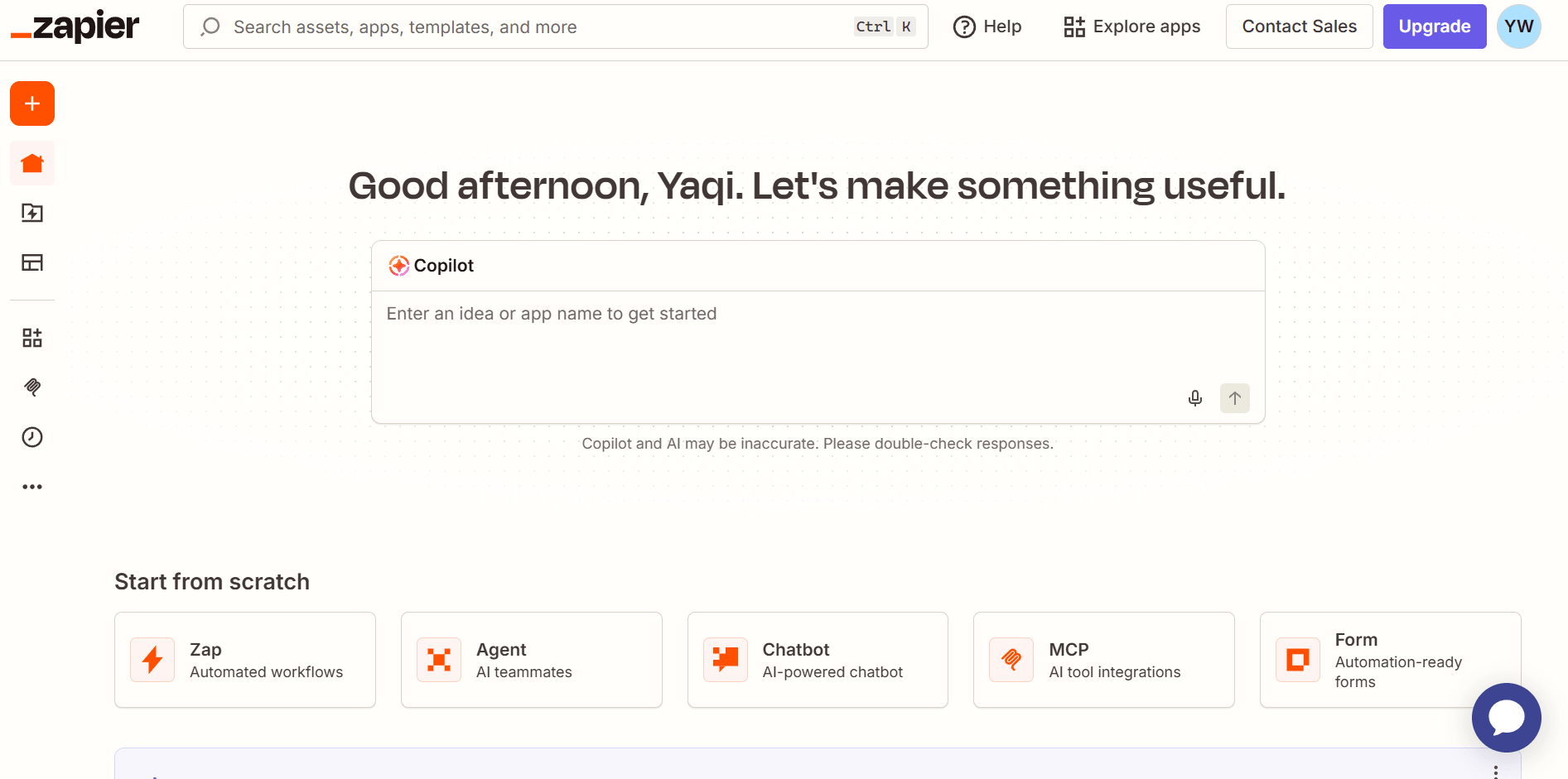
Zapier works like "Internet Glue." I have a "Zap" that takes every new lead from my website form, sends me a text message via Gmail, and then adds them to a Notion database. It runs in the background 24/7, making sure my business data is always where it needs to be.
The new Zapier Central AI feature is powerful. I can now tell the AI to "Check my emails for new invoices and save them to my accounting folder," and it figures out the steps. It is all about buying back your time. Every automation I build might save five minutes, but when you have fifty automations, you've suddenly saved your whole afternoon.
Pros of using Zapier for productivity:
- Supports integration with over 8,000 different web applications.
- "Set it and forget it" reliability for critical business workflows.
- New AI features make building complex automations much easier.
- No coding knowledge is required to build sophisticated logic.
Cons of using Zapier for productivity:
- The cost can escalate quickly as your automation volume grows.
- Debugging a "broken" automation can sometimes be time-consuming.
10. Raycast: Best for Maintaining Focus
Best for: Power users on Mac or Windows who want to stay in "the zone" by controlling their entire digital workspace with just a few simple keystrokes.
Why I Pick It?
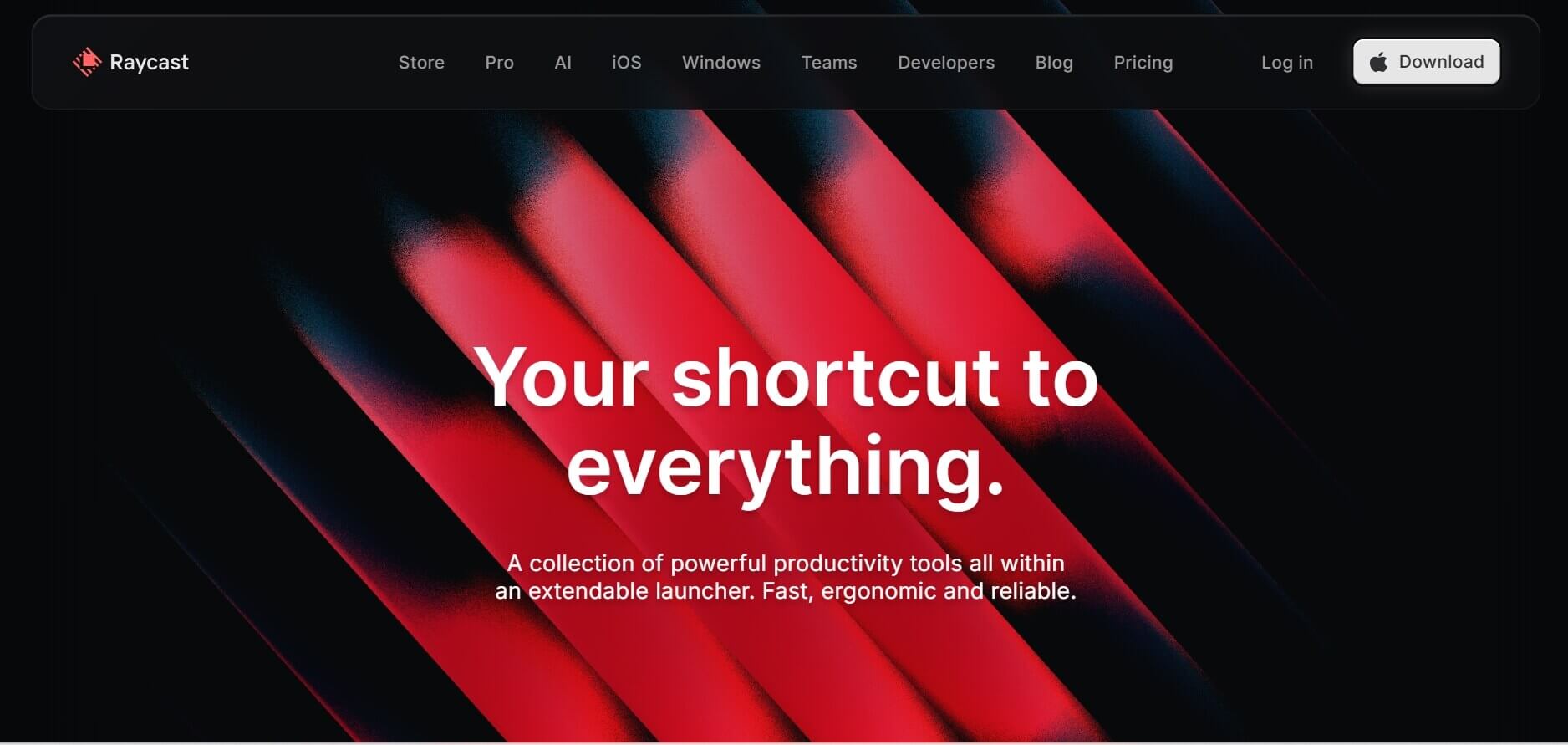
Raycast is the first work application I install on any new computer. It acts as a supercharged command bar that replaces dozens of tiny, distracting apps. Instead of reaching for my mouse and breaking my concentration, I hit a quick shortcut to join a meeting, search my Notion docs, or manage my clipboard history. It keeps my hands on the keyboard and my mind on my work.
My favorite feature is the AI integration. I can highlight a confusing paragraph on any website, trigger Raycast, and ask it to "Explain this like I'm five" or "Refactor this code." It is fast, lightweight, and replaces about five other utilities I used to pay for, such as separate clipboard managers and window resizers.
With the recent Windows version (public beta), it is now the ultimate cross-platform tool for anyone who hates "visual clutter" and wants to work at the speed of thought.
Pros of using Raycast for productivity:
- Blazing fast performance with a clean, modern user interface.
- Massive library of community-made plugins for Notion, Jira, and Spotify.
- Replace your clipboard manager, window resizer, and calculator.
- Built-in AI is accessible instantly from anywhere in your operating system.
Cons of using Raycast for productivity:
- The Windows version is newer, so some legacy Mac plugins are still being ported over.
- Requires some time to memorize the most useful keyboard shortcuts.
Your AI Receptionist, Live in Minutes.
Scale your front desk with an AI that never sleeps. Solvea handles unlimited multi-channel inquiries, books appointments into your calendar automatically, and ensures zero missed opportunities around the clock.
FAQs
1.What are the best apps for remote work?
The best apps for remote work focus on keeping communication clear and documents accessible. For example, Solvea is excellent for automating customer interactions when you aren't at your computer. Notion serves as the digital office where all shared knowledge lives, while Shortwave and Slack ensure that team communication remains organized regardless of different time zones.
2.How do I choose the right work app?
You can start by identifying your biggest "time leak" or source of frustration. If you spend too much time on messy emails, try Shortwave. If you feel disorganized, start with Todoist. I always recommend trying the free version of one new app at a time for at least a week to see if it actually fits your daily habits.
3.What features should I look for in work apps?
You should look for integration, AI capability, and cross-platform sync. A good work app in 2026 should be able to talk to your other tools (usually through Zapier). It should also include AI features to handle repetitive work and sync perfectly between your desktop and mobile phone, so you never lose data.
4.Which work apps are best for project management?
For high-level team management with many moving parts and dependencies, ClickUp is the winner due to its deep customization. If you prefer a more visual and document-heavy approach for your projects, Notion is better. For individual daily tasks that don't need a complex system, Todoist is the most efficient choice.
Are there any free work applications?
Yes! Many of the best work apps have "forever free" tiers for individuals. Google Calendar is completely free for everyone. Notion, Todoist, and ClickUp all offer robust free versions that are more than enough for solo users. Solvea and Perplexity also offer free trials or basic tiers to let you experience their power before paying.