The Notion marketplace has dozens of FAQ templates, and most "best of" roundups stop at name-dropping the official Notion-built ones. The actual question is which template fits your situation — a five-question internal team FAQ, a 200-question SaaS help center, a public-facing customer page that has to live on your own domain. Different templates win in each scenario.
This roundup compares eight Notion FAQ templates worth duplicating in 2026: six from Notion's marketplace (mix of Notion-built and creator-built), and two from third-party studios that take Notion further than the marketplace allows. Every template here is free to duplicate, and every recommendation links to where you can grab it. At the end, you'll see how to take whichever template you pick and turn it into a live customer-answering system that doesn't require anyone on your team to be online.
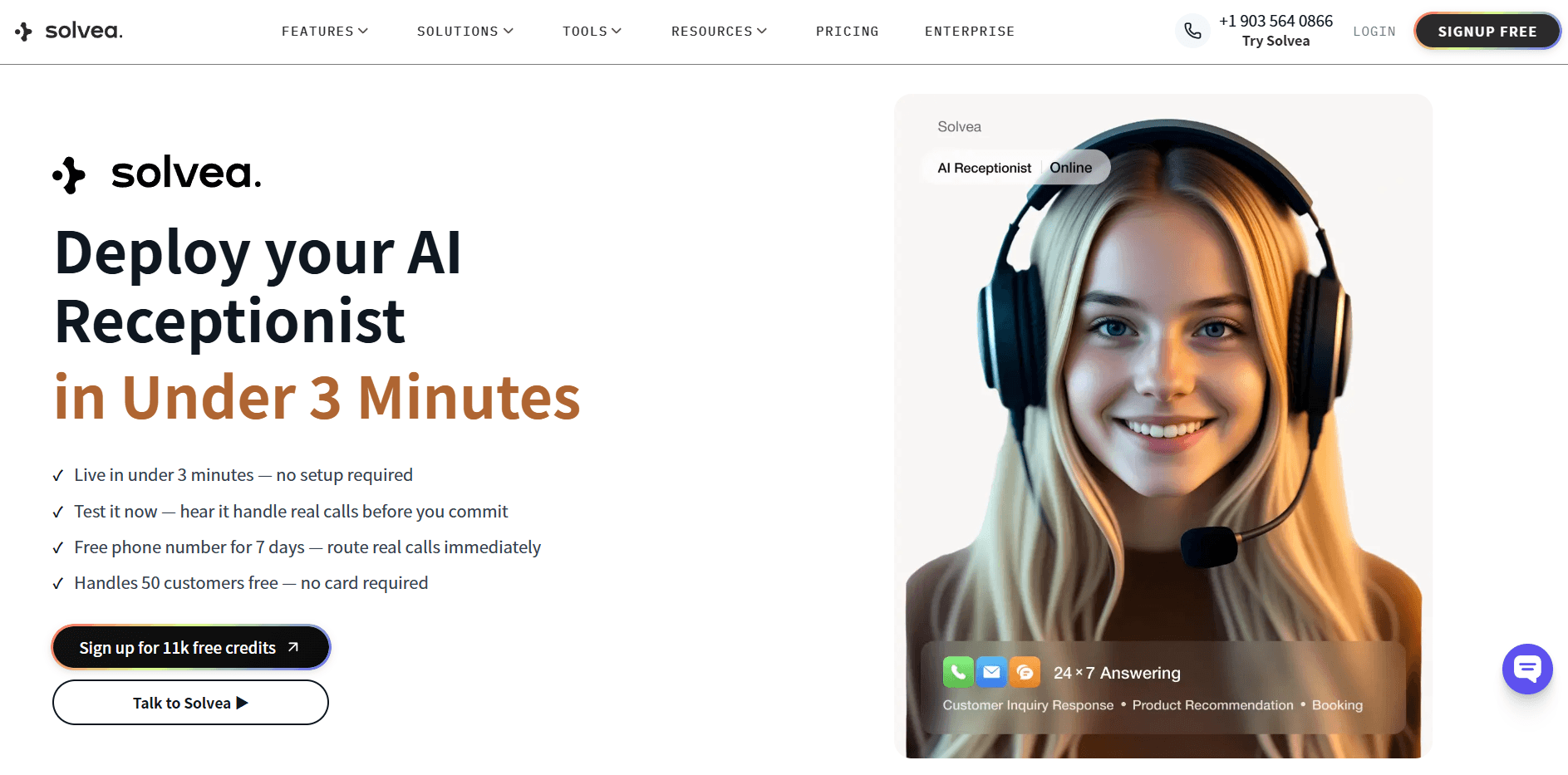
Your AI Receptionist, Live in Minutes.
Scale your front desk with an AI that never sleeps. Solvea handles unlimited multi-channel inquiries, books appointments into your calendar automatically, and ensures zero missed opportunities around the clock.
TL;DR — 8 Notion FAQ Templates Compared (2026)
# | Template | Creator | Layout | Best for | Pricing |
1 | AnthonyToday | Toggle list | Solo founders, small teams, sub-30-question FAQs | Free | |
2 | Notion | Categorized toggles | SaaS products, onboarding, beta launches | Free | |
3 | Notion | Database + AI summaries | Multi-team companies, employee onboarding | Free | |
4 | ish | Toggle + two-column + database | Teams undecided on layout | Free | |
5 | Bullet.so | Toggle + Bullet.so publishing | Branded customer help centers on a custom domain | Free template; Bullet.so wrapper from ~$10/site/mo | |
6 | HitaNotion | Database with Q&A properties | Community Q&A boards, internal "ask anything" pages | Free | |
7 | Landmark Labs | Toggle + tags | Newsletters, micro-SaaS, creator FAQs | Free | |
8 | Notionry | Toggle + built-in search | Public-facing FAQs needing search | Free |
What to Look For in a Notion FAQ Template
Three decisions matter more than the template's design when you're choosing.
Layout: toggle list vs. database. A toggle list is a single page where each question expands on click. It's the fastest to set up and easiest to skim, but it has no filters, no search, and no category grouping beyond manual headings. A database stores each question as a row with structured properties (Category, Audience, Last updated) and lets you build multiple views — gallery, table, board, grouped. Use a toggle list under 30 questions; switch to a database past that.
Scale: 30 entries is the inflection point. Up to 30 questions, almost any of these templates work fine. Past 30, search performance and category navigation start mattering — that's where database-driven templates and ones with built-in search separate from the rest.
Publish-readiness: how it looks to your customers. Notion's default notion.site URL is functional but visibly Notion-branded. If your FAQ is a primary support page on a customer-facing site, the templates designed for publishing wrappers (Bullet.so, HelpKit, Super) save you the work of adding a wrapper later. If the FAQ is internal, default Notion styling is fine.
The eight templates below cover every combination of these three axes.
The 8 Best Notion FAQ Templates for 2026
1. Simple FAQ Template — by AnthonyToday
- Template: Simple FAQ Template on Notion
- Layout: Toggle list, single column
- Pricing: Free
- Best for: Solo founders, small teams, internal pages with under 30 questions
- Notable: 4.85/5 rating across 47 reviews — highest engagement of the lightweight options
The lightest possible Notion FAQ. Open the template, type a question, click into the toggle, type the answer. There are no categories, no databases, no template variables to replace. AnthonyToday's design works well as a starting point you'll restructure later — and as a paste destination when you've already drafted FAQ content elsewhere and just need a clean Notion home for it.
2. Product FAQs — by Notion
- Template: Product FAQs on Notion
- Layout: Toggle blocks under category headings
- Pricing: Free
- Best for: SaaS products, onboarding pages, beta launches
- Notable: 4.95/5 rating; ships from Notion's official marketplace account
A pre-categorized version of the simple toggle layout, structured around the categories most product FAQs need: getting started, account, billing, features, and troubleshooting. Each section comes with placeholder questions to replace with your own. The right pick if you're building a customer-facing FAQ for a SaaS product and don't want to design the structure yourself.
3. Internal FAQs — by Notion
- Template: Internal FAQs on Notion
- Layout: Database with category property and per-category summary view
- Pricing: Free
- Best for: Multi-team companies, new-hire onboarding, internal wikis
- Notable: Includes Notion AI summary blocks that auto-condense long answers
The database-driven counterpart to Product FAQs. Each FAQ entry is a row, and the template ships with category-grouped views so HR, IT, and Operations questions render in their own sections. Reviews highlight the AI-summary blocks — useful when the underlying answer pages get long and a busy reader just wants the gist. This is the right pick once your FAQ grows past 30 questions and editors from multiple teams need to add entries.
4. FAQs Template (Three Layouts) — by ish
- Template: FAQs Template on Notion
- Layout: Three layouts in one template — toggle, two-column, and database
- Pricing: Free
- Best for: Teams undecided between toggle and database approaches
- Notable: Lets you compare layouts side by side before committing
Unusual in that it ships with three different rendering options on the same page. Build the same set of questions in all three, see which one fits your content, then delete the other two. Useful for teams that want to try a few approaches without setting up three test pages — and a fast way to learn which Notion blocks work best for your FAQ size.
5. Notion FAQ Website Template — by Bullet.so
- Template: Notion FAQ Website Template
- Layout: Toggle structure designed to render through Bullet.so's publishing layer
- Pricing: Free Notion template; Bullet.so wrapper subscriptions start around $10 per site per month
- Best for: Customer-facing help centers that need a branded look on a custom domain
- Notable: Pre-styled for the Bullet.so publishing pipeline — minimal Notion chrome when published
Bullet.so's template is Notion-native source paired with their own publishing wrapper. The Notion document is free; the value comes when you publish through Bullet.so and get a fully branded help center on your own domain (e.g., help.yourcompany.com) with proper SEO settings and custom fonts. If your FAQ needs to look like a real product help page rather than a Notion document, this template is built for that workflow from day one.
6. Q&A Page — by HitaNotion
- Template: Q&A Page on Notion
- Layout: Database with question, answer, and community-style properties
- Pricing: Free
- Best for: Community forums, internal "ask anything" pages, post-event Q&A capture
- Notable: Closer to a community Q&A board than a static FAQ
This template treats the FAQ as a living conversation. Properties cover author, status (answered or open), and topic — closer to a Stack Overflow micro-board than a one-direction help page. Useful for internal "ask anything" channels, post-meeting Q&A logs, or Discord-style community Q&A imported into Notion for searchability.
7. Notion FAQ Template — by Landmark Labs
- Template: Landmark Labs FAQ Template
- Layout: Toggle list with tag-based categorization
- Pricing: Free duplicate to Notion
- Best for: Newsletters, micro-SaaS landing pages, creator FAQs
- Notable: Designed to be embedded on landing pages and social bios
A third-party template from a productivity studio, optimized for embedding the FAQ in places that aren't a help center — newsletter footers, micro-SaaS landing pages, creator link-in-bios. Tags substitute for categorical sections, which works better for FAQs in the 15-to-25-question range where a full category structure would feel heavy.
8. Notionry FAQ Page — by Notionry
- Template: Notionry FAQ
- Layout: Toggle list with a search bar at the top
- Pricing: Free
- Best for: Public-facing FAQs where readers know what they're searching for
- Notable: Adds a search experience that vanilla Notion lacks
Notionry's template adds a search bar to a toggle-based FAQ, which is meaningful because Notion's own page search isn't built for finding a specific FAQ entry. Setup is slightly more involved than the marketplace templates above, but the result is a help-center feel without the cost of a publishing wrapper.
How to Choose the Right Notion FAQ Template
The decision splits cleanly along three lines:
- By size. Under 30 questions → Simple FAQ (#1) or Product FAQs (#2). Past 30 → Internal FAQs (#3) or any database-based template.
- By audience. Internal team → Internal FAQs (#3) or Q&A Page (#6). External customers → Product FAQs (#2), Bullet.so's website template (#5), or Notionry's search-enabled template (#8).
- By publishing target. Default
notion.siteURL is fine → any template works. Custom domain with branded styling → Bullet.so's template (#5), or layer Super or HelpKit on top of any other template.
If you're still undecided after those three filters, start with FAQs Template by ish (#4) — its three side-by-side layouts let you copy your real questions in and see which structure fits before you commit. The five minutes you spend there saves a half-day of restructuring later.
How to Customize Any of These Templates
The duplicate-to-Notion process is the same across all eight: click the Duplicate button on the template page, choose your workspace, and the template lands in your sidebar.
The customization checklist after that:
- Replace every placeholder. Generic templates ship with example questions like "How do I sign up?" — keep the structure, replace the content with your real top-15 questions sourced from your support inbox or sales calls.
- Add your store-specific or product-specific categories. Generic categories work for half a FAQ; the other half is unique to your product. For an ecommerce FAQ, that's shipping and returns; for a SaaS FAQ, that's billing edge cases and integration questions.
- Link out to source-of-truth pages. Every pricing answer should link to your pricing page. Every policy answer should link to the canonical policy page. FAQs drift; links keep them honest.
- Publish and verify. Click
Share → Publishto generate the public URL. Check that search engine indexing is enabled if the FAQ is customer-facing, and write a meta description in the publish panel — both controls are worth the 30 seconds they take.
Beyond Picking a Template: Where AI Receptionists Fit In
A Notion FAQ template gets you a clean document. The next limit isn't structure — most customers don't read your FAQ page at all. They ask through your site's chat widget, your support email, or by phone, and whether they get the answer depends on whether someone on your team is awake with the right Notion tab open.
Closing that gap is what AI receptionists do. They read your FAQ content as a knowledge base and answer customer questions on whichever channel the customer used. According to Harvard Business Review's research on customer service, 81% of customers attempt to resolve issues themselves before reaching a live representative — when the answer is reachable at the moment of need, people choose it over waiting.
Most tools in this category accept FAQ content either as a published notion.site URL or as a document upload, so any of the eight templates above can feed one. Solvea is one option, with native integrations into Shopify, Zendesk, and Salesforce for support teams that already run customer operations through those stacks.
If your customer-facing channels are tied to one of those, the path from "Notion FAQ" to "live customer answers across phone, chat, and email" is short. If you're outside those stacks, you'll publish the Notion page and feed the URL to whichever AI agent you pick — the FAQ content does the work either way.
Frequently Asked Questions
What is the best free Notion FAQ template?
For most use cases, Product FAQs by Notion (#2) is the best free starting point — it ships with the five categories most product FAQs need (getting started, account, billing, features, troubleshooting) and has the highest user rating among the marketplace templates. If your FAQ will grow past 30 questions or be edited by multiple teams, Internal FAQs by Notion (#3) is a better fit because it's database-driven.
If support tickets repeat the same questions, point them to a chatbot powered by your knowledge base instead.
Can I use a Notion FAQ template on the free Notion plan?
Yes. All eight templates above work on Notion's free plan, including the public Publish step that generates a notion.site URL. Free-plan limits kick in around custom URL slugs and connecting a custom domain — those require Plus or higher. The template content and the public URL itself are free.
Should I pick a toggle template or a database template?
Pick a toggle template (Simple FAQ, Product FAQs, ish's three-layout template) if your FAQ has fewer than 30 questions and one or two editors. Pick a database template (Internal FAQs, Q&A Page) if you have more than 30 questions, multiple editors across teams, or you need to filter the FAQ by audience or category. Database templates take a bit longer to set up but scale far better past 30 entries.
Are these Notion FAQ templates editable after I duplicate them?
Yes. Every template duplicates into your workspace as a fully editable Notion page or database — there are no licensing limits, no read-only fields, and no required attribution. You can rearrange sections, change properties, swap layouts, and rename categories freely. The original template stays intact in the marketplace if you want to start over.
Can an AI agent answer customer questions using my Notion FAQ template?
Yes — most AI receptionist tools read FAQ content from a published notion.site URL or from a document export and answer customer questions across phone, chat, and email using that content as the source of truth. They generally don't natively sync with private Notion workspaces, so you'll publish the FAQ page first (using the marketplace template's built-in Publish flow), then point the AI agent at the public URL or upload the exported file.