A HubSpot chatbot pointed at your knowledge base sounds like a one-click feature. In practice, it's a four-decision setup: which Service Hub plan you need, whether you're building the rule-based chatbot or the AI-powered Customer Agent, how the bot finds and surfaces KB articles, and what to do when the answer isn't in HubSpot. Get any of those wrong and the bot either hands every question to a human (defeating the point) or sends visitors to articles that don't quite answer their question (also defeating the point).
This guide walks through the setup end to end — what each plan unlocks, how the rule-based "Knowledge base lookup" action actually works, how to wire AI into the flow, and how to test the bot before turning it on. Where HubSpot's own functionality has gaps (like phone or email auto-reply, or KB sources outside HubSpot), we cover the workarounds.
Read in order if you're setting this up from scratch; jump to Step 4 if your knowledge base is already populated and you just need the chatbot wiring.
TL;DR
Field | Content |
What you'll build | A HubSpot chatbot that surfaces knowledge base articles in live chat, with optional AI-powered conversational answers. |
Plan required | Service Hub Professional ($90/mo/seat) or Enterprise for the Knowledge base lookup chatbot action and KB browse/search in live chat (HubSpot Pricing). Free and Starter plans support rule-based chatbots without KB lookup. |
Time required | 30–60 minutes to wire the chatflow once your knowledge base is populated. KB content prep usually takes 2–4 hours. |
Who it's for | HubSpot-native teams whose support content already lives (or will live) in HubSpot's knowledge base feature. |
Fastest setup path | Build KB articles → create chatflow with Knowledge base lookup action → connect to live chat → test → publish. |
What You Need Before You Start
Plan check
HubSpot's chatbot capabilities depend heavily on which Service Hub plan you have:
- Free: Rule-based chatbots are available. The Knowledge base lookup bot action is not available — you can build a chatbot but it can't surface KB articles natively.
- Starter: Same as Free for chatbot capabilities; no Knowledge base lookup, no full knowledge base feature.
- Professional ($90/mo/seat): Unlocks the full Knowledge base feature, the Knowledge base lookup chatbot action, knowledge base browse and search inside live chat, and Customer Agent (HubSpot's AI agent) for 28 days free with any Pro/Enterprise seat purchase.
- Enterprise: Same KB features as Professional with additional admin controls, deeper analytics, and enterprise compliance features.
If you're on Free or Starter and need KB-driven chat, your options are: upgrade to Professional, use a chatbot that links to KB articles via custom URLs (rule-based, no native lookup), or pair HubSpot with a third-party AI tool that consumes your HubSpot KB via API.
Content check
Before wiring anything:
- Audit your knowledge base. Is it populated? Is each article a real answer or a placeholder? Vague articles ("Contact us for more info") cause vague chatbot replies. Aim for the top 20 customer questions covered with specific answers.
- List your support workflow. What questions can a chatbot resolve fully (FAQ-style answers), what should escalate to a human, and at what point? Most teams aim for the chatbot to handle 60–70% of inbound traffic and route the rest.
- Pick your channels. HubSpot's chatbot lives natively in live chat on your website. For phone or email auto-reply driven by the same KB, you'll need an AI receptionist tool that integrates with HubSpot or ingests your KB content directly.
A platform comparison for teams with HubSpot content who want chatbot automation:
Path | Best for | KB integration | Cost on top of HubSpot |
HubSpot rule-based chatflow + KB lookup | Teams already on Service Hub Pro/Enterprise | Native | Included in Pro/Enterprise plan |
HubSpot Customer Agent (AI) | Pro/Enterprise customers wanting conversational AI | Native | 28 days free, then included on Pro/Enterprise |
Third-party chatbot consuming HubSpot KB | Free/Starter users; non-HubSpot KB sources | API or export | Varies (Solvea, Intercom, Zendesk, custom) |
AI receptionist with KB upload (e.g. Solvea) | Teams wanting phone + email + chat from one KB | Document upload (export from HubSpot) | $30+/mo |
Solvea's knowledge base chatbot reads directly from Notion, Confluence, or Google Drive and answers in your brand voice.
How to Set Up a HubSpot Chatbot with Knowledge Base: Step-by-Step
Step 1: Build (or audit) your HubSpot knowledge base
Navigate to Service → Knowledge Base in HubSpot. If you have Service Hub Professional or Enterprise, you can create the knowledge base from this menu. The minimum to be useful for chatbot lookup:
- 15–20 articles covering your top customer questions
- Each article with a clear, search-friendly title (
How do I cancel my subscription?notSubscription Management) - Each article tagged with relevant categories
- Specific answers — explicit numbers, policies, and links rather than vague descriptions
Clear titles matter most. The Knowledge base lookup chatbot action surfaces articles to visitors based on the visitor's query and the article title. An article called Refund policy is harder for the bot to surface confidently for "Can I get my money back?" than an article called How do I get a refund?.
Step 2: Create a new chatflow
In HubSpot, navigate to Conversations → Chatflows → Create chatflow, choose Live Chat (the most common starting point) or Bot for a fully bot-driven flow. Pick the page or pages where the chatbot should appear (most teams start with the support / contact page, or the knowledge base itself).
Step 3: Add the Knowledge base lookup action
In the chatflow editor, add a new action and choose Knowledge base lookup. This is the bot action that requires Service Hub Professional or Enterprise. You have two configuration options:
- Surface a specific article. Pick one article that the bot will recommend (good for narrow flows like "subscription help").
- Prompt the visitor to search. The bot asks the visitor what they're looking for, runs a search across your KB, and returns the top matching articles. This is the more useful default for general-purpose chatbots.
Add fallback steps for when the search returns nothing or the visitor doesn't pick an article. The standard fallback is to route to a live agent, with a simple message: "I couldn't find an article on that. Let me get you to someone who can help."
Step 4: Add live chat KB browse and search (optional)
If you want visitors to browse the KB inside the chat widget without going through the bot's lookup flow, enable knowledge base browse and search in live chat. This is configured in the live chat settings under Conversations → Inbox → Live Chat → KB browse and search. Visitors can browse categories or search articles directly from the chat widget. This is also a Service Hub Pro/Enterprise feature.
Step 5: Test the chatbot end to end
A trained chatbot is one you've tested. Open your site in incognito mode and trigger the chatflow. Run three test buckets:
- Top 10 known questions verbatim. Ask the questions that match your KB articles word-for-word. The bot should surface the right article with high confidence.
- Edge phrasings and typos. Ask "how cancel," "refund?" Repeat with sentence fragments. The bot should still find the relevant article.
- Out-of-scope questions. Ask a question your KB doesn't cover. The bot should fall back to "let me connect you to a human" rather than recommending an irrelevant article.
For each failure, fix the underlying issue (KB article title is unclear, article content is too narrow, fallback flow needs adjustment) and re-test. Two or three iterations usually settle the bot's behavior.
Step 6: Add Customer Agent (AI-powered conversational answers) — optional
HubSpot's Customer Agent is the AI-powered alternative to the rule-based chatflow. It reads your knowledge base, conversational tone, and customer context to produce conversational answers rather than article links. To enable: when you purchase at least one Service Professional or Enterprise seat, Customer Agent is free for 28 days with no message or feature restrictions.
Customer Agent is the right choice if:
- Your customers prefer conversational answers over article links
- Your KB content is rich enough to support multi-turn conversations
- You want the bot to handle context (a visitor referring to "the issue I had last week" can be resolved if you've connected your CRM)
Rule-based chatflows are still better when you need exact, predictable behavior — for compliance-sensitive flows (refunds, account access, sensitive data) where you don't want the AI improvising.
Step 7: Connect outside HubSpot — phone, email, and broader channels
HubSpot's chatbot is web-only. If your KB-driven AI also needs to handle:
- Phone calls — HubSpot doesn't natively offer an AI receptionist for inbound calls. Solutions: Solvea, Five9, or a HubSpot integration that bridges to a phone-AI tool.
- Email auto-reply — HubSpot's email sequences can use the KB indirectly, but native AI auto-reply from KB content requires either Customer Agent (Pro/Enterprise) or a third-party tool.
- Knowledge from outside HubSpot — if your team's KB content lives partly in Notion, Confluence, or Google Drive, HubSpot's bot can only see the HubSpot KB. Either consolidate your KB into HubSpot or use an AI tool that ingests from multiple sources.
For full multi-channel coverage from one source of truth, an AI receptionist that ingests your KB content directly (regardless of where it currently lives) is usually the simpler setup.
Step 8: Monitor, iterate, and update
Once published, the chatbot's quality depends on how well you maintain it:
- Review the Conversations Inbox → Bot transcripts weekly for the first month. Each escalation is either a missing KB article (write one) or a phrasing gap (rewrite an existing title).
- Update the KB whenever pricing, policies, or product features change. The chatbot is only as accurate as the KB articles behind it.
- Track the bot's resolution rate (questions resolved without human handoff). Aim for 60%+ on common flows; if you're under 40%, the KB is the bottleneck, not the bot.
Common HubSpot Chatbot Mistakes That Break Your KB
The same mistakes show up across most HubSpot-chatbot-with-KB setups:
❌ Vague KB article titles. "Subscription Management" — bot can't tell when to surface this. ✓ Question-style article titles. "How do I cancel my subscription?" — bot surfaces confidently.
❌ Treating Knowledge base lookup as the only action. Visitors get article links and nothing else. ✓ Mixed flows. Knowledge base lookup for FAQ-able questions; route to a live agent for everything sensitive.
Tip: paste your help docs into the AI FAQ generator and let it surface the questions worth answering publicly.
❌ Hidden plan requirements. Setting up a flow that depends on Service Hub Pro features when on Starter. ✓ Pre-flight plan check. Confirm your tier supports the actions you're using before building.
❌ No fallback when KB returns nothing. Bot loops or goes silent. ✓ Always have a "connect to human" fallback with a clear handoff message.
❌ Ignoring out-of-business-hours behavior. Bot recommends an article late at night when no human is available; visitor leaves. ✓ After-hours flow. Bot offers the article + an asynchronous channel ("email support and we'll respond within 4 hours").
How to Train an AI Chatbot with a Custom Knowledge Base on HubSpot
"Training" in HubSpot's context usually means one of two things:
- Curating the knowledge base content — for rule-based chatbots, this is what improves the bot's behavior. The bot doesn't learn; the KB does (when you write better articles).
- Customer Agent setup — for the AI-powered agent, you can adjust tone, escalation rules, and grounding documents. The agent reads your KB and CRM context and produces answers from there. There's no model fine-tuning involved.
For most teams, training is curation:
- Find the bot's escalation log (questions that went to a human).
- For each, decide: was it a content gap (write a new KB article) or a phrasing gap (rewrite an existing article's title)?
- Republish the article and re-test the chatbot with the original question.
- Repeat until 80%+ of common questions resolve in the bot.
This is the same training loop that applies to any RAG-based chatbot — the Beebom guide on training a custom-KB chatbot walks through the underlying mechanics for context.
From HubSpot KB to Multi-Channel AI: Why a Receptionist Layer Matters
HubSpot's chatbot is excellent for live-chat use cases on your site. The gap most teams hit: the same knowledge that drives chat on the site needs to also handle phone calls (especially after hours), inbound emails, and questions on platforms HubSpot doesn't reach.
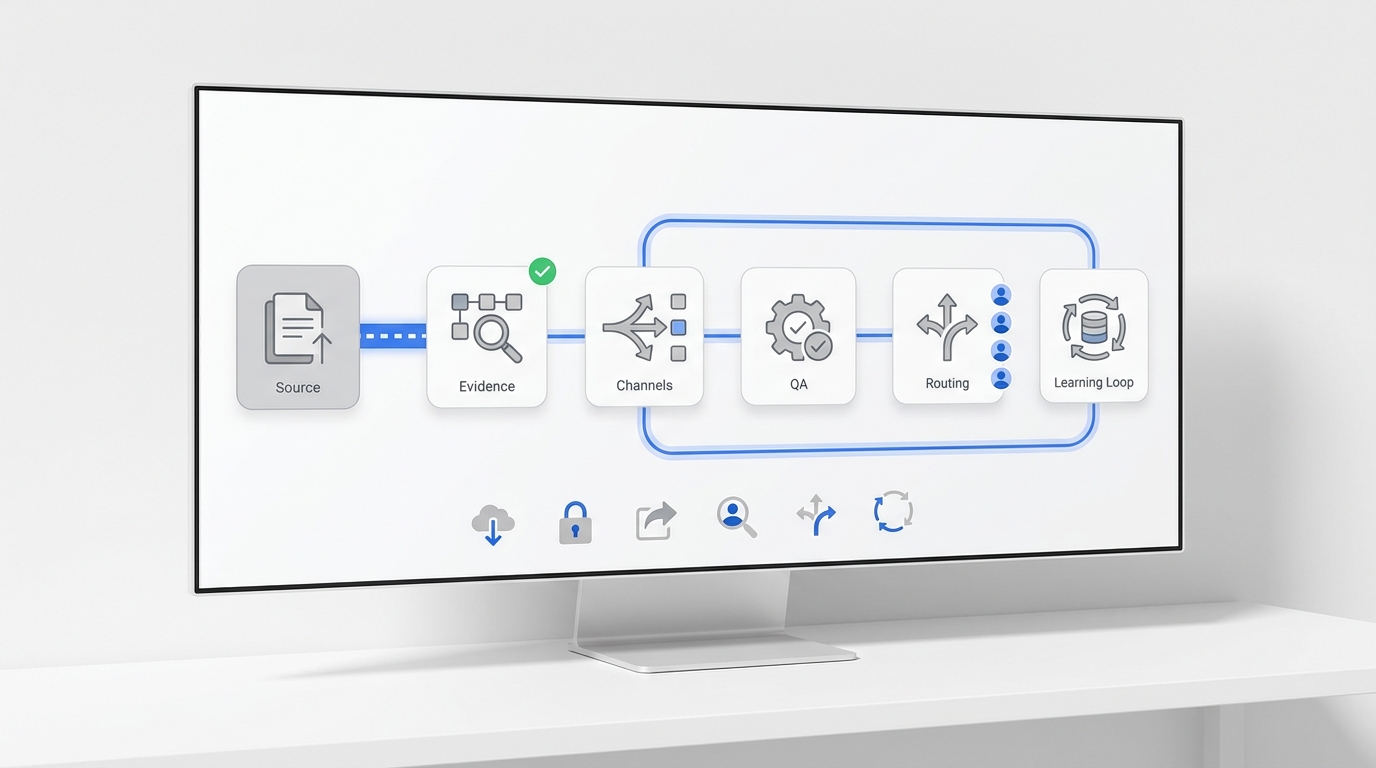
For multi-channel coverage from a single source of truth, an AI receptionist sits one layer below the channel and handles all of them.
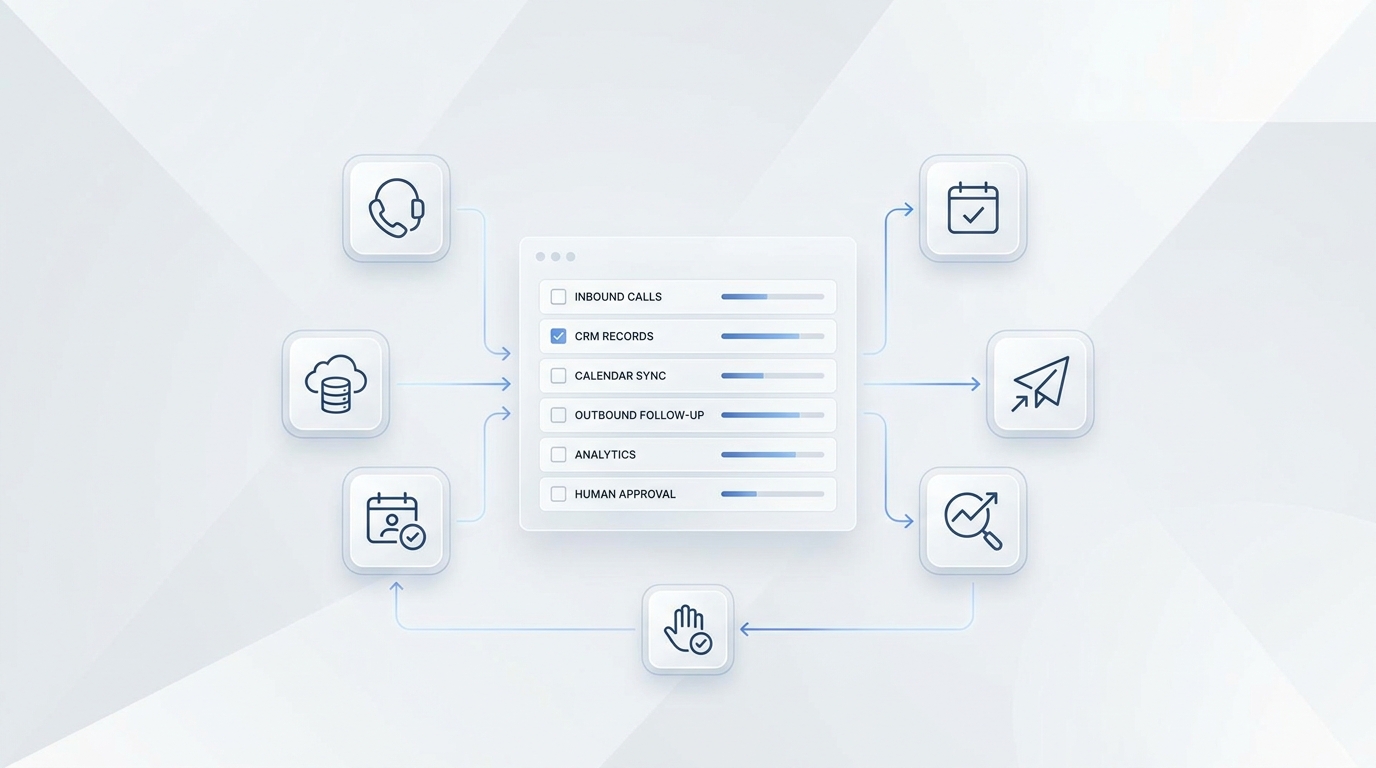
Solvea ingests your knowledge content (export from HubSpot's KB as PDF, or upload Notion/Drive/Confluence content directly) and answers customer questions across phone, live chat, and email — and flags anything it can't find for your team.
If you're already on HubSpot Service Hub Pro and the chatbot covers 90% of your needs, you don't need a separate AI receptionist. If you're missing phone or email auto-reply, or you're on HubSpot Free/Starter without access to Knowledge base lookup, an AI receptionist that integrates with your existing KB is usually the simpler upgrade path. The walkthrough below covers the upload-and-test flow:
Your AI Receptionist, Live in Minutes.
Scale your front desk with an AI that never sleeps. Solvea handles unlimited multi-channel inquiries, books appointments into your calendar automatically, and ensures zero missed opportunities around the clock.
FAQ
Q: Does HubSpot's chatbot work with the knowledge base on the Free plan?
A: Not natively. The Knowledge base lookup bot action and live chat KB browse/search both require Service Hub Professional ($90/mo/seat) or Enterprise. On Free or Starter, you can build rule-based chatbots that link to specific KB article URLs, but the bot can't search the KB or recommend articles dynamically.
Q: What's the difference between a HubSpot rule-based chatbot and Customer Agent?
A: Rule-based chatbots follow a predefined flow — if the visitor says X, do Y. They're predictable, testable, and good for compliance-sensitive flows. Customer Agent is HubSpot's AI agent — it reads your knowledge base and CRM context and produces conversational answers. Customer Agent is included in Pro/Enterprise plans for 28 days free with seat purchase.
Q: Can I use a HubSpot knowledge base with a non-HubSpot chatbot?
A: Yes, with caveats. HubSpot's KB articles can be exported via API or as published web pages. Third-party chatbots (Solvea, Intercom, Zendesk, custom RAG) can ingest the exported content. Live two-way sync with HubSpot is rarely seamless — most teams export periodically or rely on the public HTML version of the KB if it's published.
Q: How long does it take to set up a HubSpot chatbot with the knowledge base?
A: 30–60 minutes for the chatflow wiring, assuming your knowledge base is already populated. KB content prep — writing or auditing 15–20 quality articles — usually takes 2–4 hours. The end-to-end first-flight setup including testing is typically half a day for a single chatflow.
Q: Will the HubSpot chatbot handle phone calls or email auto-reply?
A: Native HubSpot chatbots are web-only — they appear in the live chat widget on your site. For phone calls, you need a separate AI receptionist (Solvea, Five9, or similar). For email auto-reply driven by the same KB, you can use HubSpot's email sequences for templated responses or pair with an AI tool that ingests your KB and handles email natively.
Q: Can I use Notion or Google Drive content with HubSpot's chatbot?
A: Not directly. HubSpot's bot can only search HubSpot's knowledge base. To use Notion or Google Drive content, you have three options: (1) consolidate that content into HubSpot's KB, (2) use a third-party chatbot that supports multi-source ingestion, or (3) use an AI receptionist like Solvea that accepts uploads from any source (PDF, Word, Excel, CSV, TXT up to 20 MB per file) and replies on chat, phone, and email.