If your team already lives in Notion, the answer to "where should the chatbot get its information from" writes itself: from the Notion pages you've spent two years curating. The hard part is the wiring. Notion holds your content; the chatbot needs that content in a format an LLM can actually retrieve from. Get the wiring wrong and the bot hallucinates pricing, contradicts a policy you updated last week, or politely tells customers it doesn't know.
This guide walks through the build from end to end — exporting your Notion knowledge base, formatting it so an AI can use it, connecting it to a chatbot platform, training, and testing — using the fastest no-code path. The same steps work whether you're building a customer-facing chatbot, an internal HR assistant, or a sales-enablement bot. Where the platform-specific UI matters, we use Solvea as the worked example because it accepts Notion exports natively and ships in under five minutes; the underlying steps map to any modern bot builder. Once your knowledge base is in place, layer on Solvea's knowledge base chatbot so staff get instant, source-grounded answers.
Read in order if you're building from scratch; jump to Step 4 if your knowledge base is already in shape.
TL;DR
Field | Content |
What you'll build | A custom-knowledge AI chatbot that answers from your Notion pages across phone, chat, or email. |
Tools needed | A Notion workspace + a chatbot platform that ingests Notion exports (Solvea, Stack AI, Typebot, n8n, custom RAG). |
Time required | 2–4 hours to clean Notion content; under 5 minutes to wire up Solvea once content is ready. |
Who it's for | SMB owners, customer support leads, RevOps, and solo founders whose source-of-truth lives in Notion. |
Fastest path | Export Notion → Markdown, upload to Solvea (Create Knowledge → Upload Document), test, connect a phone number or chat widget. |
What You Need Before You Start
Building a chatbot off a custom knowledge base fails for the same reason 90% of internal documentation projects fail: the source isn't ready. Before touching a chatbot platform, work through this checklist.
- List your top 20 questions. Pull them from support email, call recordings, chat history, or sales calls. If you don't have a list yet, ask your support lead — they answer the same questions every day.
- Decide what's in scope. A chatbot answering from your full Notion workspace will surface internal docs to customers. Pick one or two specific Notion databases or pages (e.g. Customer FAQ, Pricing, Shipping & Returns) and exclude everything else.
- Audit answer quality. Does each Notion page have a real answer, or does it say "ask Sarah" / "TBD"? Vague pages produce vague chatbot answers. A 2026 Stack AI walkthrough makes the same point: chatbot accuracy is bottlenecked by source quality, not model choice.
- Pick your delivery channels. Where does the chatbot need to live? Website chat widget, phone calls, email auto-reply, internal Slack? Each platform supports different combinations. Most SMBs start with one channel.
A quick comparison of the platform options most teams consider when their KB is in Notion:
Platform | Best for | Notion handling | Time to first reply |
Solvea | Customer-facing voice + chat + email reply | Upload Notion export (PDF/Markdown/CSV), or sync via public Notion URL using the website-sync feature | <5 min after export |
Stack AI / Typebot | Custom workflows, embedded widgets | Direct Notion database connector via API integration | 30–60 min |
n8n + OpenAI | Custom internal automations | Native Notion node + vector store + retrieval node | 2–4 hours, code-light |
Custom RAG (LangChain, LlamaIndex) | Engineering teams who want full control | Notion API → chunker → vector DB → LLM | 1–2 days |
The rest of this guide walks through the no-code path because it covers 80% of business needs without engineering time. If you're on the custom-RAG path, Steps 1–3 are still relevant; the GitHub notion-chat-langchain template is a solid scaffold.
How to Build a Chatbot Using a Notion Knowledge Base: Step-by-Step
Step 1: Choose what content goes into the chatbot
Open Notion and decide which databases and pages will feed the bot. The temptation is to point the chatbot at the entire workspace; resist it. Customer-facing bots that crawl every page surface internal notes ("our pricing strategy is to anchor at $99 to make $79 feel cheap"), draft pages, and outdated policies.
Create a single top-level Notion page called something like AI Knowledge Base and either move or duplicate the relevant pages under it: customer FAQ, pricing, shipping policy, return policy, hours, products, troubleshooting guides. If the same content lives in multiple pages, consolidate to one canonical version — duplicate answers confuse retrieval and contradict each other. Solvea's free AI FAQ generator auto-extracts the questions customers actually ask from any document or URL.
Confirm each page has:
- A clear H1 (the page title) that matches what a user might ask ("Refund policy" not "Policy v3 — Q4 update")
- Short paragraphs (under 4 lines) — chatbots and humans both skim
- Specific numbers, not "varies" or "depends" (write
Standard shipping: $4.99, 3–5 business days, notStandard shipping fees apply) - No "TBD" or "ask the team" placeholders — those become hallucination prompts
Step 2: Format your Notion content for retrieval
How a chatbot retrieves an answer depends on how you structure the source. Two formatting patterns work especially well for Q&A bots and are worth applying across your knowledge base before exporting.
Use a question-as-heading pattern. For each piece of information, lead with the question as the page title or H2. "How do I cancel my subscription?" retrieves better than "Subscription Management Policy v2". Modern retrieval-augmented generation (RAG) systems chunk by semantic similarity, and matching the user's phrasing in your headings improves chunk hit rate.
Cover the negative case. Customers ask what you don't do as often as what you do. If you don't ship to APO addresses, write a Notion page called "Do you ship to APO/FPO addresses?" with the answer "No — we ship to U.S. residential and commercial addresses only." Without that page, the bot guesses. With it, the bot says no clearly.
Add a glossary. If your business uses internal terms ("Tier 2 support" vs "VIP support"), write them out in a single Notion page. The bot can then translate user phrasing into your team's language.
Step 3: Export your Notion content
To get content out of Notion in a format chatbot platforms accept, use Notion's native export. Open the parent page (AI Knowledge Base), click the • • • menu in the top right, choose Export, and select:
- Format: Markdown & CSV — the cleanest format for downstream parsing. PDF works for visual fidelity but loses heading structure. HTML is overkill.
- Include subpages: Yes — pulls every nested page in one zip.
- Include databases: Markdown — converts each database row to a Markdown file.
Notion produces a ZIP. Unzip it; you'll have a folder with one .md file per page and one CSV per database. Skim the output: spot-check that headings, lists, and links survived. Notion's official export documentation covers edge cases (large workspaces, image exports).
If your team prefers to keep the chatbot live-synced to Notion rather than re-exporting weekly, two options:
- Public-page website sync (no-code): publish the parent page to web (Notion → Share → Publish), then point a website-sync chatbot at the public Notion URL. Solvea, Profound, and several other platforms support this.
- API-based connector (light code): platforms like Stack AI and Typebot offer Notion API integrations that pull updates on a schedule.
Step 4: Upload to your chatbot platform
This is the step where the no-code platforms shine. With Solvea as the worked example:
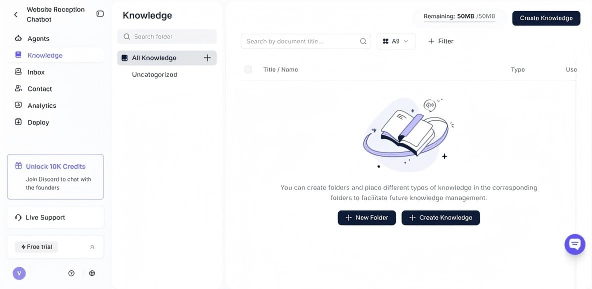
- Sign in and navigate to Create Knowledge → Upload Document.
- Pick or create a folder (e.g.
Customer FAQ). - Click Click to upload files and select the Markdown files (or the unzipped folder). Supported formats: PDF, Word, Excel, CSV, TXT — Markdown can be imported as TXT or converted to PDF first if your platform doesn't accept
.mddirectly. File size limit per upload is 20 MB. - Click Publish. The platform parses the content, splits it into retrieval chunks, and indexes it.
Most platforms take 30 seconds to a few minutes to process. If you have a large workspace (hundreds of pages), upload in batches by category — easier to debug if a chunk goes missing.
For the website-sync route (no export needed): in Solvea, choose Add Knowledge → Sync Website Content, paste your published Notion URL, click Preview Content to confirm pages were detected, choose a destination folder, and click Publish. The platform uses the Notion sitemap to discover and import subpages automatically.
Step 5: Train and test the chatbot's responses
A trained chatbot is one you've stress-tested. Open the test chat in your platform and run the bot through three buckets of questions:
Bucket 1 — Top 10 known questions. Take the list from your prep checklist. Ask each question verbatim. Every answer should be specific, on-policy, and cite the right page when asked.
Bucket 2 — Edge cases. Ask in awkward phrasing, with typos, in incomplete sentences ("how cancel"). Try the negative case ("can I ship to Alaska?" if you don't). Try multi-turn ("how much is the basic plan?" → "what about annual?"). The bot should handle 80% of these gracefully and gracefully escalate the rest.
Bucket 3 — Outside scope. Ask things the bot shouldn't know: a competitor's pricing, an unrelated technical question, the founder's home address. The bot should refuse cleanly ("I can't help with that — try contacting our team at...") rather than invent. If it invents, your knowledge base lacks negative coverage; add explicit "we don't do X" pages.
When an answer is wrong, fix the Notion page (or the export), re-upload, and re-test. Two or three rounds usually settle a knowledge base. The Elfsight chatbot training guide calls this the most-skipped step — and the one that separates production-ready bots from demos.
Step 6: Connect your chatbot to a customer channel
A trained chatbot in a sandbox helps no one. Connect it to where your customers actually reach you:
- Website chat widget — most common starting point. Paste a one-line script tag onto your site (or use the Shopify/Wix/WordPress integration). The bot appears as a chat bubble.
- Phone — add a phone number through your platform; inbound calls route to the AI receptionist, which speaks the answers from your Notion KB. Useful for service businesses, clinics, and any team where after-hours calls are missed bookings.
- Email — authorize a Gmail or Microsoft account; the bot reads inbound emails and either replies directly or drafts replies for human review.
- Internal channels — for HR or sales-enablement use cases, embed in Slack or Microsoft Teams. The bot answers from the same Notion KB, restricted to internal users.
Start with one channel. Adding all channels on day one fragments testing and obscures which integration broke when an answer goes wrong.
Step 7: Schedule updates and monitor accuracy
A chatbot trained on a stale knowledge base is worse than no chatbot — it confidently quotes last quarter's pricing. Build a maintenance loop:
- Weekly for the first month: review the chatbot's escalation log (the questions it punted to a human). Each escalation is either a missing answer (add a Notion page) or a phrasing gap (rewrite the existing page).
- Monthly ongoing: full review of the bot's transcript history. Look for any answer that was technically correct but unhelpful — those are usually pages that need rewording for clarity.
- Immediately: after any pricing change, policy update, or product launch. Update Notion, re-export (or wait for the auto-sync), and re-test the affected questions.
Most platforms expose conversation logs and a "thumbs up/down" feedback mechanism. Wire those up; they're how you know the chatbot is improving instead of drifting.
How to Build a Chatbot with a Custom Knowledge Base: Key Differences from Generic Chatbots
A custom-knowledge chatbot differs from a vanilla GPT chatbot in four ways worth understanding before you build:
Format matters more than length. A 200-word page with a clear H1 question and a direct answer outperforms a 2,000-word essay. RAG systems chunk content for retrieval, and a chunk that contains a complete answer beats one that contains a fragment.
Question-answer pairs beat narrative. "What's your refund policy? — Refunds within 30 days, no restocking fee." retrieves better than a refund policy buried in a longer "How we handle customer service" article.
Cover the negative case explicitly. Generic chatbots make up answers when they don't know. Custom-knowledge chatbots will too if your knowledge base only contains "what we do" pages. Write explicit "what we don't do" pages — "Do you ship internationally? — No, we ship to U.S. addresses only."
Test edge phrasings. Real users don't talk like documentation. They write "how cancel", "refund?", "is there a way to..."*. The chatbot's job is to map fuzzy phrasing to your structured answers. If it fails, the fix is in the source headings, not the model.
This is also why building from a Notion KB is easier than building from a freeform PDF: Notion already enforces some structure (pages, blocks, headings), and the export preserves it.
How to Train an AI Chatbot with a Custom Knowledge Base
"Training" is sometimes used loosely to mean two different things; the distinction matters when planning the build:
- Fine-tuning — adjusting the underlying model's weights with examples. Heavyweight, expensive, and almost never what you want for a knowledge-base chatbot. Don't fine-tune unless you have a very specific reason (style mimicry, niche jargon).
- Retrieval-augmented generation (RAG) — keeping the model fixed and feeding it your content at query time as context. This is what every modern no-code chatbot platform actually does, regardless of how the marketing copy is phrased. When a user asks a question, the platform retrieves the top-matching chunks from your KB and asks the LLM to answer using those chunks.
For a Notion-sourced chatbot, RAG is what you want. The "training" is really content curation: how clearly your Notion pages are written, how well they cover edge cases, how the headings phrase the questions a real user would type. The Beebom guide on training a ChatGPT-API chatbot walks through the underlying mechanics if you want to build the RAG pipeline yourself; the no-code platforms hide the same mechanics behind upload-and-publish.
Practical training checklist:
- Upload your Notion export.
- Run the test bucket (Bucket 1, 2, 3 above).
- For every wrong answer, identify whether it's a content gap (add or rewrite a Notion page) or a retrieval gap (the page exists but the heading doesn't match user phrasing).
- Republish.
- Stop iterating when 90%+ of your top 20 questions return correct answers verbatim.
That's training, in practice. No GPU required.
Common Knowledge Base Mistakes That Break Your Chatbot
The same mistakes show up across every Notion-fed chatbot project:
❌ Vague answers. "Pricing varies based on plan."✓ Specific answers. "Starter is $30/month, Pro is $79/month, Enterprise is custom — see [pricing page link]."
❌ Headings as topic labels. "Subscription Management Policy v3"✓ Headings as questions. "How do I cancel my subscription?"
❌ Internal jargon leaking into customer answers. "Tier 2 escalation per the SLA matrix."✓ Plain language. "If your issue isn't resolved within an hour, our senior team takes it over."
❌ One giant page covering ten topics. RAG chunks badly; retrieval misses context. ✓ One page per topic, linked together. Retrieval picks the right chunk; users can be deep-linked.
❌ No "we don't do X" pages. Bot hallucinates a yes when the answer is no. ✓ Explicit negatives. "Do you offer phone support on weekends? — No, our phones are staffed Mon–Fri 9 a.m.–6 p.m. ET. For weekend issues, email support@..."
From Knowledge Base to Live Chatbot: How AI Reads Your Notion Content
It's worth pausing on what's happening under the hood when a chatbot answers a question — because it changes how you write the source.
When a user asks "how do I get a refund?", the platform doesn't search your Notion KB the way Google searches the web. It converts the question into a vector (a numerical fingerprint of meaning), compares that vector against pre-indexed vectors of your Notion content, returns the top 3–5 matching chunks, and feeds those chunks into an LLM with a prompt like "Answer this user question using only the following passages." The LLM then drafts a reply.
Two implications for how you write the source:
Chunks should be self-contained. A chunk pulled from the middle of a long page might lack context. Short, focused pages produce self-contained chunks.
Phrasing in headings matters more than phrasing in body. Most retrieval systems weight headings more heavily. A page titled "Refund policy (3-step process)" with a body that says "Eligible refunds are processed within 5 business days..." retrieves on both the heading and the body. A page titled "Policy v3" retrieves on neither.
This is the entire reason a Notion KB makes a strong chatbot source: the platform encourages clear page titles and structured content, and your existing investment in a clean Notion workspace doubles as chatbot training data.
If you'd like a quick walkthrough of the upload-to-test flow in under five minutes, this video covers the same path end-to-end:
Your AI Receptionist, Live in Minutes.
Scale your front desk with an AI that never sleeps. Solvea handles unlimited multi-channel inquiries, books appointments into your calendar automatically, and ensures zero missed opportunities around the clock.
FAQ
Q: How long does it take to build a chatbot using a Notion knowledge base?
A: Two to four hours of content prep (cleaning up Notion pages, consolidating duplicates, adding negative-case pages) plus under five minutes of platform setup if you use a no-code tool like Solvea. Custom RAG builds with LangChain or LlamaIndex add one to two days of engineering on top.
Q: Do I need to code to build a chatbot with a custom knowledge base?
A: No. No-code platforms (Solvea, Stack AI, Typebot, Chatbase, Landbot) accept Notion exports or website-syncs and ship a working chatbot without writing code. Code becomes useful when you need custom logic, complex multi-step workflows, or a self-hosted RAG pipeline.
Q: What format should my Notion export be in for the chatbot?
A: Markdown & CSV is the cleanest export for downstream parsing — heading structure, lists, and links survive. Most chatbot platforms accept Markdown directly or via TXT/PDF conversion. PDF works if your platform doesn't accept Markdown but loses some structure. HTML is rarely the right choice.
Q: How many pages should my Notion knowledge base have for a chatbot to work well?
A: Coverage matters more than count. A focused KB of 20–30 pages covering your top customer questions outperforms a sprawling 500-page workspace where 80% is internal noise. Start with the top 20 questions; expand only as the chatbot's escalation log shows gaps.
Q: Will my Notion knowledge base auto-sync with the chatbot, or do I need to re-upload?
A: Depends on the platform. Some chatbot tools support live website-sync of public Notion pages and re-crawl on a schedule. Others require a fresh export and upload after major changes. For high-traffic chatbots, pick a platform with auto-sync; for low-update KBs, manual re-upload monthly is fine.
Q: Can I use Notion or Google Drive as a chatbot knowledge base directly?
A: Yes for both, with caveats. Notion content can flow into a chatbot via export (Markdown), public-page website sync, or API integration depending on the platform. Solvea accepts the document upload path natively (PDF, Word, Excel, CSV, TXT up to 20 MB) and supports website sync for public Notion URLs. Google Drive works the same way — export Docs to PDF or Word, then upload — and several platforms also offer Drive connectors that pull content automatically. Pick the path that matches how often your team updates the source.
Source References
[1] Stack AI — How to Build an AI Chatbot with Custom Knowledge Base RAG (2026) — https://www.stack-ai.com/blog/how-to-build-ai-chatbot-with-knowledge-base
[2] Zendesk — Knowledge base chatbots: What they are + how to build one — https://www.zendesk.com/blog/knowledge-base-chatbots/
[3] Beebom — How to Train an AI Chatbot With Custom Knowledge Base Using ChatGPT API — https://beebom.com/how-train-ai-chatbot-custom-knowledge-base-chatgpt-api/
[4] Elfsight — How to Create a Chatbot Knowledge Base: Setup & Training Guide — https://elfsight.com/blog/how-to-create-a-chatbot-knowledge-base/
[5] Notion Help Center — Export your content — https://www.notion.so/help/export-your-content
[6] GitHub — notion-chat-langchain-hackathon (open-source RAG starter) — https://github.com/paper-co/notion-chat-langchain-hackathon
[7] Atlassian — Knowledge Base Guide: Examples, Templates & Best Practices — https://www.atlassian.com/itsm/knowledge-management/what-is-a-knowledge-base