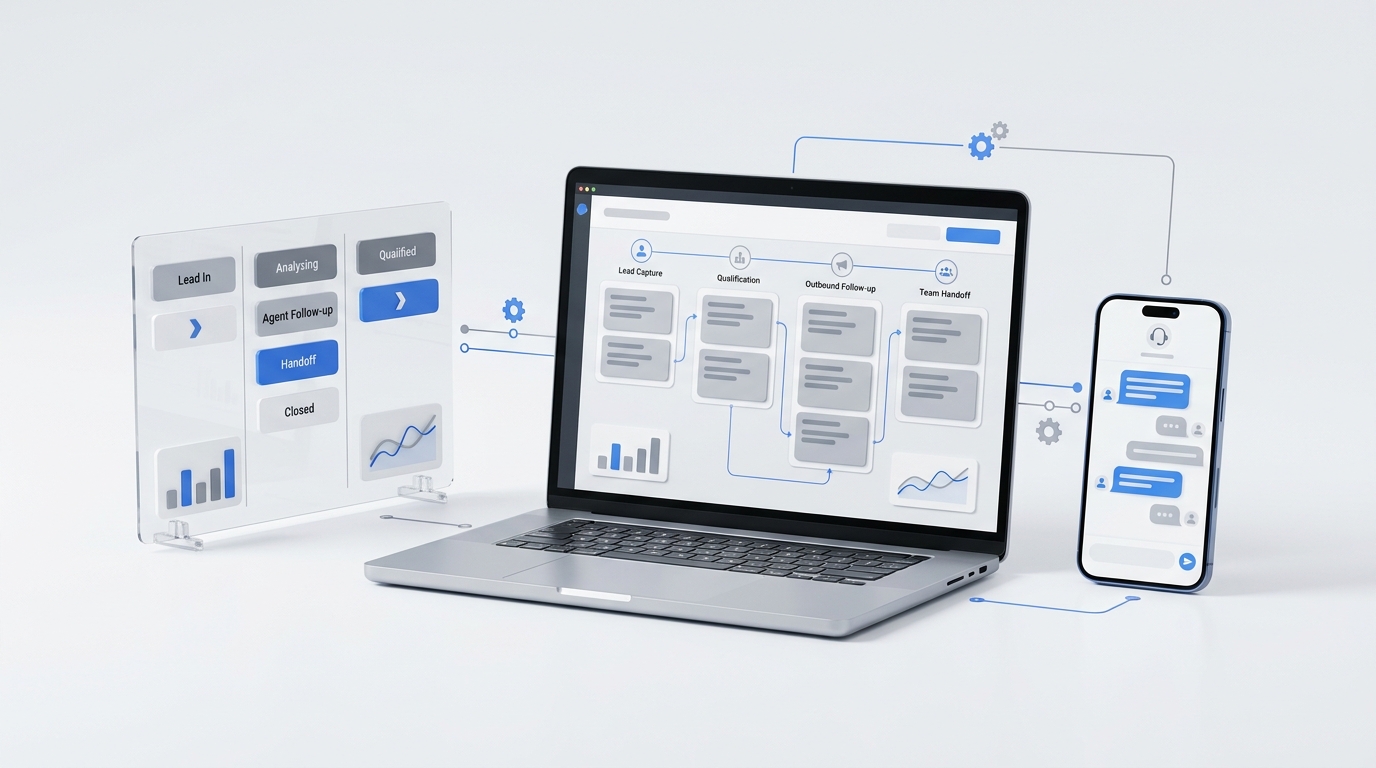
Your business closes at 6 PM. Your customers' questions don't.
A caller who hits voicemail at 7:30 PM won't get your site in a bookmark — they move on to whoever picks up. Most callers who reach voicemail don't call back. That's not a staffing gap; it's a cost of missing calls that compounds every night you're closed.
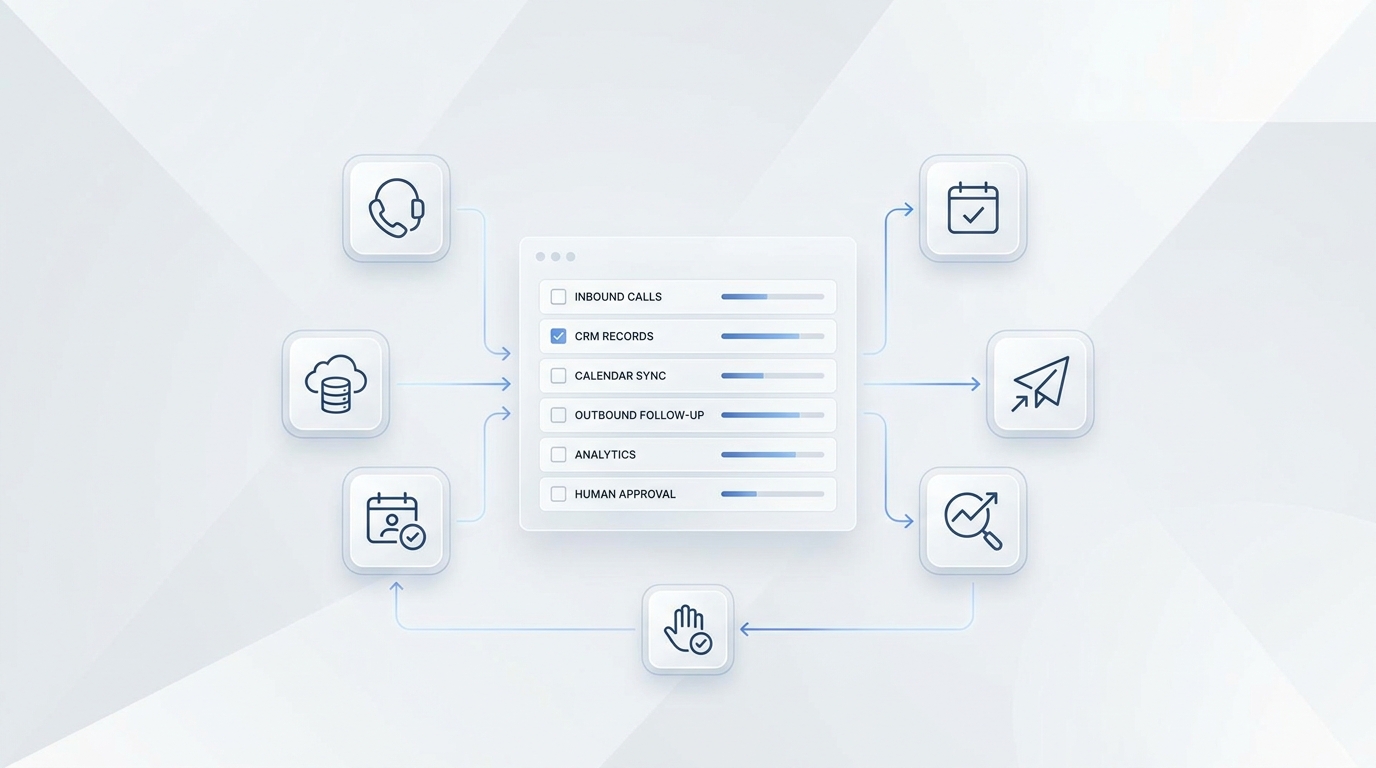
After-hours AI answering closes that gap without adding headcount. You configure it once — define what the AI knows, what it should do, when it should escalate — and from that point forward, every call, chat, or email that comes in at 11 PM gets the same structured experience as one that arrives at 11 AM: a real answer, a clear next step, and a full transcript waiting for your team in the morning.
TL;DR
What it is | An AI agent that handles calls, chats, and emails outside business hours |
Setup time | 30–90 min for a custom workflow; under 3 min with a template |
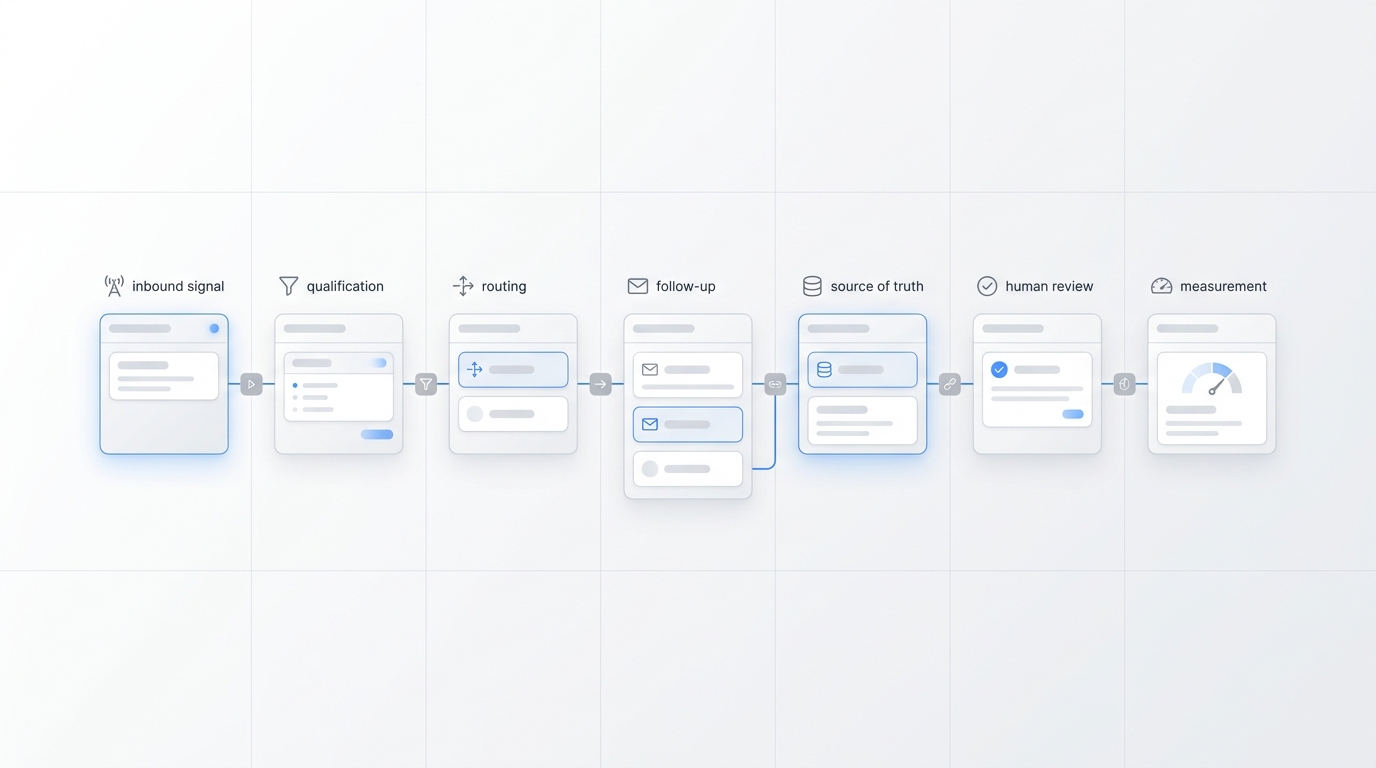
Core steps | Map workflow → Build KB → Set escalation rules → Connect channels → Test |
Biggest mistake | Connecting channels before defining what the AI should and shouldn't say |
Who it's for | SMBs, service businesses, and e-commerce teams that can't staff 24/7 |
What After-Hours AI Answering Can (and Can't) Do
Before you configure anything, you need a clear picture of what the AI will actually handle.
What an AI receptionist handles automatically after hours
- Answering common questions: hours, location, pricing, return policy, service details
- Capturing lead information: name, email, phone number, reason for contact
- Booking or rescheduling appointments via calendar integration
- Routing urgent issues to an on-call number or priority inbox
- Sending SMS or email follow-ups with next steps or booking confirmation
- Qualifying inbound inquiries so your team has context before the morning callback
- Identifying whether a caller is a new lead or a returning customer when CRM is connected
- Handling multiple topics in a single call without making the caller repeat themselves
When the after-hours AI should hand off to a human
- Complex disputes that require human judgment
- Sensitive situations that need empathy — medical concerns, active complaints, billing errors
- Callers who are upset or frustrated and need acknowledgment before they'll accept an AI response
- Anything outside your approved knowledge base — a properly configured AI says "I don't have that information" rather than guessing
Think of it like a well-trained front desk employee who has memorized your FAQ and knows exactly when to escalate. They can resolve 70–80% of contacts independently. The rest they flag for you, fully documented, so no one falls through the cracks.
The key word is "configured." A poorly scoped after-hours AI creates more problems than it solves. The five steps below are designed to get the scope right before you flip the switch.
How to Set Up After-Hours AI Answering: 5 Steps
Step 1: Map What Actually Happens After Hours
Start with an audit, not a build.
Before you touch any software, write down every type of contact your business receives outside working hours:
- What do callers ask most often? (Price? Availability? Order status? Scheduling?)
- What do they need right now versus what can wait until morning?
- What information does your team need from them before they can help?
- Which contacts, if missed, cost you a sale or a relationship?
This audit takes 20–30 minutes and prevents weeks of rework. You're not guessing at what the AI should say — you're building from real call patterns.
Deliverable: A list of 10–15 common contact types, sorted into two buckets: "can be automated" and "needs human escalation." That list is your configuration spec.
Step 2: Train Your AI Receptionist: What It Needs to Know
Your AI receptionist is only as good as what you give it.
Upload the content it needs to handle calls accurately:
- FAQ document — your most common questions with approved, on-brand answers
- Product or service pages — so it can answer "what's included" and "how much does it cost"
- Business hours and location — so it can tell callers when to expect a callback
- Booking policy — if you take appointments, the rules around cancellations and rescheduling
- Escalation contacts — the on-call number, emergency email, or after-hours procedure for urgent situations
- Greeting script — how the AI introduces itself, what name it uses, and the tone it sets on calls
- Escalation scripts — what the AI says when transferring to a human, so the handoff sounds natural rather than abrupt
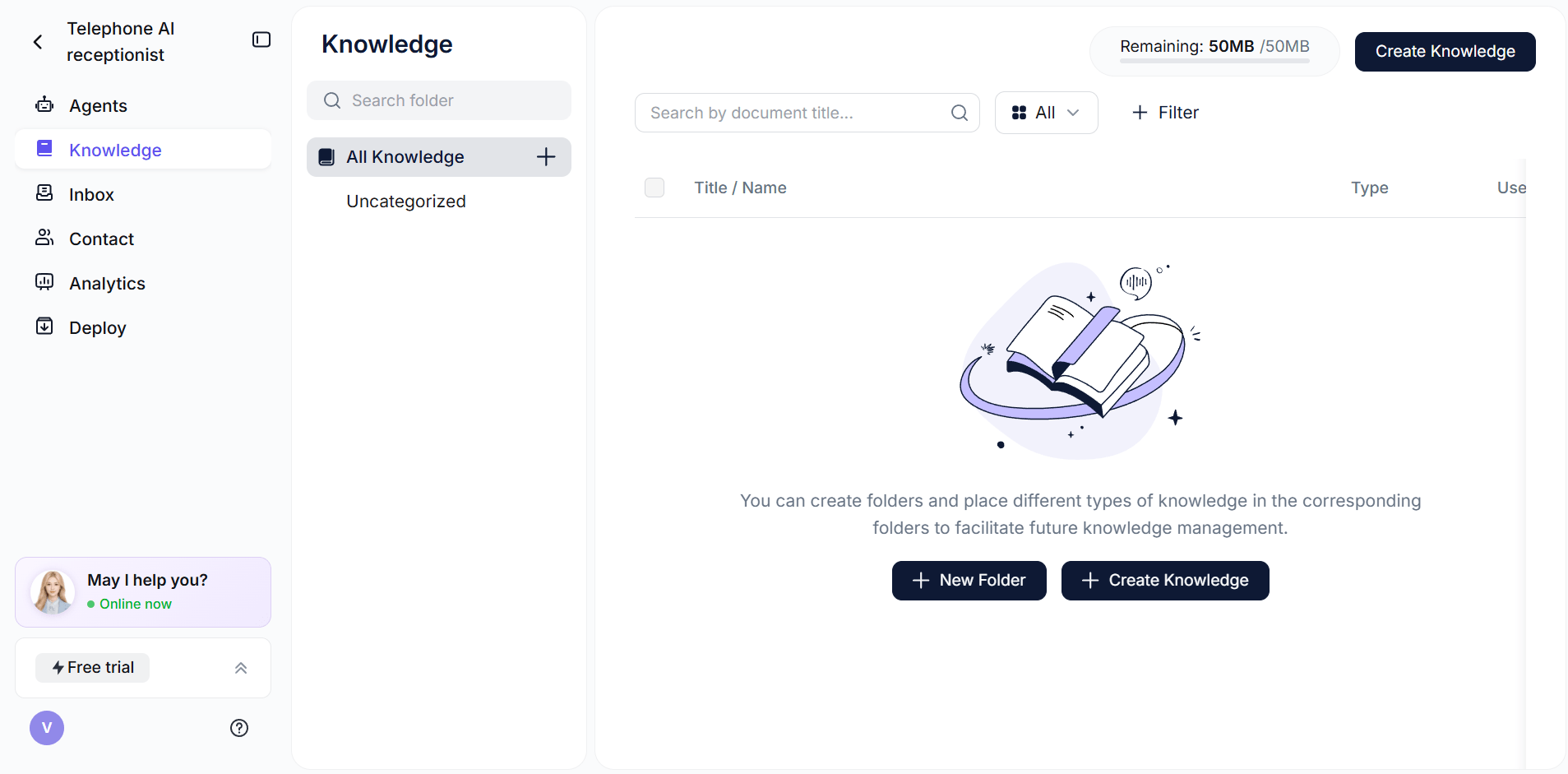
With Solvea, you can point the AI at your website URL and it crawls and indexes the content automatically. You can also upload PDFs and sync Google Sheets — useful if your pricing or availability changes frequently.
Note: Don't upload anything the AI shouldn't quote directly: internal pricing discussions, legal documents under review, or draft policies. Whatever goes into the KB is fair game for a caller at midnight.
Step 3: Set Escalation Rules and Boundaries
This is the step most businesses skip — and then wonder why their AI said something strange at 2 AM.
Define two categories explicitly before you connect any channels.
Auto-handle:
- General product and service questions
- Appointment booking and rescheduling requests
- FAQ-level inquiries covered by the knowledge base
- Lead capture (collect name, email, phone, reason for contact)
- Directions, hours, and location questions
Escalate immediately:
- Any mention of an emergency (flood, medical situation, security breach, safety concern)
- A caller who explicitly asks for a human and declines the AI's answers
- VIP accounts, if you can identify them by phone number
- A question the AI has failed to answer twice in the same conversation
- Anything involving money movement, refunds over a set threshold, or account access
Then define the escalation action: Does the AI send an SMS to your on-call number? Create a priority ticket in your helpdesk? Route to a backup phone line? Ask for a callback number and flag it for morning? Set this before you configure anything else.
Good call flow design makes escalation feel natural rather than like a failure — the caller leaves with a clear expectation, and your team arrives in the morning with full context.
Step 4: Connect Your Phone Line and Channels
Now you wire it up.
Phone:
Connect your business number or provision a dedicated AI-handled line. With Solvea, the free plan includes a trial AI phone number — no forwarding setup required. If you want your main number to route to AI after hours, most phone systems support a time-based forwarding rule: route to AI between 6 PM and 8 AM, route to your team during business hours.
Chat and email:
If you want coverage on your website live chat widget or email inbox, enable those channels in the same agent configuration. One AI, three channels — callers, web visitors, and email senders all get the same experience with no separate setup.
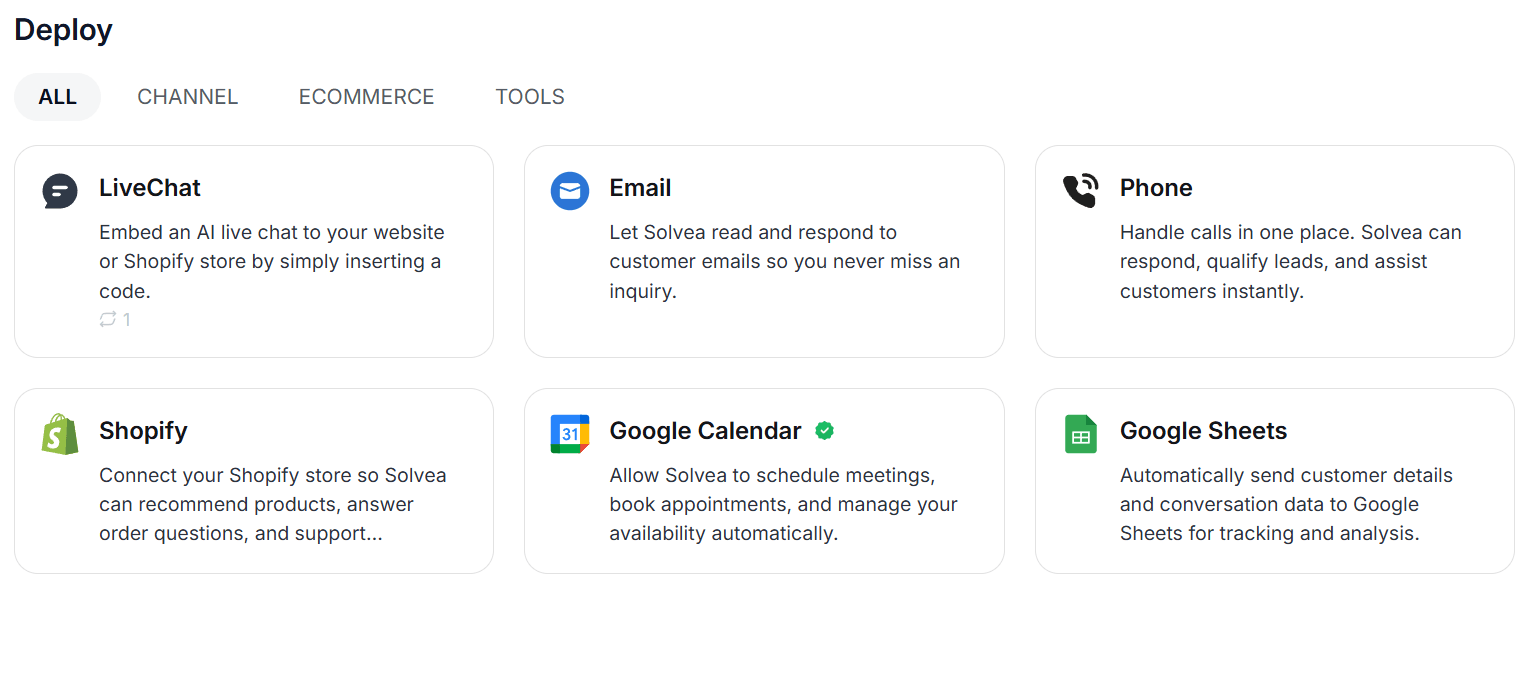
CRM and calendar:
Connect HubSpot, Shopify, or Google Calendar if you want the AI to do more than answer questions — like creating leads in your CRM or booking appointments without manual data entry the next morning. Connect only what you need for Step 1's use cases. More integrations mean more failure points during setup.
Step 5: Test Every Scenario Before Going Live
Run the AI through every scenario from your Step 1 audit before you switch it on for real callers.
Test checklist:
- Ask the 5 most common questions — does the AI answer accurately from the KB?
- Ask a question outside the knowledge base — does it decline gracefully rather than guess?
- Trigger an escalation keyword — does the right notification fire?
- Request a human explicitly — does the AI acknowledge it and create a follow-up?
- Provide incomplete information — does it ask a clarifying question?
- Ask about pricing — does it quote the right number from the right source?
- Simulate an urgent situation — does escalation route correctly?
Run the test yourself first, then have someone unfamiliar with the setup try it. They will find gaps you won't. When something fails, fix the knowledge base or escalation rule — don't just patch the AI's instructions to paper over a bad KB.
5 Mistakes That Break After-Hours AI Answering Setups
Even teams that follow the five steps above run into these:
1. Implying immediate human availability
If the AI says "someone will be right with you," it creates an expectation you can't fulfill at 11 PM. Use language that's accurate: "Our team will follow up first thing tomorrow morning" or "I can send you a confirmation now and have someone call you at 8 AM."
2. Treating all after-hours contacts the same
A new lead asking about pricing and an existing customer with a billing dispute need different paths. Your escalation rules should distinguish between them. Not every after-hours contact is routine — and the ones that aren't routine are exactly the contacts where a bad AI experience costs you the relationship.
3. Collecting insufficient context
"Someone called" is not a useful morning handoff. Make sure your AI captures at minimum: caller name, phone number, reason for contact, and any specific details relevant to follow-up. The morning callback that starts with full context closes faster than the one that starts with "what did they want again?"
4. Going live before the knowledge base is accurate
An AI confidently quoting the wrong price or the wrong policy is worse than no AI. Before launch, do a pass through the KB specifically looking for outdated information: old pricing, discontinued products, changed hours, or policies that shifted in the last 90 days.
5. Not defining your AI receptionist's persona and greeting
An AI that answers with "Hello, how can I help you?" is forgettable. One that says "Hi, this is [Name], [Business]'s AI receptionist — how can I help you tonight?" sets a professional tone immediately. Define what the AI calls itself, how formal or conversational its language should be, and what it says to open each call. Without this, the AI defaults to generic phrasing that erodes trust before the conversation even starts.
Solvea: After-Hours AI Answering That Actually Resolves Calls
Most businesses set up after-hours coverage expecting a voicemail layer with a friendly robot voice. Solvea is built for a different outcome.
Instead of recording a message and waiting for a callback, Solvea's AI receptionist picks up the phone, answers the caller's question from your knowledge base, and — if they want to book an appointment — puts it on your calendar in the same conversation. No human required, no morning queue to dig through.
What makes it practical specifically for after-hours coverage:
- 10+ industry templates pre-loaded with common questions and escalation rules for your vertical — you're not building from zero
- Simultaneous channel coverage — the same agent handles calls, website chat, and email from one configuration, not three separate systems
- Human handoff via Inbox — when a caller needs a human, the full transcript lands in your team's inbox with the context already captured
- Starts free — the free plan includes a 7-day trial phone number, 1K monthly credits, and up to 50 customer interactions before you need to upgrade
According to the IBM Institute for Business Value, businesses that deploy AI agents for after-hours customer interactions see measurable reductions in lead drop-off and morning queue backlog — particularly in service-based industries where speed of first response directly correlates with close rate.
Your AI Receptionist, Live in Minutes.
Scale your front desk with an AI that never sleeps. Solvea handles unlimited multi-channel inquiries, books appointments into your calendar automatically, and ensures zero missed opportunities around the clock.
Frequently Asked Questions
How long does it take to set up after-hours AI answering?
With a template-based tool like Solvea, you can have a working after-hours agent live in under 3 minutes. A custom setup with a full knowledge base, CRM integration, and tuned escalation rules typically takes 30–90 minutes. The audit in Step 1 is usually where most of that time goes.
Do I need to hire a developer to set this up?
No. Modern after-hours AI tools — including Solvea — are no-code. You connect your phone number, upload your content, define a few escalation rules, and test. No APIs, no scripts, no IT ticket required.
What happens when the AI can't answer a question?
If you've configured it correctly, it escalates based on your rules: an SMS to your on-call number, a priority inbox ticket, or a captured callback request. Nothing disappears — every contact is logged with the full conversation transcript so your team has context in the morning.
Will customers know they're talking to AI?
Most modern AI receptionists are transparent about this when asked directly. The question is whether callers care. Tidio's customer service statistics consistently show that customers' primary concern is getting a fast, accurate answer — not whether it came from a human or an AI. That said, your AI should never claim to be human if asked.
Can I use the same AI for website chat and phone?
Yes. The better tools — including Solvea — run a single AI agent configuration across phone, live chat, and email. You configure it once; it handles all three channels. This matters because after-hours contacts don't all come through the same channel.
How much does after-hours AI answering cost?
The range is wide. Basic IVR starts at $0–$20/month. Full-featured AI receptionists like Solvea start at $30/month for the paid plan, with a free tier available. Live-agent hybrid services like Ruby start above $200/month. Most SMBs find the $30–$50/month range more than sufficient for full after-hours AI coverage.
What industries use after-hours AI answering most?
Medical spas, law firms, real estate agencies, home services (HVAC, plumbing, pest control), and e-commerce retailers see the highest return — because their customers frequently have time-sensitive questions outside business hours, and a missed contact has a direct revenue cost. Any business where "we're closed, please call back" loses a sale is a good candidate.