

Make and Receive Call
Receive a Call
- Make sure you are online.
- Keep notifications enabled.
- Answer the incoming call from the iOS call screen or in-app call overlay.
- Use mute, speaker, or other call controls as needed.
- After the call, open the Inbox record.
Make an Outbound Call
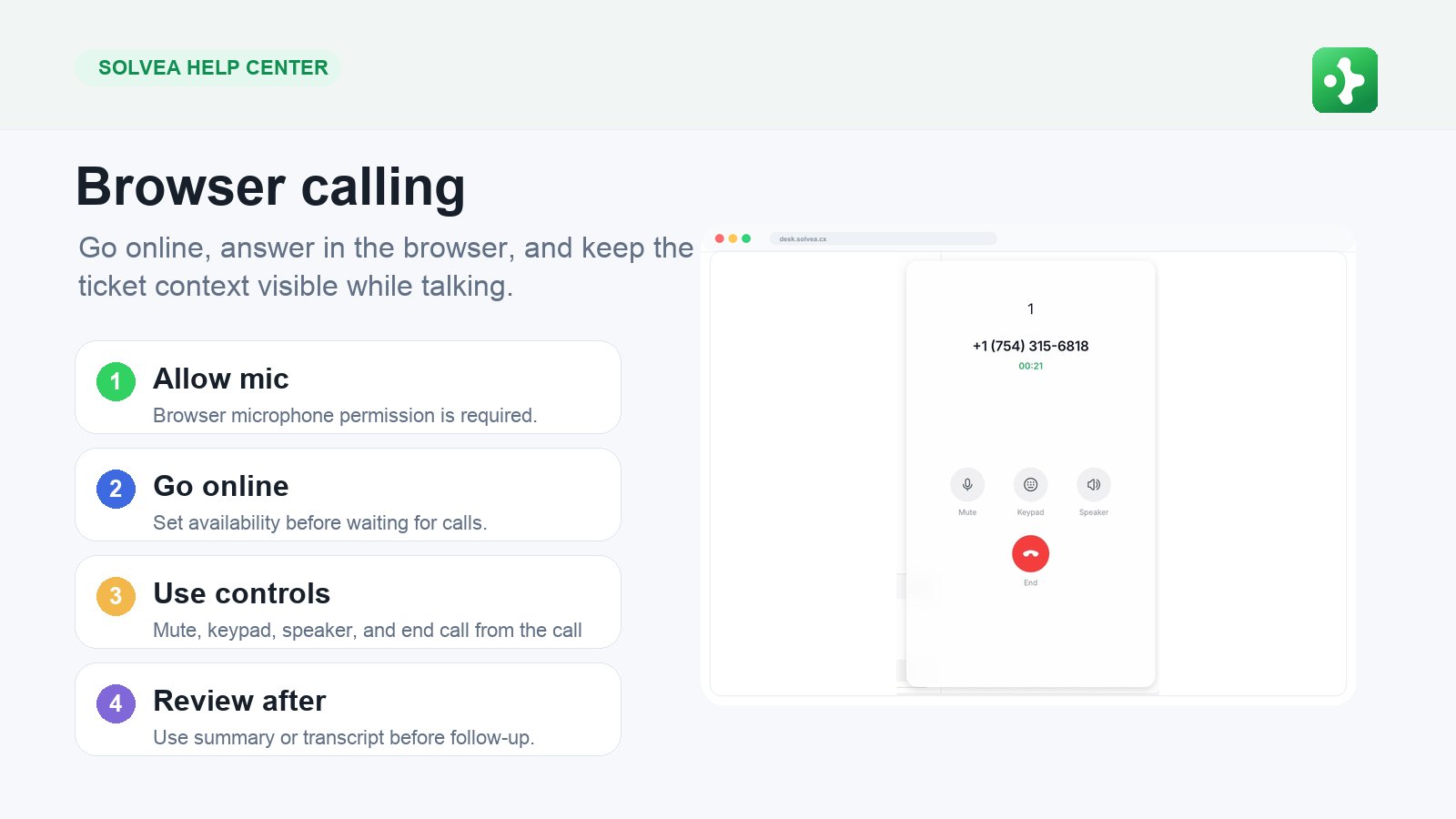
- Dial: Enter a number manually.
- Contacts: Open a saved contact and call.
- Inbox: Call back from a customer thread.
Conference Calls
Use conference calls when a teammate needs to join the conversation. Start from Dial, select participants, then continue the call in the conference view.Realtime Translation
Use translation when caller and teammate do not share the same language. Translation calls may create captions, translated audio, and a post-call record depending on configuration.Run AI Calls Campaigns From the App
When to Use
AI Calls
Use AI Calls for structured outbound work, such as:- Appointment reminders.
- Lead qualification.
- Follow-up after form submission.
- Status checks.
- Simple customer callbacks.
How to Create a Campaign
- Open Dial.
- Tap Start AI Calls.
- Choose the business number to call from.
- Write a short greeting.
- Write the prompt for this batch.
- Add recipients from contacts or manual entry.
- Test the prompt with WebCall if available.
- Launch the campaign.
- Review campaign results and call records.
Prompt Tip
A good prompt tells the AI what to achieve, what to ask, and when to stop. Example: “Call the customer to confirm whether they still want the appointment tomorrow at 3 PM. If they say yes, thank them. If they need a different time, ask for two preferred time windows and tell them our team will follow up.”Send and Receive SMS
SMS lives inside customer threads. It is best for short confirmations, links, reminders, and quick follow-up after a missed call.How to Send SMS
- Open the customer thread in Inbox or open the contact.
- Type a short message.
- Send from the business number.
- Watch for sent, delivered, or failed state.