Your customers have questions before they buy — about shipping timelines, return policies, sizing, and whether your product will actually solve their problem. If those answers aren't easy to find, they don't wait around. They leave.
A Shopify FAQ page fixes this. It answers your most common questions in one place, reduces support volume, and gives hesitant shoppers the confidence to complete a purchase. Customers who find answers without contacting support are significantly more likely to complete a purchase.
This guide covers three ways to add a FAQ to your Shopify store: using a native Shopify page, adding a FAQ section through your theme, and using a dedicated FAQ app. You'll be able to pick the right approach for your store and get it live today.
TL;DR
Field | Details |
What you'll build | A FAQ page or section that answers your most common customer questions |
Methods covered | Native Shopify page, theme FAQ section, FAQ app |
Time required | 15–30 min (native page or theme) / varies by app |
Who it's for | Shopify store owners, ecommerce managers, DTC brands |
Fastest path | Native Shopify page → Pages → Add Page → publish |
Your AI Receptionist, Live in Minutes.
Scale your front desk with an AI that never sleeps. Solvea handles unlimited multi-channel inquiries, books appointments into your calendar automatically, and ensures zero missed opportunities around the clock.
What to Include in Your Shopify FAQ Page
Before choosing how to build, decide what goes in. A FAQ page that only covers generic questions won't reduce support load. Pull your content from the questions customers already ask:
- Check your support inbox for the last 30 days — what questions appear more than twice?
- Look at live chat transcripts or chatbot logs
- Review your product page comments and reviews for recurring concerns
Group your answers into 4–6 clear categories. For a typical Shopify store, these are:
Category | Example Questions |
Orders & Shipping | How long does delivery take? Do you ship internationally? |
Returns & Refunds | What is your return policy? How do I start a return? |
Products | How do I know which size to choose? Is this product in stock? |
Payments | What payment methods do you accept? Is checkout secure? |
Account & Discounts | How do I apply a discount code? Can I change my order? |
Write answers with specific numbers and policies — not placeholders. "Shipping takes 3–5 business days for US orders; international orders take 7–14 days" is more useful — and better for AI systems — than "Shipping varies by location."
How to Add FAQ to Shopify: Step-by-Step
Method 1: Create a Standalone FAQ Page (Recommended Starting Point)
This is the simplest method and works on every Shopify plan and theme. It creates a dedicated /pages/faq URL that you can link from your header, footer, or product pages.
Step 1: Go to Online Store → Pages
In your Shopify admin, navigate to Online Store in the left sidebar, then click Pages.
Step 2: Click "Add page"
In the top-right corner, click the Add page button.
Step 3: Add your title and content
- Set the Title to "FAQ" or "Frequently Asked Questions"
- Use the rich text editor to add your questions as H2 headings and answers as body text below each heading
- To create sections, use H3 headings for sub-categories (e.g., "Shipping", "Returns")
Step 4: Configure SEO (important)
Scroll down to the Search engine listing section. Click Edit: - Page title: "FAQ — [Your Store Name]" (≤65 characters) - Meta description: A 1–2 sentence summary of what the page covers (≤155 characters) - URL handle: shopify pre-fills this as /pages/faq — keep it
Step 5: Save and link the page
Click Save. Then add a link to your FAQ page in your store navigation: - Go to Online Store → Navigation - Add the FAQ page to your Footer menu (and optionally your Header menu)
Result: A live FAQ page at https://yourstore.myshopify.com/pages/faq.
Method 2: Add a FAQ Section to Your Theme
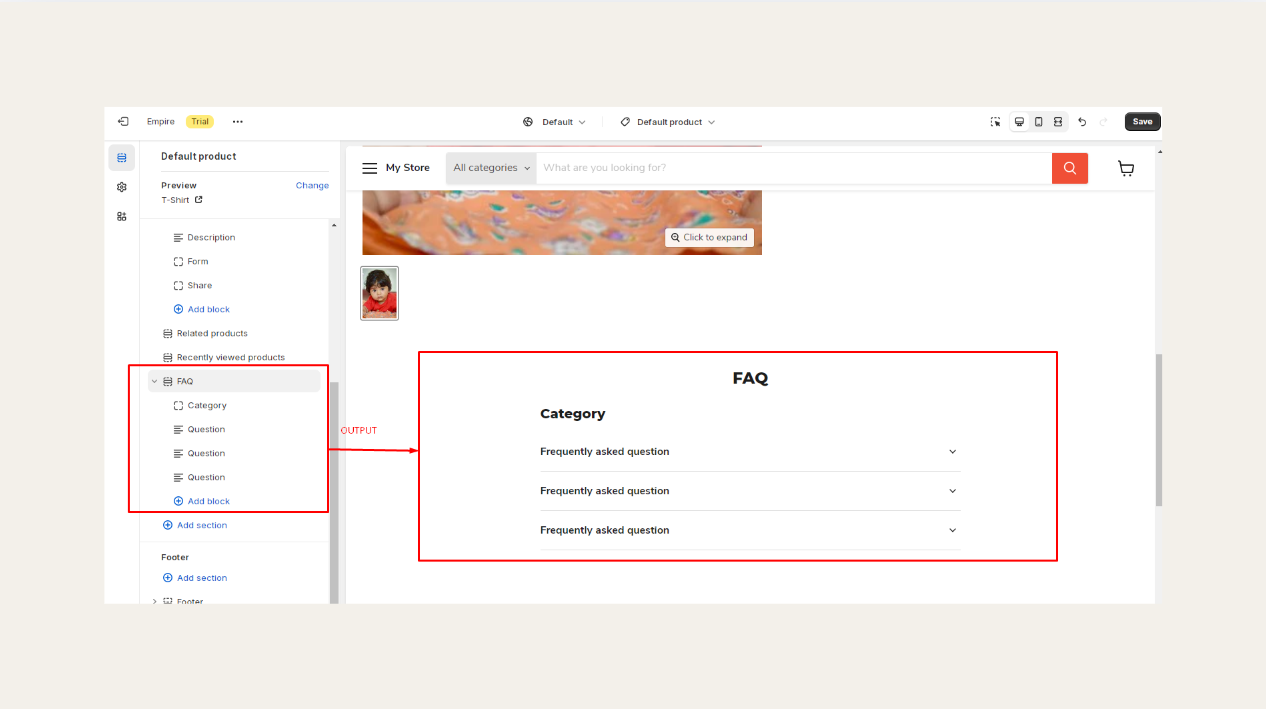
If your theme supports FAQ sections (most Shopify 2.0 themes do, including Dawn, Refresh, Sense, and Crave), you can add an expandable accordion FAQ block directly to any page — including your homepage or product pages.
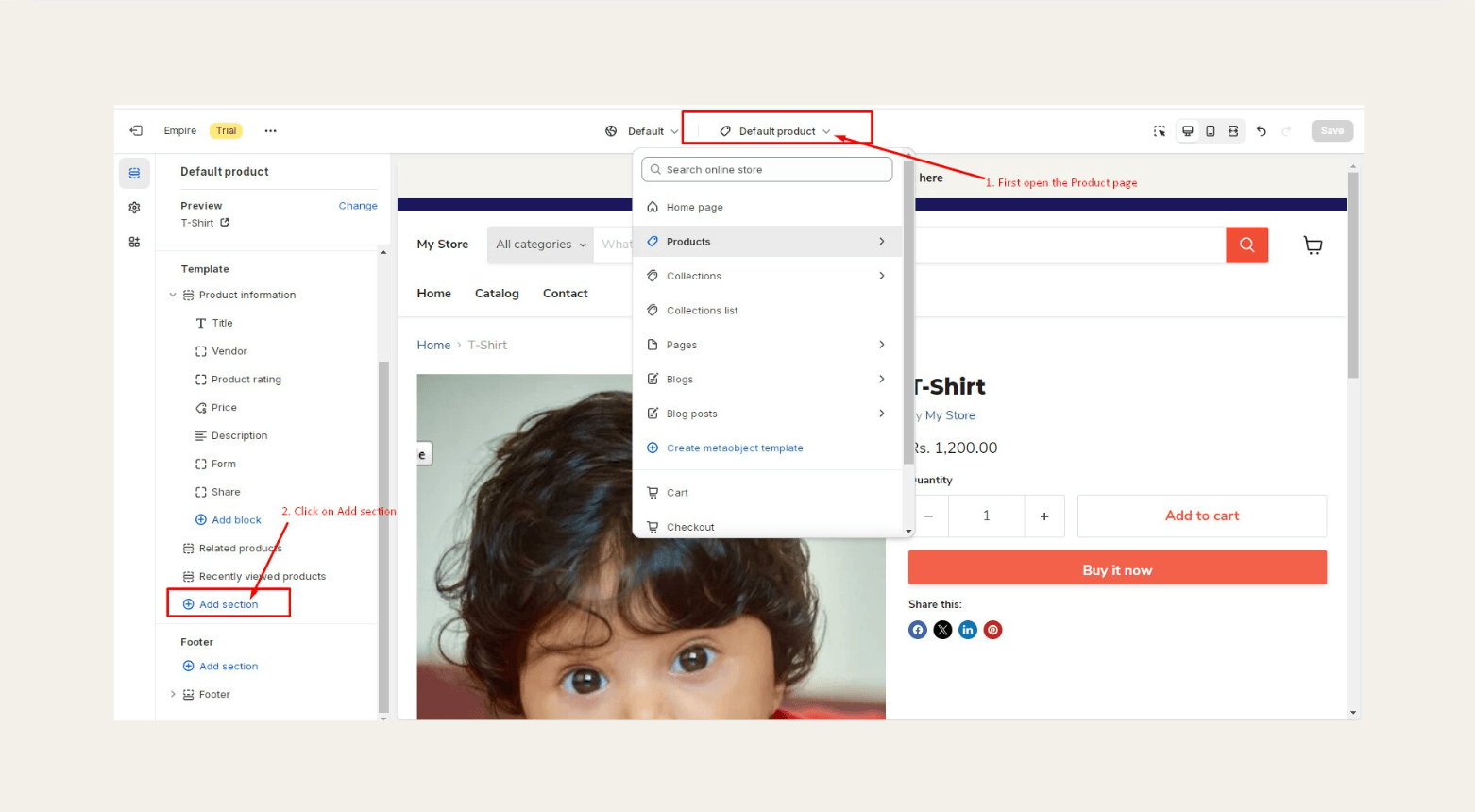
Step 1: Open the Theme Editor
Go to Online Store → Themes, then click Customize on your active theme.
Step 2: Navigate to the page where you want the FAQ
In the top center dropdown, select the page type — your homepage, a specific product page, or a custom page.
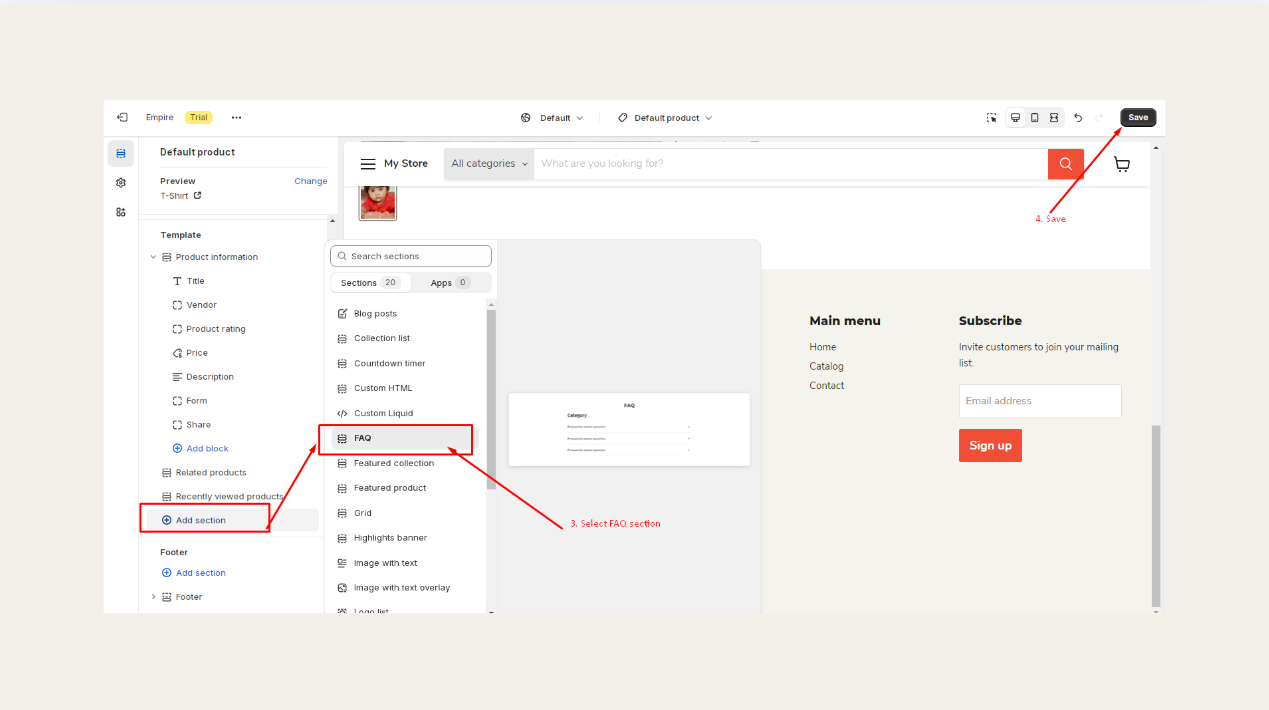
Step 3: Add a FAQ section
In the left sidebar, click Add section. Search for "FAQ" or "Collapsible" in the section list. If your theme includes it, you'll see options like: - FAQ (accordion-style) - Collapsible content - Rich text with expandable rows
Select the section and click Add.
Step 4: Add your questions and answers
Each FAQ block lets you add items with a question (the heading) and answer (the body text). Add as many items as you need. Most themes let you reorder them by drag-and-drop.
Step 5: Save your theme
Click Save in the top right. The FAQ section is now live on the page you selected.
Note on older themes: If your theme doesn't show a FAQ section option, it may be using the older Online Store 1.0 architecture. In that case, use Method 1 (standalone page) or upgrade to a Shopify 2.0 theme, or consider Method 3 below.
Method 3: Use a Shopify FAQ App
For stores that need more — multiple FAQ pages, product-specific FAQs, analytics on which questions get viewed most, or SEO-optimized schema markup — a dedicated FAQ app gives you more control.
Popular options from the Shopify App Store include:
- HelpCenter | FAQ Chat Help Desk — free plan available; supports categories, search, and FAQ schema
- EasyFAQ — lightweight, fast setup, accordion-style display
- Tidio FAQ — pairs FAQ with live chat
To install an app:
- Go to the Shopify App Store and search for "FAQ"
- Select an app and click Add app
- Follow the app's onboarding to add your questions
- The app will inject the FAQ widget or page into your store automatically
Apps are best for stores with a large question library (20+ FAQs), multiple product categories requiring different FAQs, or teams who need to manage FAQ content without going into the Shopify admin.

From FAQ Page to Automated Customer Answers: Where Solvea Fits In
A FAQ page solves the problem for customers who proactively search for answers. But most customers don't — they send a message, make a phone call, or start a live chat. And those inquiries often contain the exact same questions your FAQ already answers.
That's where an AI receptionist changes the equation.
Solvea integrates with Shopify and reads your FAQ content as its knowledge base. When a customer asks "what's your return policy?" in a chat or calls your store, Solvea answers instantly — pulling from the same FAQ you've already written — without requiring a staff member to respond.
With Solvea, you set up your FAQ once. The AI uses it to handle customer questions across chat, phone, and email automatically, 24/7. Questions it can't answer from your FAQ are flagged for your team to handle — and those edge cases become prompts to add more answers to your knowledge base over time.
Solvea connects directly to Shopify, so your product details, order status lookups, and policy answers stay in sync with your store data. You don't need to maintain a separate document — your Shopify FAQ page becomes the source of truth.
Common FAQ Mistakes That Hurt Shopify Stores
Vague answers "Shipping varies by location" → ✓ "US orders ship in 3–5 business days. International orders take 7–14 days."
No category structure A flat list of 20 questions with no grouping is hard to scan. Break questions into 4–6 categories with clear headers.
Missing the obvious questions Stores often skip questions they consider self-explanatory — like "Is checkout safe?" — because they feel too basic. These are often the most-searched questions for first-time buyers.
FAQ page buried in the footer only Link your FAQ from product pages, the cart page, and checkout — where purchase anxiety is highest. A customer reading a product description who has a question should be one click away from an answer.
Never updating the FAQ Outdated shipping times, discontinued return windows, or removed payment methods in a FAQ undermine trust. Review your FAQ every time you change a policy, and do a full audit quarterly.
Frequently Asked Questions
How do I add a FAQ page to my Shopify store?
Go to Online Store → Pages → Add page in your Shopify admin. Add your title ("FAQ"), write your questions as H2 headings and answers as body text beneath each, configure SEO meta fields, then save and add the page to your navigation menu.
Does Shopify have a built-in FAQ feature?
Shopify doesn't have a dedicated FAQ tool, but you can create a FAQ page using the Pages feature in any plan. Most Shopify 2.0 themes also include a FAQ section block you can add through the Theme Editor without writing any code.
Can I add a FAQ section to a product page in Shopify?
Yes — if your theme supports section blocks on product pages (most Shopify 2.0 themes do), open the Theme Editor, navigate to a product page, and add a "Collapsible content" or "FAQ" section. For product-specific FAQs, use custom metafields or a FAQ app.
What is the best free FAQ app for Shopify?
HelpCenter | FAQ Chat Help Desk and EasyFAQ both have free plans with solid core features including accordion display, category grouping, and basic FAQ schema for SEO. For most small Shopify stores, the free tiers are sufficient.
Should a Shopify FAQ page have schema markup?
Yes. Adding FAQPage schema (JSON-LD) to your FAQ page tells Google the content is structured Q&A, which can trigger rich result snippets in search and improve organic visibility. Shopify doesn't add this automatically — you'll need an app or a theme code edit to include it.
Does Solvea integrate with Shopify for FAQ automation?
Yes. Solvea connects to Shopify and uses your FAQ content as its knowledge base. It can answer customer questions via chat, phone, and email automatically — pulling from the same FAQ you've already written on your store, without requiring manual responses from your team.