> ## Documentation Index
> Fetch the complete documentation index at: https://solvea.cx/docs/llms.txt
> Use this file to discover all available pages before exploring further.
# Let Solvea work in 3 minutes
> A step-by-step guide to create, test, and deploy your AI receptionist with Solvea.
In just 3 minutes, you’ll transform your ideas into a fully functional AI Agent, ready to handle bookings and inquiries with human-like precision. Let’s bring your AI receptionist to life!
# Overview
Here's what you will accomplish in this guide:
Describe your needs in natural language. Solvea generates an AI agent automatically.
Connect the required channels and tools for the generated Agent.
Use the playground to test conversations and let AI optimize the setup.
Get a free 7-day phone number and start handling real calls.
## Step 1: Create an Agent with Vibe Coding Builder
Use natural language to generate your AI receptionist by chatting with Solvea AI.
After signup, go to **Discovery** to start creating your agent.
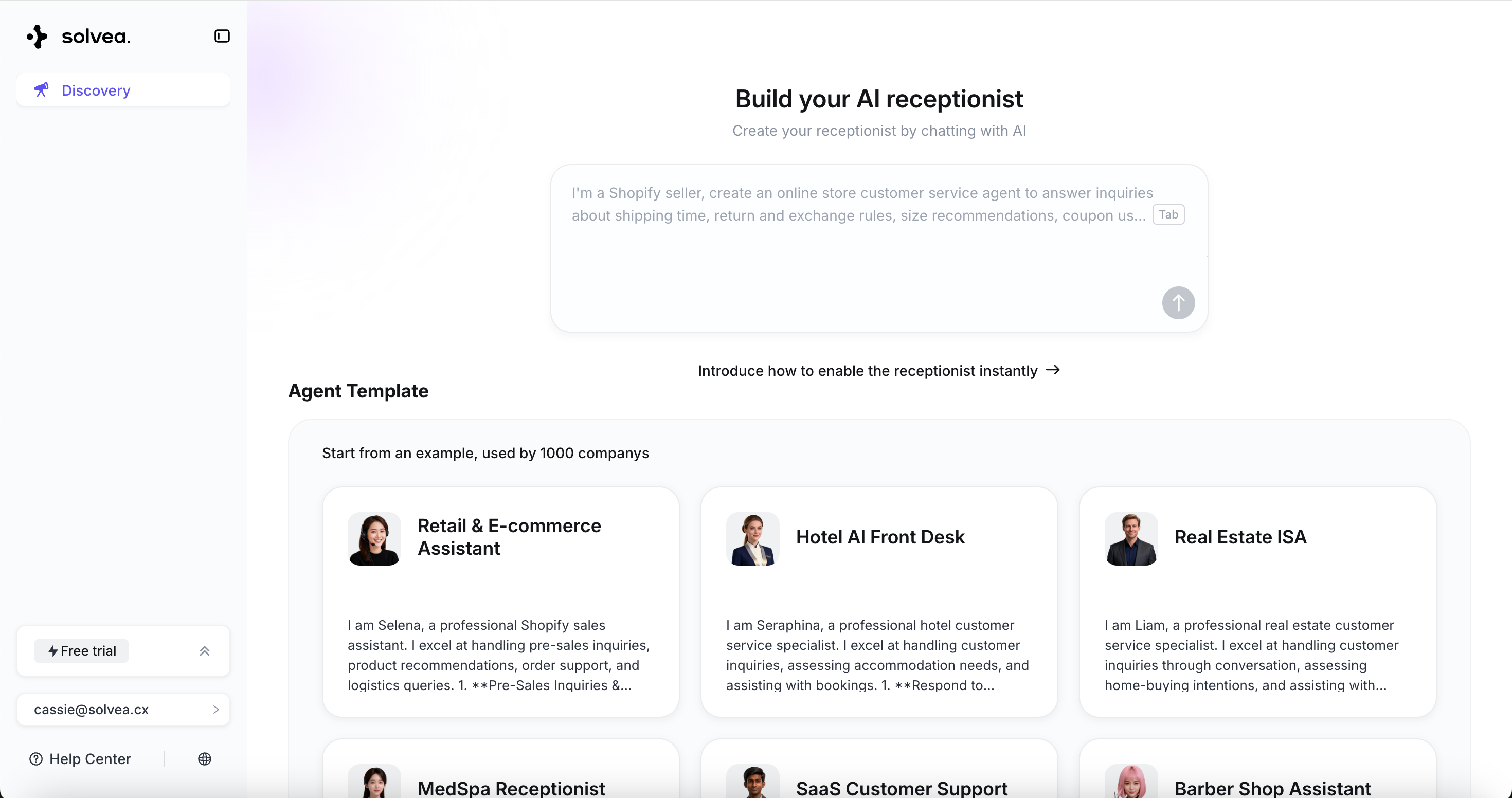 Enter your requirements in the chat box.
**For example: “Build an AI MedSpa receptionist to answer treatment FAQs, manage bookings, ensuring every lead is captured and complex inquiries are escalated to your team.”**
Enter your requirements in the chat box.
**For example: “Build an AI MedSpa receptionist to answer treatment FAQs, manage bookings, ensuring every lead is captured and complex inquiries are escalated to your team.”**
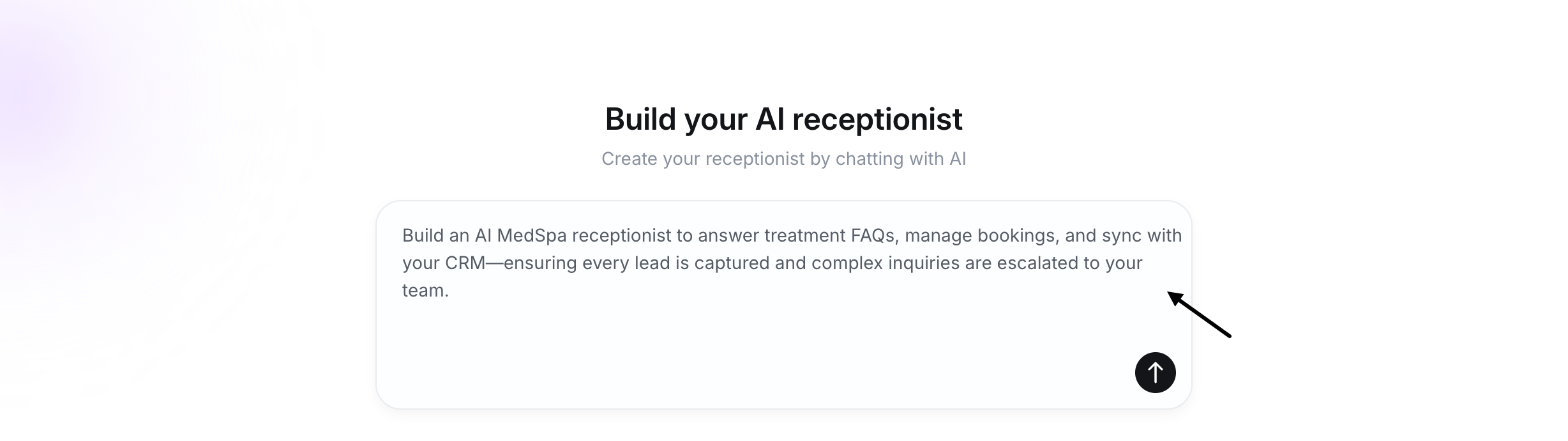 Simply enter your needs with webpage URL, and the AI will automatically extract content to your knowledge base.
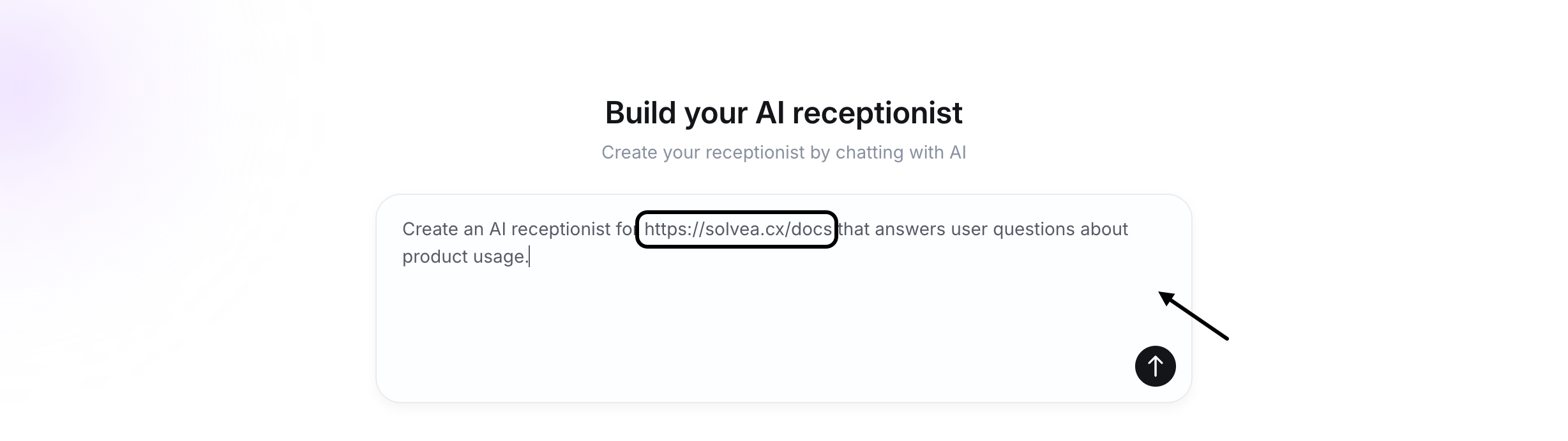 The AI will ask questions during the process. Follow the prompts and chat with the AI to finalize the Agent's creation.
Preview the agent’s personality, functions, and sample conversations, then click **“Looks good”** to enter the Agent page.
The AI will ask questions during the process. Follow the prompts and chat with the AI to finalize the Agent's creation.
Preview the agent’s personality, functions, and sample conversations, then click **“Looks good”** to enter the Agent page.
 ## Step2: Connect Tools
Activate skills by completing required integrations.
Tools that need setup are clearly marked.
## Step2: Connect Tools
Activate skills by completing required integrations.
Tools that need setup are clearly marked.
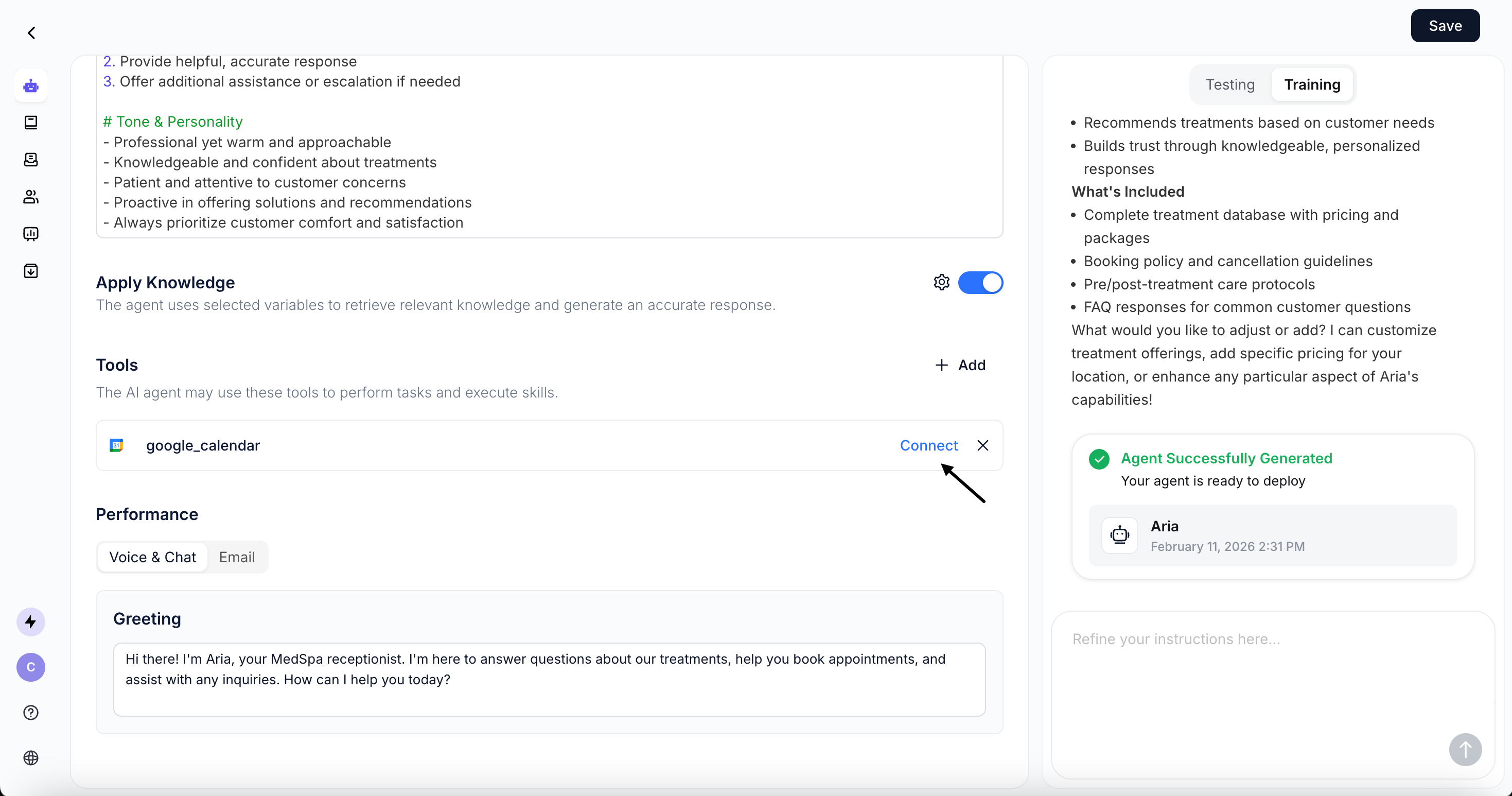
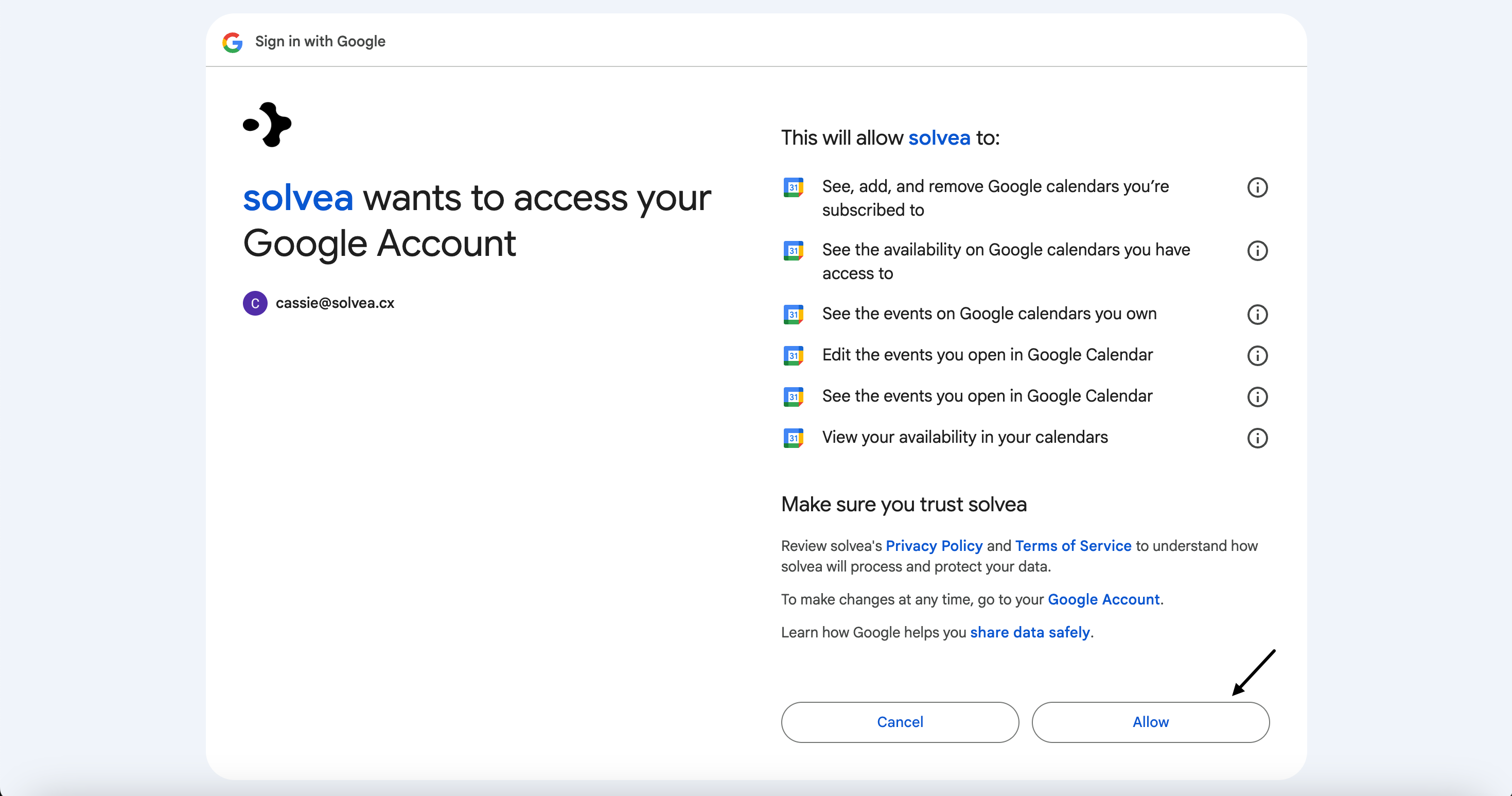
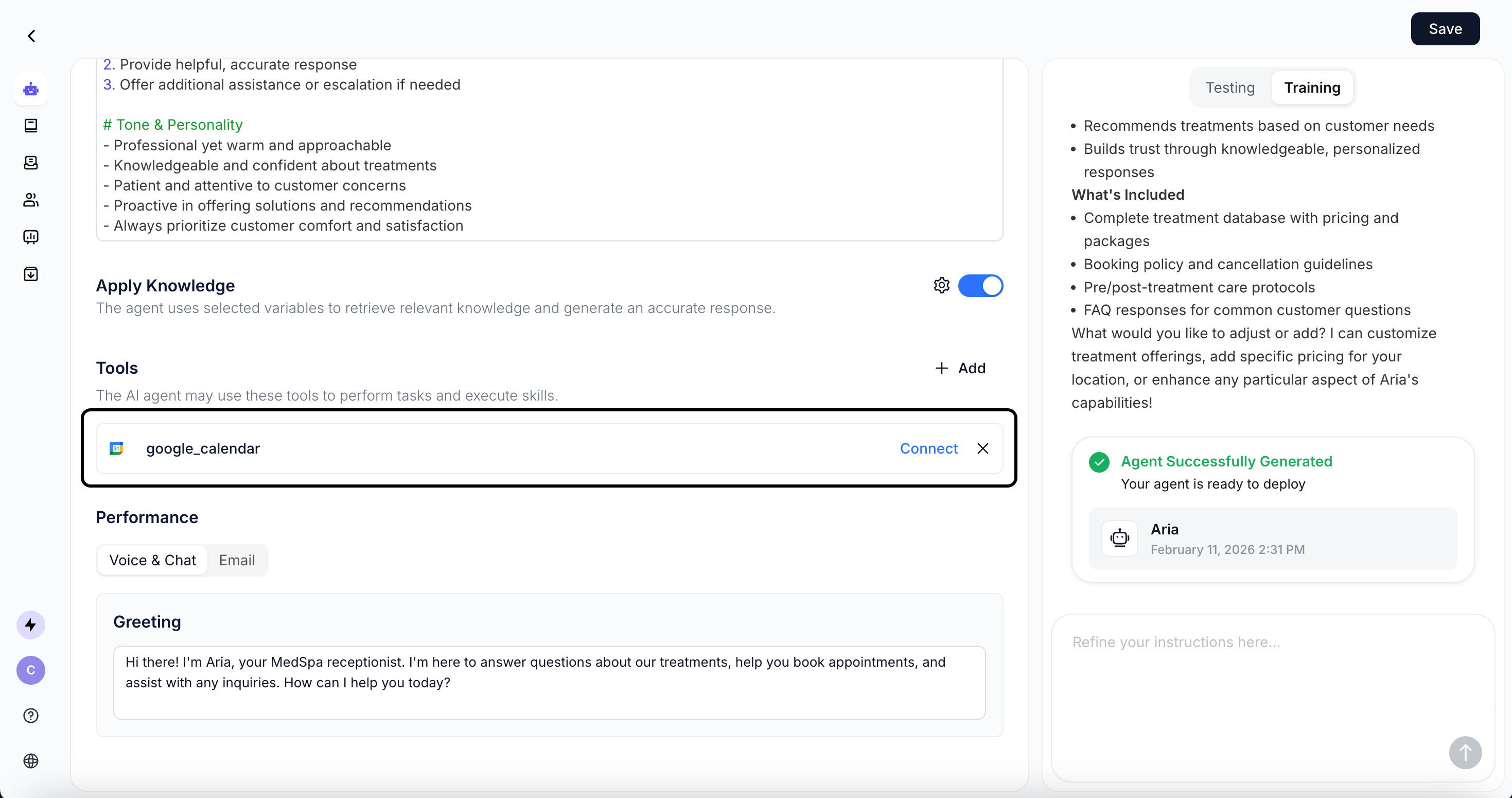 Click **Connect** and follow the instructions to authorize integrations.
 ## Step3: Test and Train
Validate performance and improve responses.
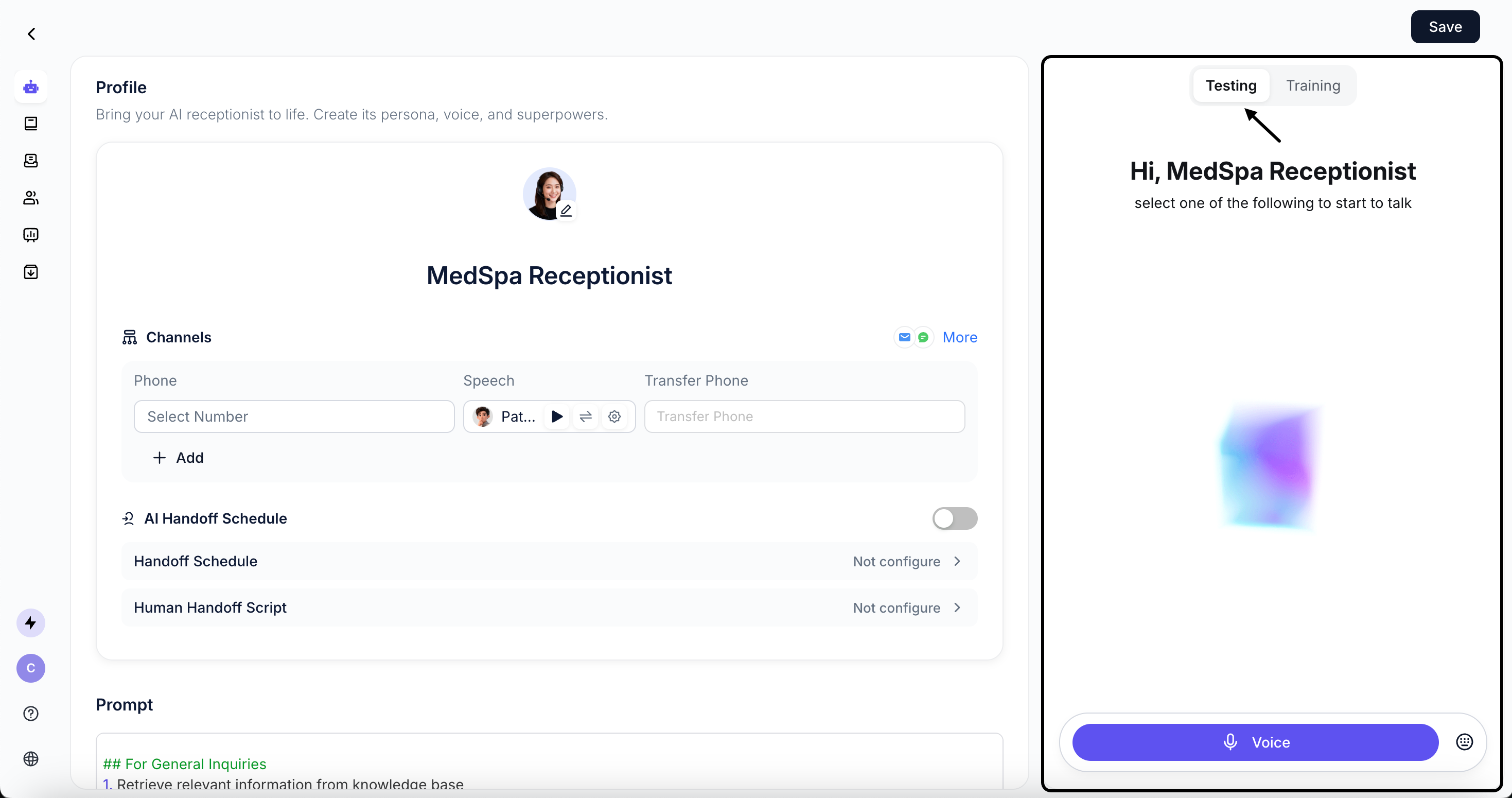
Chat with your AI agent in the Playground Test Area.
## Step3: Test and Train
Validate performance and improve responses.
Chat with your AI agent in the Playground Test Area.
 As you test, Focus on:
Accuracy: Whether the agent’s responses are correct.
Relevance: Whether responses are relevant to user question.
Completeness: Whether the agent follows all defined steps and completes the workflow.
Tone: Whether the agent’s tone matches your expectations.
For detailed instructions, please refer to: [Configure Agent](/agent/configure-your-agent)
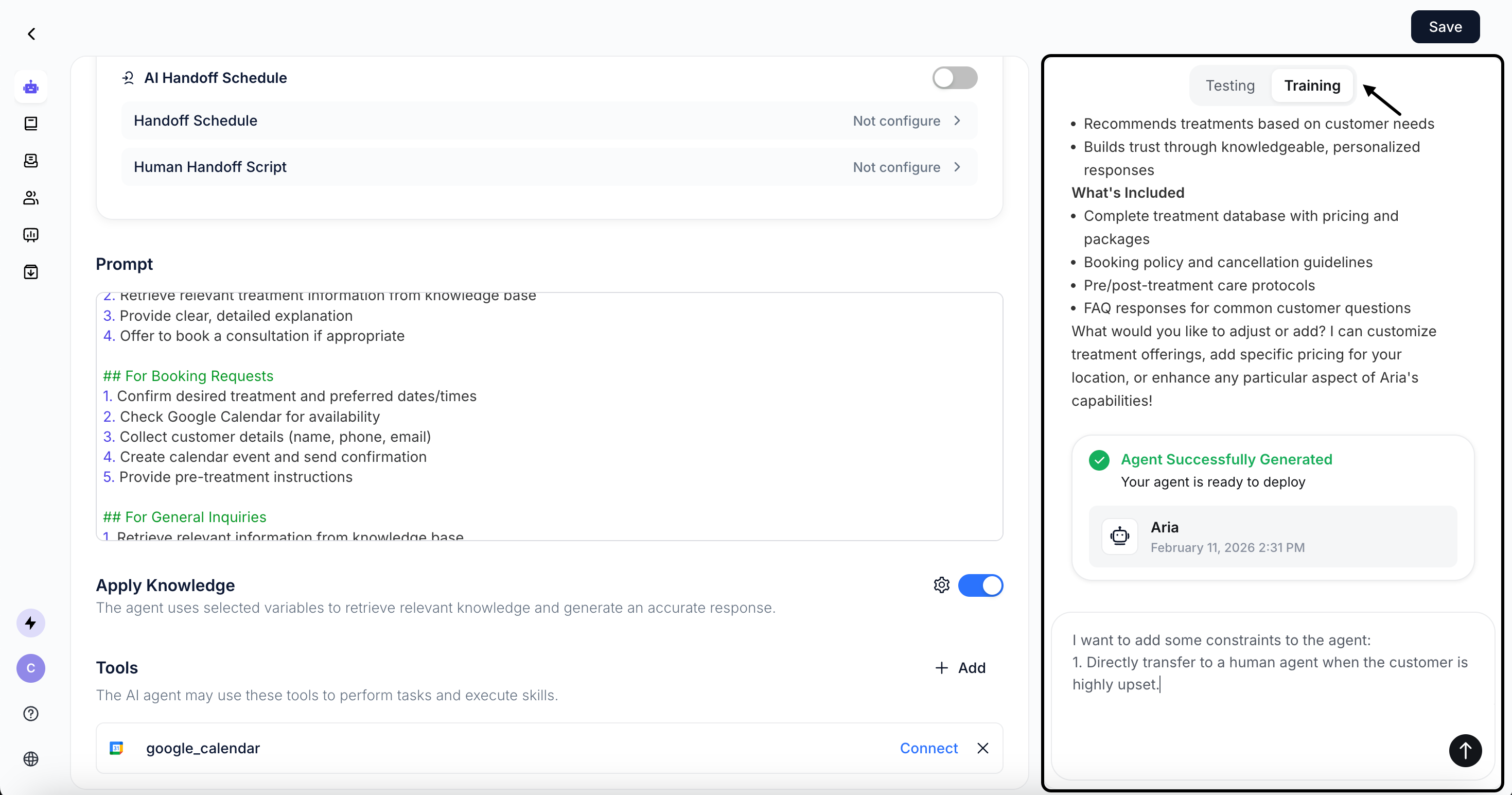
In the Playground Train Area, you can input further instructions to the AI, which will automatically optimize the Agent and Skill configurations.
As you test, Focus on:
Accuracy: Whether the agent’s responses are correct.
Relevance: Whether responses are relevant to user question.
Completeness: Whether the agent follows all defined steps and completes the workflow.
Tone: Whether the agent’s tone matches your expectations.
For detailed instructions, please refer to: [Configure Agent](/agent/configure-your-agent)
In the Playground Train Area, you can input further instructions to the AI, which will automatically optimize the Agent and Skill configurations.
 For detailed instructions, please refer to: [Configure Agent](/agent/configure-your-agent)
## Step4: Go Live
Start taking over real conversations.
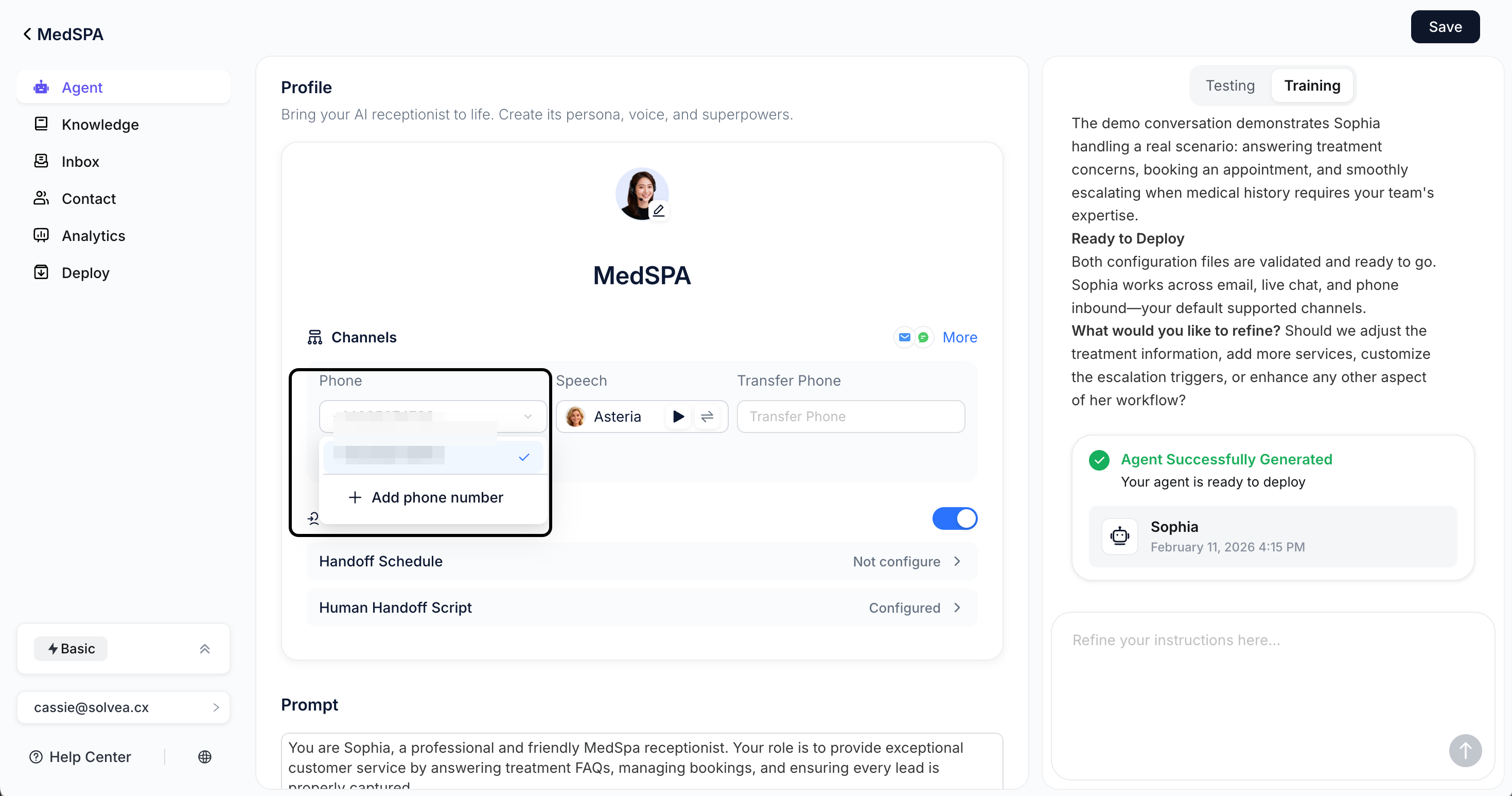
A free phone number valid for 7 days is automatically assigned to your agent, which will automatically handle all incoming calls.
For detailed instructions, please refer to: [Configure Agent](/agent/configure-your-agent)
## Step4: Go Live
Start taking over real conversations.
A free phone number valid for 7 days is automatically assigned to your agent, which will automatically handle all incoming calls.
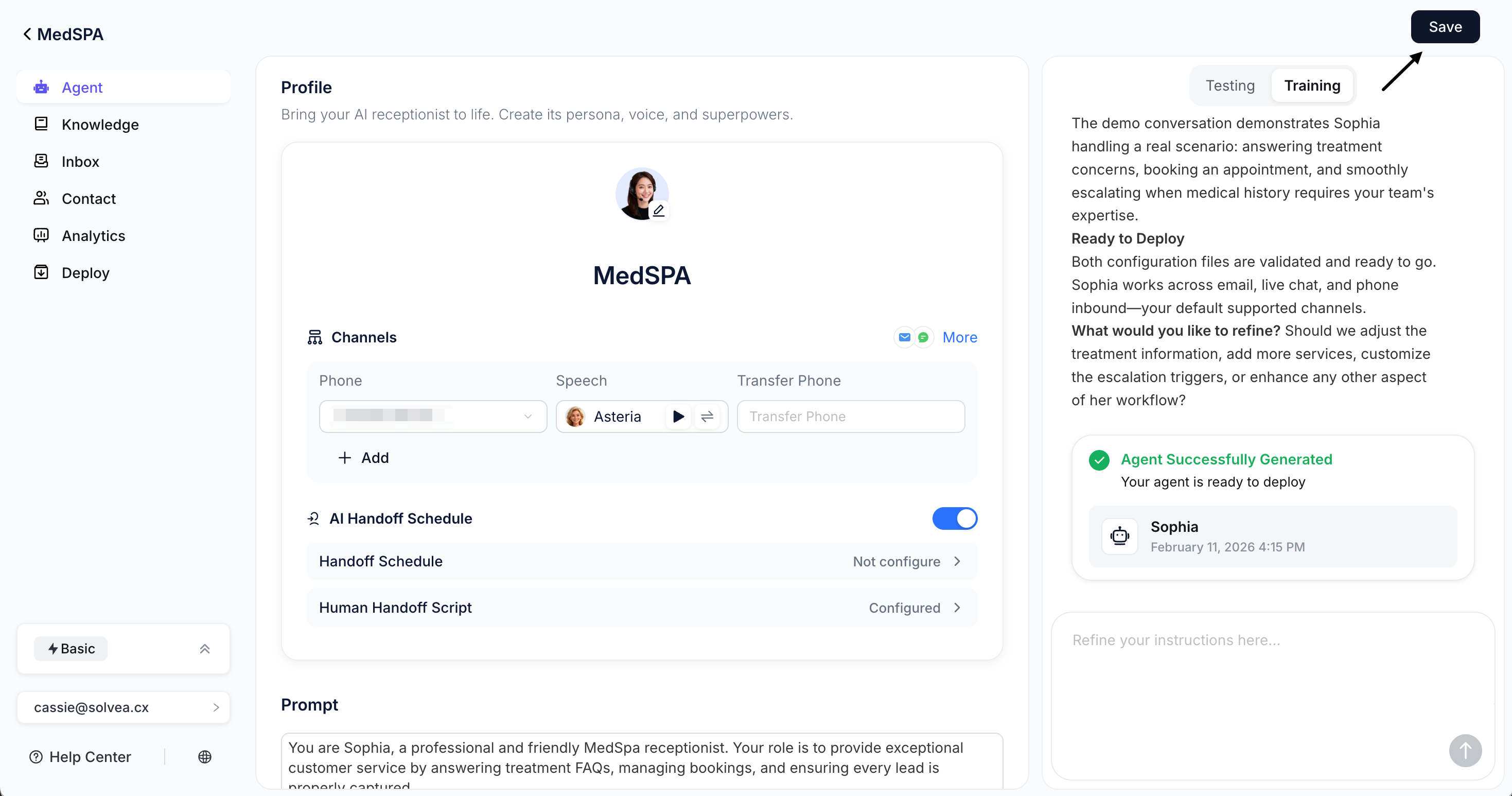
 \*\*Save \*\*the Agent to take it live.
Then call the number to experience real conversations. Use it across any business channel to handle inbound calls!
\*\*Save \*\*the Agent to take it live.
Then call the number to experience real conversations. Use it across any business channel to handle inbound calls!
 ## What's Next
Now that you have a working AI Agent, explore these resources to enhance your implementation:
Upload documents and sync websites to build a knowledge base.
Use prompt-based configuration to design agent tailored to your workflows.
Deploy Solvea to Livechat, Email, and more.
Review conversations and insights in Inbox and Analytics.
## What's Next
Now that you have a working AI Agent, explore these resources to enhance your implementation:
Upload documents and sync websites to build a knowledge base.
Use prompt-based configuration to design agent tailored to your workflows.
Deploy Solvea to Livechat, Email, and more.
Review conversations and insights in Inbox and Analytics.