> ## Documentation Index
> Fetch the complete documentation index at: https://solvea.cx/docs/llms.txt
> Use this file to discover all available pages before exploring further.
# Email, Live Chat, SMS, and Voice
## Reply by Email, Live Chat, or SMS
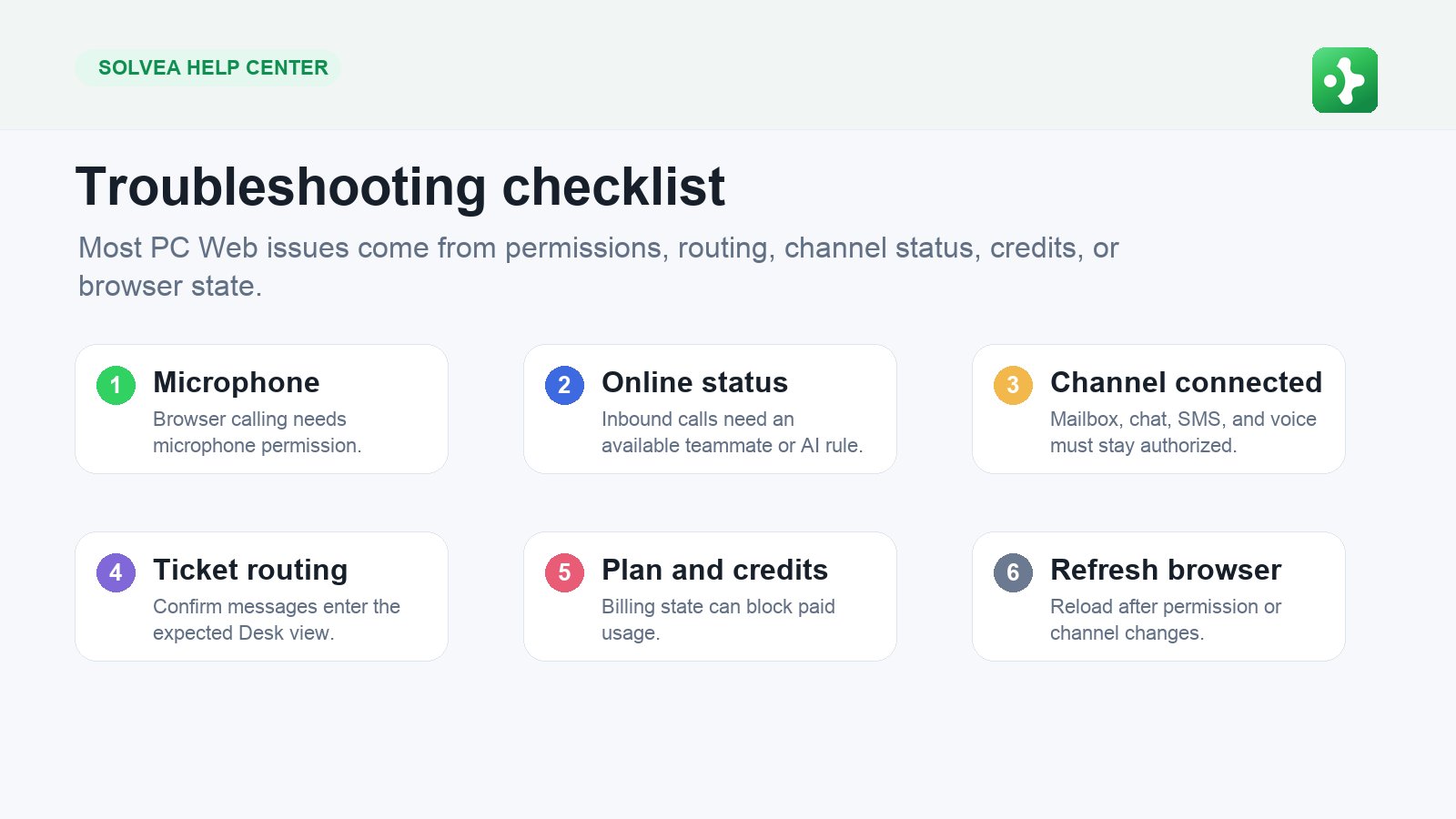 Email, Live Chat, and SMS all live in Desk, but each channel needs a different reply style.
### Email
Use Email for detailed answers, attachments, and longer customer context. Before sending, confirm you are replying from the correct connected mailbox.
Good email replies are clear, specific, and easy to scan. Use formatting when it helps, but avoid making simple answers look heavy.
### Live Chat
Live Chat is immediate. Keep replies short and move quickly. If you need more time, tell the visitor what you are checking.
Example: "I am checking that now. One moment please."
### SMS
SMS is best for concise follow-up. Use it for appointment confirmations, missed-call follow-up, short links, and quick status updates. If the message becomes long, call or email instead.
### Internal Notes
Email, Live Chat, and SMS all live in Desk, but each channel needs a different reply style.
### Email
Use Email for detailed answers, attachments, and longer customer context. Before sending, confirm you are replying from the correct connected mailbox.
Good email replies are clear, specific, and easy to scan. Use formatting when it helps, but avoid making simple answers look heavy.
### Live Chat
Live Chat is immediate. Keep replies short and move quickly. If you need more time, tell the visitor what you are checking.
Example: "I am checking that now. One moment please."
### SMS
SMS is best for concise follow-up. Use it for appointment confirmations, missed-call follow-up, short links, and quick status updates. If the message becomes long, call or email instead.
### Internal Notes
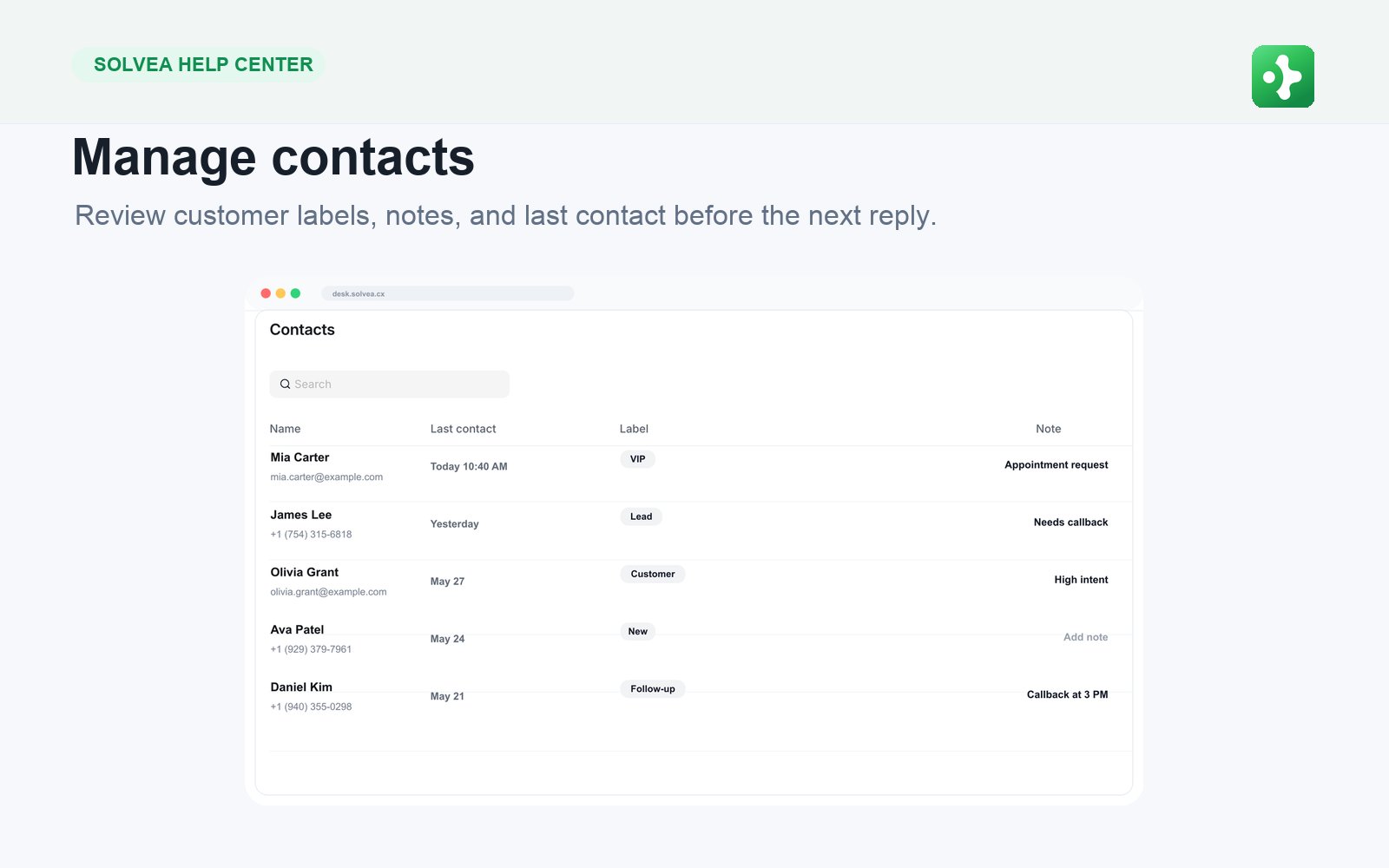 Internal notes are for your team. Use them to explain what happened, what to check next, or why a ticket should be handed off.
## Make and Receive Browser Calls
Internal notes are for your team. Use them to explain what happened, what to check next, or why a ticket should be handed off.
## Make and Receive Browser Calls
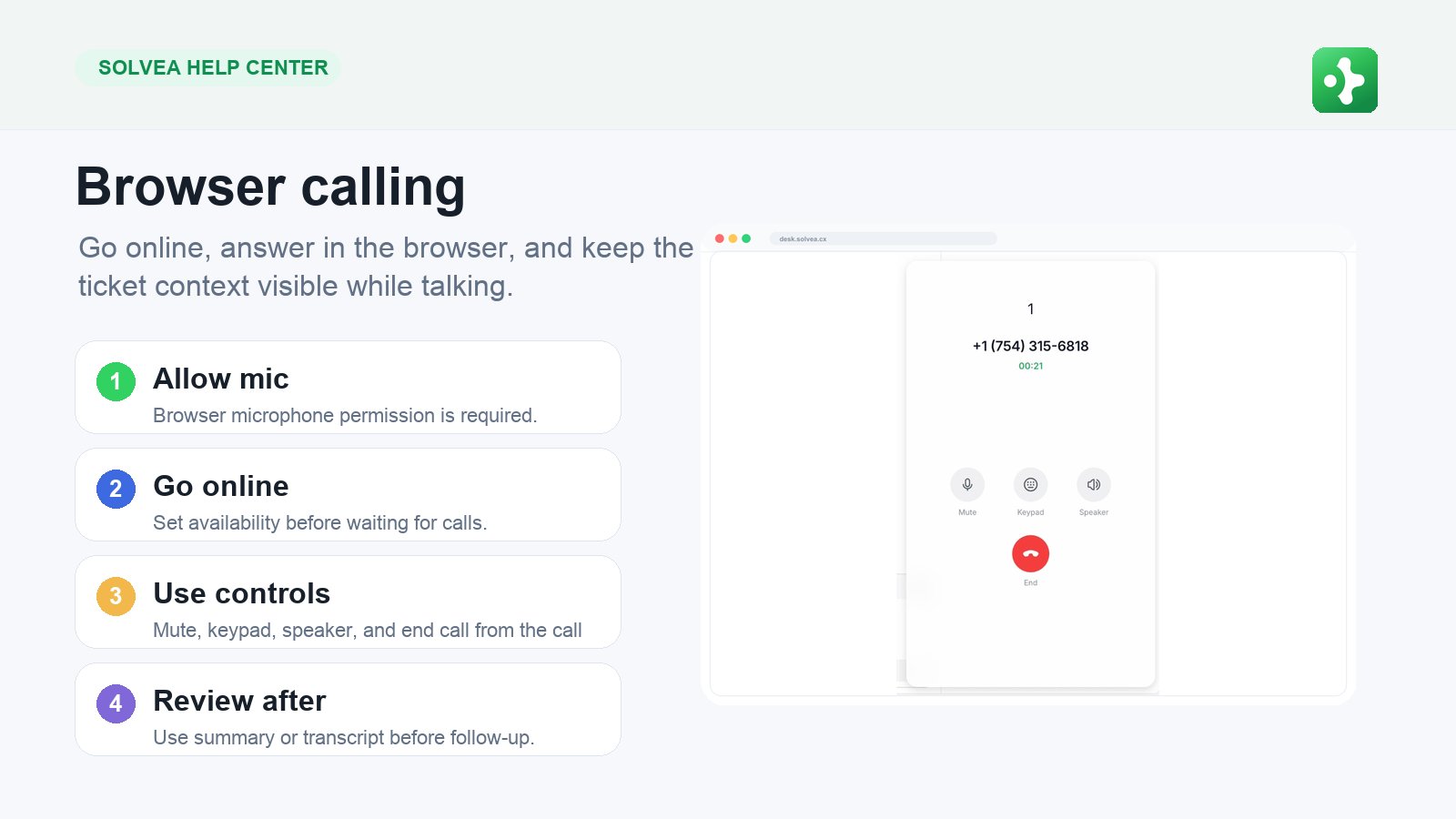 Browser calling depends on microphone permission, online status, number setup, and post-call ticket review.
### Receive Calls
Browser calling depends on microphone permission, online status, number setup, and post-call ticket review.
### Receive Calls
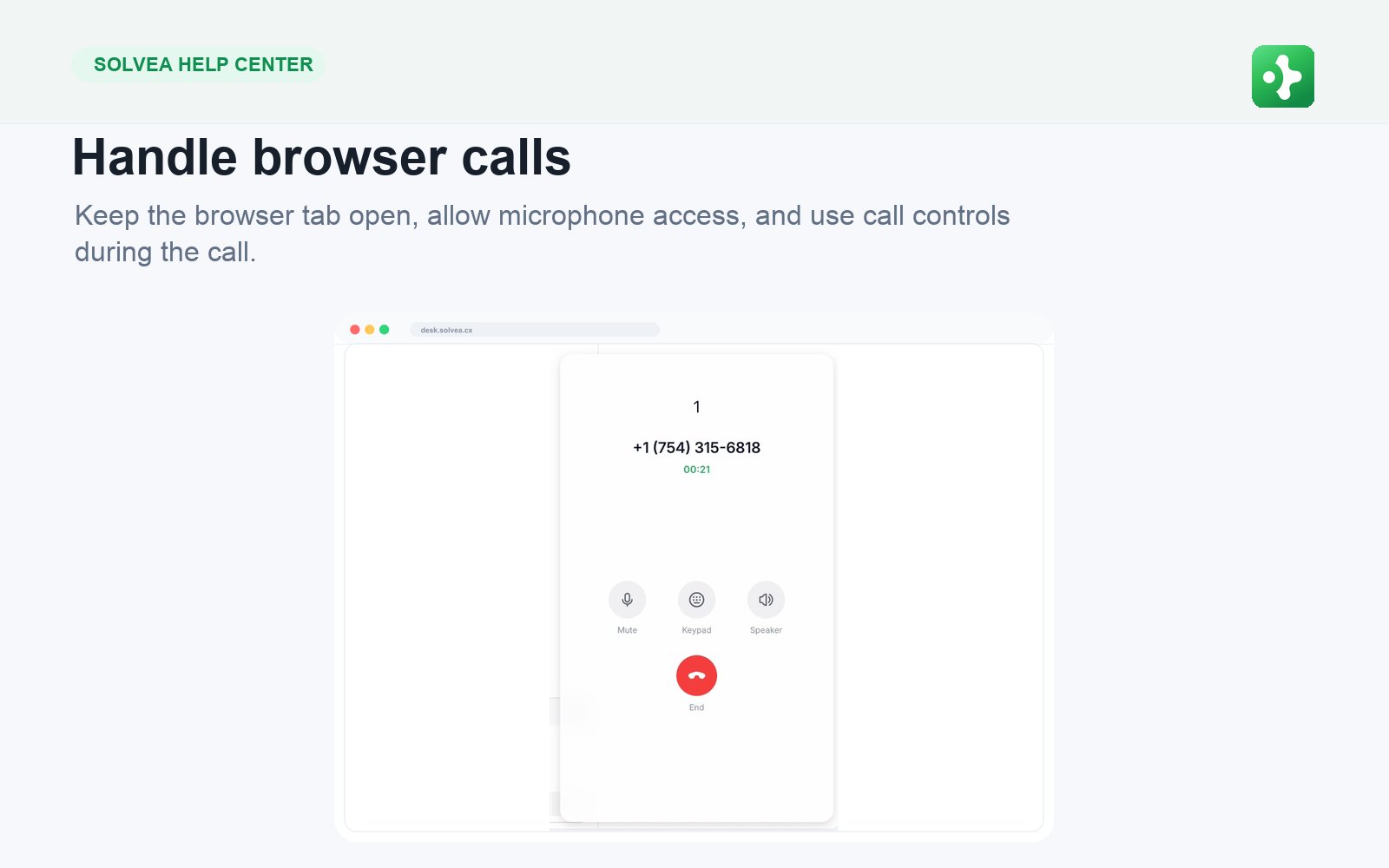 1. Allow microphone access in the browser.
2. Go online in PC Web.
3. Keep the browser tab open.
4. Accept the incoming call toast.
5. Use call controls during the conversation.
6. Open the related Desk ticket after the call.
### Make Calls
You can start a browser call from Desk, Contacts, or the calling entry point. The customer sees your Solvea business number, not a personal number.
### After the Call
1. Allow microphone access in the browser.
2. Go online in PC Web.
3. Keep the browser tab open.
4. Accept the incoming call toast.
5. Use call controls during the conversation.
6. Open the related Desk ticket after the call.
### Make Calls
You can start a browser call from Desk, Contacts, or the calling entry point. The customer sees your Solvea business number, not a personal number.
### After the Call
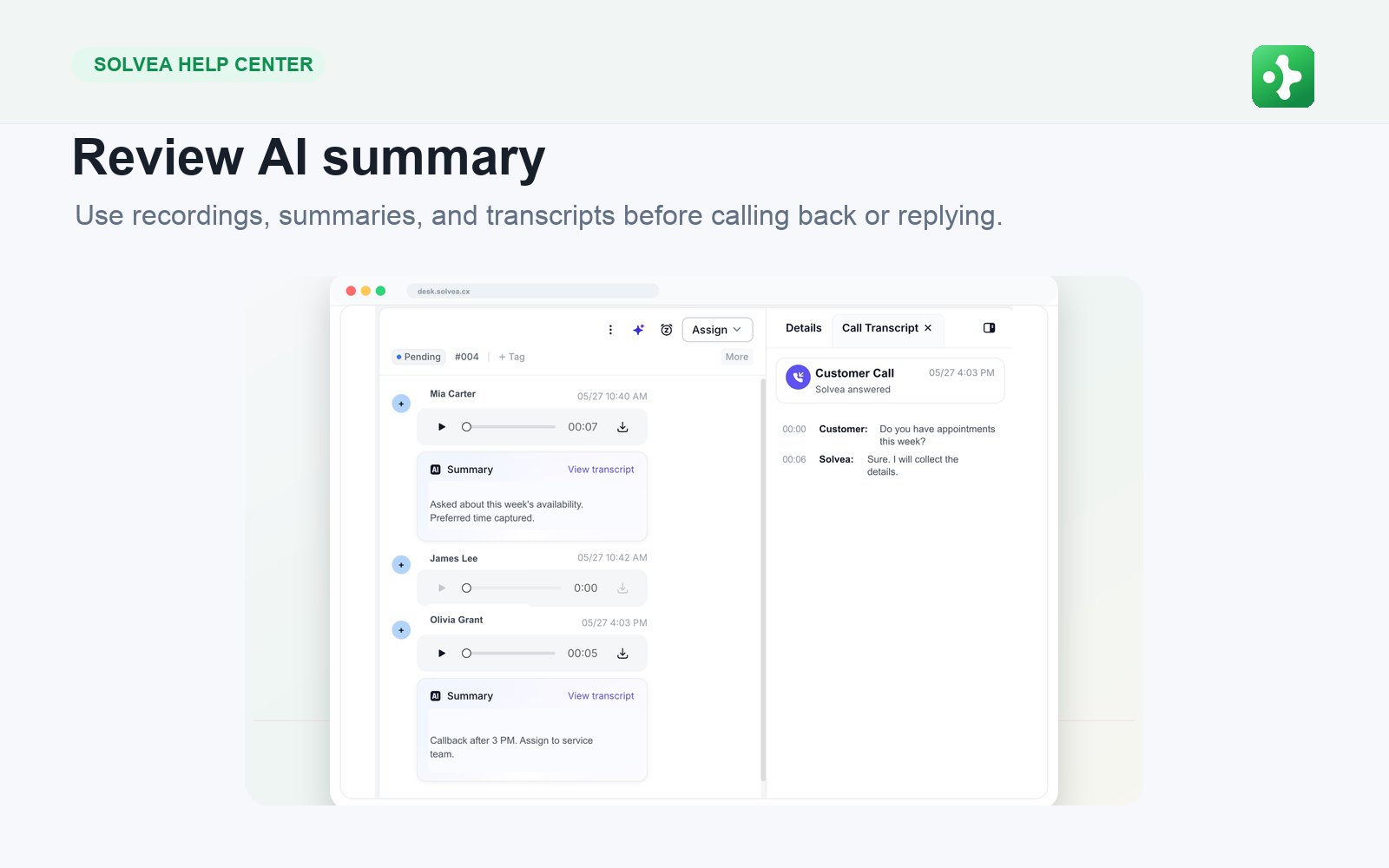 Review the recording, transcript, and AI summary when available. Add a note or send a follow-up SMS/email if needed.