> ## Documentation Index
> Fetch the complete documentation index at: https://solvea.cx/docs/llms.txt
> Use this file to discover all available pages before exploring further.
# Appearance and Personalization
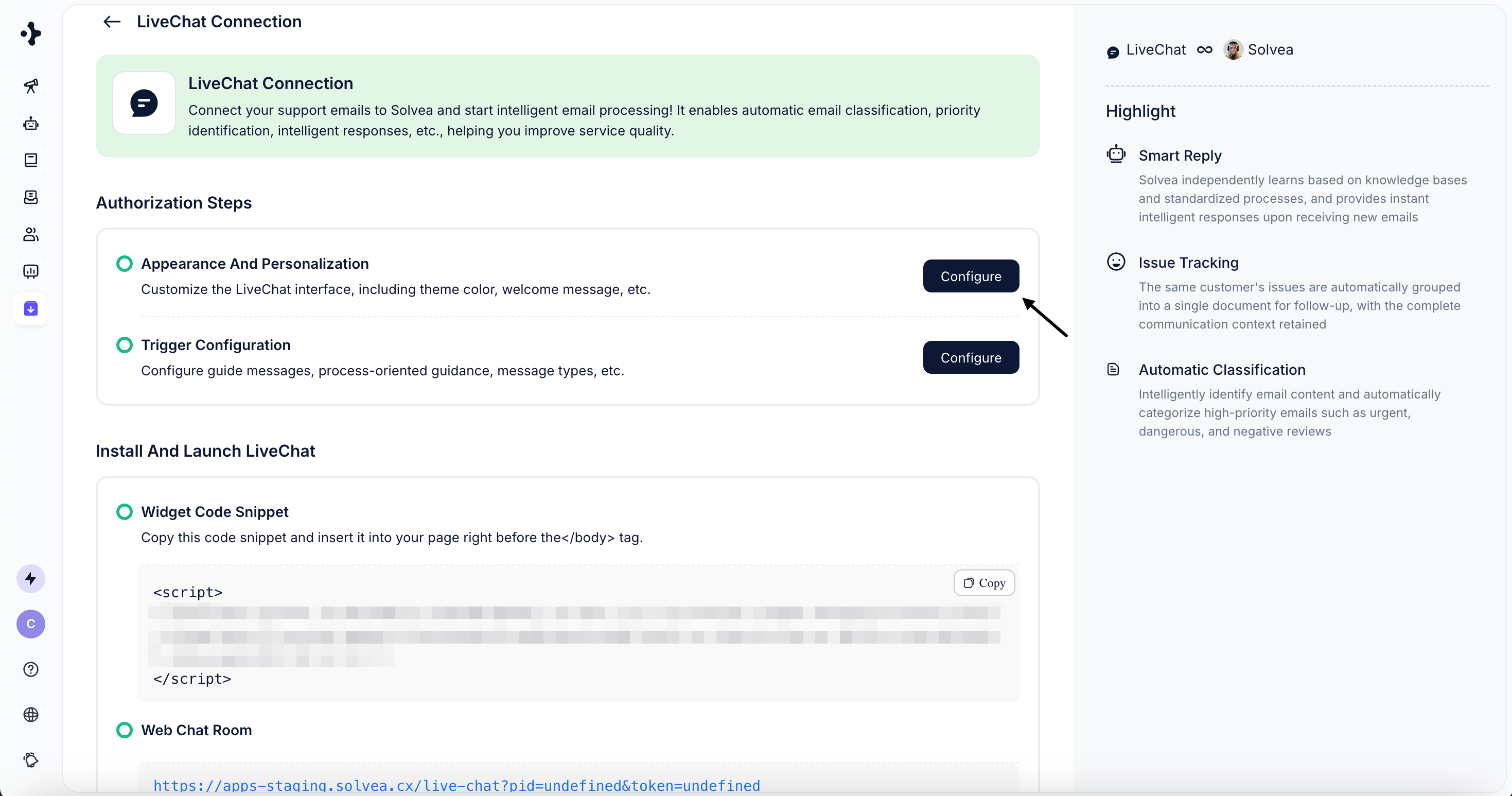
Livechat is Solvea’s built-in real-time chat widget that can be embedded anywhere on your website or app.
In this module, you can customize the appearance and branding of Livechat to match your brand identity.
 ## Set Names
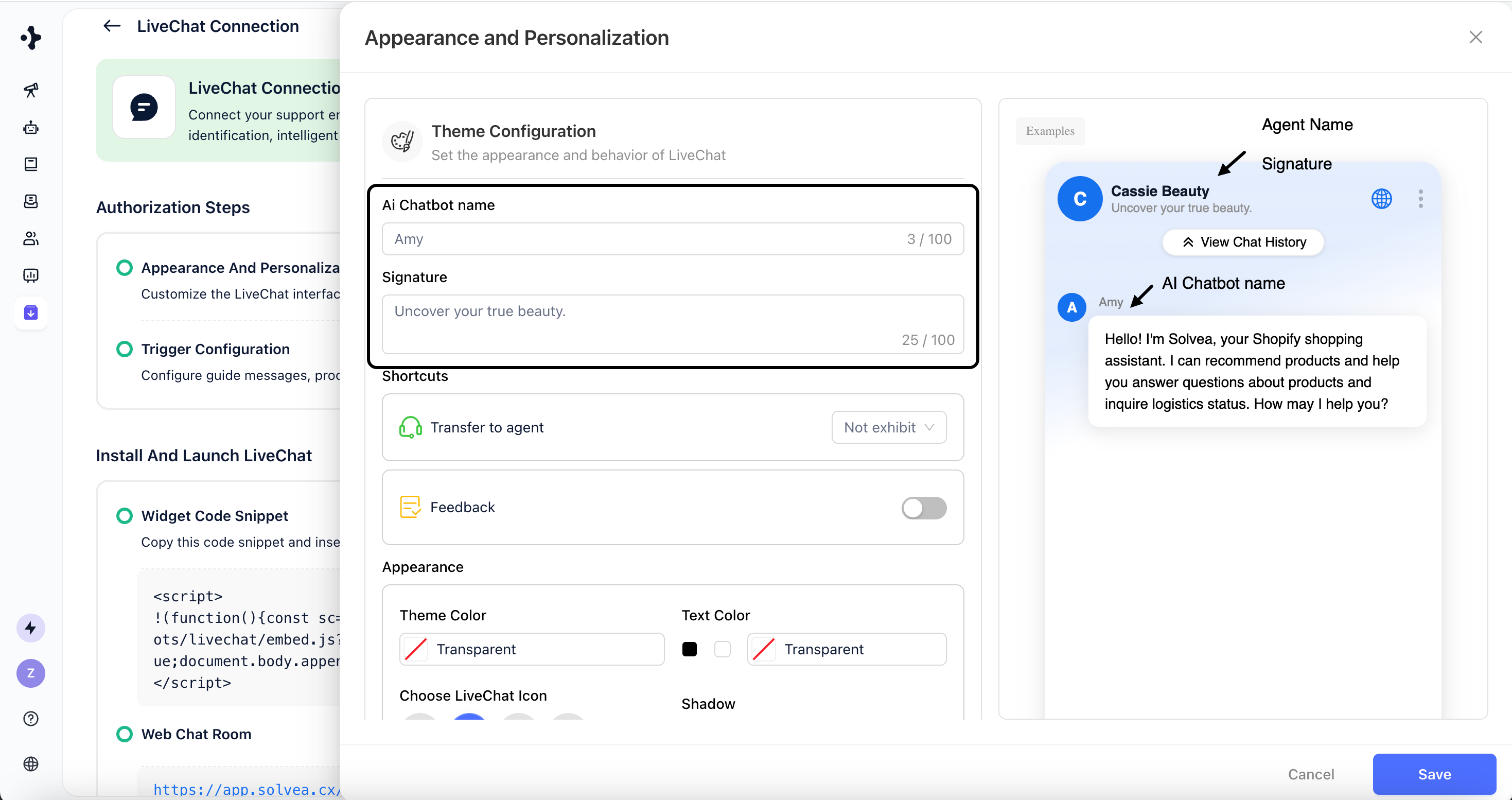
Configure how your Livechat agent is presented to users.
* **AI Chatbot Name**\
The name of the AI agent shown in Livechat conversations.
* **Signature**\
A short greeting or slogan displayed under the Name.
* **Agent Name**\
The agent name configured in the Agent module, typically your brand name.
## Set Names
Configure how your Livechat agent is presented to users.
* **AI Chatbot Name**\
The name of the AI agent shown in Livechat conversations.
* **Signature**\
A short greeting or slogan displayed under the Name.
* **Agent Name**\
The agent name configured in the Agent module, typically your brand name.
 ## Add Shortcuts
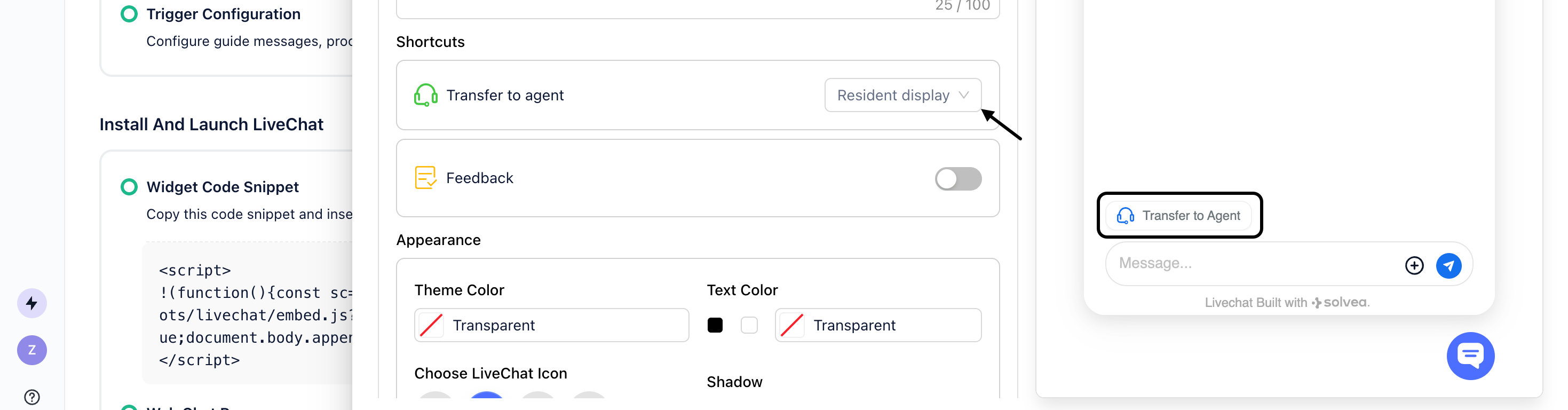
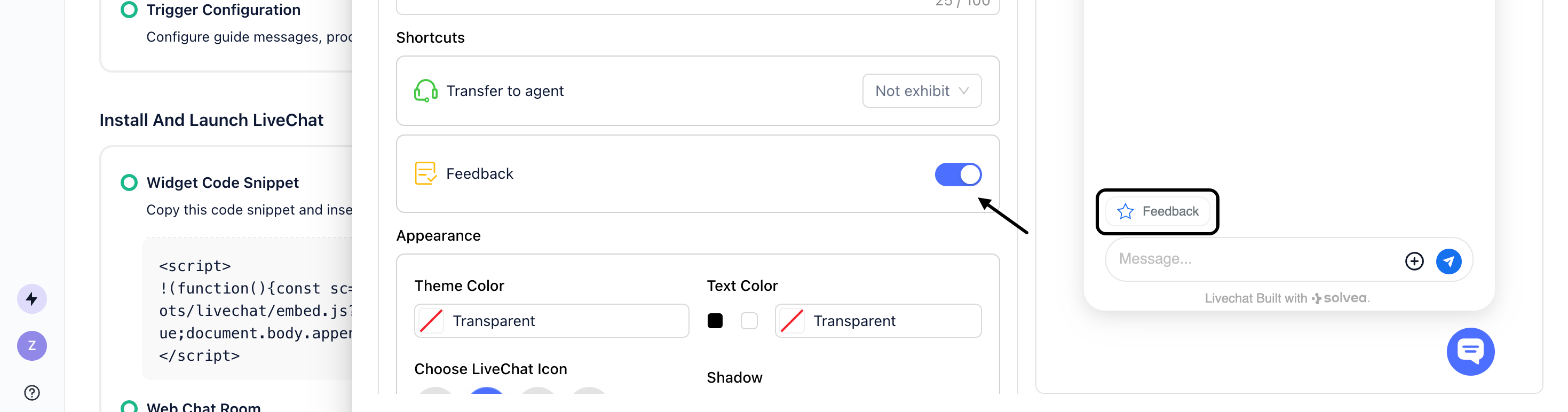
**Shortcuts** are quick action buttons displayed above the input field, with two options available:
* **Transfer to agent**
Clicking this button allows the user to directly trigger a handoff to a human agent for support.
Configure whether to display this button.
## Add Shortcuts
**Shortcuts** are quick action buttons displayed above the input field, with two options available:
* **Transfer to agent**
Clicking this button allows the user to directly trigger a handoff to a human agent for support.
Configure whether to display this button.
 * **Feedback**
Clicking this button enables the user to rate the conversation and leave comments.
Configure whether to display this button.
* **Feedback**
Clicking this button enables the user to rate the conversation and leave comments.
Configure whether to display this button.
 ## Customize Appearance
Control the visual style and layout of the Livechat widget.
## Customize Appearance
Control the visual style and layout of the Livechat widget.
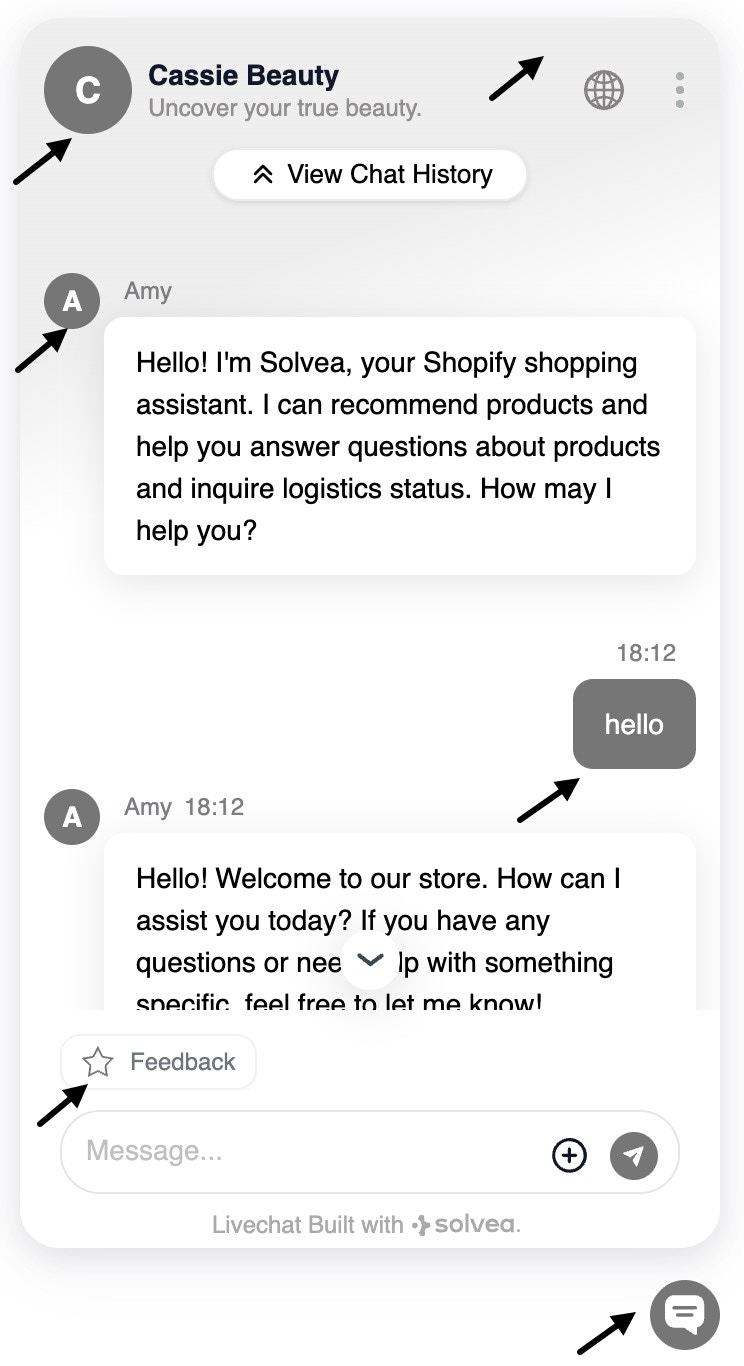
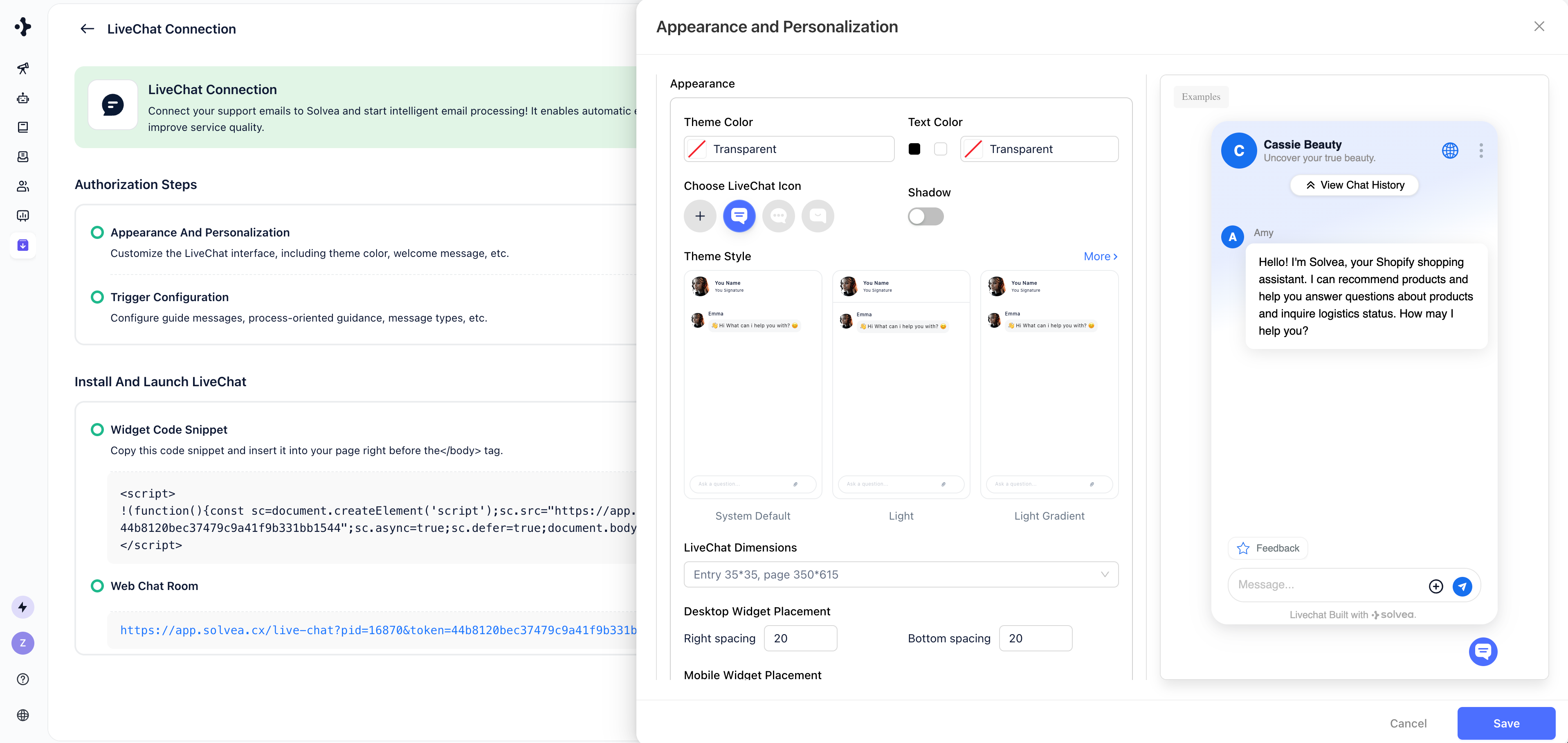 * **Colors**
Affects the top gradient background, chat bubbles, send button, selected states, and button icons.
* **Colors**
Affects the top gradient background, chat bubbles, send button, selected states, and button icons.
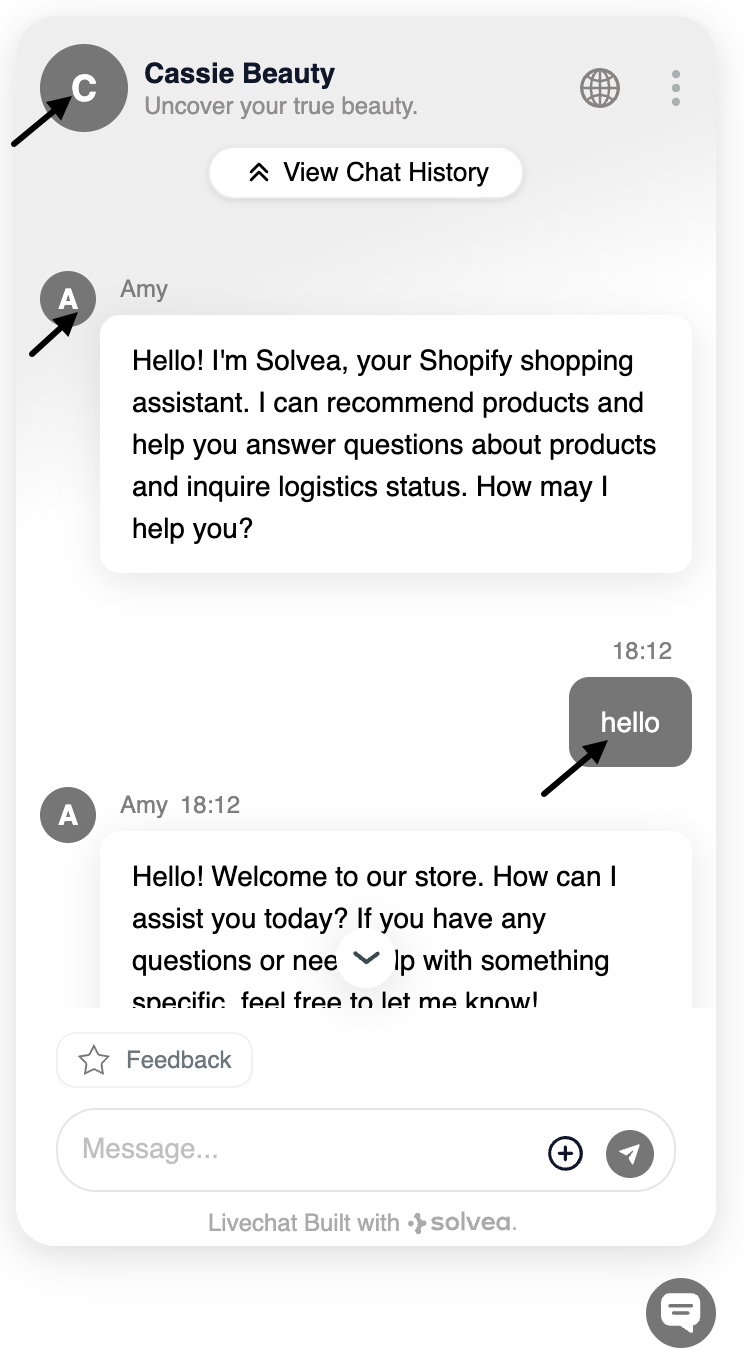
 Affects the brand name, agent nickname, user messages
 * **Livechat Icon**\
The icon displayed at the bottom-right corner of the page when Livechat is minimized.
* Choose from present icons
* Or upload a custom image
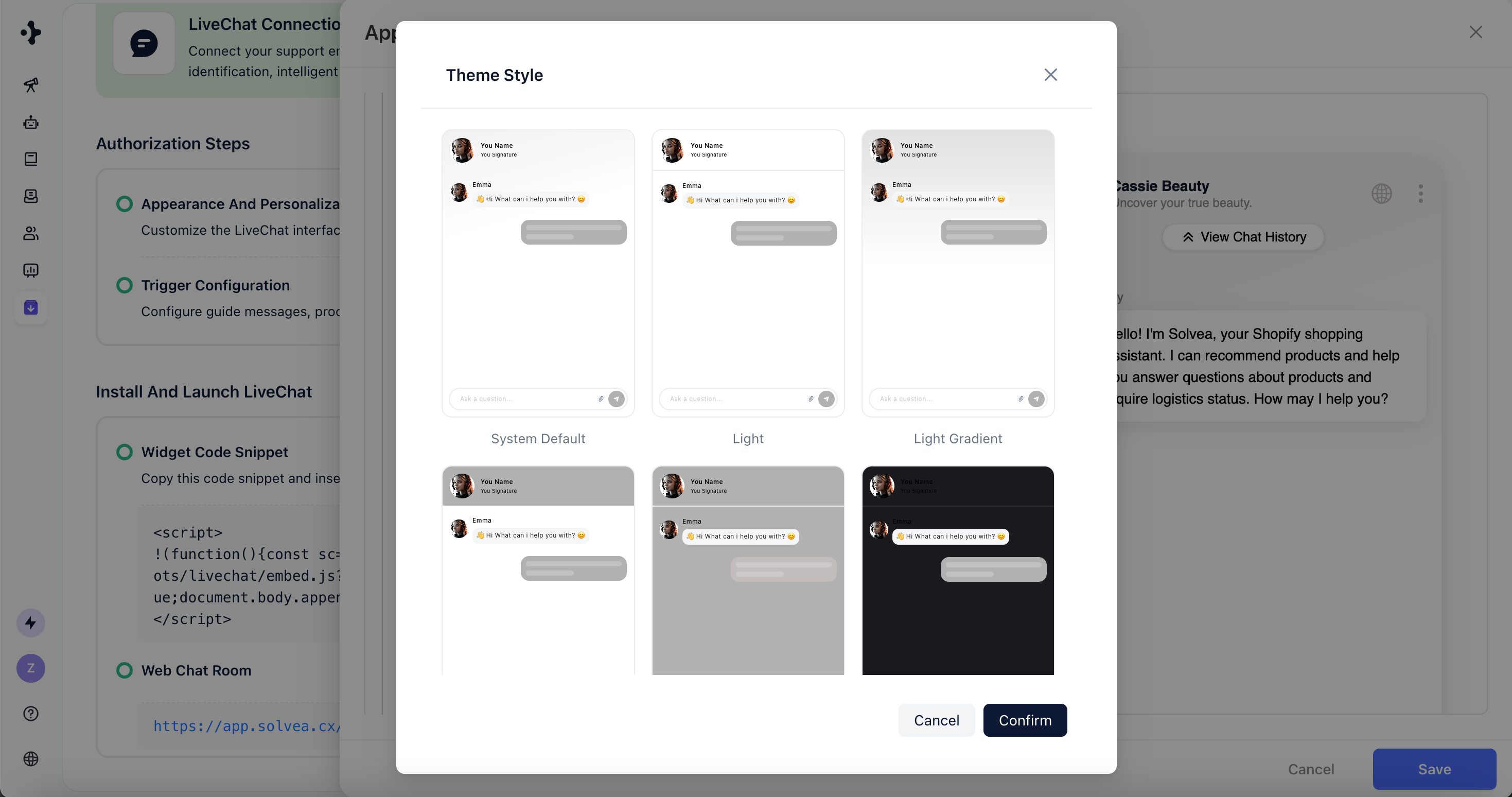
* **Theme Style**\
Solvea provides **10 pre-built themes**. Click **“More”** to view all available styles.
* **Livechat Icon**\
The icon displayed at the bottom-right corner of the page when Livechat is minimized.
* Choose from present icons
* Or upload a custom image
* **Theme Style**\
Solvea provides **10 pre-built themes**. Click **“More”** to view all available styles.
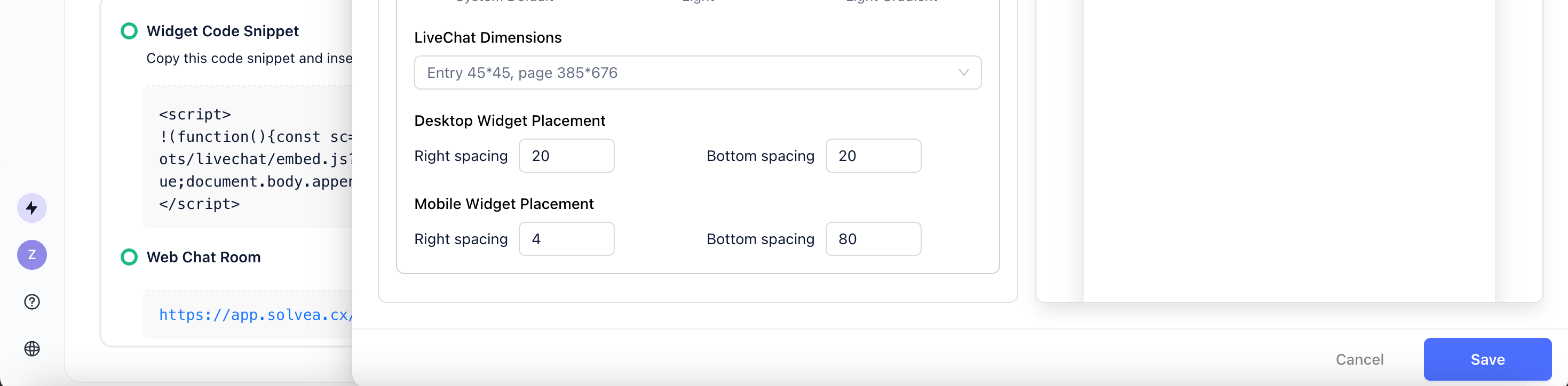
 * **LiveChat Dimensions**\
Choose from **four display sizes** for the chat window.\
Default: Medium.
* **Desktop Widget Placement**\
Set the distance from the right and bottom edges of the screen.\
Default spacing: 20 px.
* **LiveChat Dimensions**\
Choose from **four display sizes** for the chat window.\
Default: Medium.
* **Desktop Widget Placement**\
Set the distance from the right and bottom edges of the screen.\
Default spacing: 20 px.