> ## Documentation Index
> Fetch the complete documentation index at: https://solvea.cx/docs/llms.txt
> Use this file to discover all available pages before exploring further.

# Example: Gmail Authorization

This guide uses Gmail as an example to demonstrate three supported email authorization methods.

Other email providers follow similar processes, but specific steps may vary. Please refer to your email provider’s official documentation if needed.

## API Authorization

This is the easiest and most secure way to connect Gmail.

<Steps>
  <Step title="">
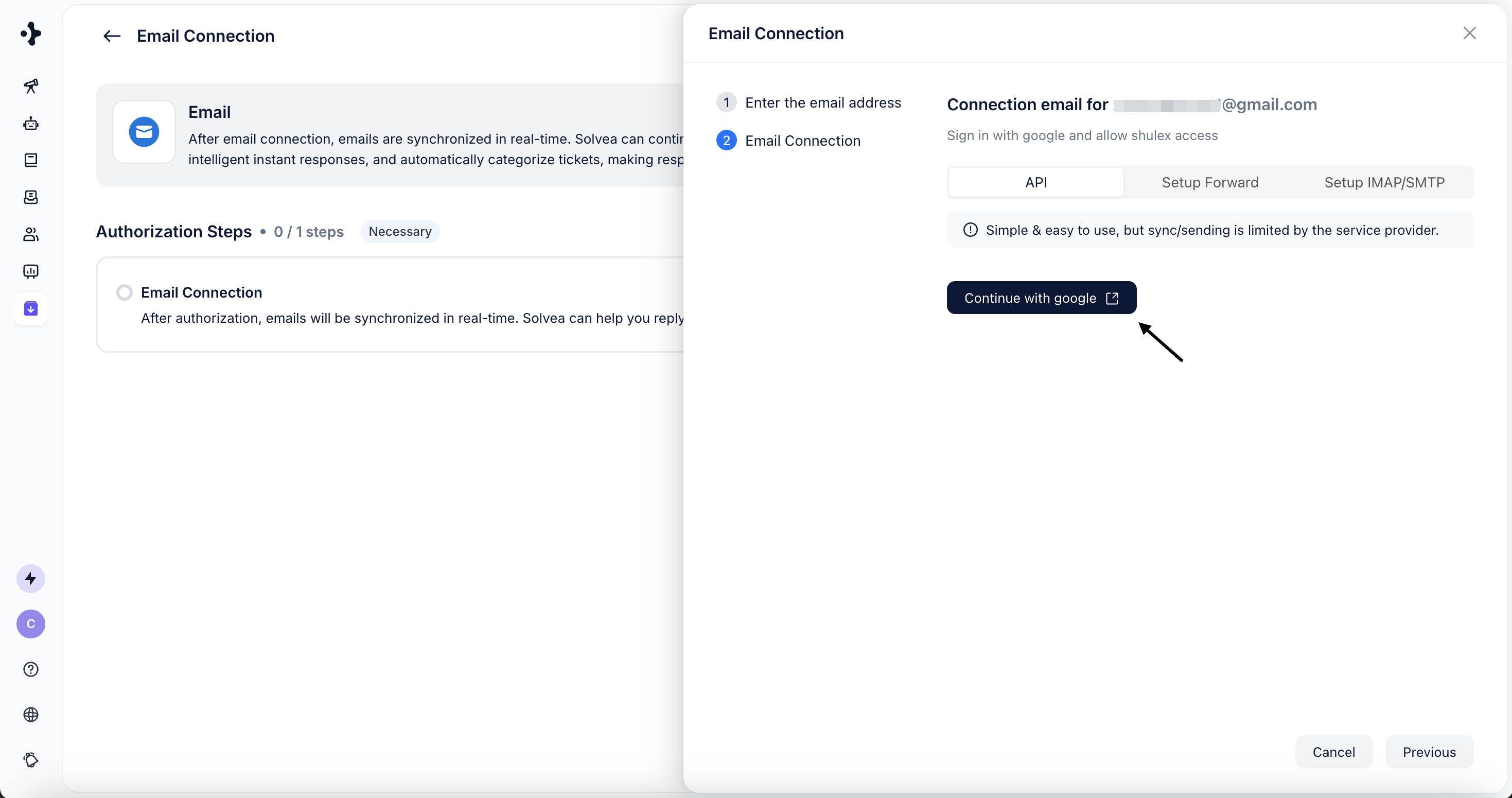
    Click **Continue with Google**.

    <Frame>
      <img src="https://mintcdn.com/solvea-a5b10e8e/4757Oc6LV1SYyL1m/images/image-56.png?fit=max&auto=format&n=4757Oc6LV1SYyL1m&q=85&s=4035afa8c0f8dfafa945269570408016" alt="Image" width="2938" height="1550" data-path="images/image-56.png" />
    </Frame>
  </Step>

  <Step title="">
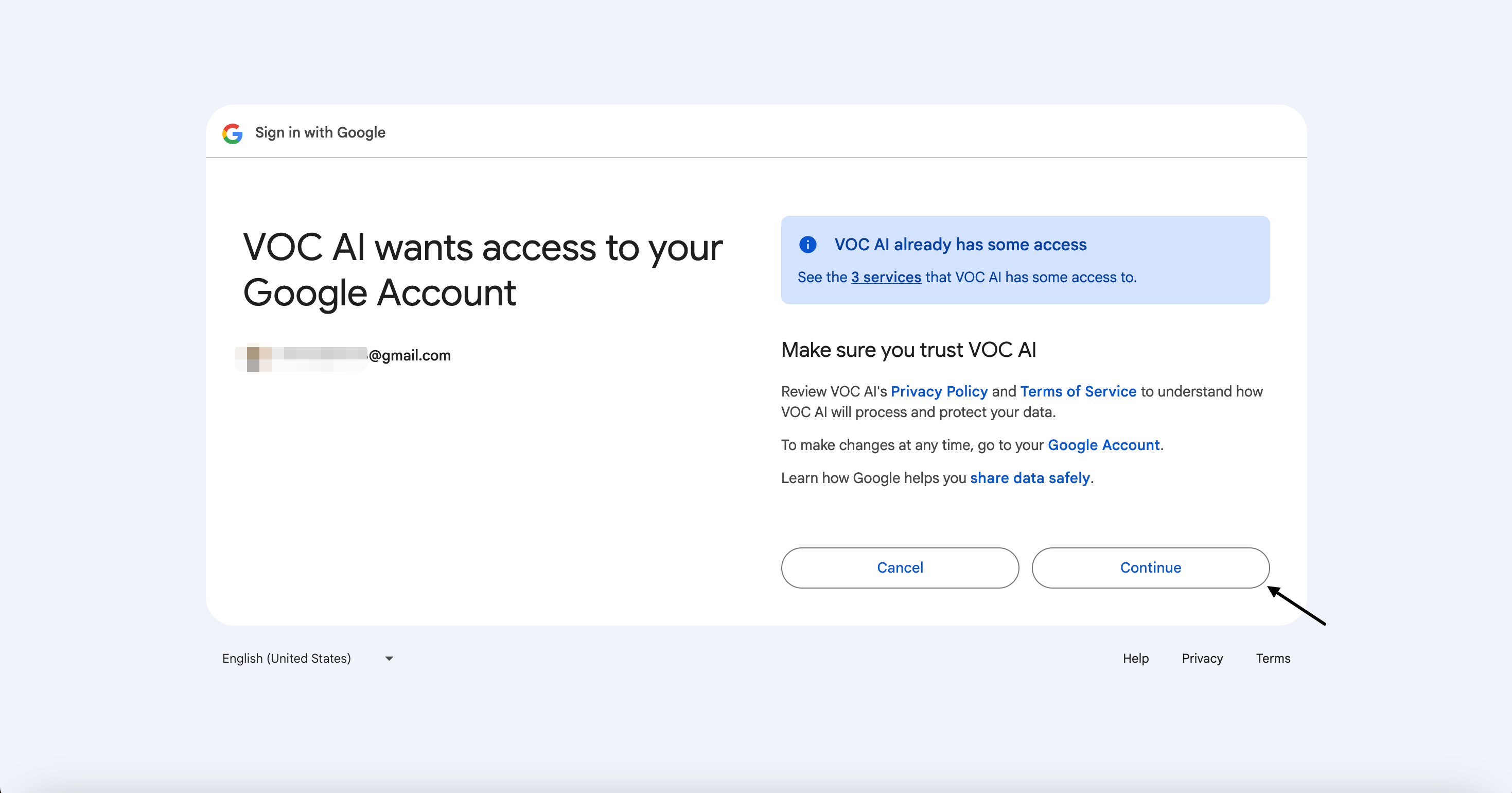
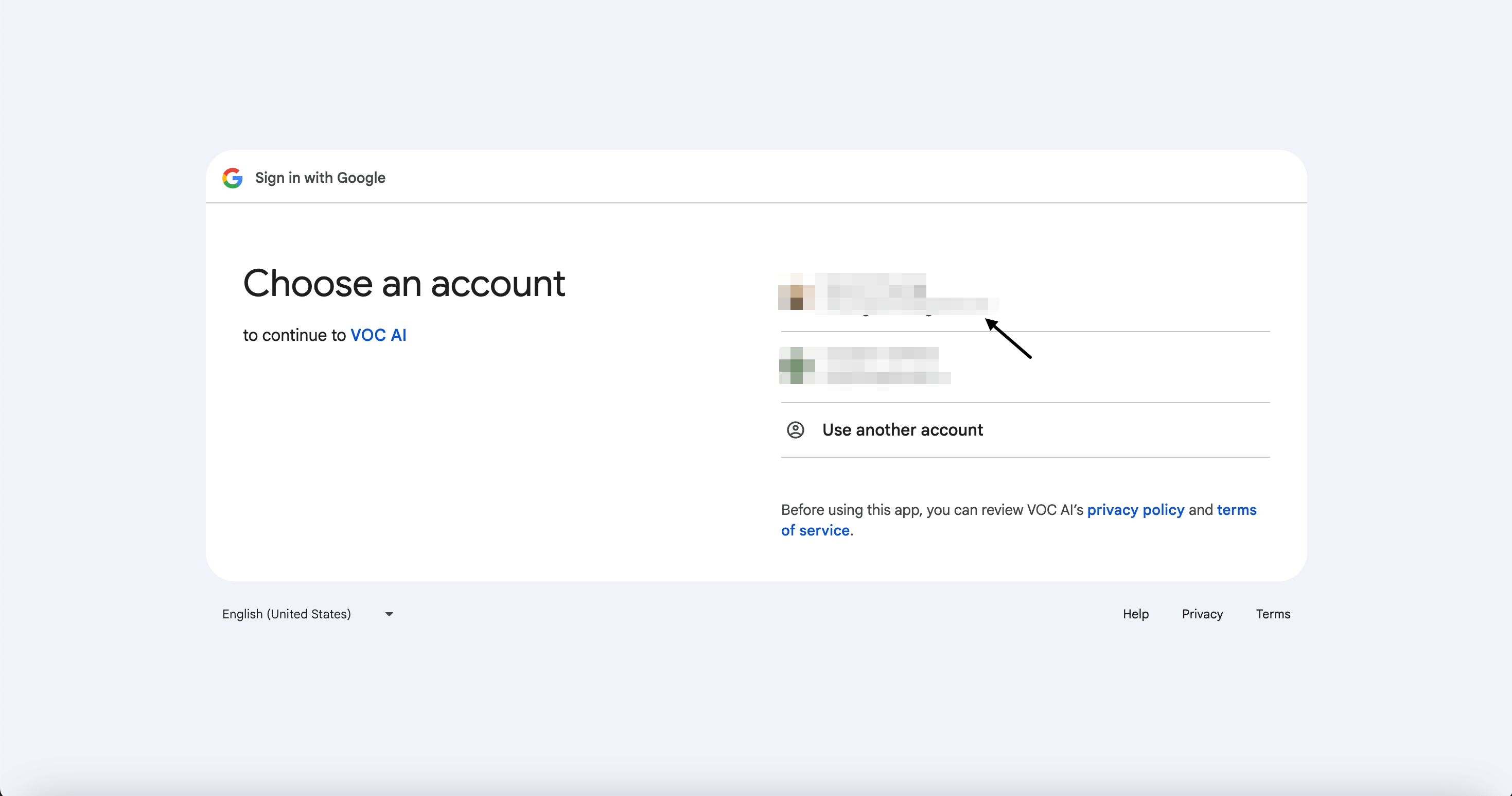
    You will be redirected to Google’s authorization page.
    <Frame>
      <img src="https://mintcdn.com/solvea-a5b10e8e/4757Oc6LV1SYyL1m/images/image-57.png?fit=max&auto=format&n=4757Oc6LV1SYyL1m&q=85&s=6555cf56b99c309e76f4625351c8fc58" alt="Image" width="2938" height="1546" data-path="images/image-57.png" />
    </Frame>
  </Step>

  <Step title="">
    Complete the Authorization

    <Frame>
      <img src="https://mintcdn.com/solvea-a5b10e8e/jGh3Cy5FyTP7gxl_/images/image-103.png?fit=max&auto=format&n=jGh3Cy5FyTP7gxl_&q=85&s=12d143c58dceac6056ba30a13fefb1d4" alt="Image" width="2938" height="1540" data-path="images/image-103.png" />
    </Frame>
  </Step>
</Steps>

## Forwarding Authorization

This method allows Solvea to receive emails via Gmail forwarding.

<Steps>
  <Step title="">
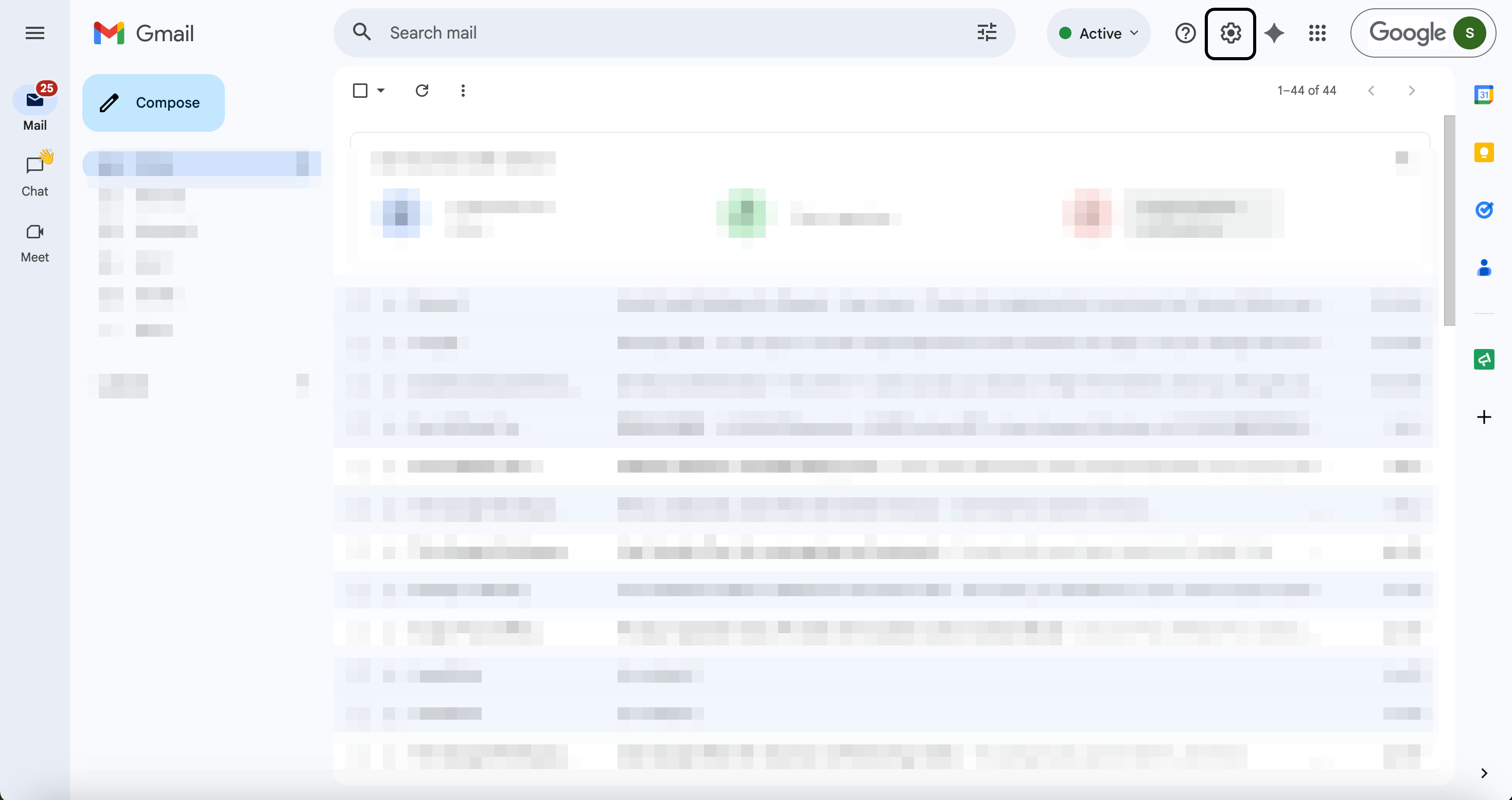
    Open Gmail and go to **Settings**.

    <Frame>
      <img src="https://mintcdn.com/solvea-a5b10e8e/eZtvQ7uEqZpR9VO5/images/image-7.png?fit=max&auto=format&n=eZtvQ7uEqZpR9VO5&q=85&s=753e9b8610986cfdbc1305c8556f7ec8" alt="Image 7" width="2938" height="1554" data-path="images/image-7.png" />
    </Frame>
  </Step>

  <Step title="">
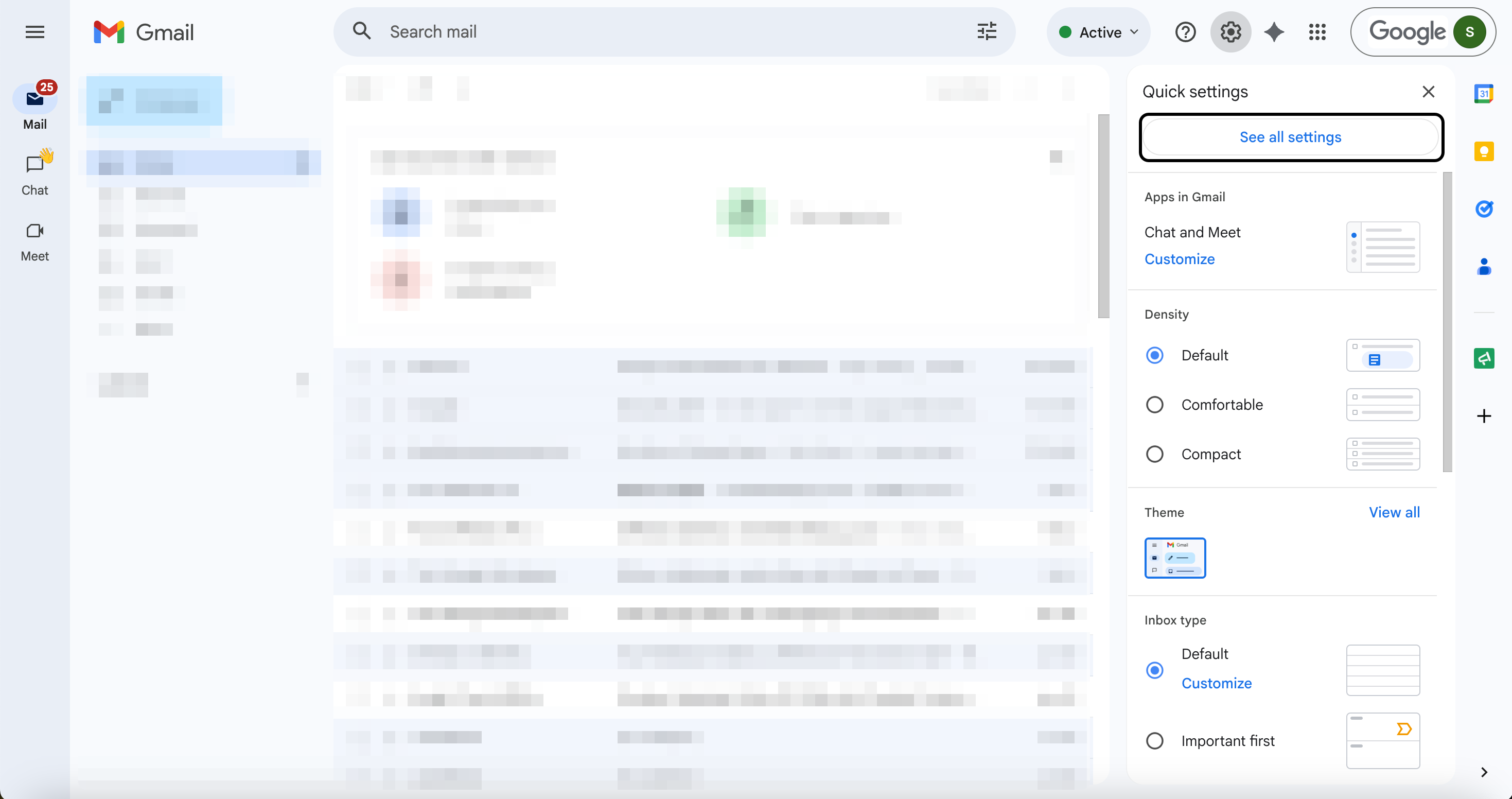
    Click **See all settings**.

    <Frame>
      <img src="https://mintcdn.com/solvea-a5b10e8e/eZtvQ7uEqZpR9VO5/images/image-8.png?fit=max&auto=format&n=eZtvQ7uEqZpR9VO5&q=85&s=4d7d1eb22ba3eba0dad62b990f3f35e5" alt="Image 8" width="2938" height="1552" data-path="images/image-8.png" />
    </Frame>
  </Step>

  <Step title="">
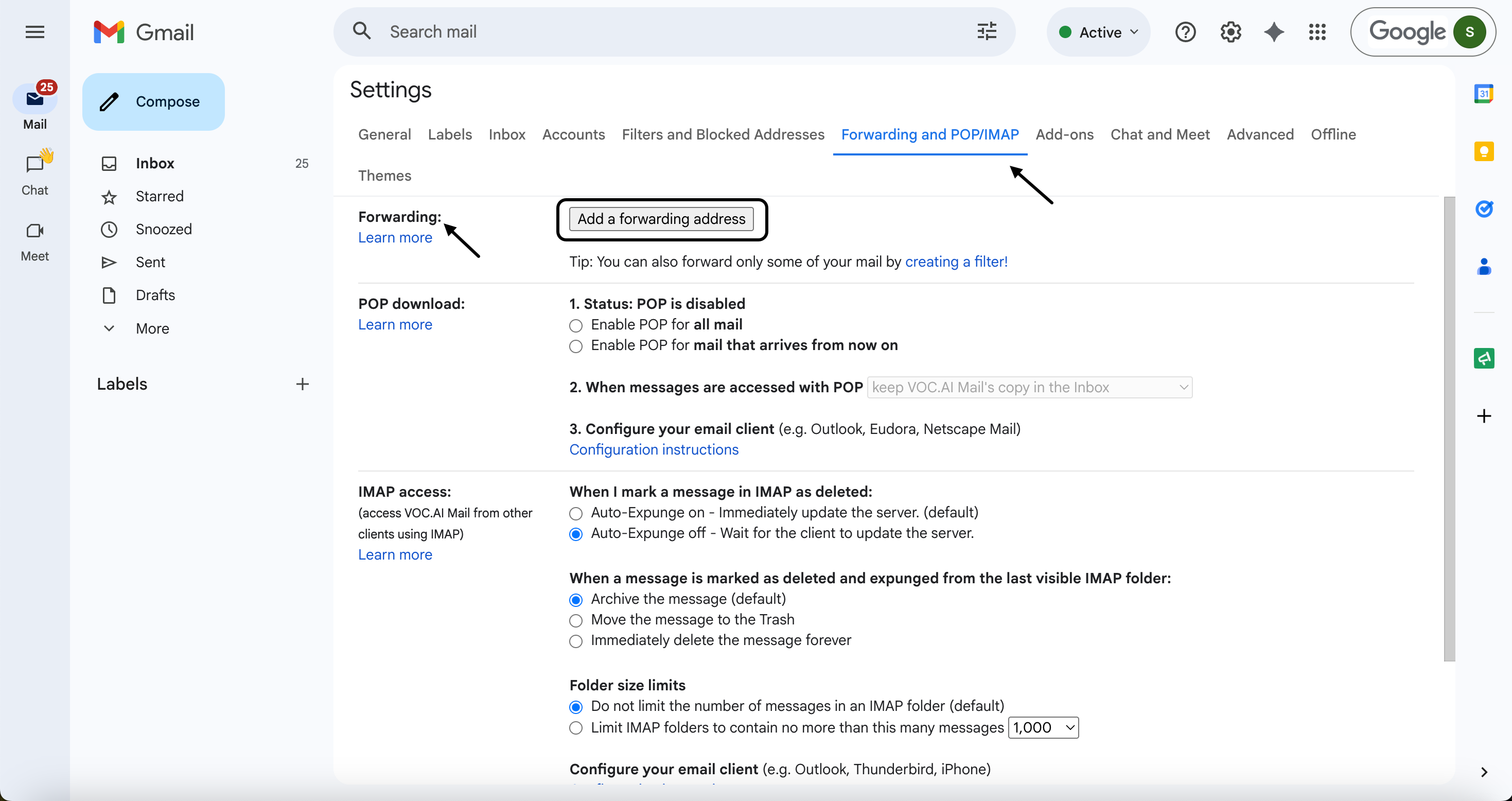
    Navigate to **Forwarding and POP/IMAP**. Click **Add a forwarding address**.
    <Frame>
      <img src="https://mintcdn.com/solvea-a5b10e8e/eZtvQ7uEqZpR9VO5/images/image-9.png?fit=max&auto=format&n=eZtvQ7uEqZpR9VO5&q=85&s=d609d3387530f39a9b426648d97543ff" alt="Image 9" width="2938" height="1556" data-path="images/image-9.png" />
    </Frame>
  </Step>

  <Step title="">
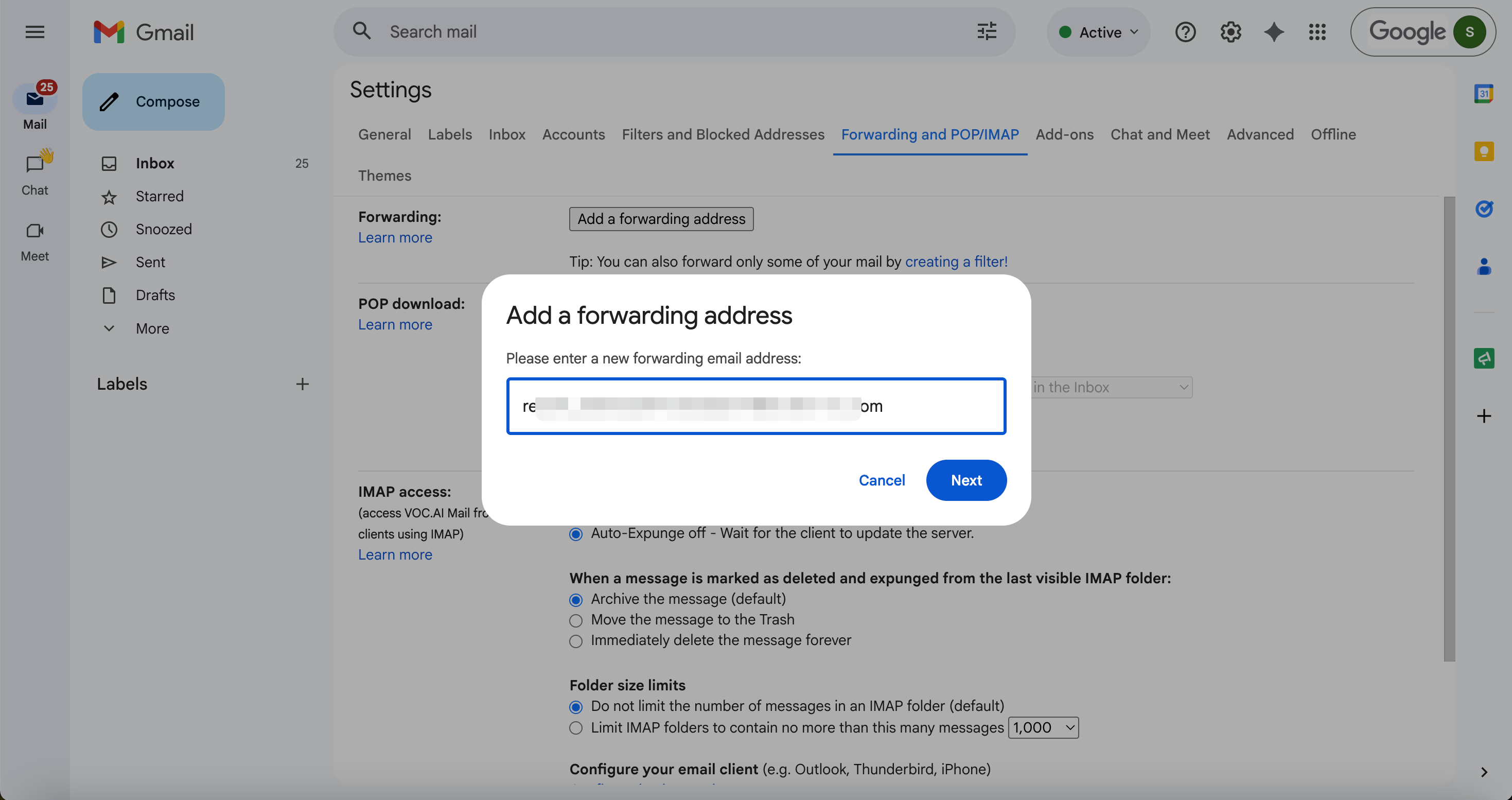
    Copy the forwarding email address provided in Solvea and paste it into Gmail.
    <Frame>
      <img src="https://mintcdn.com/solvea-a5b10e8e/eZtvQ7uEqZpR9VO5/images/image-10.png?fit=max&auto=format&n=eZtvQ7uEqZpR9VO5&q=85&s=a5b9477aed8c371d32e751e312fac1d6" alt="Image 10" width="2938" height="1554" data-path="images/image-10.png" />
    </Frame>
  </Step>

  <Step title="">
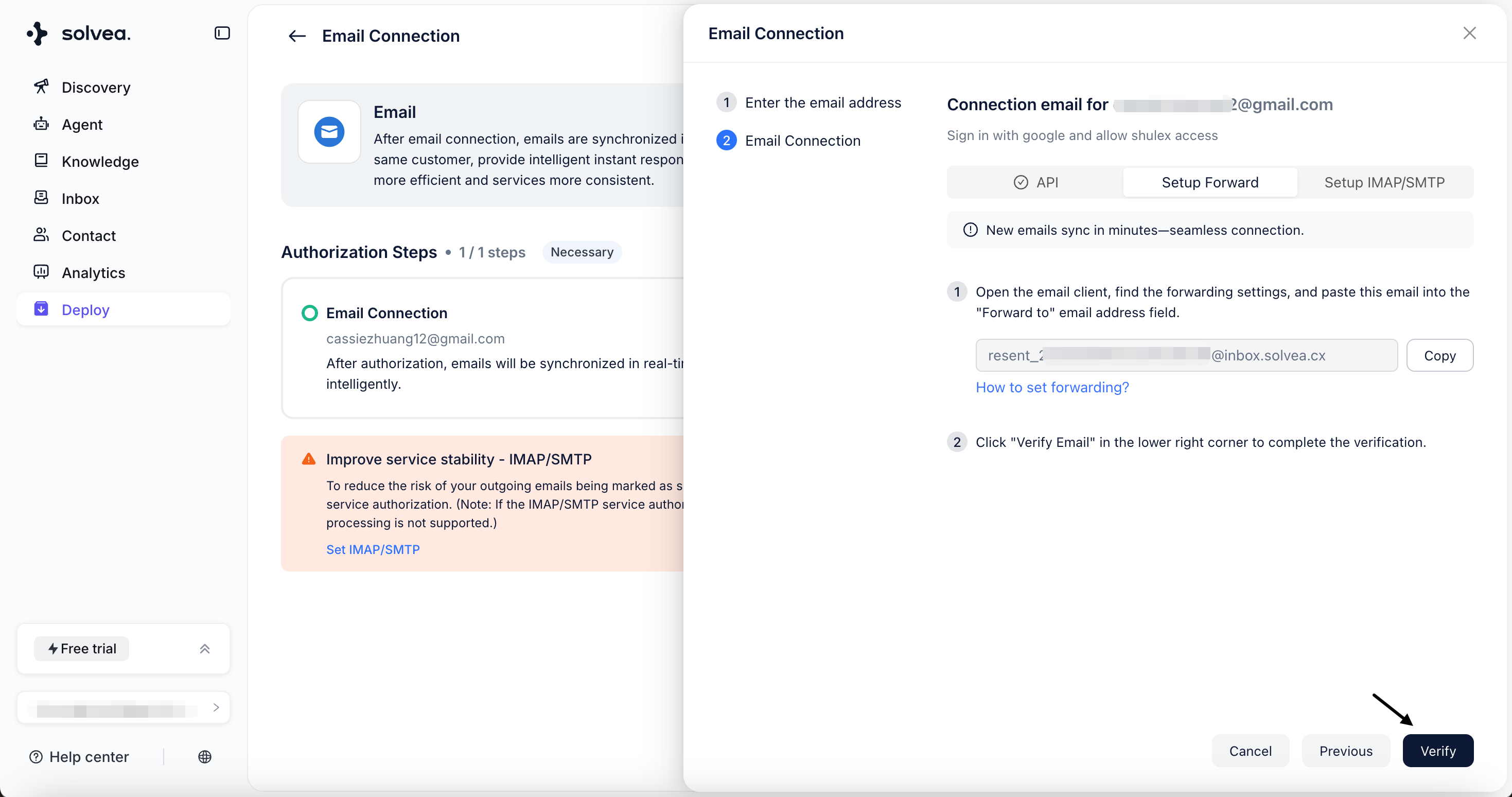
    Return to Solvea page and click **Verify** to complete authorization.
    <Frame>
      <img src="https://mintcdn.com/solvea-a5b10e8e/jGh3Cy5FyTP7gxl_/images/image-104.png?fit=max&auto=format&n=jGh3Cy5FyTP7gxl_&q=85&s=472967ae976093f4697558b9b99b5998" alt="Image" width="2938" height="1548" data-path="images/image-104.png" />
    </Frame>
  </Step>
</Steps>

## IMAP / SMTP Authorization

<Steps>
  <Step title="Enable IMAP in Gmail">
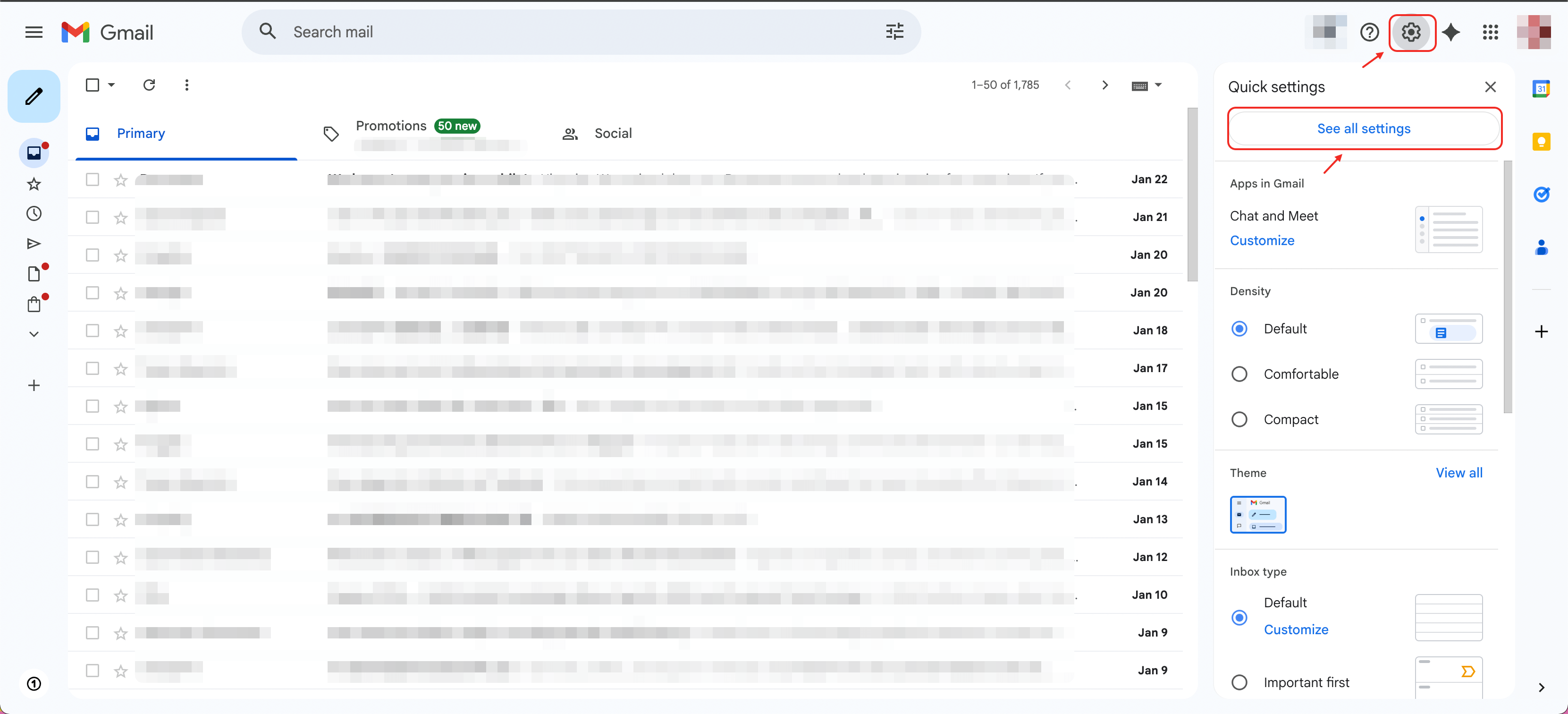
    * Open Gmail and go to **Settings** → **See all settings**.
          <Frame>
            <img src="https://mintcdn.com/solvea-a5b10e8e/WgH3PAylujUhJnnJ/gmailseeallsettings.png?fit=max&auto=format&n=WgH3PAylujUhJnnJ&q=85&s=ab45be9eec826ce7de28354e1907f9e9" alt="Gmailseeallsettings" width="3322" height="1512" data-path="gmailseeallsettings.png" />
          </Frame>
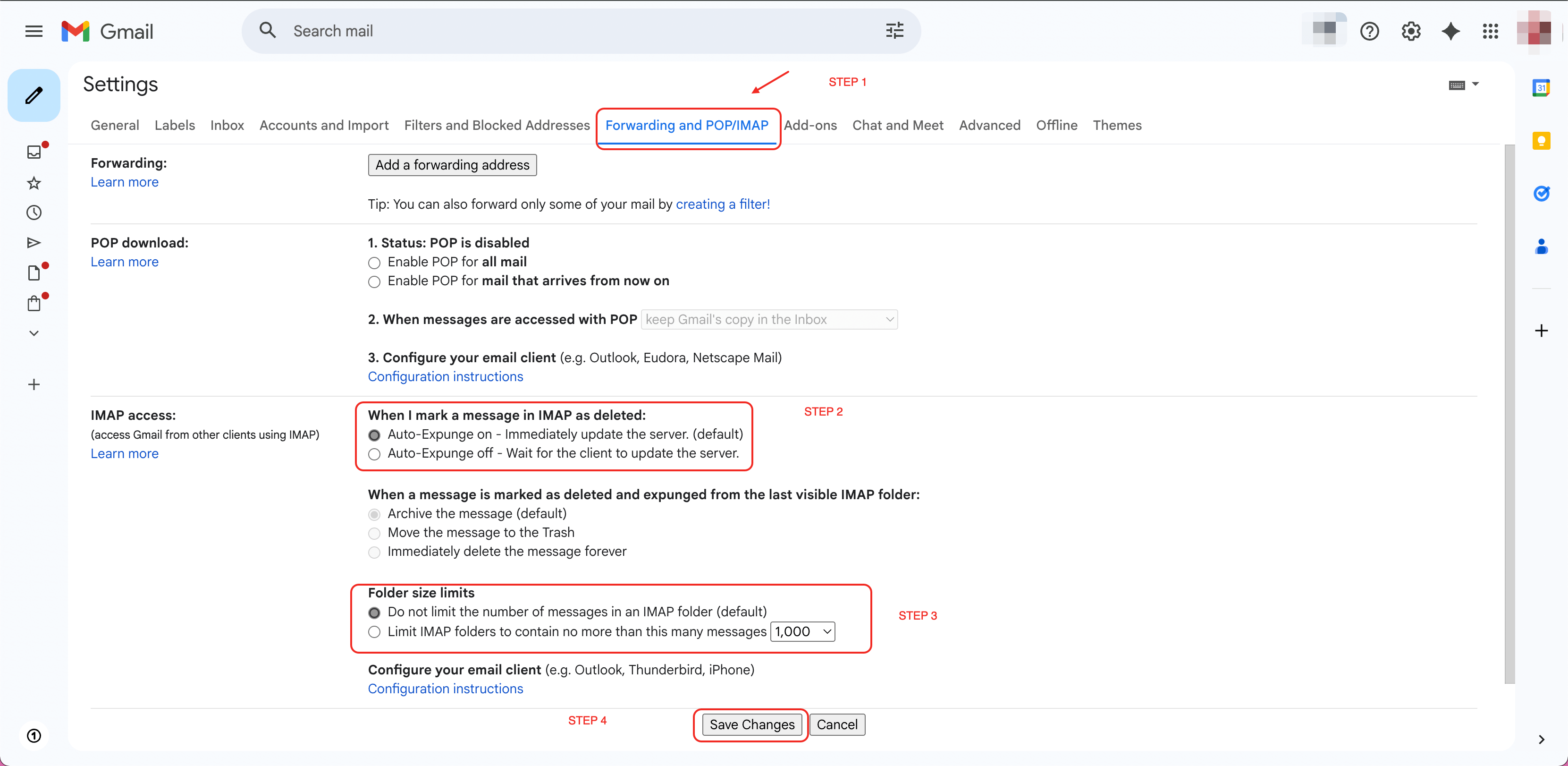
    * Navigate to **Forwarding and POP/IMAP**.
    * Enable **IMAP Access** and Click **Save Changes**.
          <Frame>
            <img src="https://mintcdn.com/solvea-a5b10e8e/WgH3PAylujUhJnnJ/startimap.png?fit=max&auto=format&n=WgH3PAylujUhJnnJ&q=85&s=275f3b973bbd81e507b75d14d5dd6955" alt="Startimap" width="3322" height="1622" data-path="startimap.png" />
          </Frame>
  </Step>

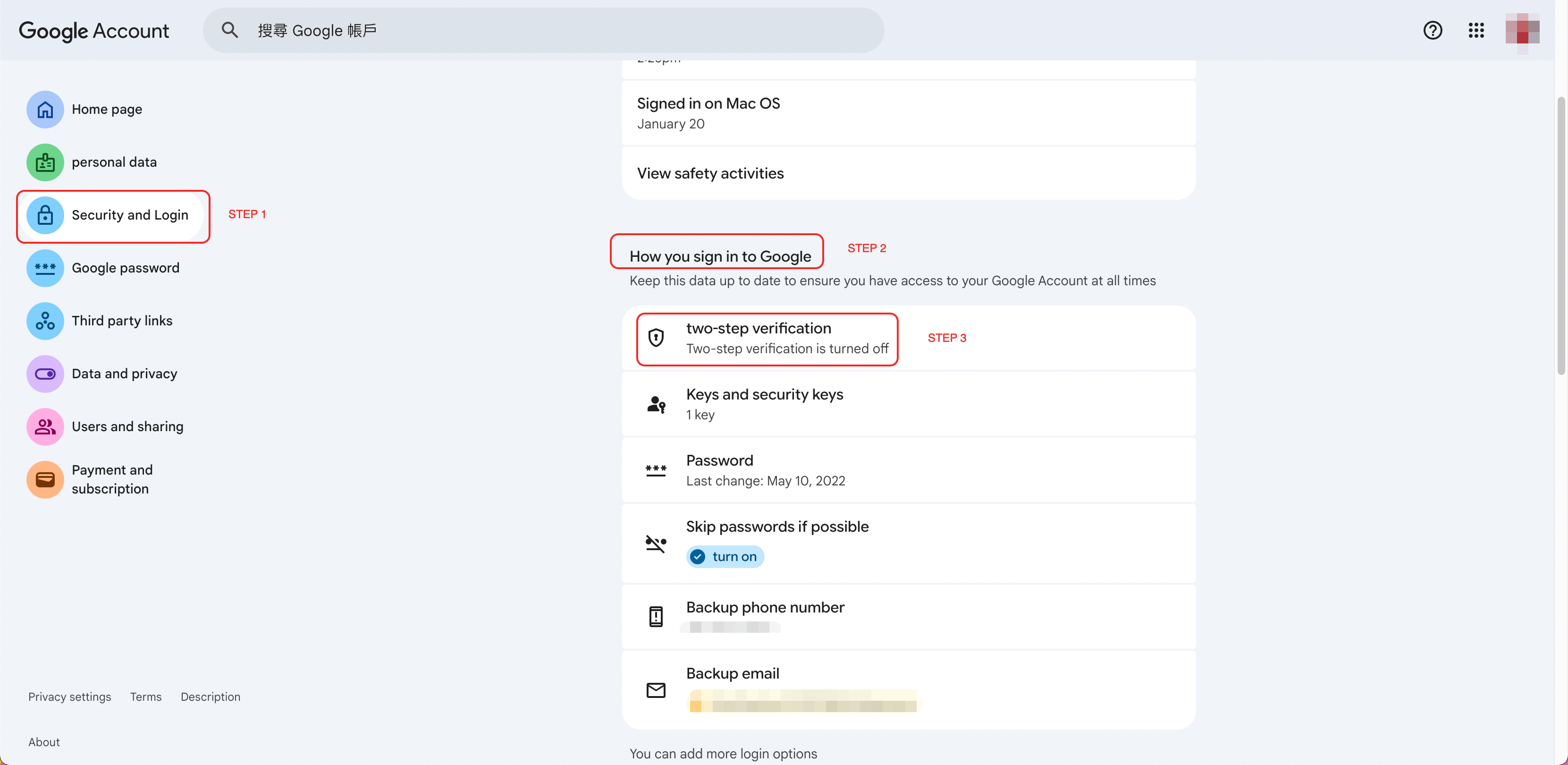
  <Step title="Enable Google Two-Step Verification">
    * Go to your Google Account Security Center:\
      [https://myaccount.google.com/](https://myaccount.google.com/)
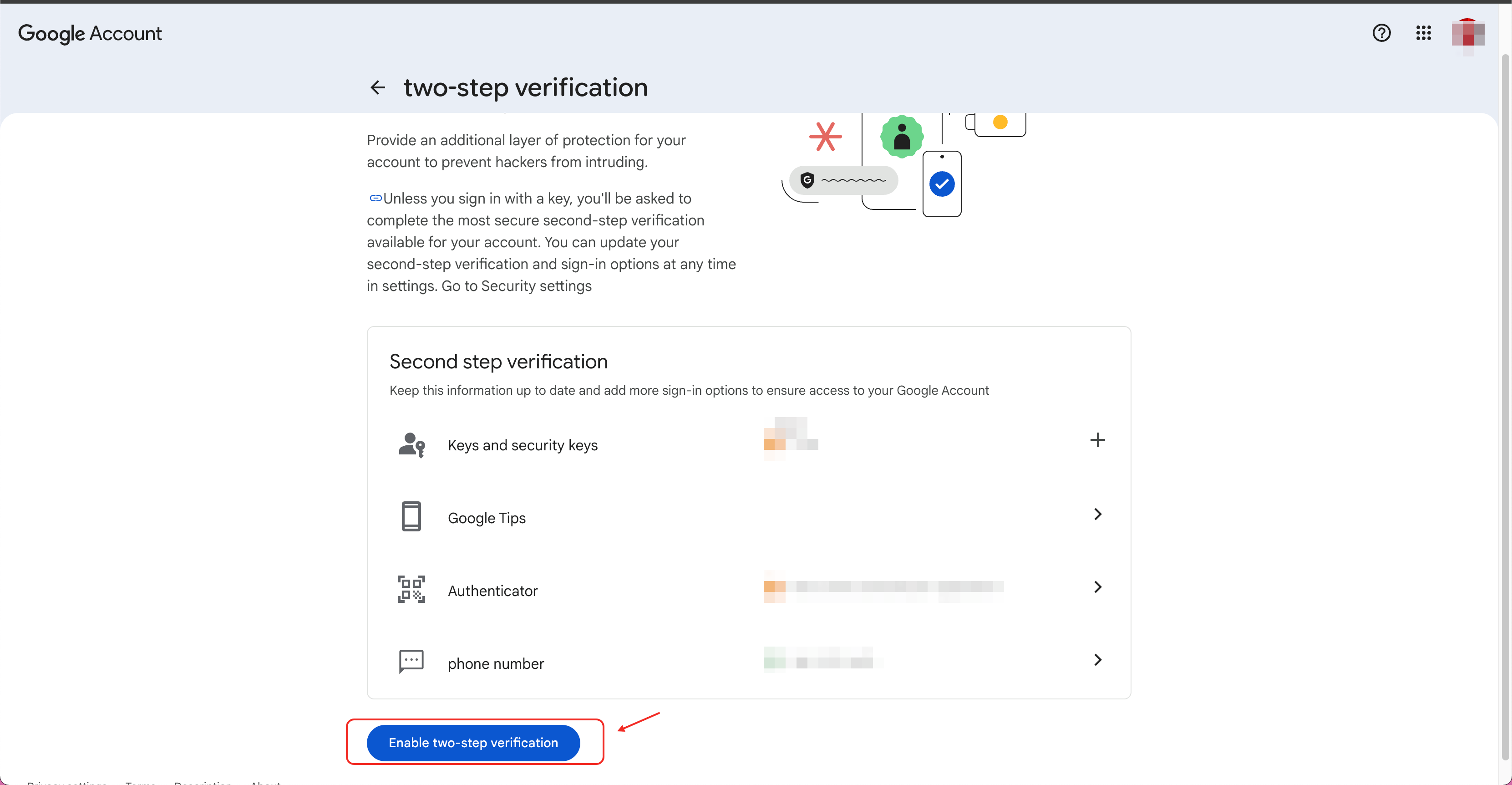
    * Open **Security** settings and find **2-Step Verification**.
          <Frame>
            <img src="https://mintcdn.com/solvea-a5b10e8e/WgH3PAylujUhJnnJ/images/2stepsverification.png?fit=max&auto=format&n=WgH3PAylujUhJnnJ&q=85&s=dc89fb72f4061cbe3db326375893b28d" alt="2stepsverification" width="3322" height="1620" data-path="images/2stepsverification.png" />
          </Frame>
    * Enable two-step verification.

          <Frame>
            <img src="https://mintcdn.com/solvea-a5b10e8e/WgH3PAylujUhJnnJ/images/enablestepverification.png?fit=max&auto=format&n=WgH3PAylujUhJnnJ&q=85&s=abdea037082553b14f8833c06750875e" alt="Enablestepverification" width="3322" height="1724" data-path="images/enablestepverification.png" />
          </Frame>
  </Step>

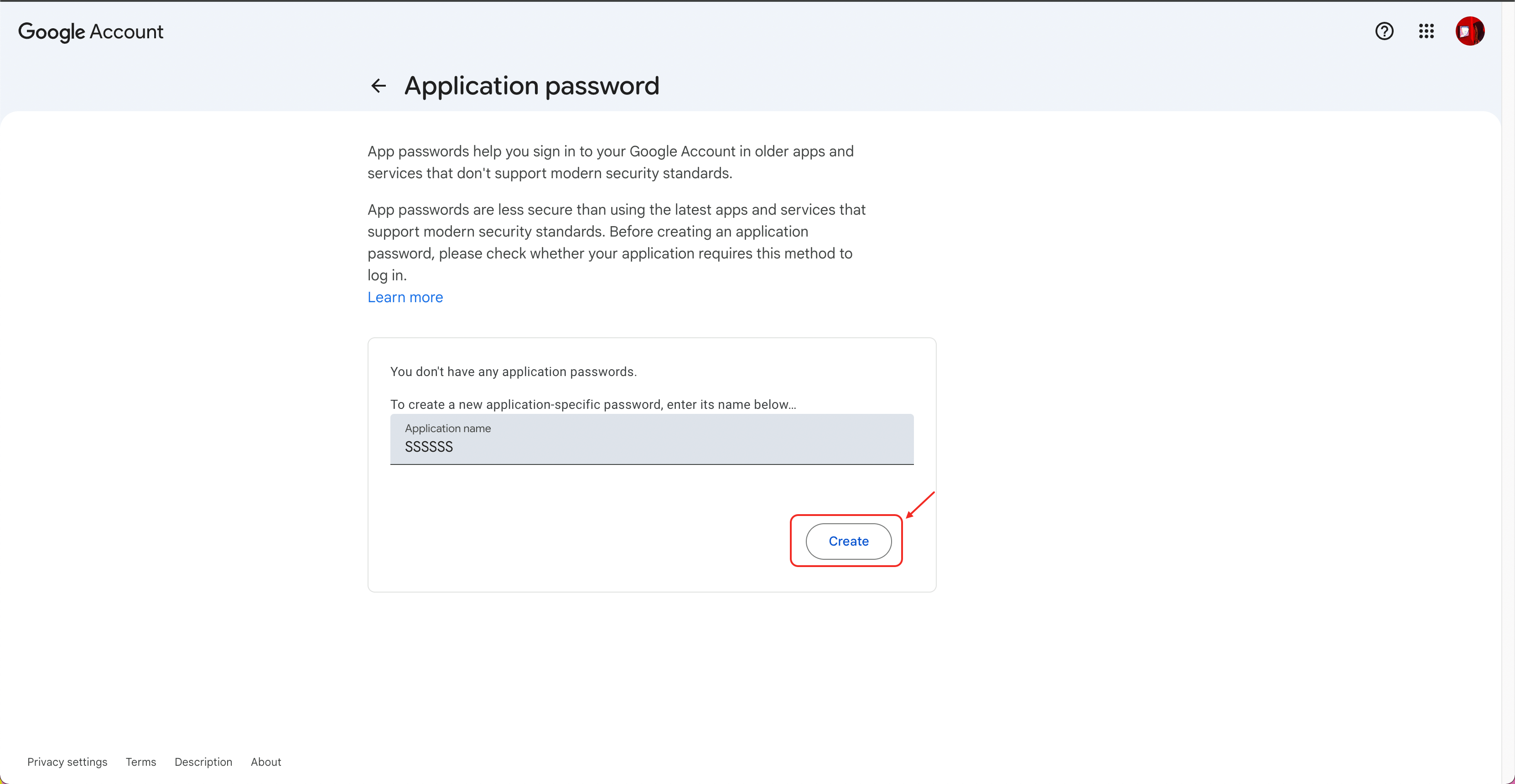
  <Step title="Generate an App Password">
    * In the Security page, search for **App Passwords**, or visit:\
      [https://myaccount.google.com/apppasswords](https://myaccount.google.com/apppasswords)
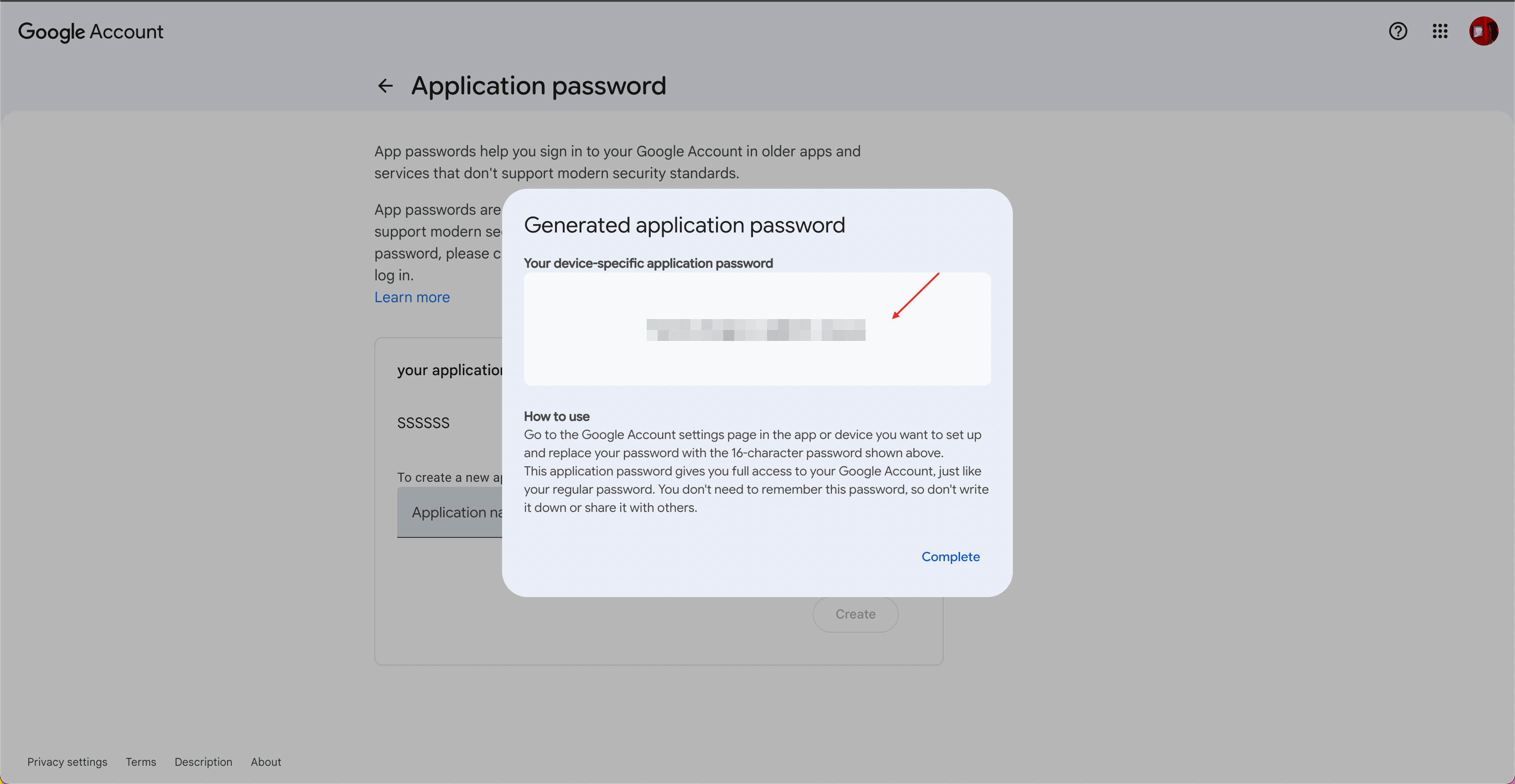
    * Enter any name for the app and Click **Create**.
          <Frame>
            <img src="https://mintcdn.com/solvea-a5b10e8e/WgH3PAylujUhJnnJ/images/createapp.png?fit=max&auto=format&n=WgH3PAylujUhJnnJ&q=85&s=c3aa65ece5f5c33ea09656282661f618" alt="Createapp" width="3322" height="1720" data-path="images/createapp.png" />
          </Frame>
    * Copy the generated app password.

          <Frame>
            <img src="https://mintcdn.com/solvea-a5b10e8e/WgH3PAylujUhJnnJ/images/generatedapplicationpassword.png?fit=max&auto=format&n=WgH3PAylujUhJnnJ&q=85&s=a5e68a6aa18893d1d0fff78fd2cca28c" alt="Generatedapplicationpassword" width="3322" height="1720" data-path="images/generatedapplicationpassword.png" />
          </Frame>
  </Step>

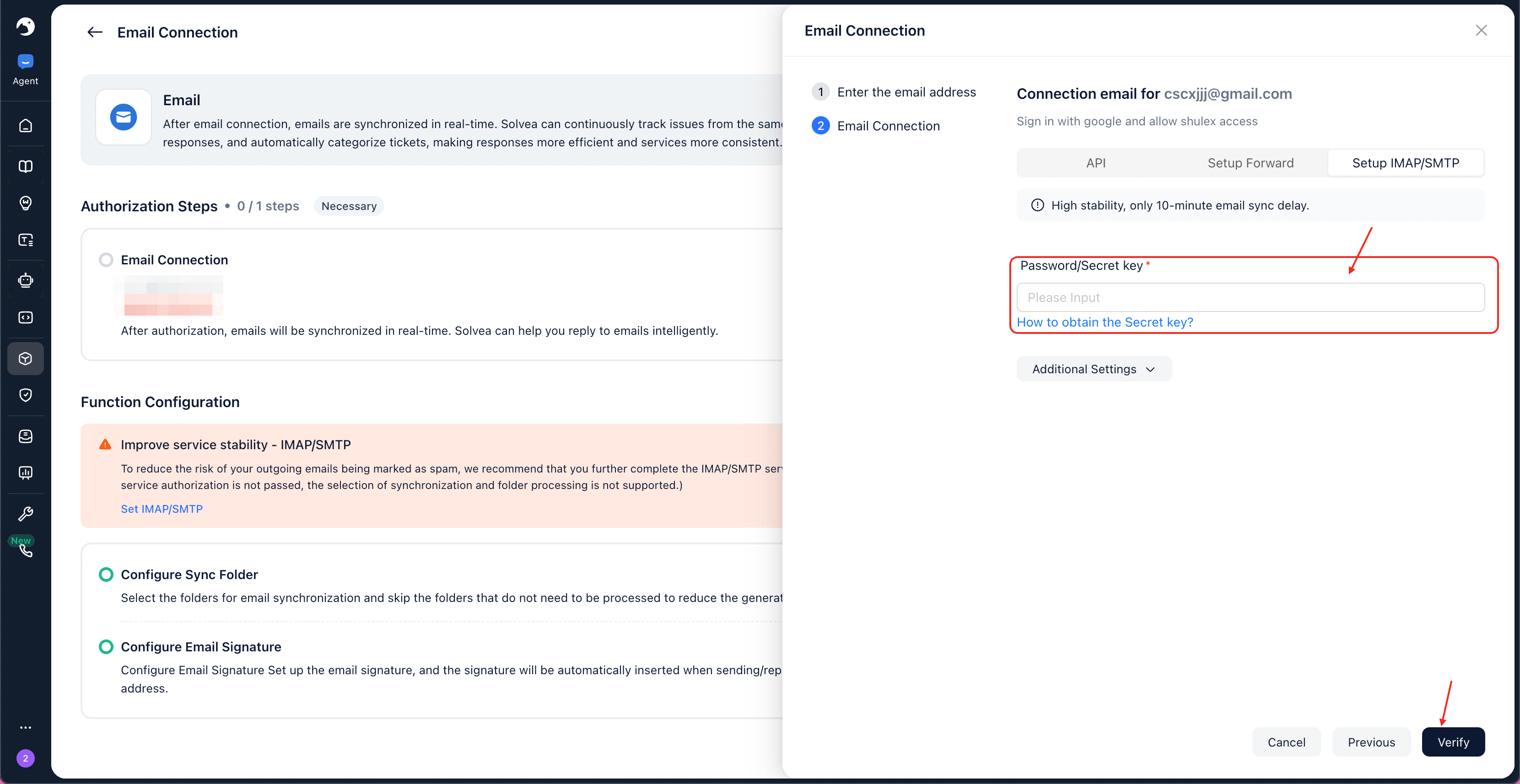
  <Step title="Complete IMAP / SMTP Setup">
    * Return to the Solvea email authorization page.
    * Paste the generated **App Password** into the authorization field.
    * Click **Verify** to complete the setup.
          <Frame>
            <img src="https://mintcdn.com/solvea-a5b10e8e/WgH3PAylujUhJnnJ/images/setimap.png?fit=max&auto=format&n=WgH3PAylujUhJnnJ&q=85&s=b1f03044e3feb76f4fef43f4814cbc2f" alt="Setimap" width="3322" height="1714" data-path="images/setimap.png" />
          </Frame>
  </Step>
</Steps>