> ## Documentation Index
> Fetch the complete documentation index at: https://solvea.cx/docs/llms.txt
> Use this file to discover all available pages before exploring further.
# Bind your Email
> Bind an email account to allow your Solvea Agent to receive and respond to emails automatically.
 Only one email address can be bound.
## Getting Started
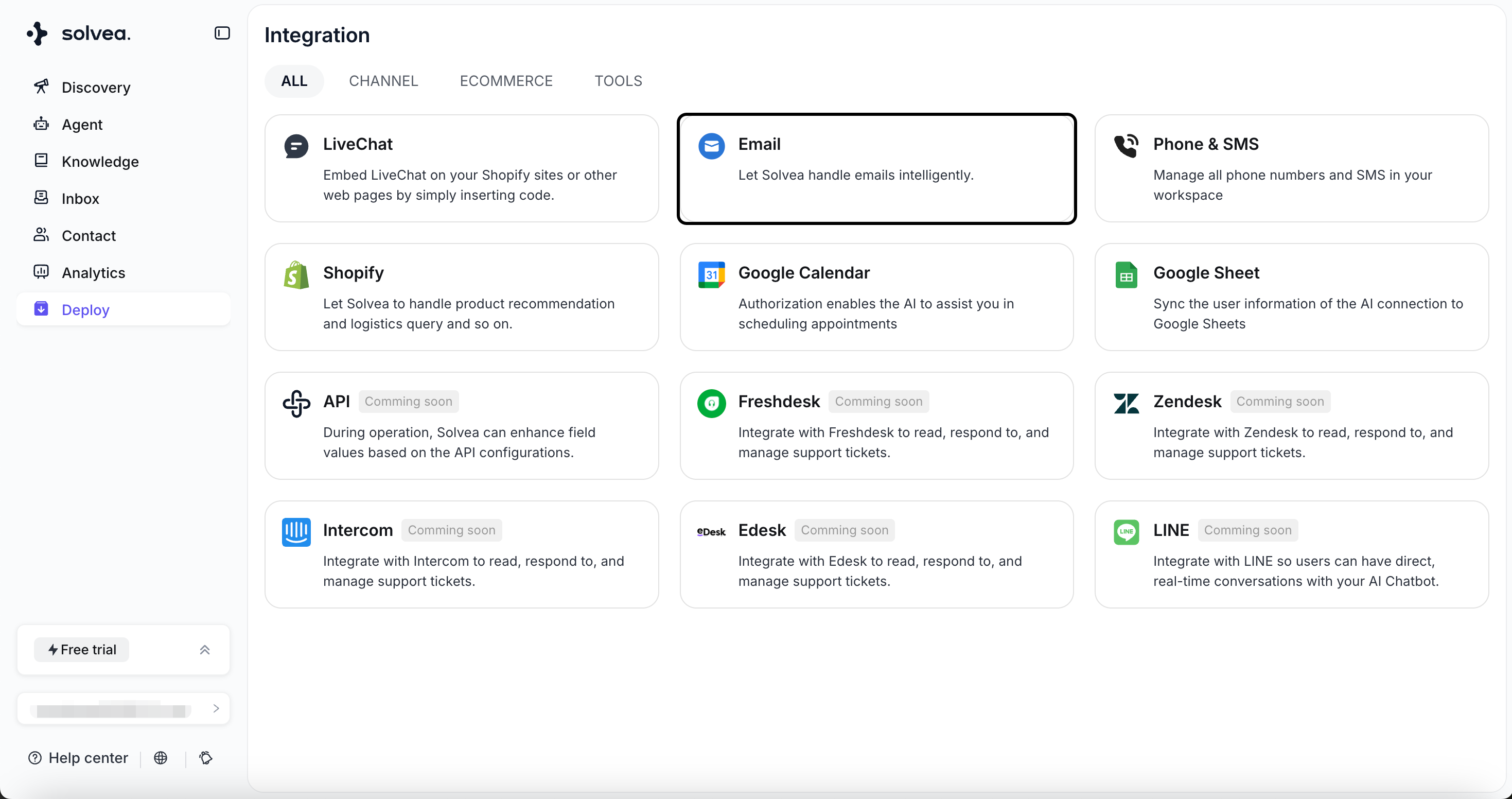
1. Go to Deploy -> Email -> Email Connecttion -> Click **Connect**
Only one email address can be bound.
## Getting Started
1. Go to Deploy -> Email -> Email Connecttion -> Click **Connect**
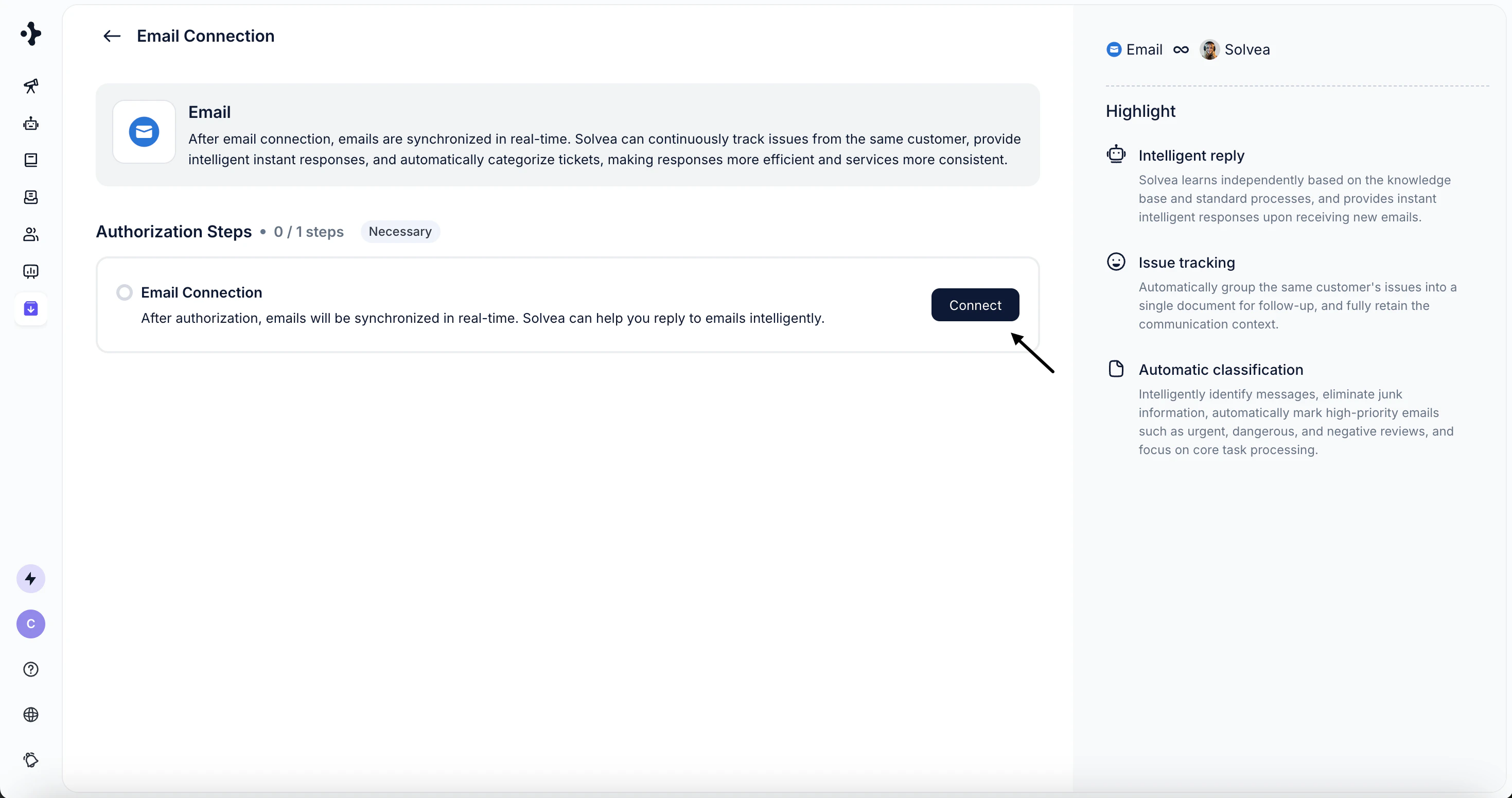 2. Enter your **email address** and the Brand, then click **Continue**.
Brand (optional): Brand name is for labeling your support email.
2. Enter your **email address** and the Brand, then click **Continue**.
Brand (optional): Brand name is for labeling your support email.
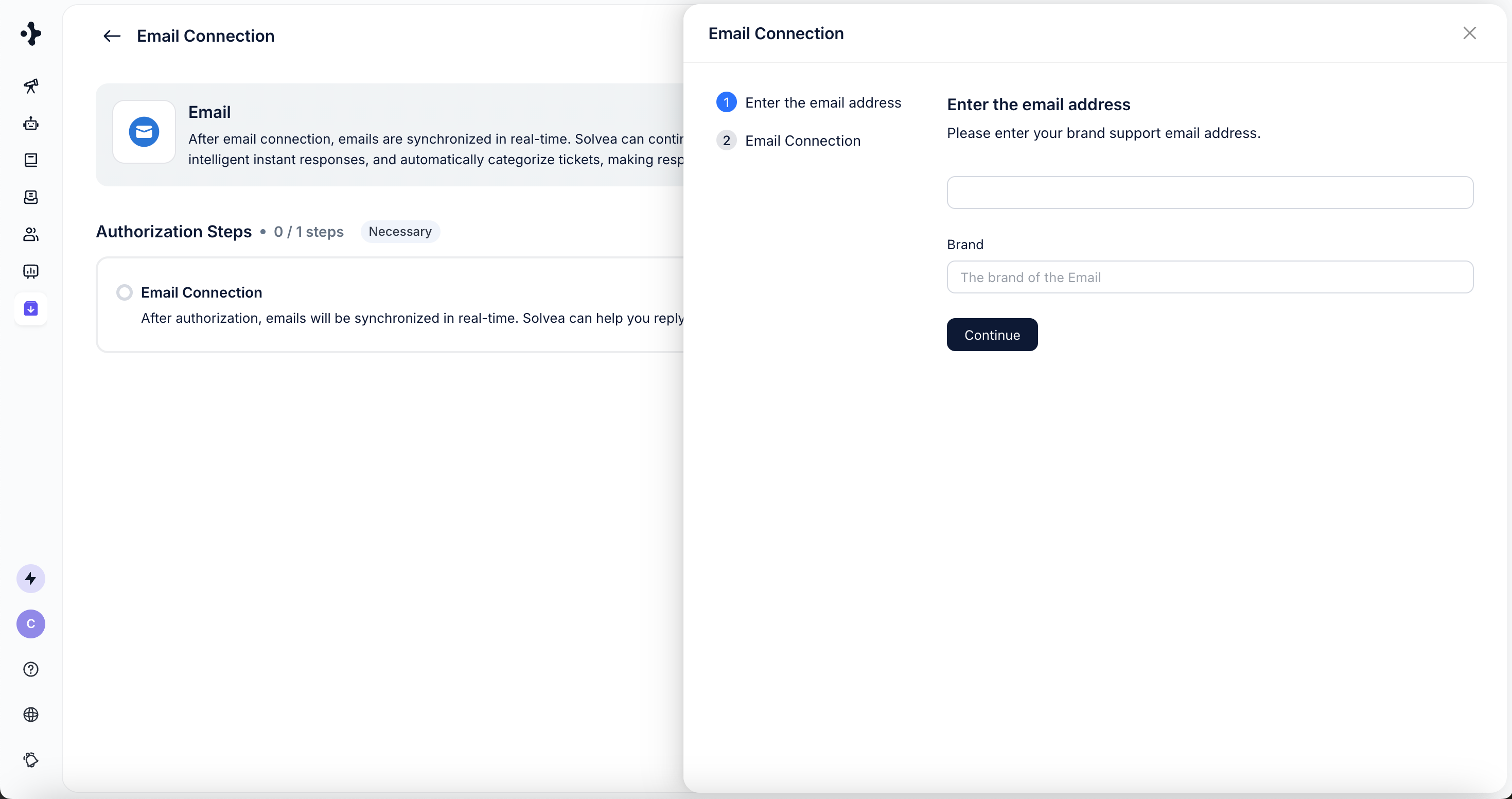 3. Complete the authorization process.
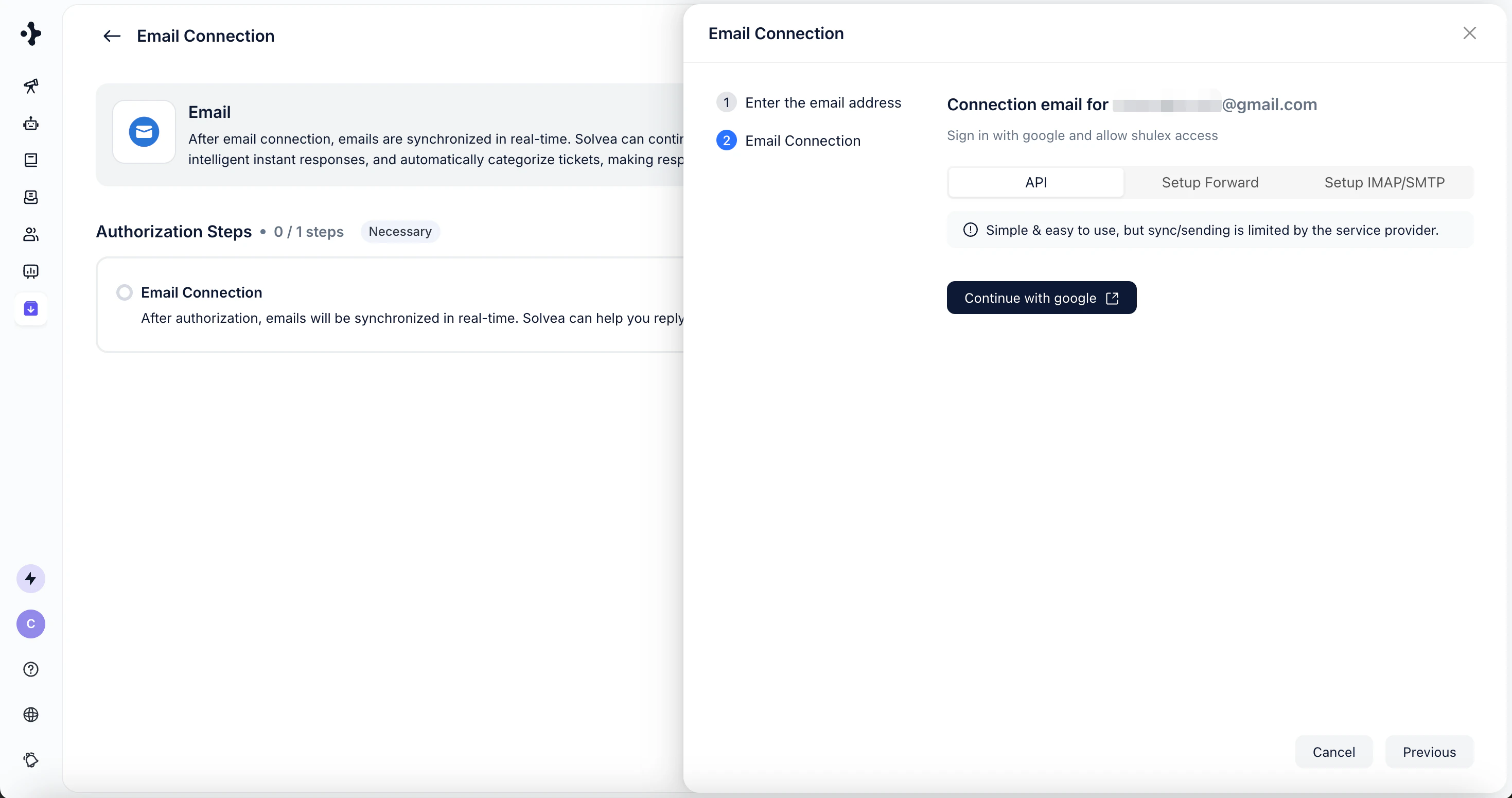 Recommended but not required:
Configure all available authorization methods. \
Solvea will automatically use the most stable method for sending and syncing emails.
## Authorization Methods
Solvea supports **three authorization methods**, each with different characteristics:
| Authorization Method | Advantages | Disadvantages |
| -------------------- | ------------------------------------------------------------------- | ----------------------------------------------------------------- |
| **API** | Simple and fast to set up | Sync and sending speed are limited by the email service provider. |
| **Forwarding** | New emails are synced within minutes for near real-time processing. | Requires manual setup. |
| **IMAP/SMTP** | Highly stable with a 10-minute email sync delay. | Requires manual configuration. |
### **Steps**
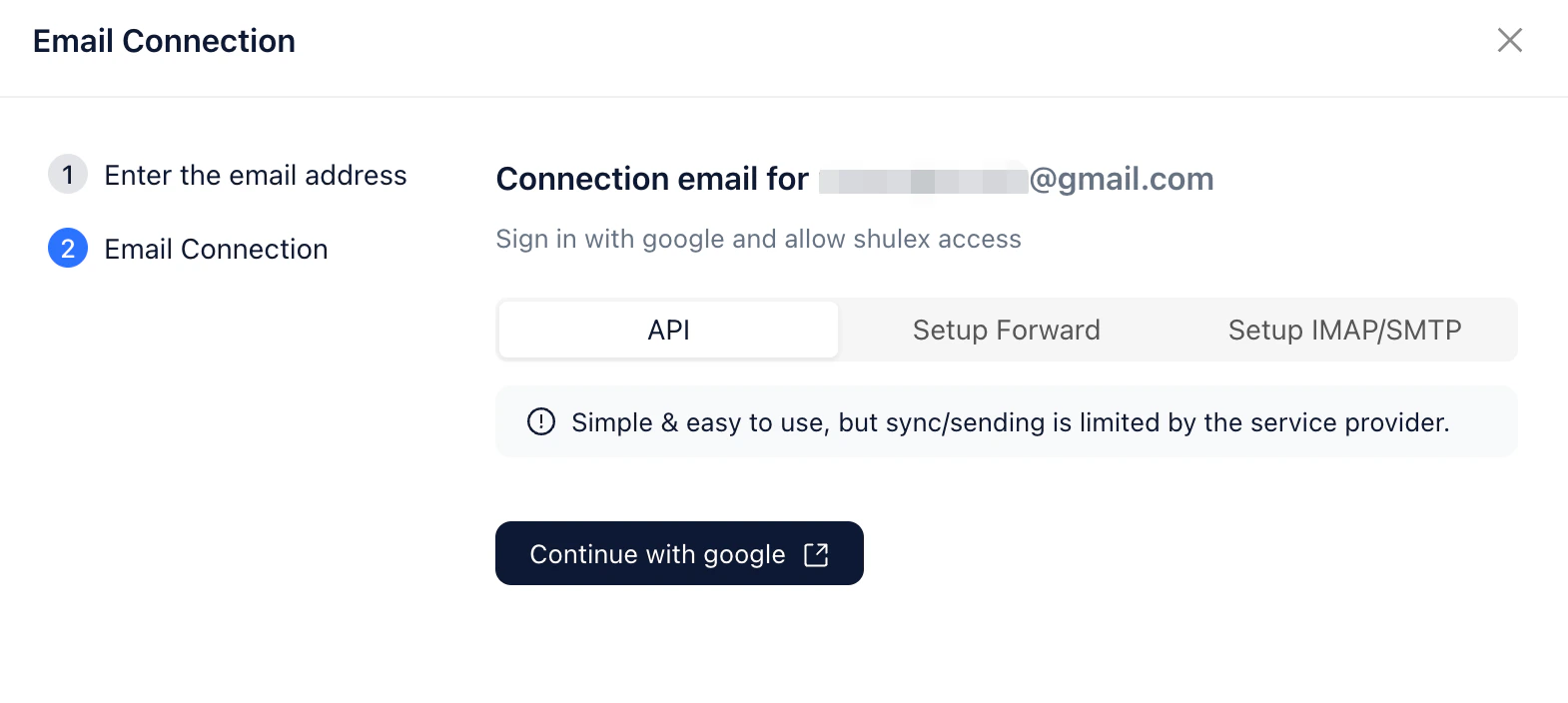
One-click authorization via your email provider.
**Steps:**
1. Click the authorization button.
2. You will be redirected to your email provider.
3. Confirm access to complete the authorization.
Recommended but not required:
Configure all available authorization methods. \
Solvea will automatically use the most stable method for sending and syncing emails.
## Authorization Methods
Solvea supports **three authorization methods**, each with different characteristics:
| Authorization Method | Advantages | Disadvantages |
| -------------------- | ------------------------------------------------------------------- | ----------------------------------------------------------------- |
| **API** | Simple and fast to set up | Sync and sending speed are limited by the email service provider. |
| **Forwarding** | New emails are synced within minutes for near real-time processing. | Requires manual setup. |
| **IMAP/SMTP** | Highly stable with a 10-minute email sync delay. | Requires manual configuration. |
### **Steps**
One-click authorization via your email provider.
**Steps:**
1. Click the authorization button.
2. You will be redirected to your email provider.
3. Confirm access to complete the authorization.
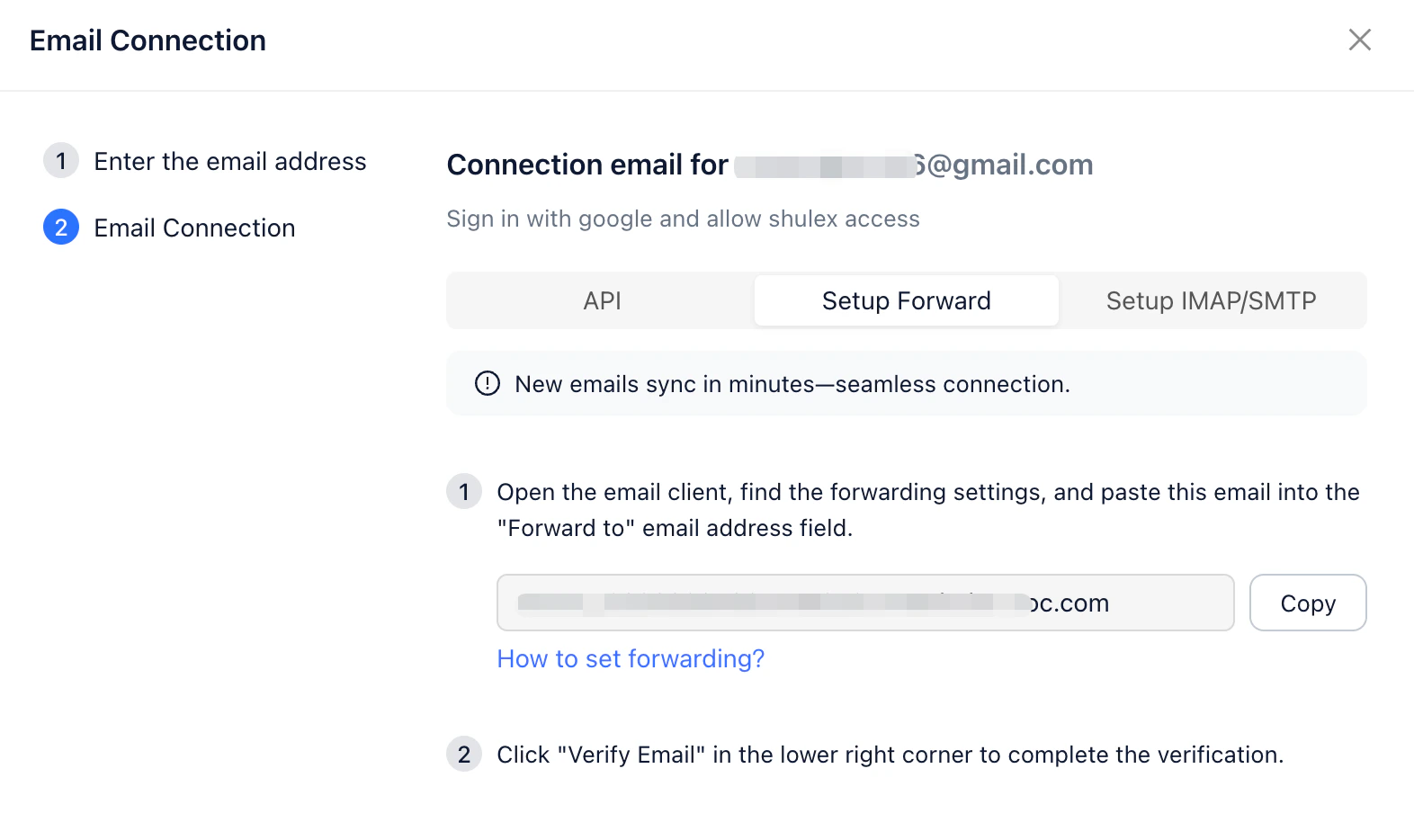
 This method forwards incoming emails to Solvea for processing.
**Steps:**
1. Copy the forwarding email address provided by Solvea.
2. Open your email client and locate the forwarding settings.
3. Paste the copied address into the **“Forward to”** email field.
4. Return to this page and click **Verify** to complete authorization.
This method forwards incoming emails to Solvea for processing.
**Steps:**
1. Copy the forwarding email address provided by Solvea.
2. Open your email client and locate the forwarding settings.
3. Paste the copied address into the **“Forward to”** email field.
4. Return to this page and click **Verify** to complete authorization.
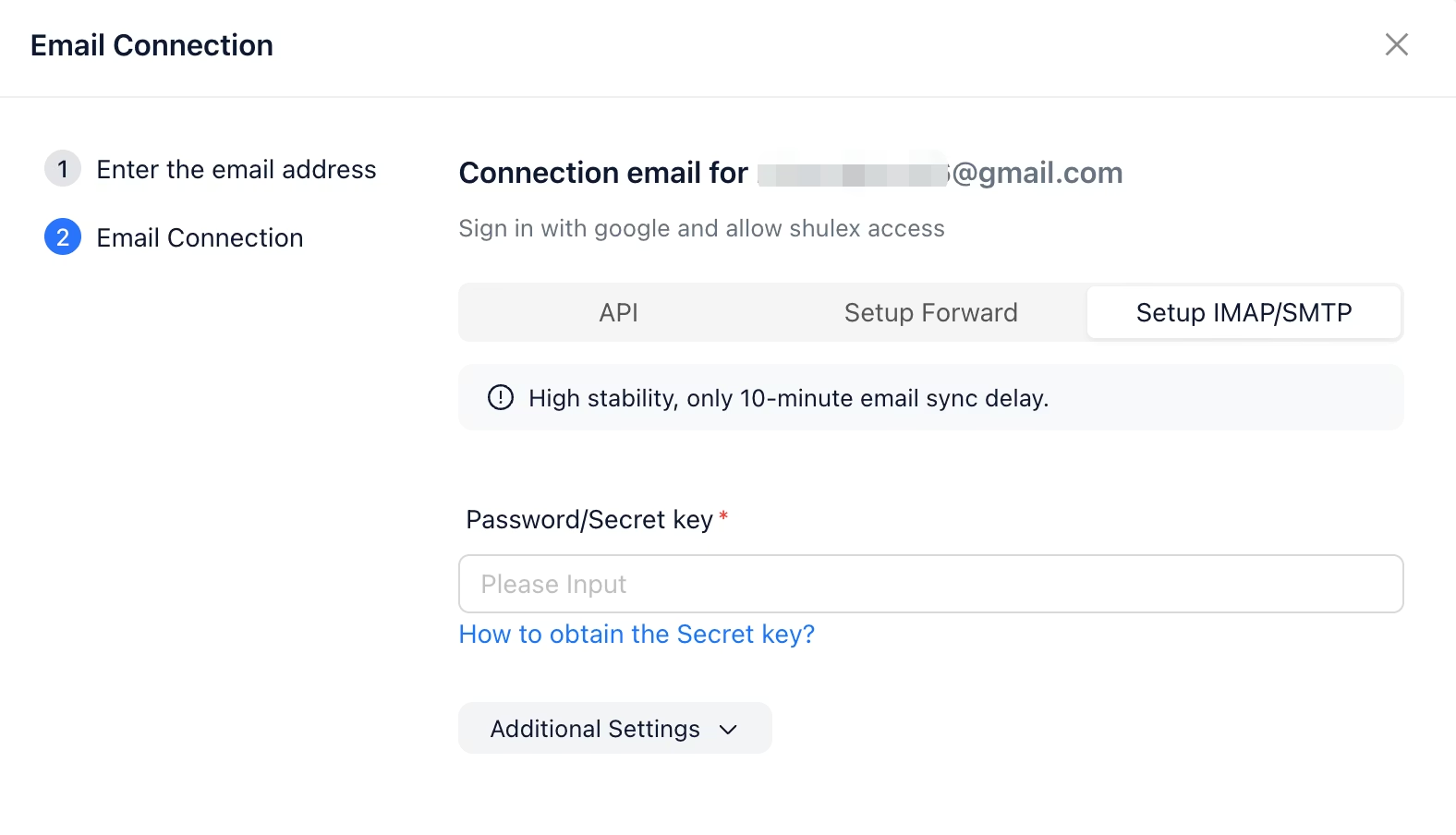
 This method connects Solvea directly to your mailbox.
**Steps:**
1. Enable IMAP/SMTP in your email client.
2. Generate an email authorization code.
3. Return to this page and enter:
* Authorization code
* IMAP/SMTP server configuration
4. Click **Confirm** to complete the authorization.
This method connects Solvea directly to your mailbox.
**Steps:**
1. Enable IMAP/SMTP in your email client.
2. Generate an email authorization code.
3. Return to this page and enter:
* Authorization code
* IMAP/SMTP server configuration
4. Click **Confirm** to complete the authorization.
 📌 Example: [Gmail Authorization](/deploy/email/gmail-authorization)
### Recommended Authorization by Email Provider
**Gmail & Outlook**
* Complete **API Authorization** first.
* Optionally add **Forwarding** or **IMAP/SMTP** authorization as needed.
**Other Email Providers**
* Use **Forwarding** or **IMAP/SMTP** authorization.
📌 Example: [Gmail Authorization](/deploy/email/gmail-authorization)
### Recommended Authorization by Email Provider
**Gmail & Outlook**
* Complete **API Authorization** first.
* Optionally add **Forwarding** or **IMAP/SMTP** authorization as needed.
**Other Email Providers**
* Use **Forwarding** or **IMAP/SMTP** authorization.