> ## Documentation Index
> Fetch the complete documentation index at: https://solvea.cx/docs/llms.txt
> Use this file to discover all available pages before exploring further.
# Contact
> Learn how contact works and how to manage contacts.
The Contacts module helps you store, organize, and manage customer contact information in one place. By centralizing customer data, it enables more consistent communication, better follow-ups, and a lightweight CRM experience.
As Solvea handles customer conversations across channels, contact details are collected automatically. You can also review, manage, and export your customer contacts at any time.
## How Contact Work
Contact Module acts as the bridge between your Agent and your customers.\
When customers interact with your Agent, Solvea continuously builds and updates their contact profiles, allowing the Agent and human operators to respond with better context and accuracy.
### How Customers Are Unified Across Channels
Solvea automatically merges customer records based on identifiers:
* **Phone**: Same incoming phone number is treated as the same contact
* **Livechat**: Same email address or phone number is treated as the same contact
* **Email**: Same email address is treated as the same contact
If contacts from different channels share **the same phone number or email address**, they are automatically merged into a single contact profile.
## Manage Contacts
### **Contact List**
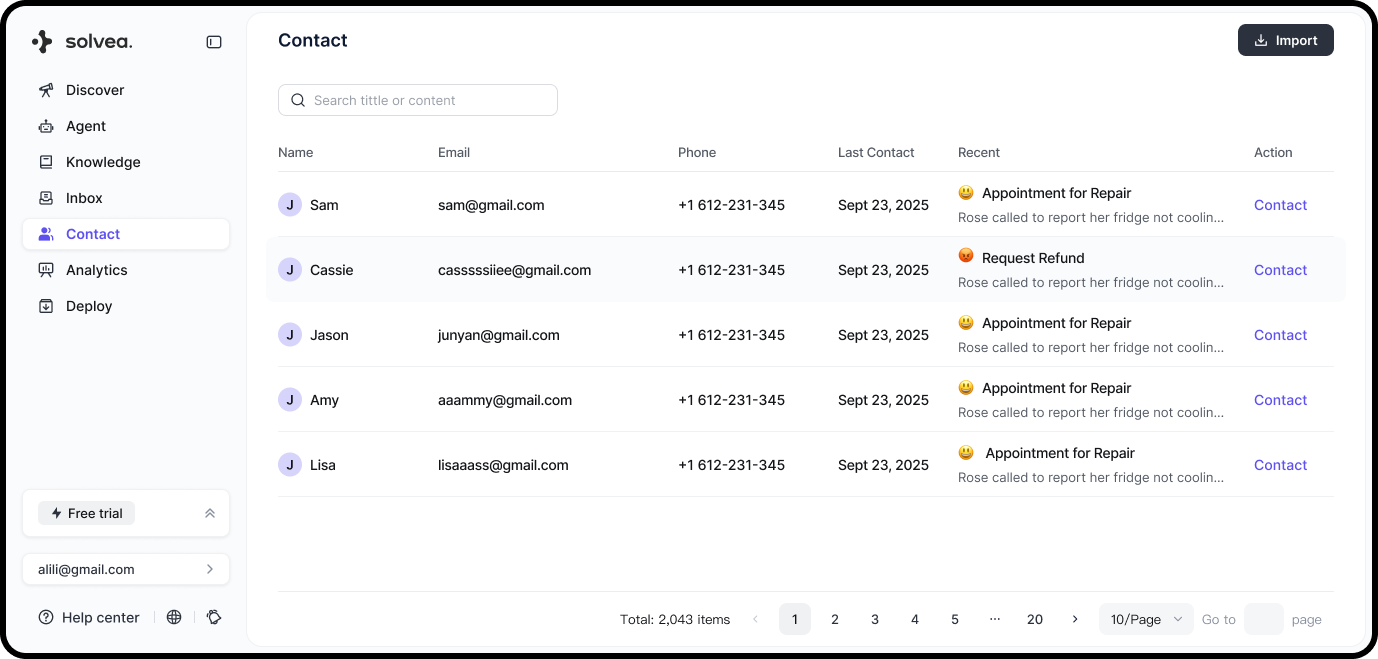
The contact list displays key customer information:
* Name
* Email
* Phone number
* Last contact: Timestamp of the most recent customer message
* Recent demands: A summary of the latest ticket associated with the contact
 ### **Edit Contact Details**
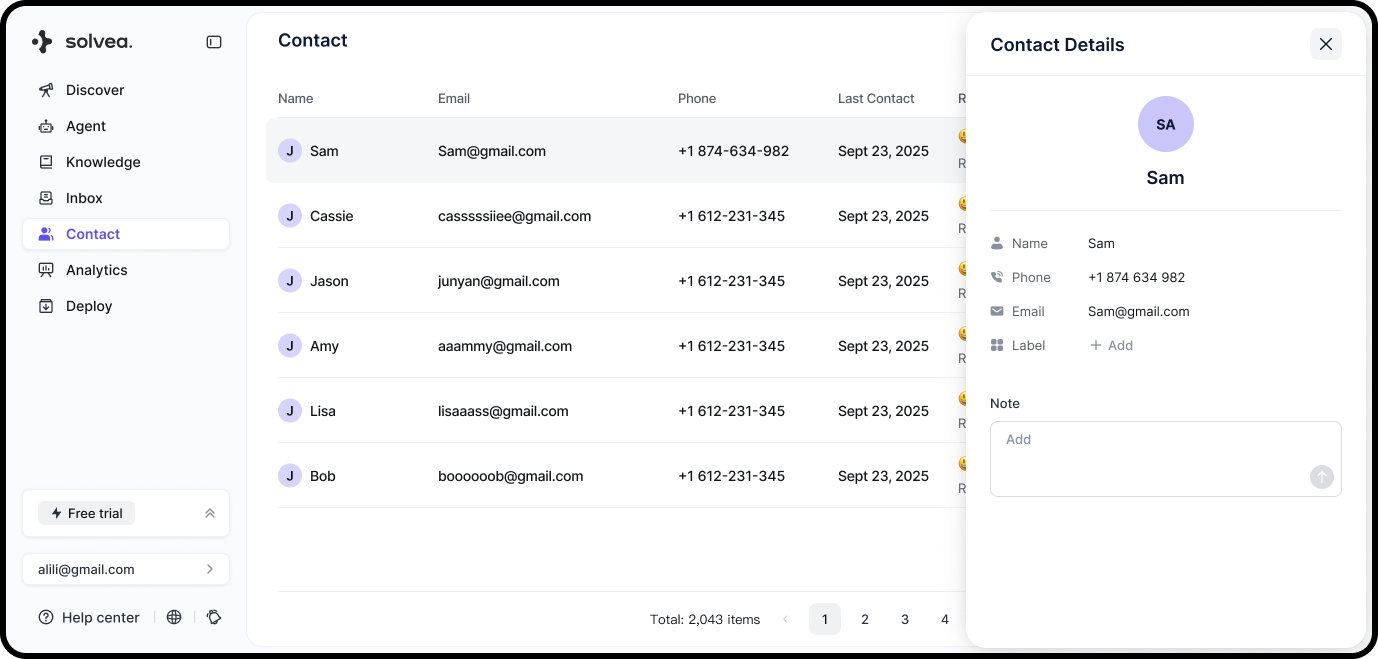
Click a contact card to open the contact profile.
In the profile view, you can edit or add:
* Name
* Email
* Phone number
* Classification (manual tags)
* Notes
### **Edit Contact Details**
Click a contact card to open the contact profile.
In the profile view, you can edit or add:
* Name
* Email
* Phone number
* Classification (manual tags)
* Notes
 ### **Search Contacts**
You can search contacts by:
* Name
* Email
* Phone number
## Contact Customers
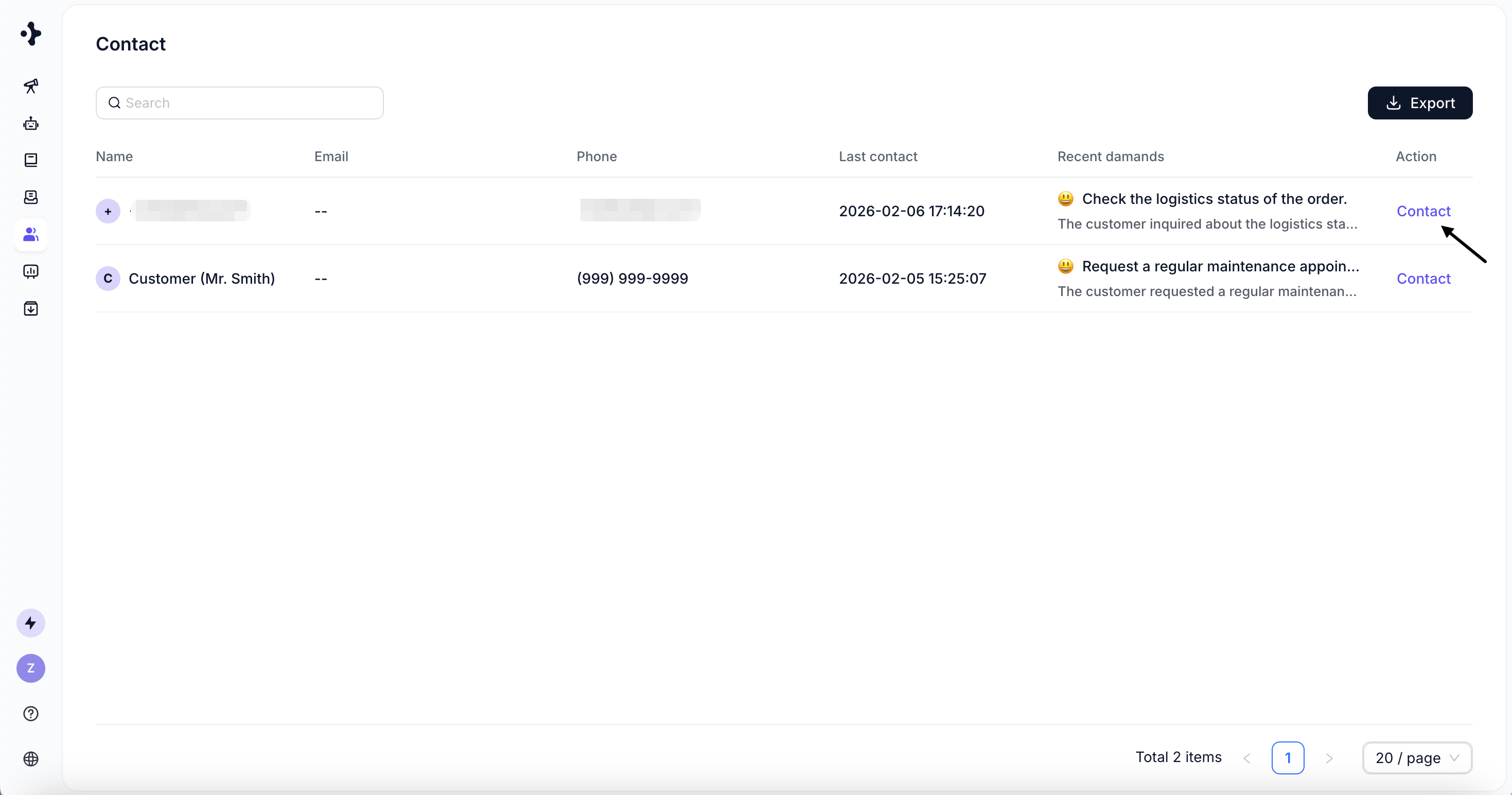
You can quickly reach out to a customer directly from the Contacts module:
Click **Contact**.
### **Search Contacts**
You can search contacts by:
* Name
* Email
* Phone number
## Contact Customers
You can quickly reach out to a customer directly from the Contacts module:
Click **Contact**.
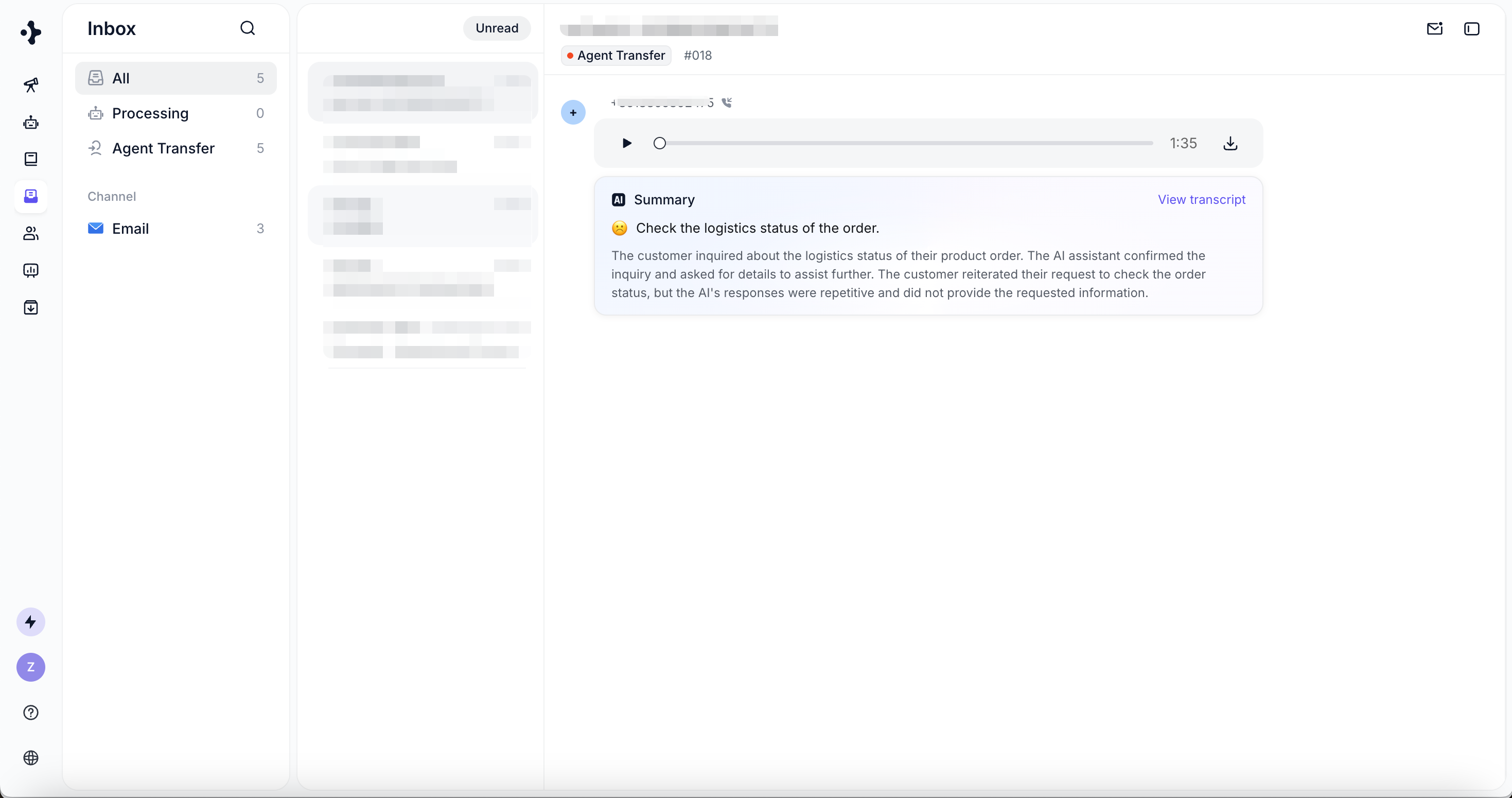
 Jump to **Inbox** with the customer’s most recent ticket opened.
 Choose an available channel to continue the conversation.
## Export Contacts
You can export up to **5,000 contacts** at a time.
The exported file includes:
| Name | Email | Phone Number | Classification | Address | Notes | Most Recent Contact | Recent Demands |
| ---- | ----- | ------------ | -------------- | ------- | ----- | ------------------- | -------------- |
This makes it easy to back up customer data or use it in external CRM and analytics tools.
Choose an available channel to continue the conversation.
## Export Contacts
You can export up to **5,000 contacts** at a time.
The exported file includes:
| Name | Email | Phone Number | Classification | Address | Notes | Most Recent Contact | Recent Demands |
| ---- | ----- | ------------ | -------------- | ------- | ----- | ------------------- | -------------- |
This makes it easy to back up customer data or use it in external CRM and analytics tools.