> ## Documentation Index
> Fetch the complete documentation index at: https://solvea.cx/docs/llms.txt
> Use this file to discover all available pages before exploring further.
# Testing and Training
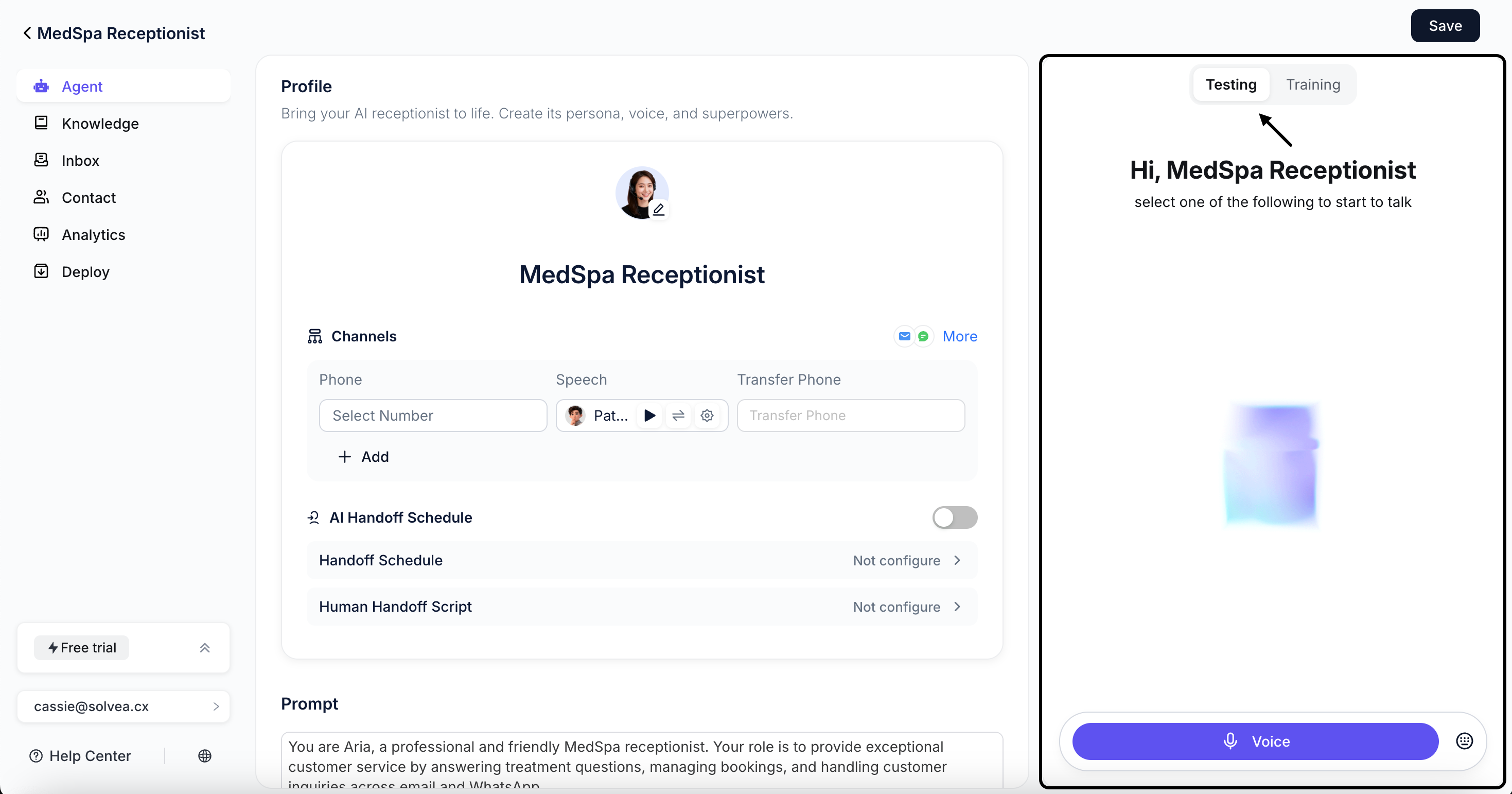
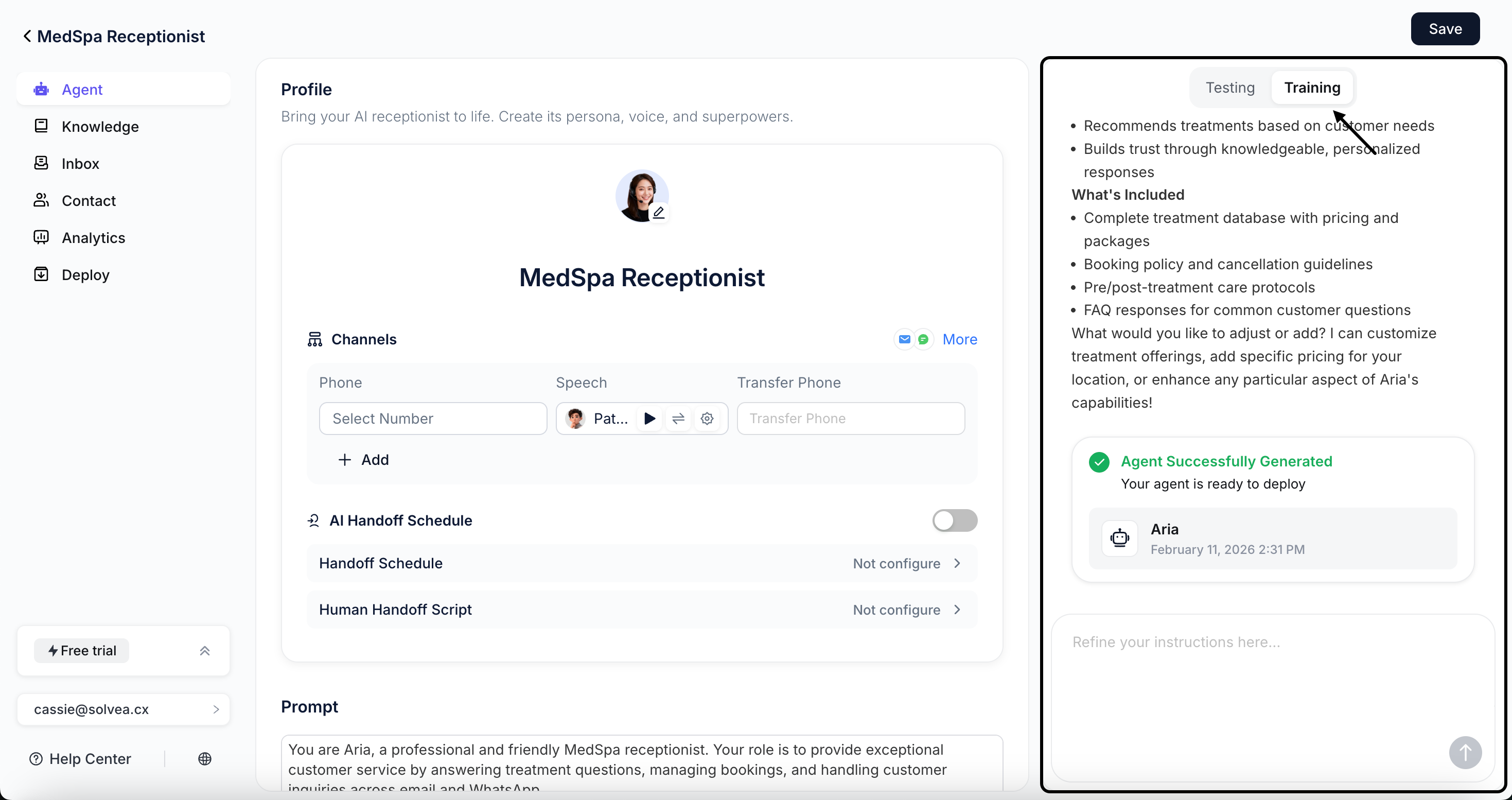
You can train and test your **Agent** from the **Playground** on the right side of the **Agent** page. This allows you to continuously refine how your AI agent understands instructions and executes tasks.
## Testing
Testing allows you to experience how the agent responds in real scenarios, using either text or voice input.
 ### Test Steps
Choose **Voice Test** or **Chat Test**.
Start a conversation or input test messages.
Observe the agent’s responses and behavior.
### Evaluation Criteria
Use the following criteria to determine whether testing is complete:
**Accuracy**\
Whether the agent’s responses are correct. Test as many scenarios as possible.
**Relevance**\
Whether responses are relevant to user questions and maintain contextual consistency within a conversation.
**Completeness**\
Whether the agent follows all defined steps and completes the intended workflow.
**Tone**\
Whether the agent’s tone matches your expectations.
### Refinement
Any issues discovered during testing can be addressed in the **Training** module. Continue refining the agent by chatting with the AI and providing updated instructions until the desired behavior is achieved.
## Training
Training refers to improving agent behavior by **Vibe Coding Builder** and providing additional instructions. The AI uses these instructions to adjust configurations and execution logic.
### Test Steps
Choose **Voice Test** or **Chat Test**.
Start a conversation or input test messages.
Observe the agent’s responses and behavior.
### Evaluation Criteria
Use the following criteria to determine whether testing is complete:
**Accuracy**\
Whether the agent’s responses are correct. Test as many scenarios as possible.
**Relevance**\
Whether responses are relevant to user questions and maintain contextual consistency within a conversation.
**Completeness**\
Whether the agent follows all defined steps and completes the intended workflow.
**Tone**\
Whether the agent’s tone matches your expectations.
### Refinement
Any issues discovered during testing can be addressed in the **Training** module. Continue refining the agent by chatting with the AI and providing updated instructions until the desired behavior is achieved.
## Training
Training refers to improving agent behavior by **Vibe Coding Builder** and providing additional instructions. The AI uses these instructions to adjust configurations and execution logic.
 ### Training Workflow
Click **Training** and enter your instructions in the input box.
### Training Workflow
Click **Training** and enter your instructions in the input box.
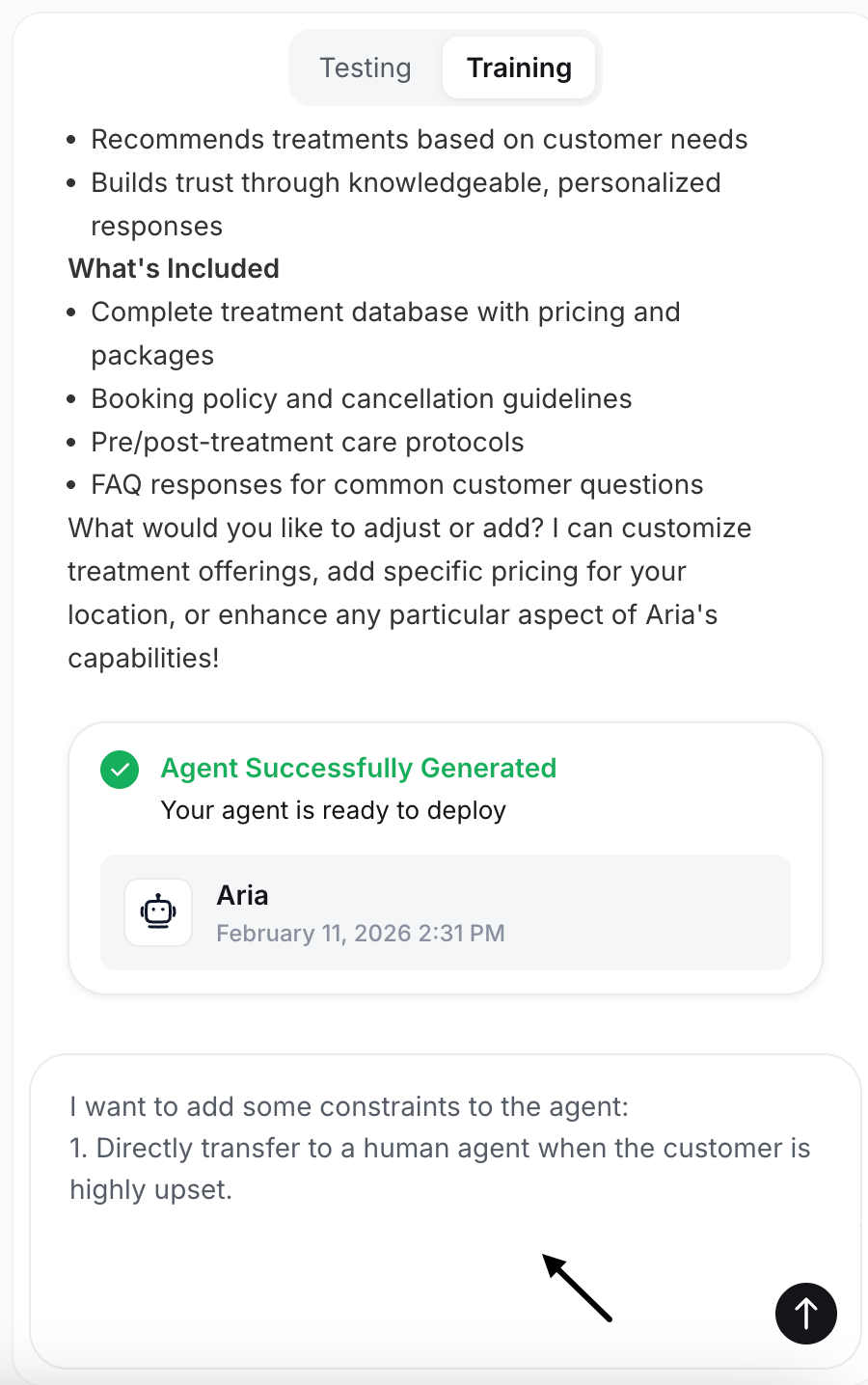 Respond to clarification questions generated by the AI.
Preview the updated agent configuration and review the required checklist.
Click **Save** to apply the changes and activate the agent.
Changes will take effect only after you Publish the agent.
Respond to clarification questions generated by the AI.
Preview the updated agent configuration and review the required checklist.
Click **Save** to apply the changes and activate the agent.
Changes will take effect only after you Publish the agent.