> ## Documentation Index
> Fetch the complete documentation index at: https://solvea.cx/docs/llms.txt
> Use this file to discover all available pages before exploring further.
# Activate PC Web
## Activation Overview
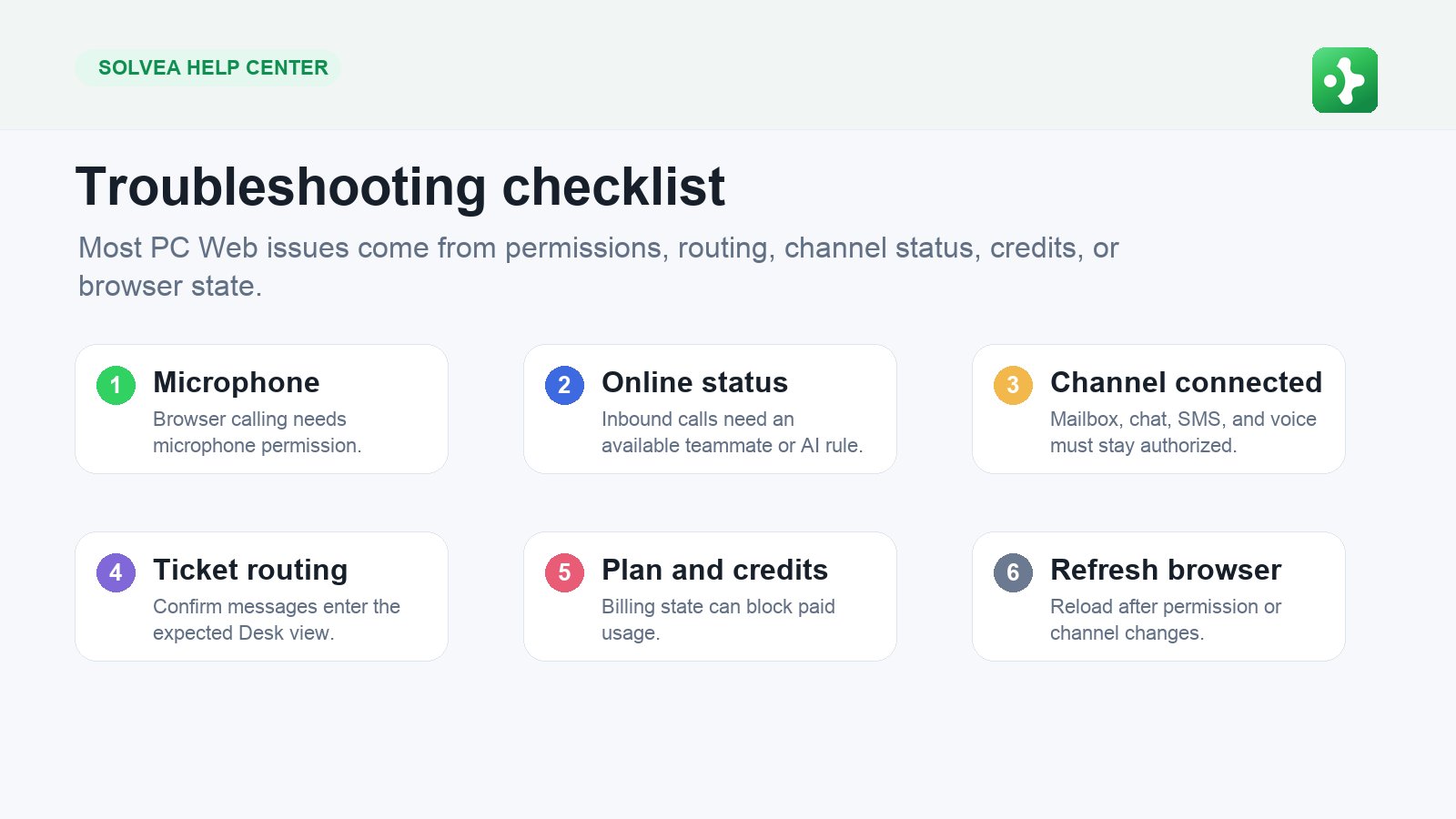 PC Web activation starts with account and phone setup, then adds channels, teammates, billing, and operating ownership.
Activation is complete when the workspace can receive customer conversations and your team knows where to work them.
### Step 1: Sign Up or Log In
Create an account or log in with the same account used on the mobile app. If your company already has a workspace, ask for an invitation instead of creating a duplicate workspace.
### Step 2: Complete Voice Onboarding
Choose a business number, pick an AI voice, and test the AI with WebCall. This gives your workspace a working voice identity before you connect other channels.
### Step 3: Connect Customer Channels
Connect only the channels your team is ready to operate:
* Phone and SMS for voice-first teams.
* Email for support mailboxes.
* Live Chat for website visitors.
Test each channel before announcing it to customers.
### Step 4: Invite Teammates
Add teammates after the core channels work. Each teammate should know which Desk views to watch, when to go online for calls, and when to leave internal notes.
### Step 5: Check Billing and Usage
Review seats, numbers, subscription state, and credits. Use the Billing page as the source of truth for current plan and price details.
PC Web activation starts with account and phone setup, then adds channels, teammates, billing, and operating ownership.
Activation is complete when the workspace can receive customer conversations and your team knows where to work them.
### Step 1: Sign Up or Log In
Create an account or log in with the same account used on the mobile app. If your company already has a workspace, ask for an invitation instead of creating a duplicate workspace.
### Step 2: Complete Voice Onboarding
Choose a business number, pick an AI voice, and test the AI with WebCall. This gives your workspace a working voice identity before you connect other channels.
### Step 3: Connect Customer Channels
Connect only the channels your team is ready to operate:
* Phone and SMS for voice-first teams.
* Email for support mailboxes.
* Live Chat for website visitors.
Test each channel before announcing it to customers.
### Step 4: Invite Teammates
Add teammates after the core channels work. Each teammate should know which Desk views to watch, when to go online for calls, and when to leave internal notes.
### Step 5: Check Billing and Usage
Review seats, numbers, subscription state, and credits. Use the Billing page as the source of truth for current plan and price details.