> ## Documentation Index
> Fetch the complete documentation index at: https://solvea.cx/docs/llms.txt
> Use this file to discover all available pages before exploring further.
# API Keys
> Generate and use a Solvea API key to call the Solvea OpenAPI from your own backend or integrations.
API keys let your backend, scripts, or third-party tools call the Solvea OpenAPI on behalf of your workspace. Each key is bound to the workspace that created it, so every request is automatically scoped — no extra tenant header required.
An API key carries the same access as your workspace. Treat it like a password — never commit it to a public repository, paste it into a chat, or ship it in client-side code.
## Generate an API key
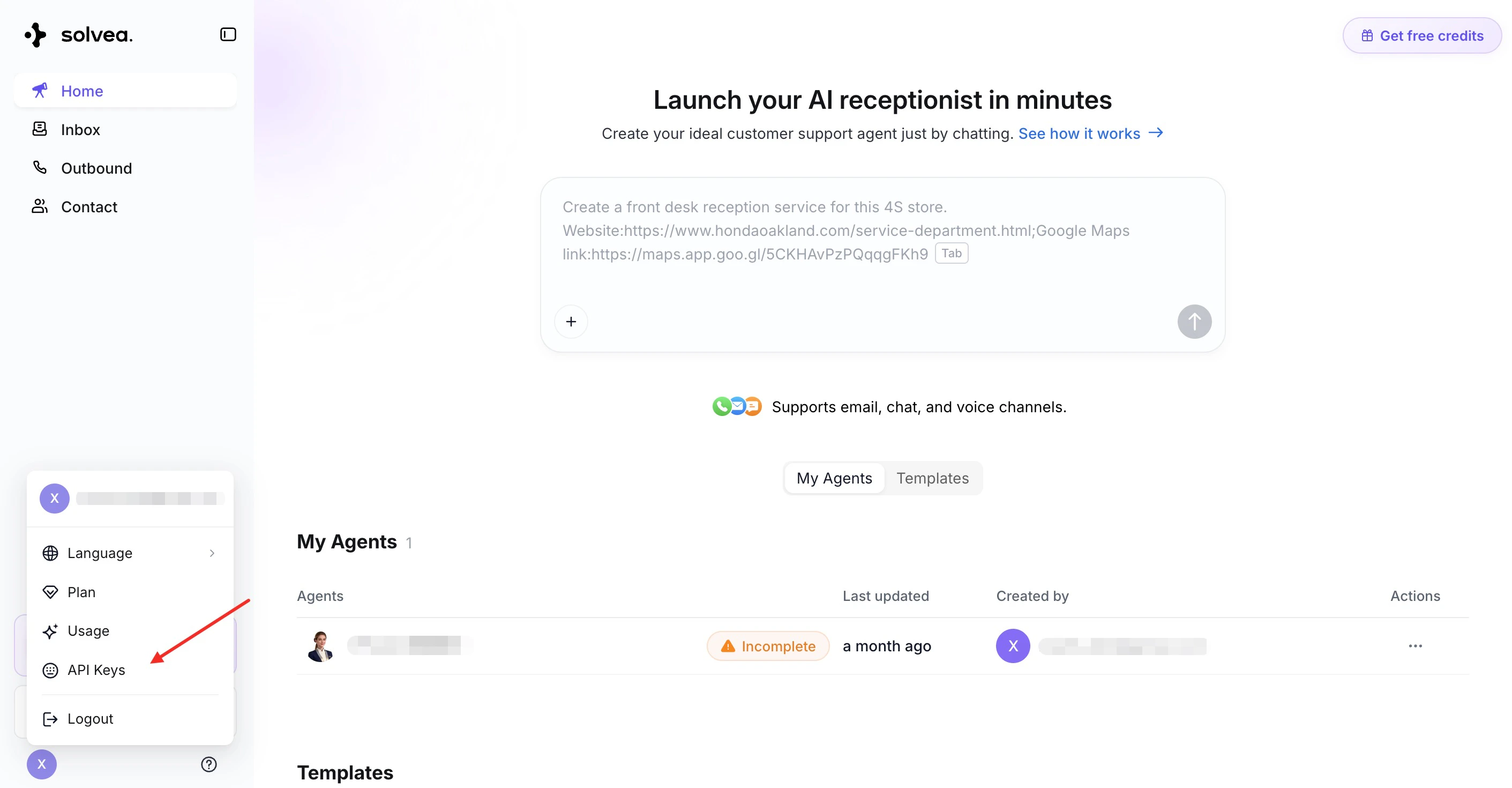
1. Open the Solvea dashboard at [app.solvea.cx](https://app.solvea.cx).
2. In the sidebar, go to **API Keys**.
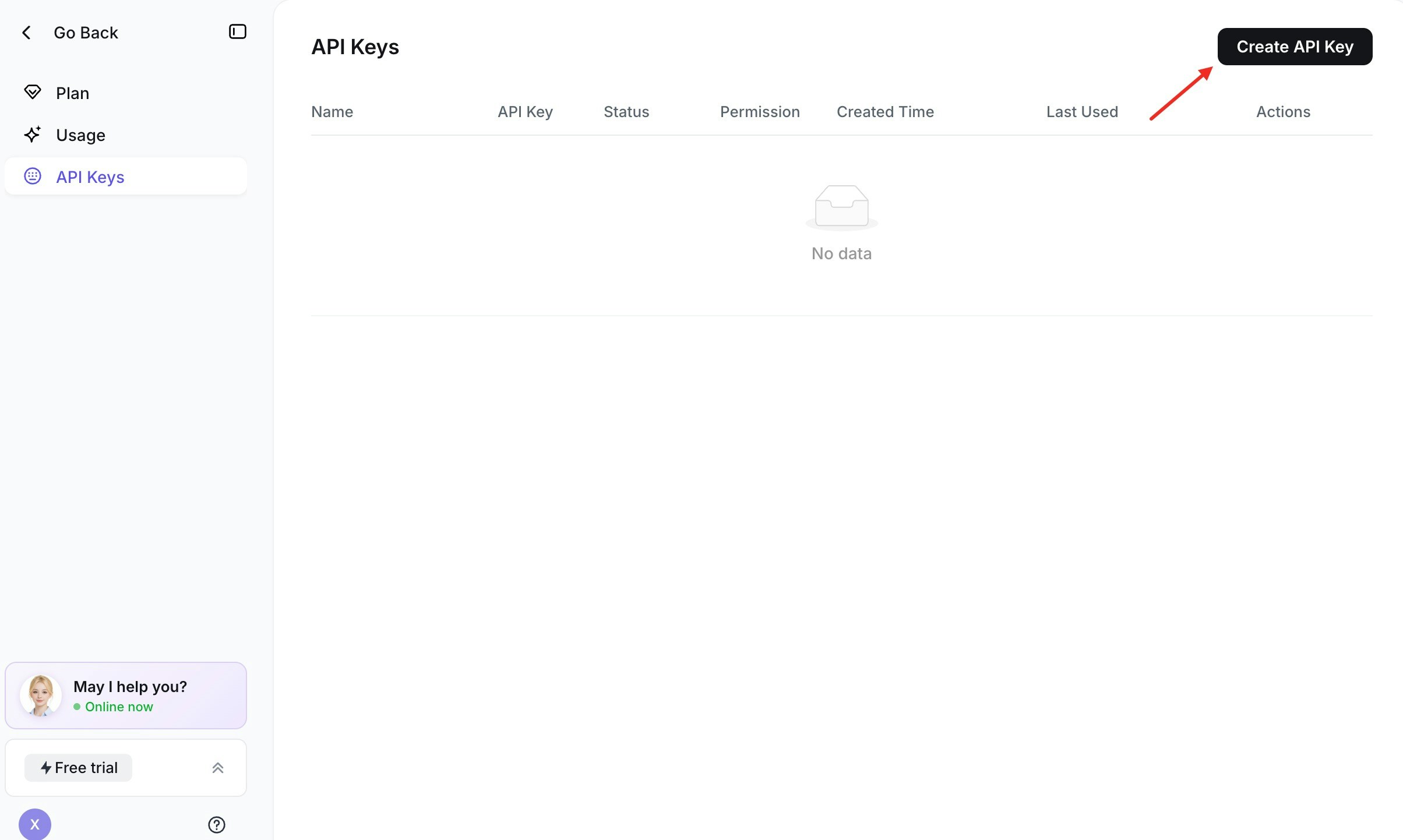
 3. Click **Generate API Key**.
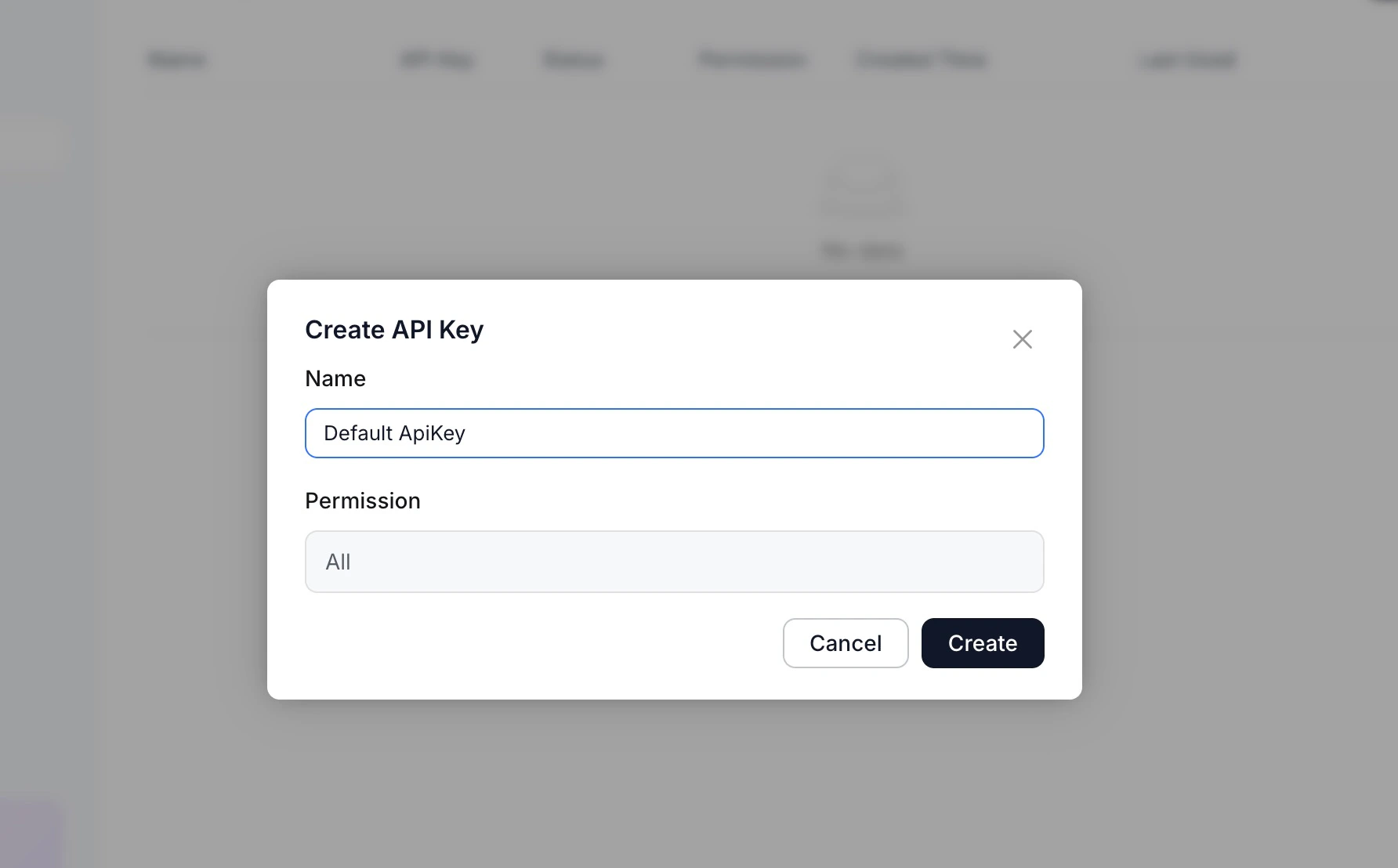
 4. Confirm in the dialog that appears.
 5. Click the copy button on the right of the key to copy it to your clipboard, then use it in your application.
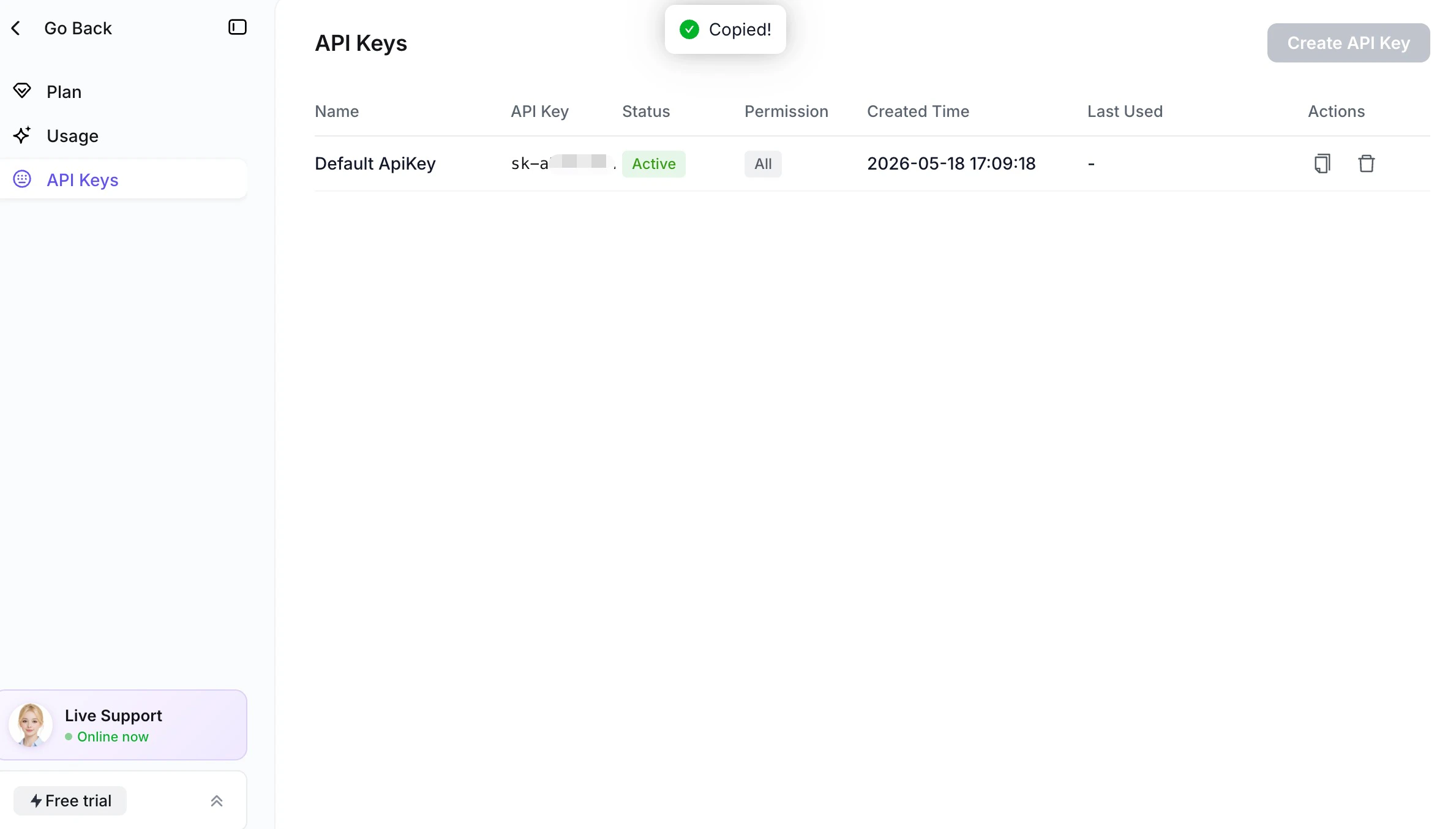 Each workspace can have only one API key at a time. To issue a new key, delete the existing one first (see [Rotate or delete a key](#rotate-or-delete-a-key)).
### Key format
A Solvea API key starts with the `sk-` prefix followed by a random hex string. The `sk-` prefix makes the key easy to spot in logs and lets secret-scanning tools (GitHub, gitleaks, etc.) catch accidental commits.
## Use the API key
Every OpenAPI request needs a single header:
| Header | Value | Purpose |
| --------------- | ------------- | ------------------------------------------------------------------- |
| `Authorization` | `Bearer sk-…` | Authenticates the calling application and identifies your workspace |
### Base URL
The Solvea OpenAPI is served from `https://app.solvea.cx`. All endpoints live under the `/api_v2/...` path prefix.
### Example request
A quick way to verify your key works is to list the phone numbers available to your workspace:
```bash theme={null}
curl https://app.solvea.cx/api_v2/gpt/api/voice/phone-number/business/available \
-H "Authorization: Bearer $SOLVEA_API_KEY"
```
```javascript Node.js theme={null}
const res = await fetch(
"https://app.solvea.cx/api_v2/gpt/api/voice/phone-number/business/available",
{
headers: {
Authorization: `Bearer ${process.env.SOLVEA_API_KEY}`,
},
},
);
```
```python Python theme={null}
import os, requests
requests.get(
"https://app.solvea.cx/api_v2/gpt/api/voice/phone-number/business/available",
headers={
"Authorization": f"Bearer {os.environ['SOLVEA_API_KEY']}",
},
)
```
A `200` response with a JSON body confirms the key is wired up correctly.
## Rotate or delete a key
To rotate a key (for example, after a suspected leak or when an employee leaves):
1. Go to **API Keys** in the dashboard.
2. Click the **delete** (trash) icon next to your existing key and confirm.
3. Click **Generate API Key** to create a new one, and update the secret in every system that uses it.
Deletion takes effect immediately. Any service still using the old key will start receiving `401 Unauthorized` as soon as the key is removed, so update your secrets first or schedule a brief maintenance window.
## Error reference
Common responses you may see from the OpenAPI:
| HTTP | Meaning | What to check |
| ----- | ------------------------------------------------------------------------------- | ---------------------------------------------------------------------------------------------------- |
| `401` | Missing or invalid `Authorization` header, or the key has been deleted/disabled | Verify the `Bearer sk-…` value matches the key shown in the dashboard. Generate a new one if needed. |
| `403` | The key is valid but the workspace isn't allowed to access this resource | Check the resource belongs to the workspace that owns this key. |
| `422` | The request was authenticated but failed validation | Read the response `message` field for the specific reason. |
## Security checklist
* Store keys in a secret manager, never in source control.
* Use a separate key per integration or environment.
* Rotate keys on a regular cadence and immediately if a leak is suspected.
* Restrict access to the **API Keys** page to people who need it.
* Watch your logs for the `sk-` prefix to catch accidental exposure.
Each workspace can have only one API key at a time. To issue a new key, delete the existing one first (see [Rotate or delete a key](#rotate-or-delete-a-key)).
### Key format
A Solvea API key starts with the `sk-` prefix followed by a random hex string. The `sk-` prefix makes the key easy to spot in logs and lets secret-scanning tools (GitHub, gitleaks, etc.) catch accidental commits.
## Use the API key
Every OpenAPI request needs a single header:
| Header | Value | Purpose |
| --------------- | ------------- | ------------------------------------------------------------------- |
| `Authorization` | `Bearer sk-…` | Authenticates the calling application and identifies your workspace |
### Base URL
The Solvea OpenAPI is served from `https://app.solvea.cx`. All endpoints live under the `/api_v2/...` path prefix.
### Example request
A quick way to verify your key works is to list the phone numbers available to your workspace:
```bash theme={null}
curl https://app.solvea.cx/api_v2/gpt/api/voice/phone-number/business/available \
-H "Authorization: Bearer $SOLVEA_API_KEY"
```
```javascript Node.js theme={null}
const res = await fetch(
"https://app.solvea.cx/api_v2/gpt/api/voice/phone-number/business/available",
{
headers: {
Authorization: `Bearer ${process.env.SOLVEA_API_KEY}`,
},
},
);
```
```python Python theme={null}
import os, requests
requests.get(
"https://app.solvea.cx/api_v2/gpt/api/voice/phone-number/business/available",
headers={
"Authorization": f"Bearer {os.environ['SOLVEA_API_KEY']}",
},
)
```
A `200` response with a JSON body confirms the key is wired up correctly.
## Rotate or delete a key
To rotate a key (for example, after a suspected leak or when an employee leaves):
1. Go to **API Keys** in the dashboard.
2. Click the **delete** (trash) icon next to your existing key and confirm.
3. Click **Generate API Key** to create a new one, and update the secret in every system that uses it.
Deletion takes effect immediately. Any service still using the old key will start receiving `401 Unauthorized` as soon as the key is removed, so update your secrets first or schedule a brief maintenance window.
## Error reference
Common responses you may see from the OpenAPI:
| HTTP | Meaning | What to check |
| ----- | ------------------------------------------------------------------------------- | ---------------------------------------------------------------------------------------------------- |
| `401` | Missing or invalid `Authorization` header, or the key has been deleted/disabled | Verify the `Bearer sk-…` value matches the key shown in the dashboard. Generate a new one if needed. |
| `403` | The key is valid but the workspace isn't allowed to access this resource | Check the resource belongs to the workspace that owns this key. |
| `422` | The request was authenticated but failed validation | Read the response `message` field for the specific reason. |
## Security checklist
* Store keys in a secret manager, never in source control.
* Use a separate key per integration or environment.
* Rotate keys on a regular cadence and immediately if a leak is suspected.
* Restrict access to the **API Keys** page to people who need it.
* Watch your logs for the `sk-` prefix to catch accidental exposure.